Introduction
This document provides step-by-step instructions for enrolling a badge credential through the Oloid User Portal. Once enrolled, the badge credential can be used for badge-based authentication.Prerequisites
- You have the login URL provided to access the User portal.
- Your Employee ID or Email ID must be registered in the system.
- Ensure You have a valid Badge and Badge Reader.
Steps to Enroll Badge
- Log in to the Oloid User Portal.
-
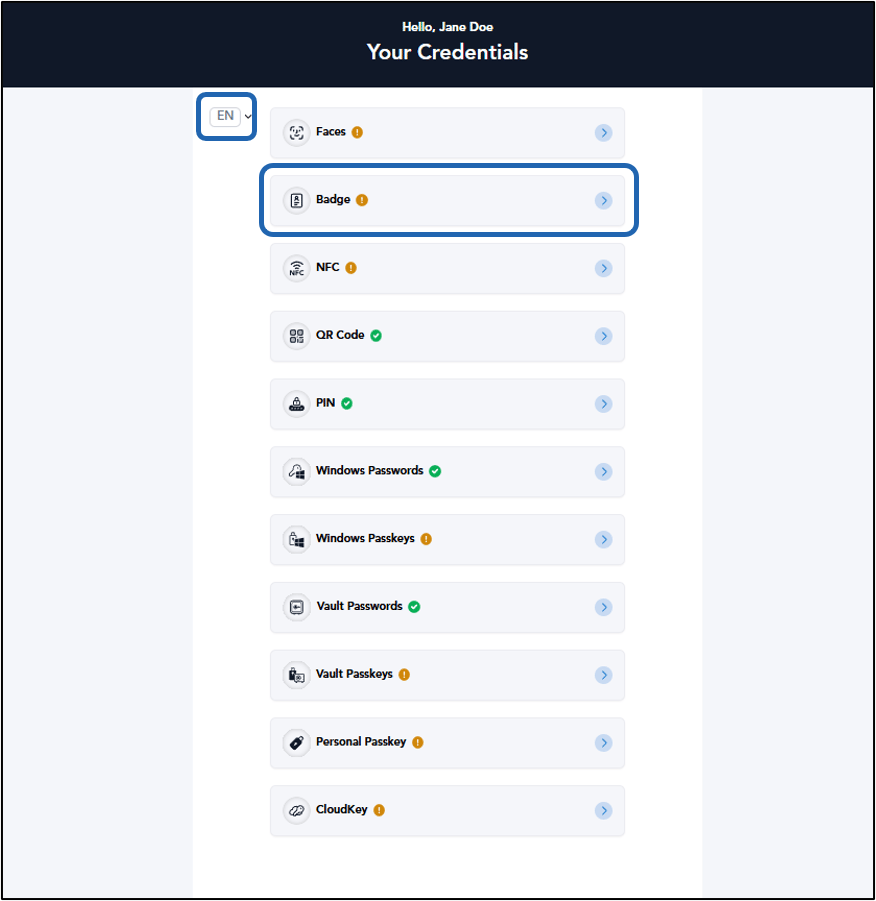
On the credential page of the Oloid User Portal, select Badge.
Note: If configured in the Tenant Admin Portal,You can select preferred display language from the Language Dropdown Selector.
-
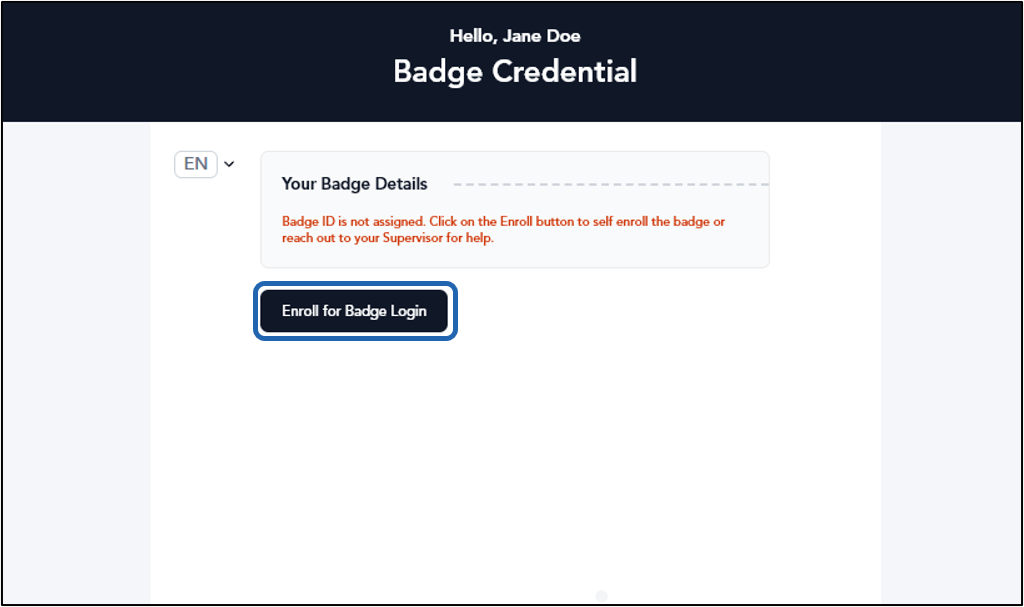
Select Enroll for Badge Login.
-
Click Okay.
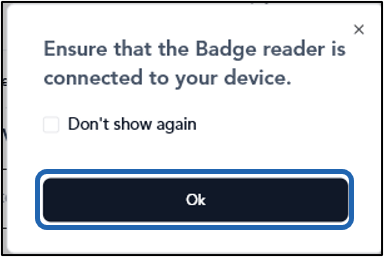
-
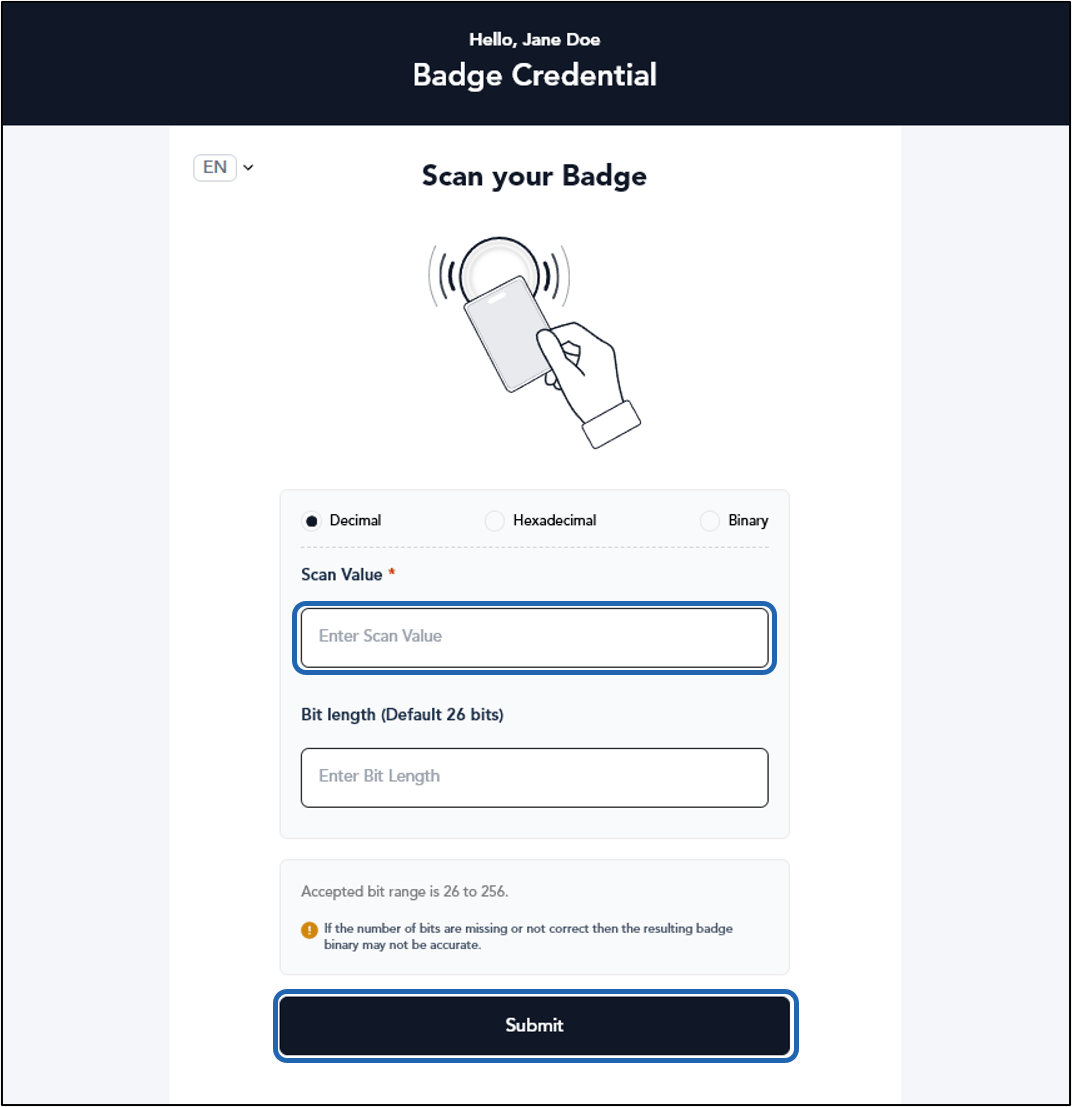
Do any one of the following:
- Enter the badge card number. (OR)
-
Click on the Scan or Type Data textbox area. Tap the Badge on the Badge Reader to scan it.
Note: If you do not click on the Scan or Type Data textbox area, you will not see the data in the text field.
-
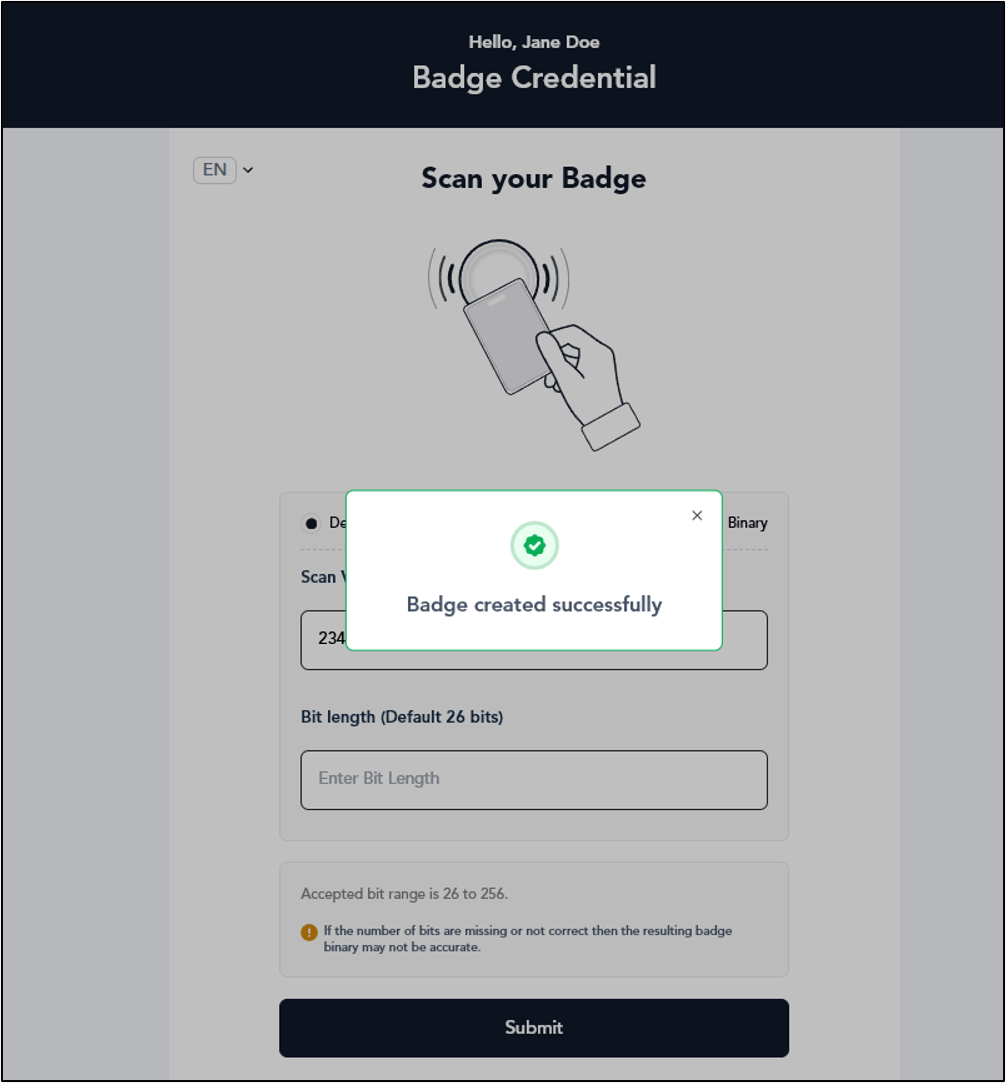
Click Submit.