Introduction
This document provides step-by-step instructions to create a PIN in the Oloid User Portal using an invite link.Note: The admin sends an email with an invite link. The link directs the user to the Oloid User Portal where the PIN can be create.
Prerequisite
- A valid invite link to Set PIN must be available in the user’s mailbox.
Steps to set PIN using invite link
-
Click on the invite set PIN link.
 Note: You can select preferred display language from the Language Dropdown Selector. For more information, refer Additional information section.
 -
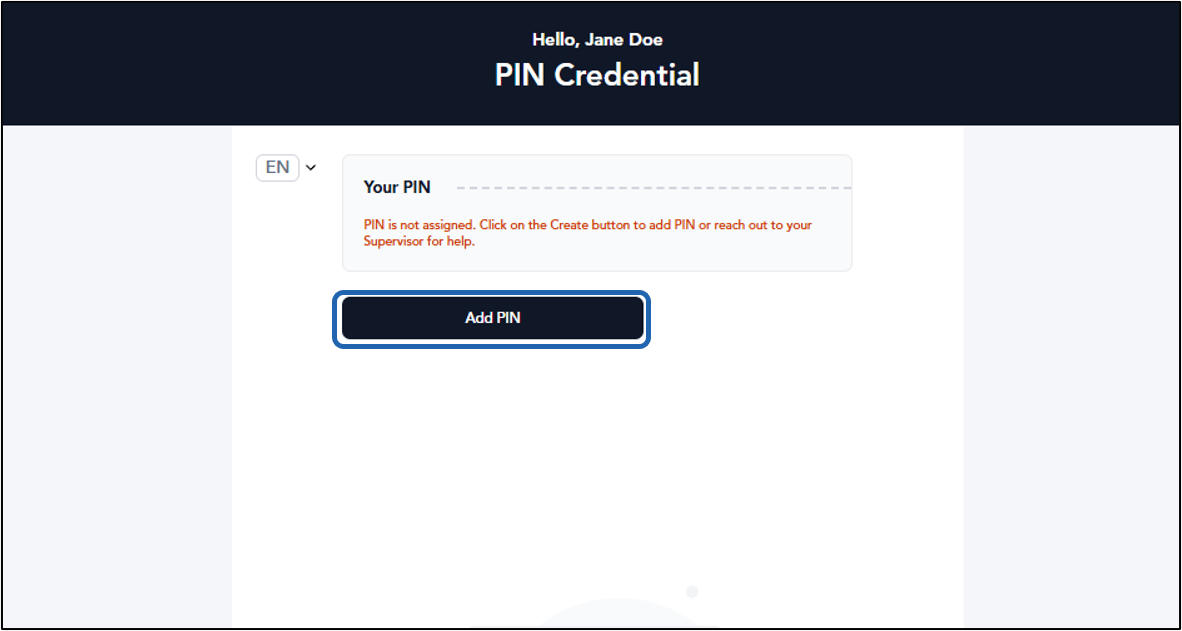
Click Add PIN.
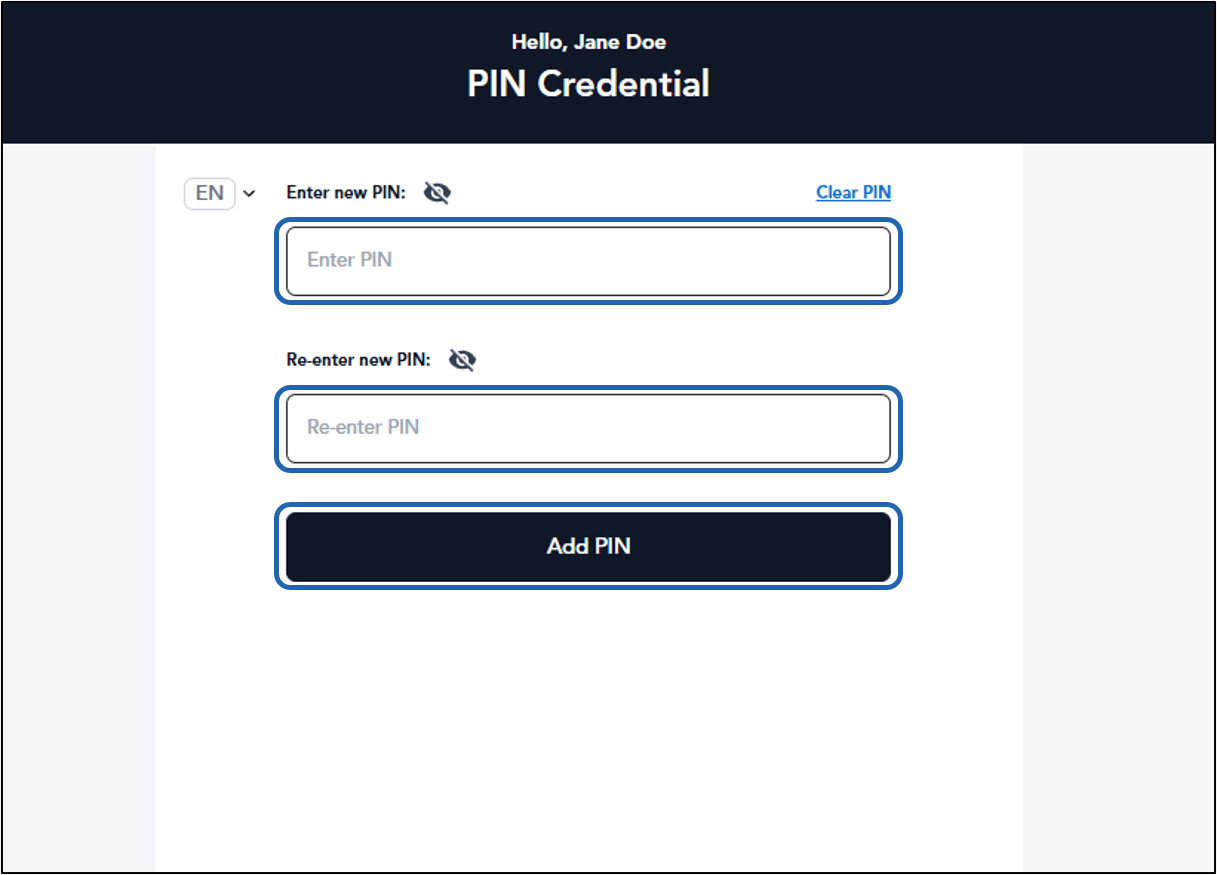
- Enter new PIN.
- Re-enter new PIN.
-
Click Create.
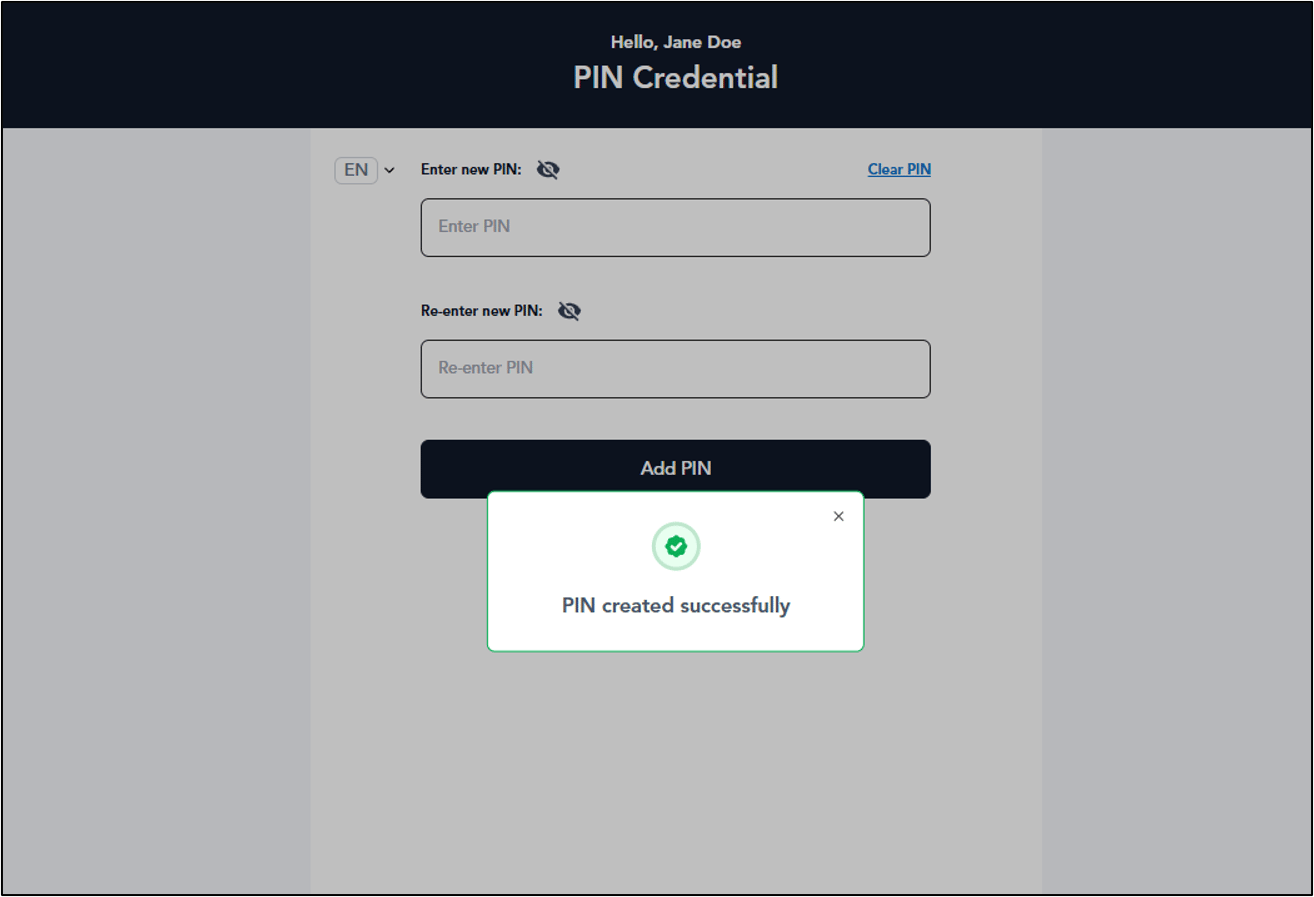
The PIN is created successfully.
Additional Information
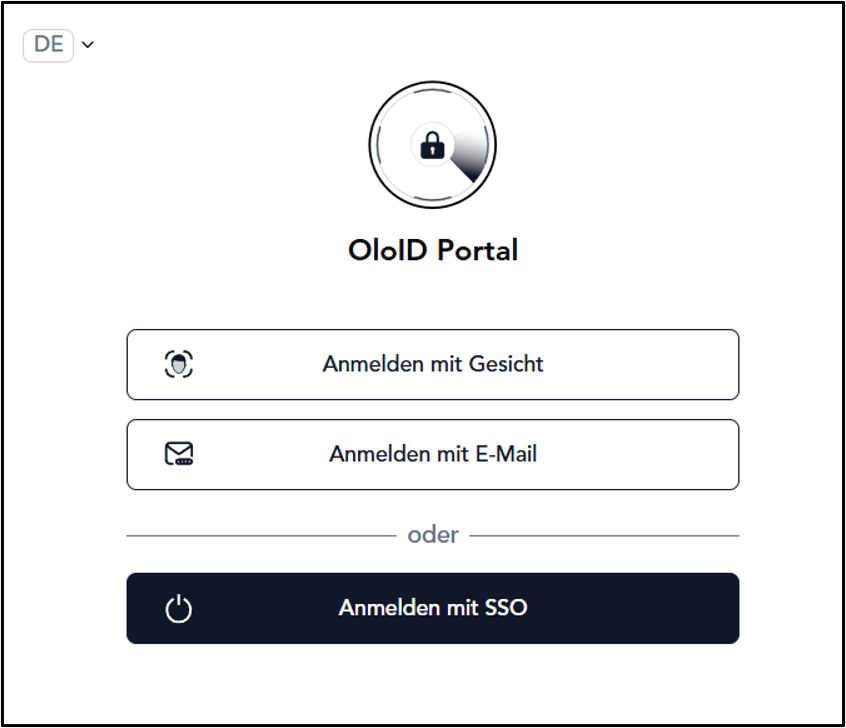
Oloid User Portal supports multiple language versions, allowing users to select their preferred display language from the Language Dropdown Selector on the Login screen.Note: Languages supported: English, Spanish, French, German, and Portuguese language.