

Introduction
The Windows Login App provides secure, passwordless access to your Windows machine, making it easy to log in without the need for traditional passwords.Prerequisites
- You have local administrator access on the Windows machine.
- Check System Requirements. For more information, refer: Windows Login Version 2 - Hardware and Software Requirements
- The installer file must be downloaded. For more details, see: Windows Login v 2.0 - How to download Windows Login v 2.0 installer file from Tenant Admin Portal
Steps to Install Windows Login App
-
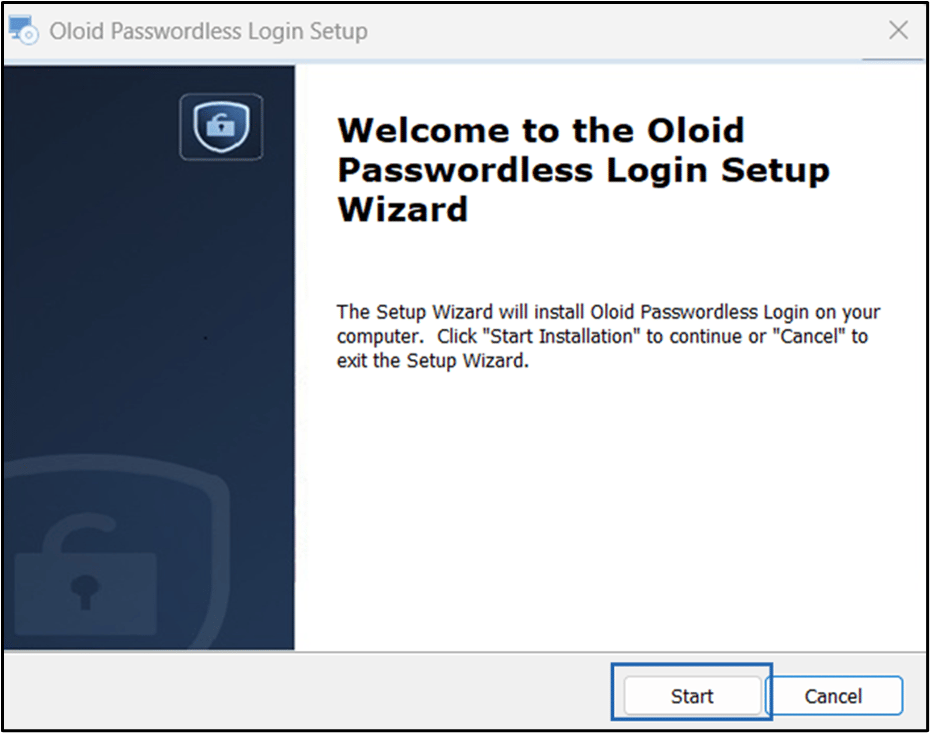
Double-click on Oloid Passwordless Login file.

-
Click Start.
-
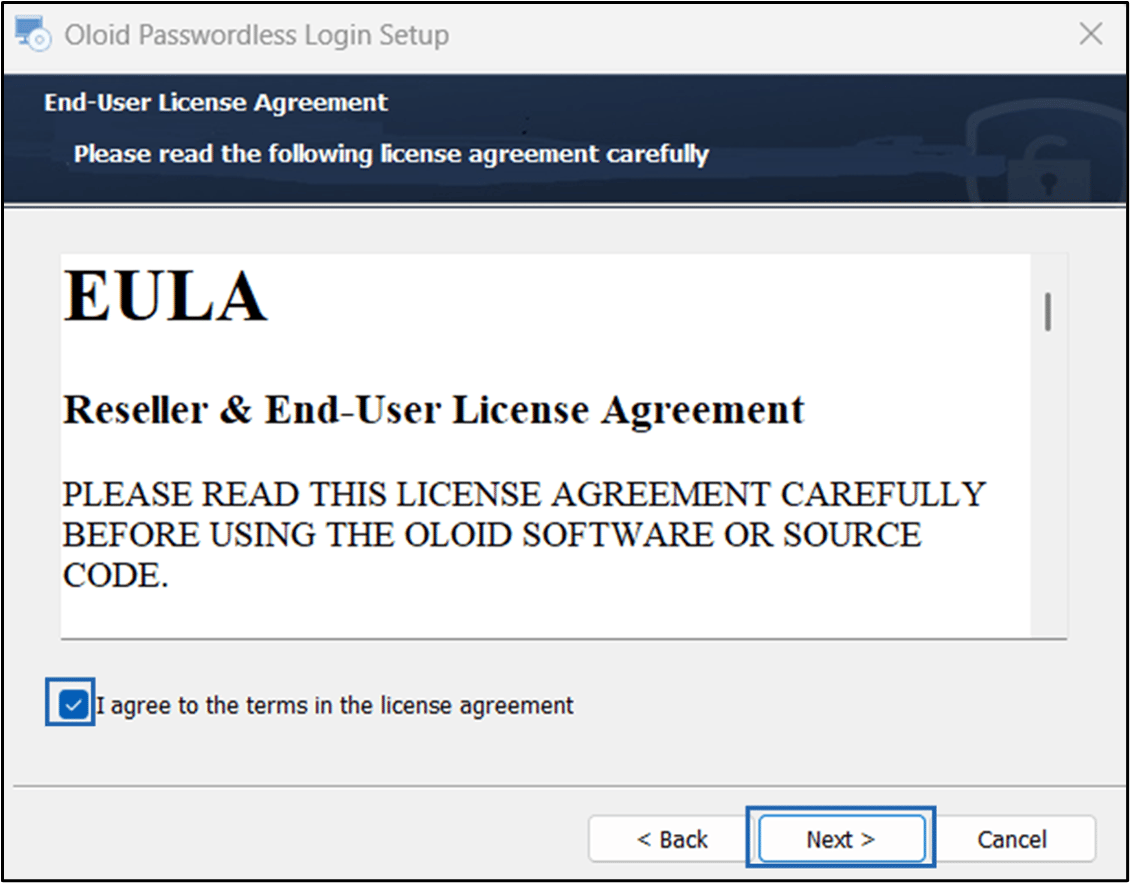
Select License Agreement checkbox and click Next.
-
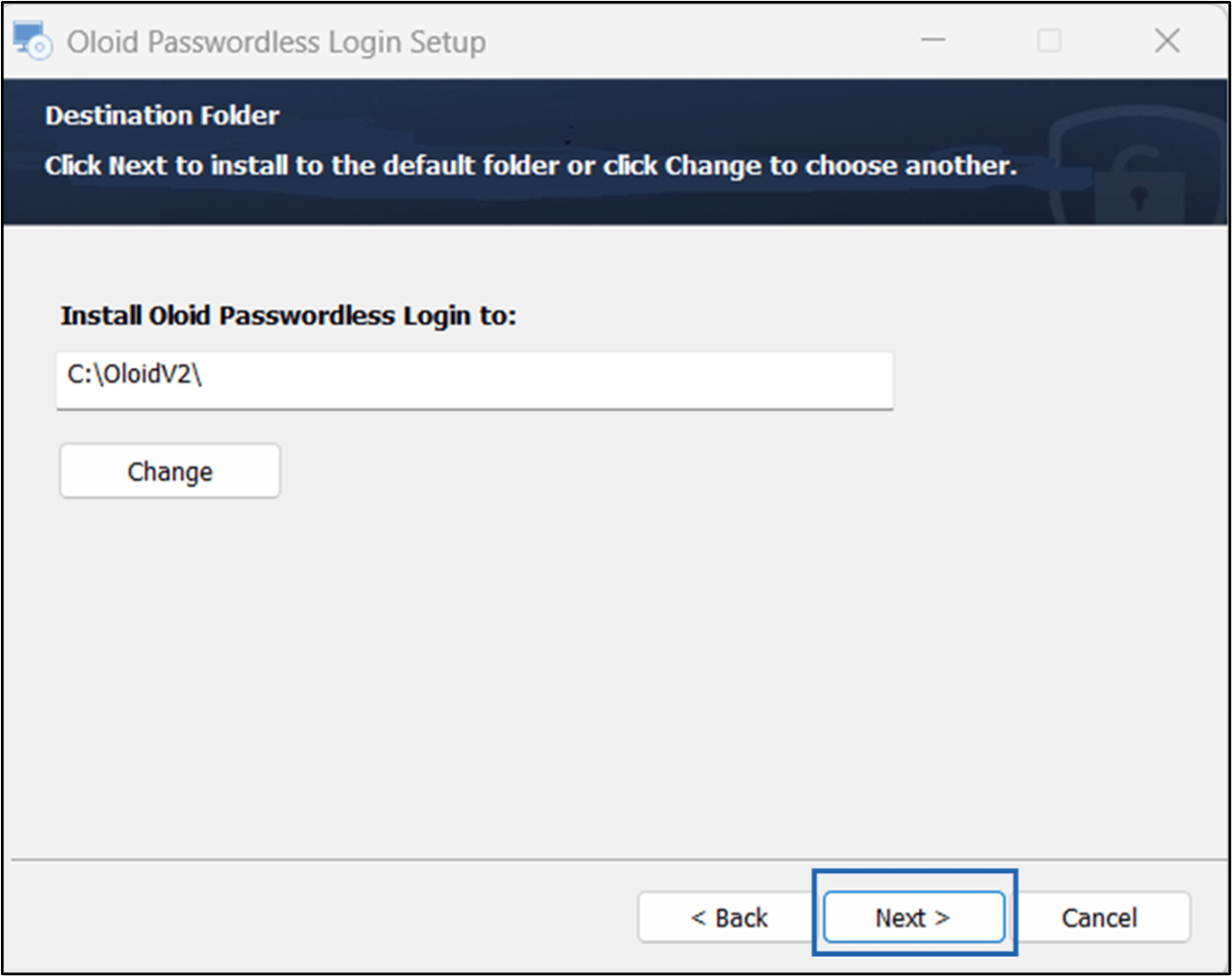
Use the default path to install the application and click Next.
-
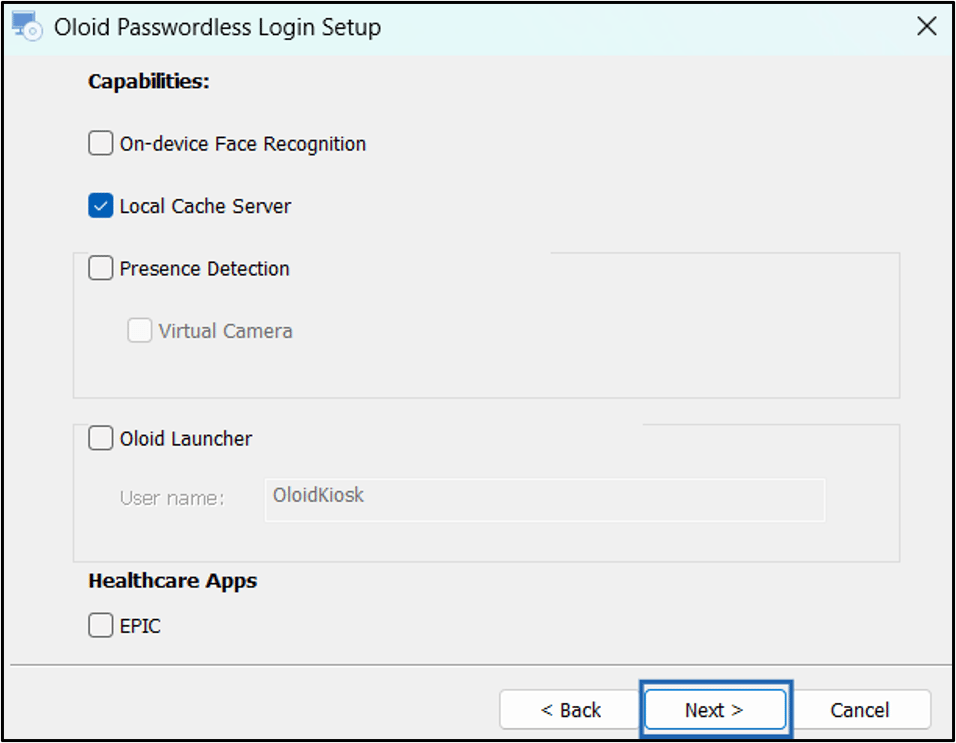
Select the required feature check box(es) and click Next.
Note: The following provides additional details about each capability:
- On-device Face Recognition: Authenticates users locally using facial recognition even if the device is offline.
- Local Cache Server: Enables users to log in and authenticate using locally stored data when the network is unavailable or experiencing connectivity issues. This option is selected by default.
- Presence Detection: Detects user presence to enable hands-free login and auto-lock when the user leaves.
- Oloid Launcher: Provides a central interface to launch apps and workflows after authentication.
- EPIC Integration: Enables secure, passwordless access to Epic workflows through seamless authentication.
-
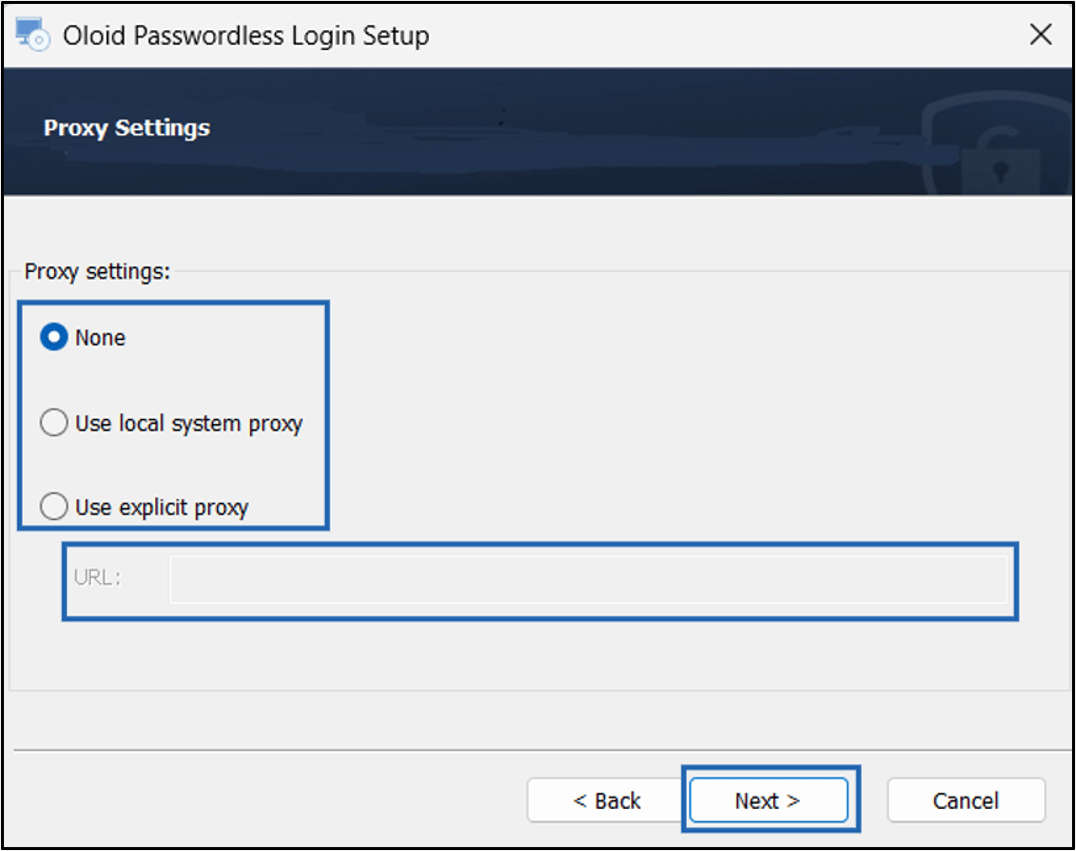
Select one of the following:
- None: Connects to OLOID services without using a proxy.
- Use Local System Proxy: Uses the proxy settings already configured on the Windows device to connect to OLOID services.
- Use Explicit Proxy: Uses a specific proxy server to connect to OLOID services. Enter the proxy server address in the URL field.
- Click Next.
-
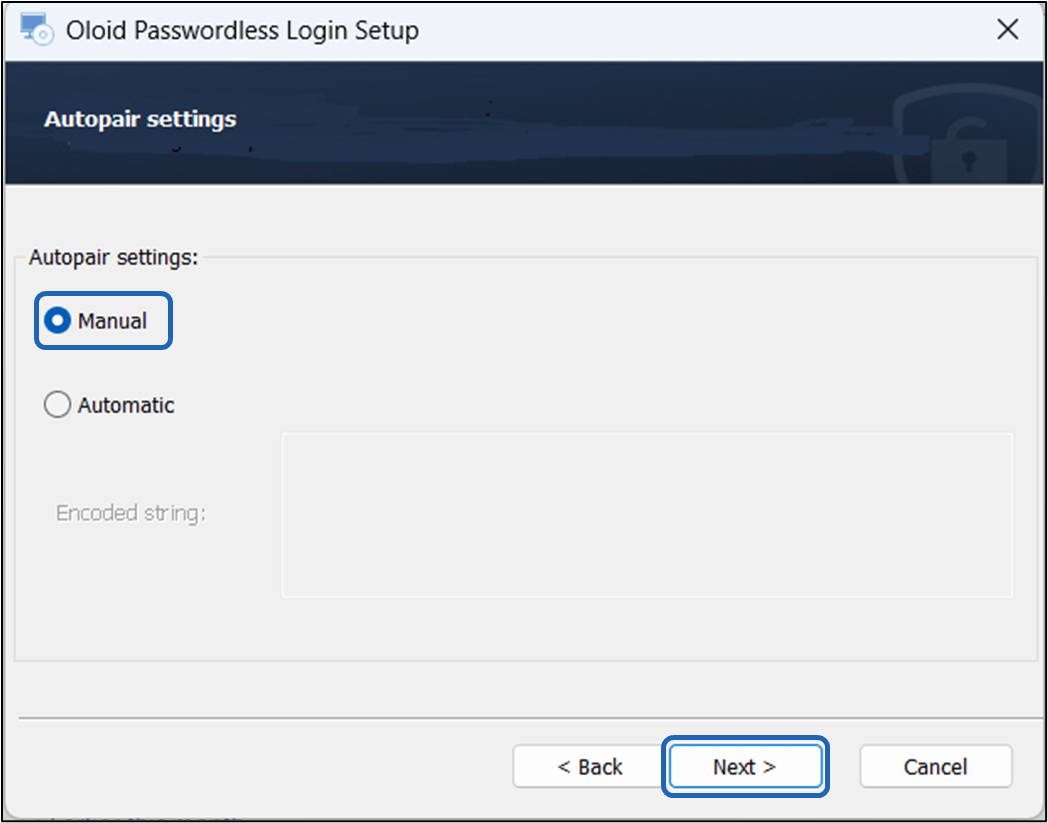
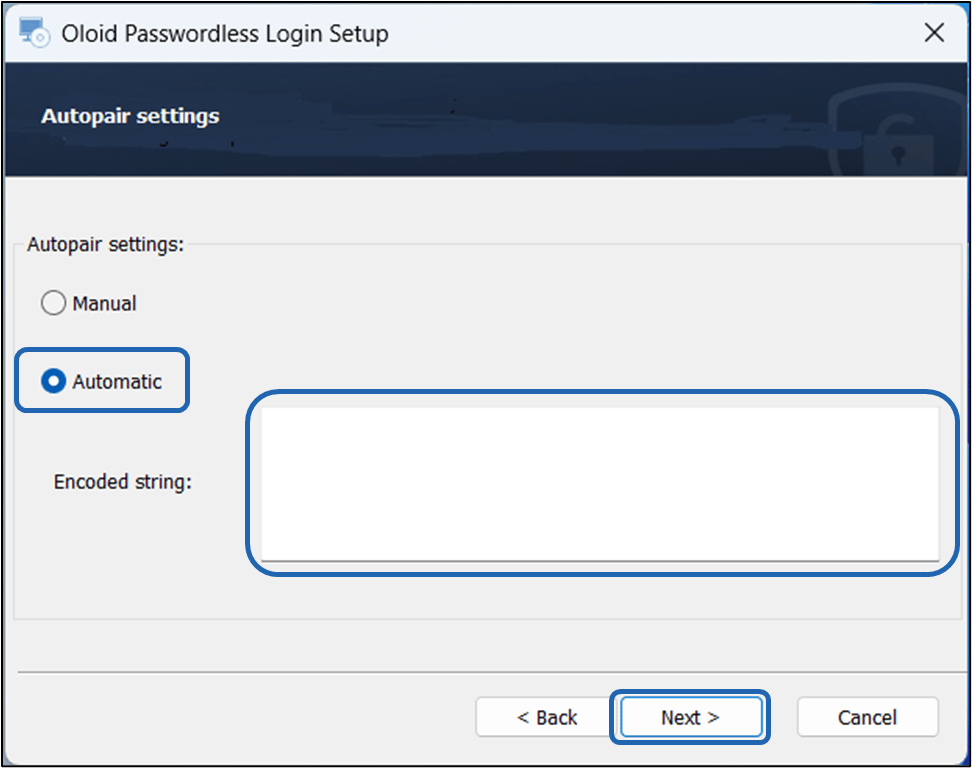
Do one of the following:
-
Select Manual > click Next.
Note: Select this option to pair the Windows Login App after installation. Once installed, you can pair the application using one of the following methods:
- Supervisor App: Pair the Windows app using the Supervisor App. To pair the Windows app via supervisor app**,** refer Windows Login - How to Manually Pair the Supervisor App or
- Automatic Config File: Pair the Windows app using the Auto-Pair Config File. To pair the Windows app via Auto-Pair Config File, refer Windows Login - How to pair Supervisor App using auto-pair config file option
-
Select Automatic > Enter Encoded String in Text Box> click Next.
Note:
- The Automatic option enables the endpoint to pair automatically during installation. The pairing is completed after the Windows device restarts.
- To get the Encoded string, go to the Tenant Admin Portal and select TEXT as the Auto-pair config file format. Then, copy the config text or download the TEXT file. To copy or download the Text format refer, Windows Login - How to Generate and Download Auto-Pair config file for Windows Login in Tenant Admin Portal
- Click Install.
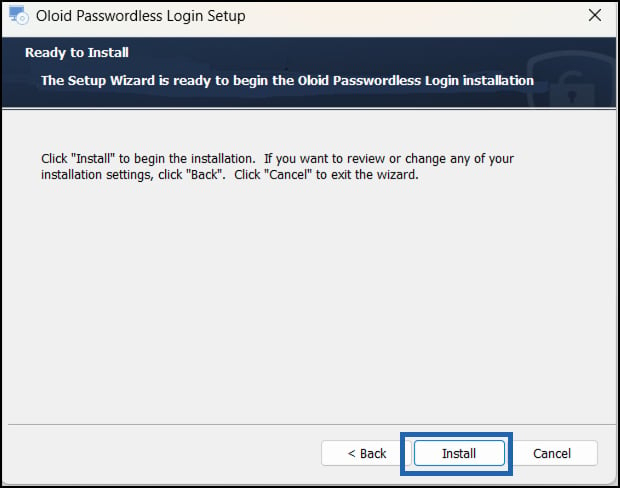
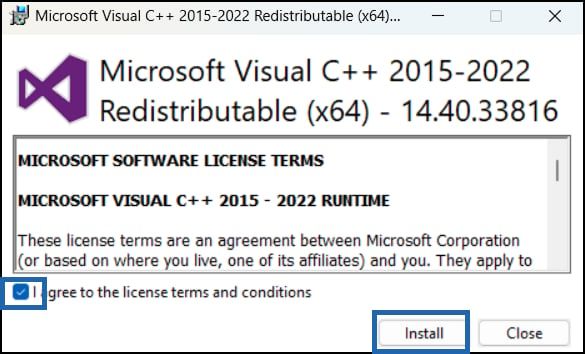
The Microsoft Visual C++ screen is displayed.Note: If prompted, follow steps 8–13 to install the required components. If not, proceed to step 14 to continue the installation. -
Select Manual > click Next.
-
Select License terms and conditions checkbox and click Install.
-
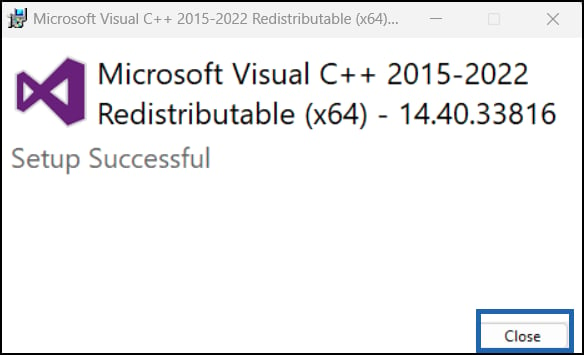
Click Close.
-
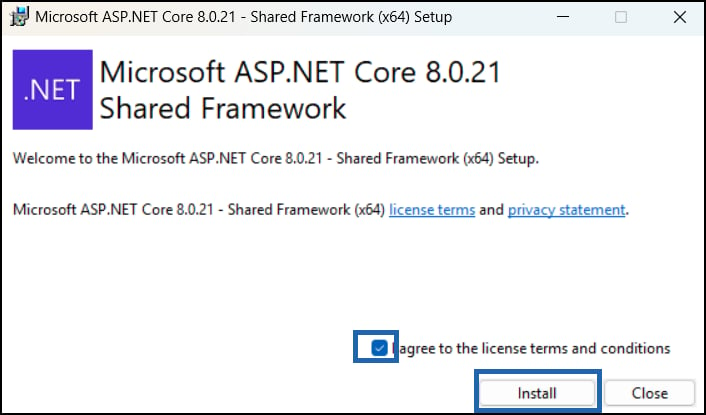
Select License terms and conditions checkbox and click Install.
-
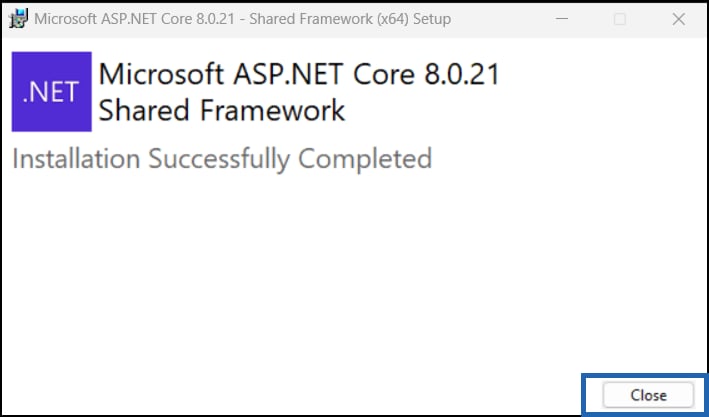
Click Close.
-
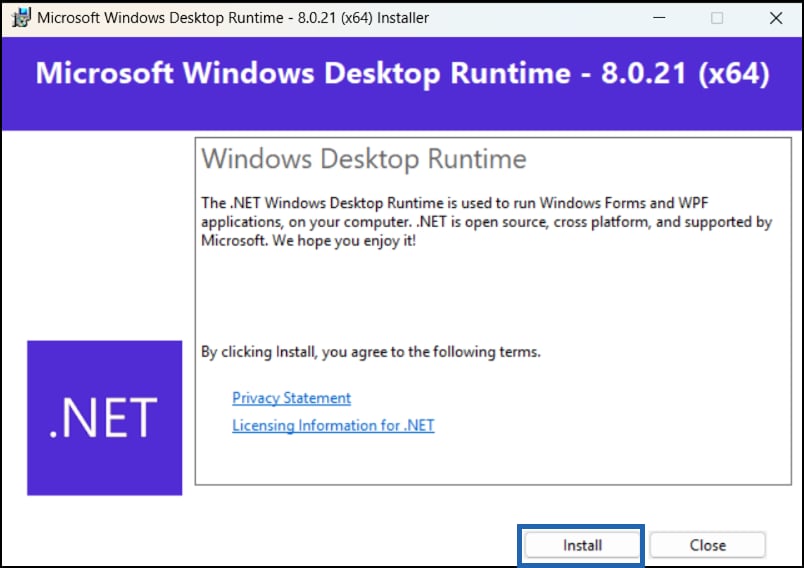
Click Install.
-
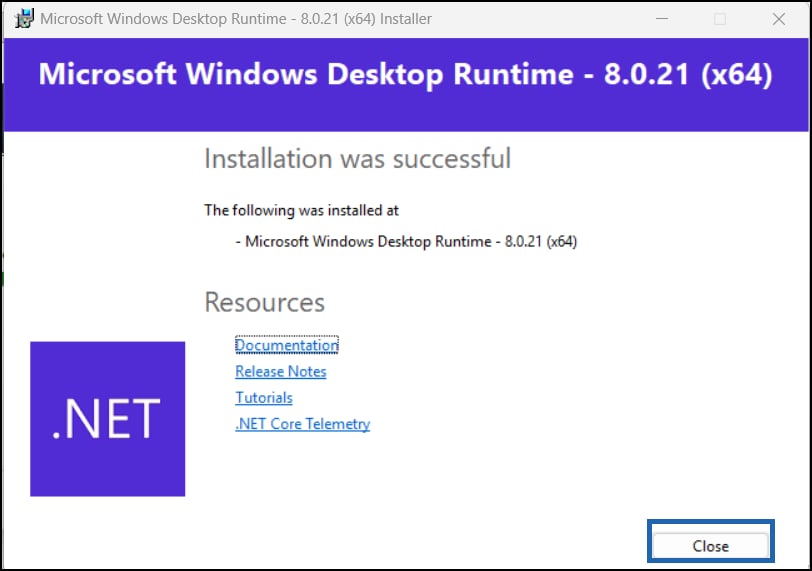
Click Close.
-
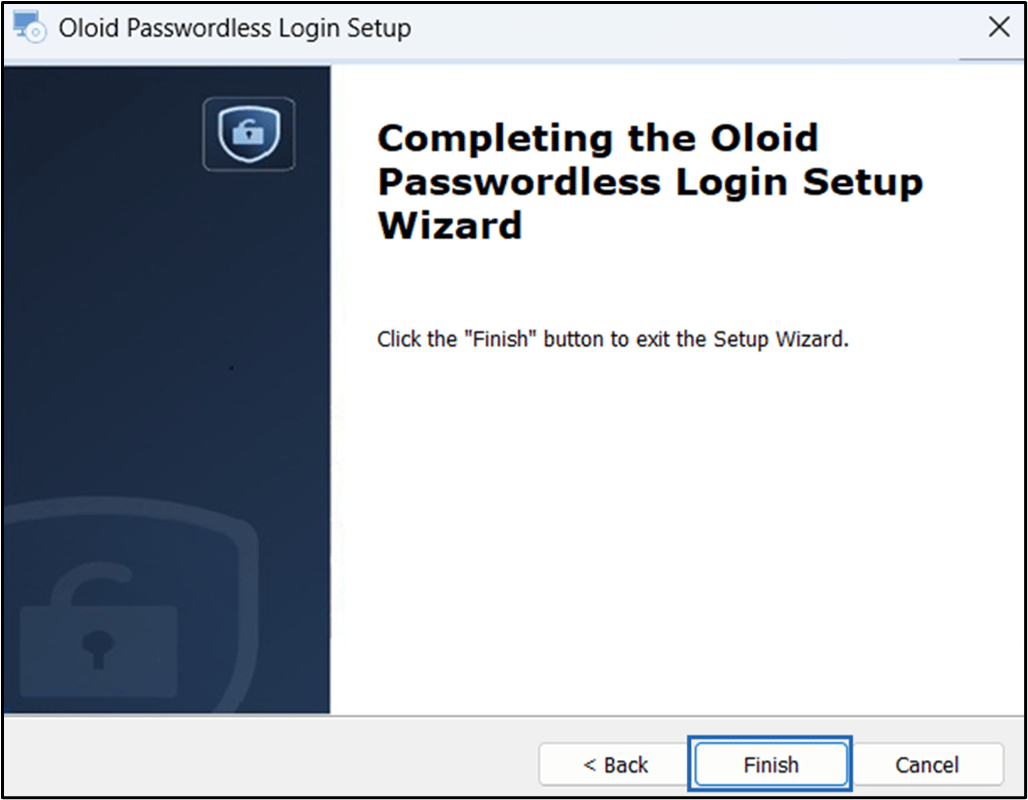
Click Finish.
-
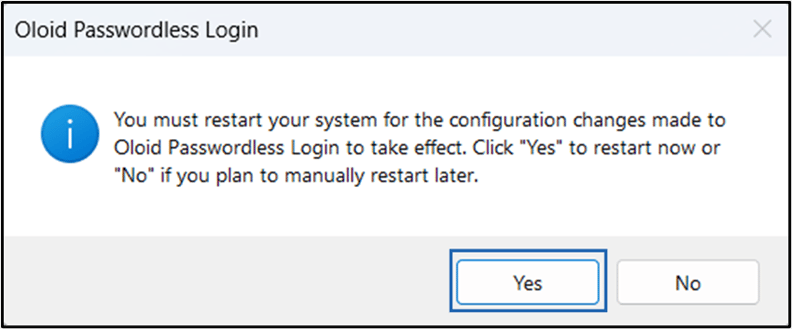
Click Yes to restart the system.
Note: You must restart your system after successful installation.
 Note: The Apache CouchDB is installed on the system by default.