Introduction
This document provides step-by-step instructions to deploy Windows Passwordless v2.0 on managed Windows devices using Microsoft Intune (MDM).Prerequisites
- You must have admin access to the Microsoft Intune Admin Center.
- You must have the installation PowerShell script (.ps1).
-
You must have the detection rule PowerShell script (rule.ps1).
Note: Contact Oloid Support to obtain the PowerShell script (.ps1) and detection rule script (rule.ps1).
-
You must have downloaded the Microsoft Win32 Content Prep Tool (IntuneWinAppUtil).
Note: To download the Microsoft Win32 Content Prep Tool, click here.
- You must download the AutoPairConfig.txt file from the Tenant Admin Portal. For more information, refer to Windows Login - How to generate Auto-Pair config file for Windows Login in Tenant Admin Portal.
- You must download the Windows Login v2.0 installer file. For more information, refer to Windows Login v2.0 - How to download Windows Login v2.0 installer file from Tenant Admin Portal
Steps to Deploy Windows Passwordless 2.0 using Microsoft Intune (MDM)
- Create App Package
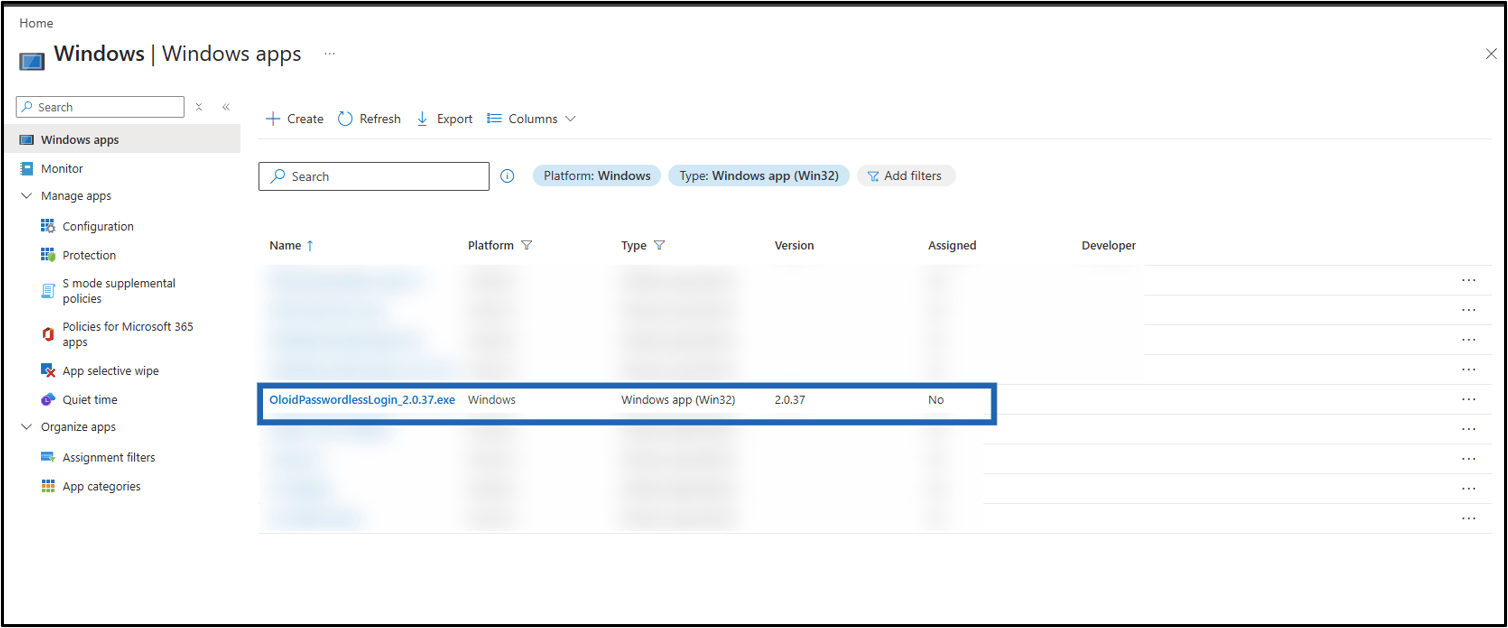
- Create and Configure App The Windows Passwordless v2.0 is deployed successfully to the target devices.
Steps to Create App Package
-
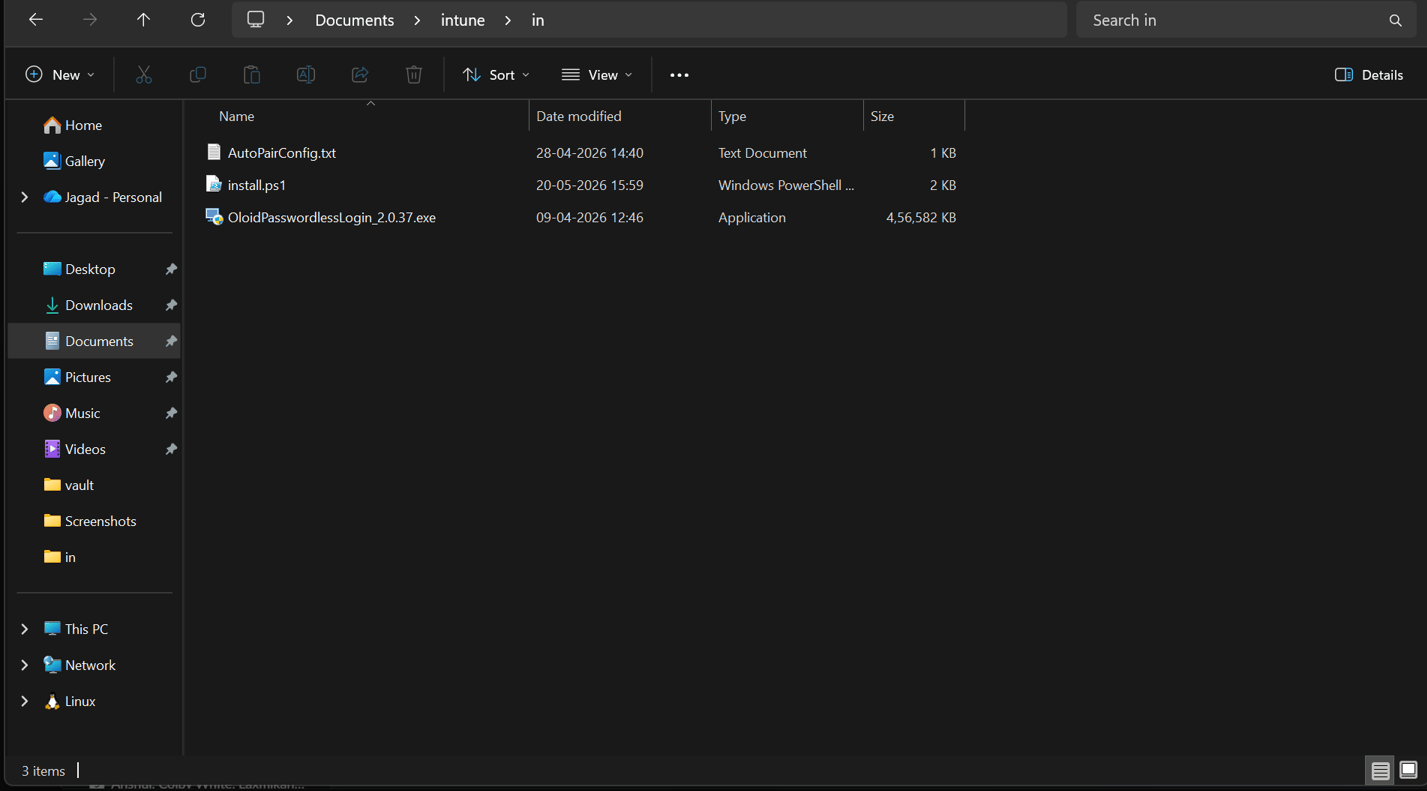
Place the Windows Login v2.0 installer file, AutoPairConfig.txt file, and installation PowerShell (.ps1) script in the same folder.
Note: If the AutoPair configuration file is added, the app is installed and paired automatically. If not, manual pairing is required after installation.
- Download and open the Microsoft Win32 Content Prep Tool.
-
Enter the following details when prompted by the tool:
-
Source folder: Enter the folder path that contains the
install.ps1file, autopair config file and the installer file. - Setup file: Enter the installer file name with the file extension.
-
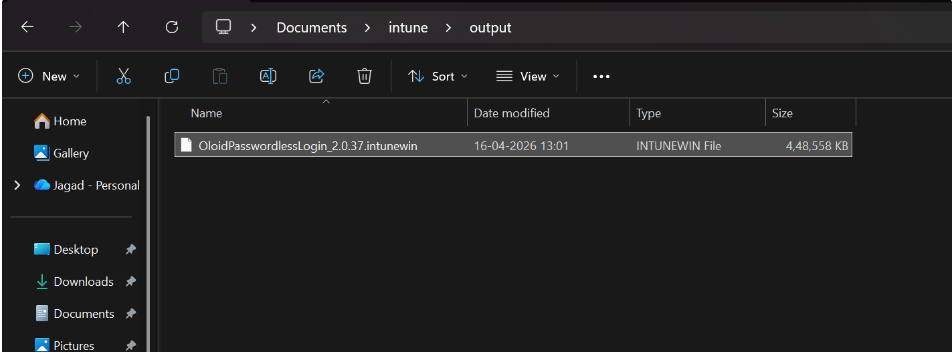
Output folder: Enter the folder path where the
.intunewinfile must be created.Note: Before you generate the.intunewinfile, update the following values in theinstall.ps1script:- Set
$InstallerNameto the name of the.exeinstaller file used to install the app. - In
$SilentArgs, set the required feature flags totrueorfalsebased on the features you want to install.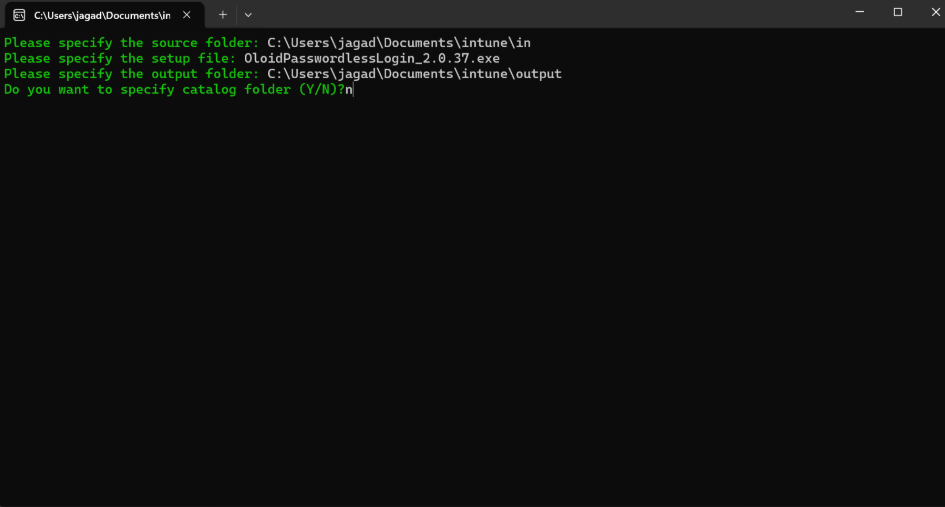

- Set
-
Source folder: Enter the folder path that contains the
Create and Configure App
- Log in to Microsoft Intune Admin Account. The Microsoft Intune home screen is displayed.
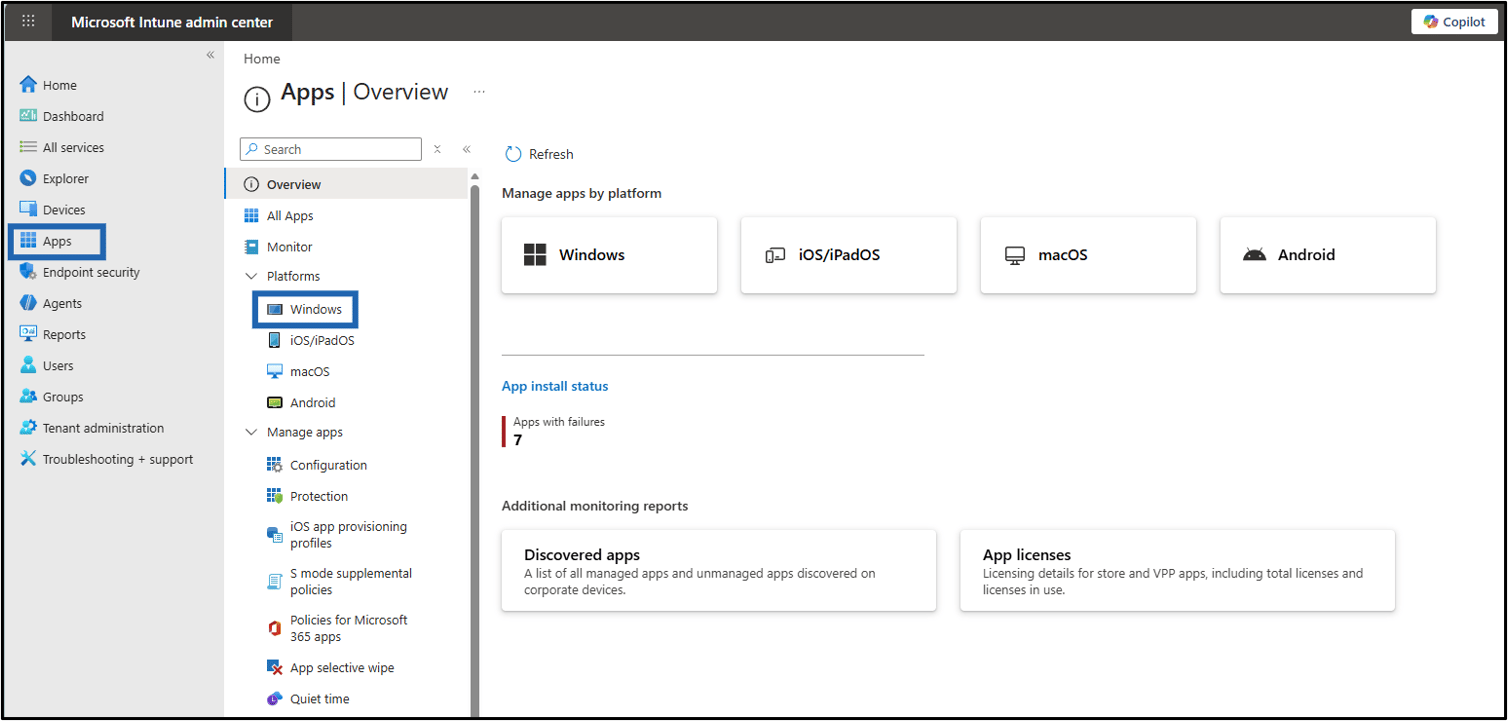
- Navigate to Apps > Windows.
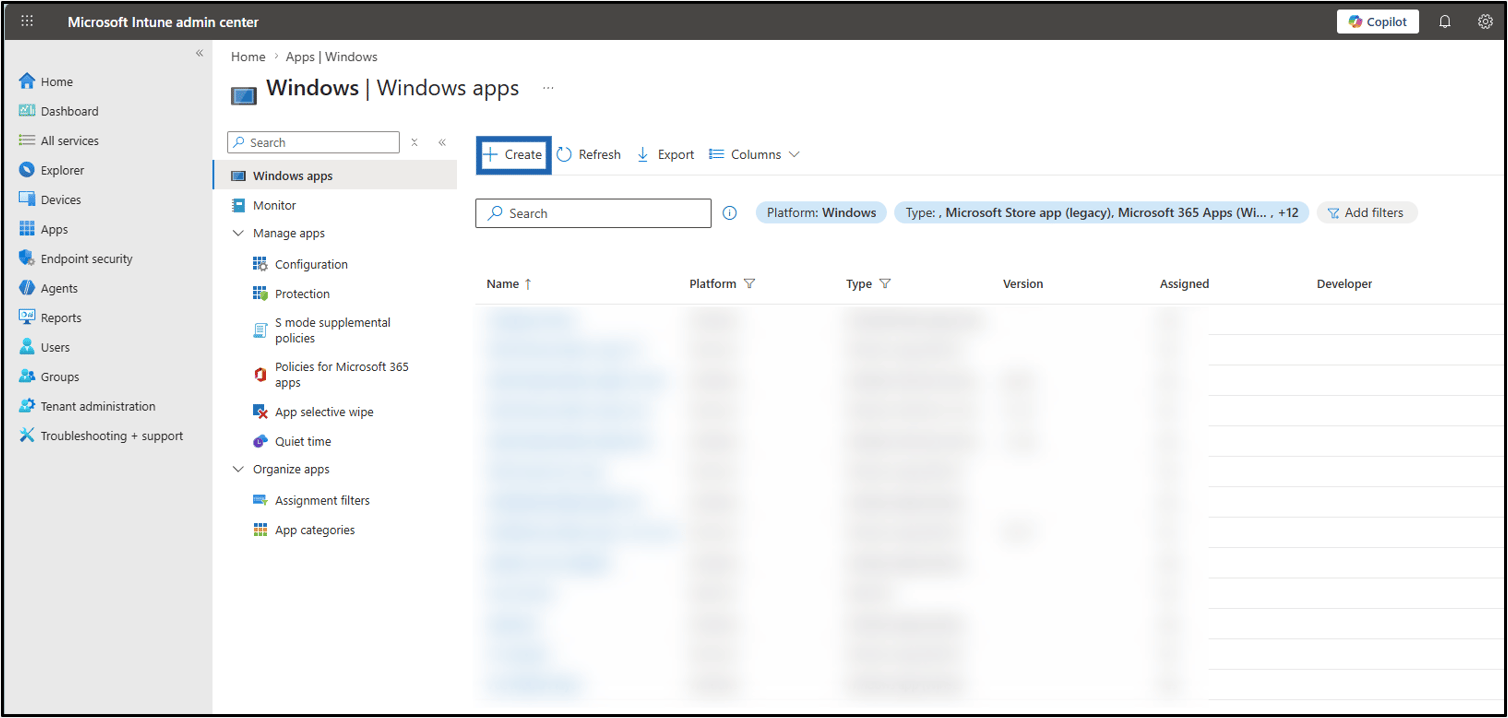
- Click + Create.
- In the app type dropdown, select Windows app (Win32) and click Select.

- On App Information tab, do the following:
-
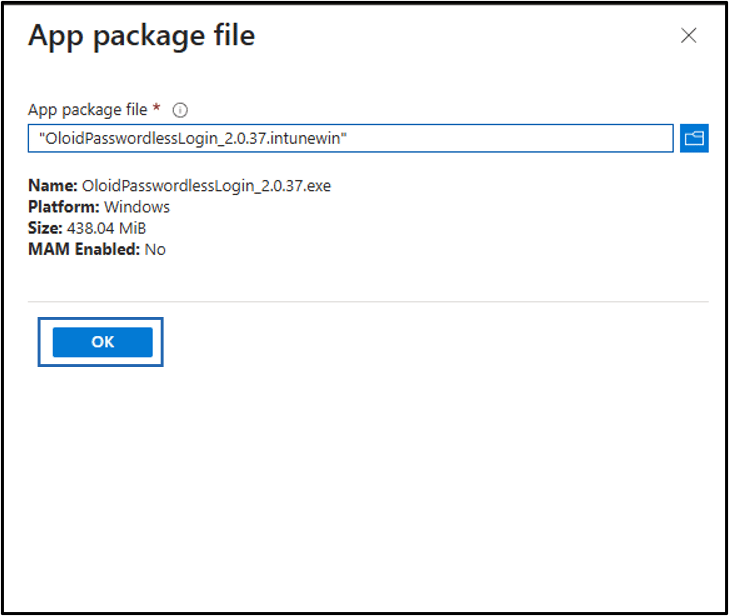
Click Select app package file.

-
Browse and select the .intunewin app package file.
Note: Select the same .intunewin package file that was created in the Steps to Create Package File section.
-
Click OK.
- Enter Publisher.
-
Click Next.
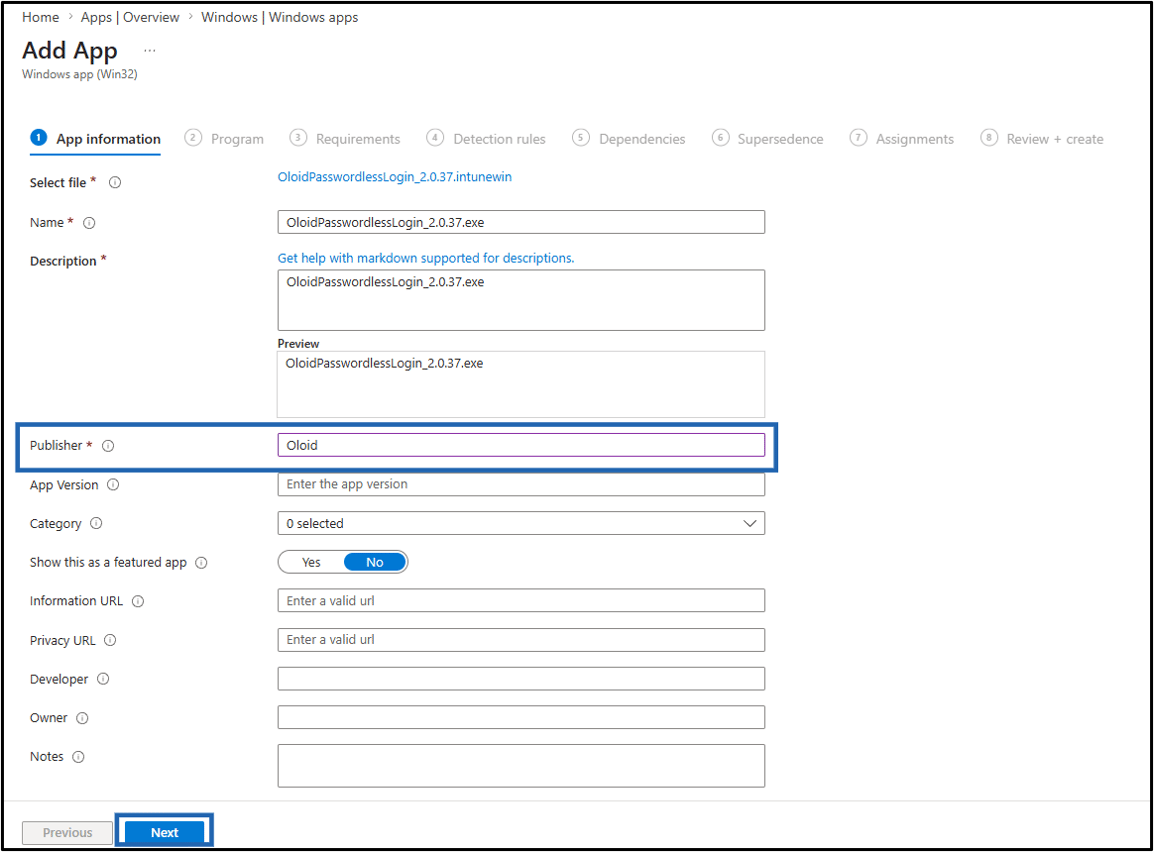
-
Click Select app package file.
- On the Program tab, do the following:
- Ensure command line is selected as installer type.
Note: Use the following command.
- Ensure command line is selected as uninstaller type.
Note: Use the following command.
-
Select No as Allow available uninstall (Optional).
Note: Select No to prevent the application from being uninstalled through the Company Portal or Windows Control Panel.
- Ensure System is selected as Install behaviour.
-
Click Next.
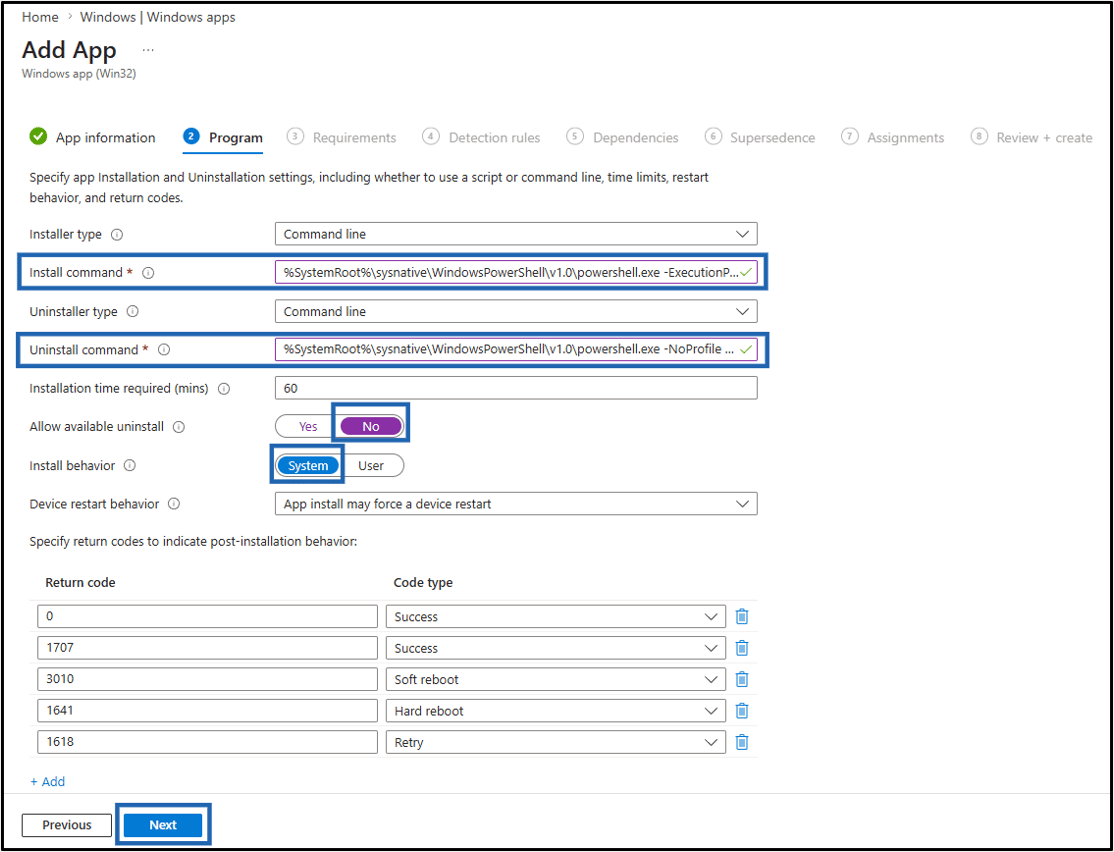
-
On the requirements tab, do the following.
- Select No as Check operating system architecture.
- Select Windows 10 1607 as Minimum operating system.
- Click Next.

-
On the Detection Rules tab, do the following.
- Select Use a custom detection script as Rules format.
-
Upload Script file.
Note: To get the Script file, contact Oloid Support.
- Ensure No isselected as Run script as 32-bit process on 64-bit clients.
- Ensure No isselected as Enforce script signature check and run script silently.
-
Click Next.

-
Click Next.
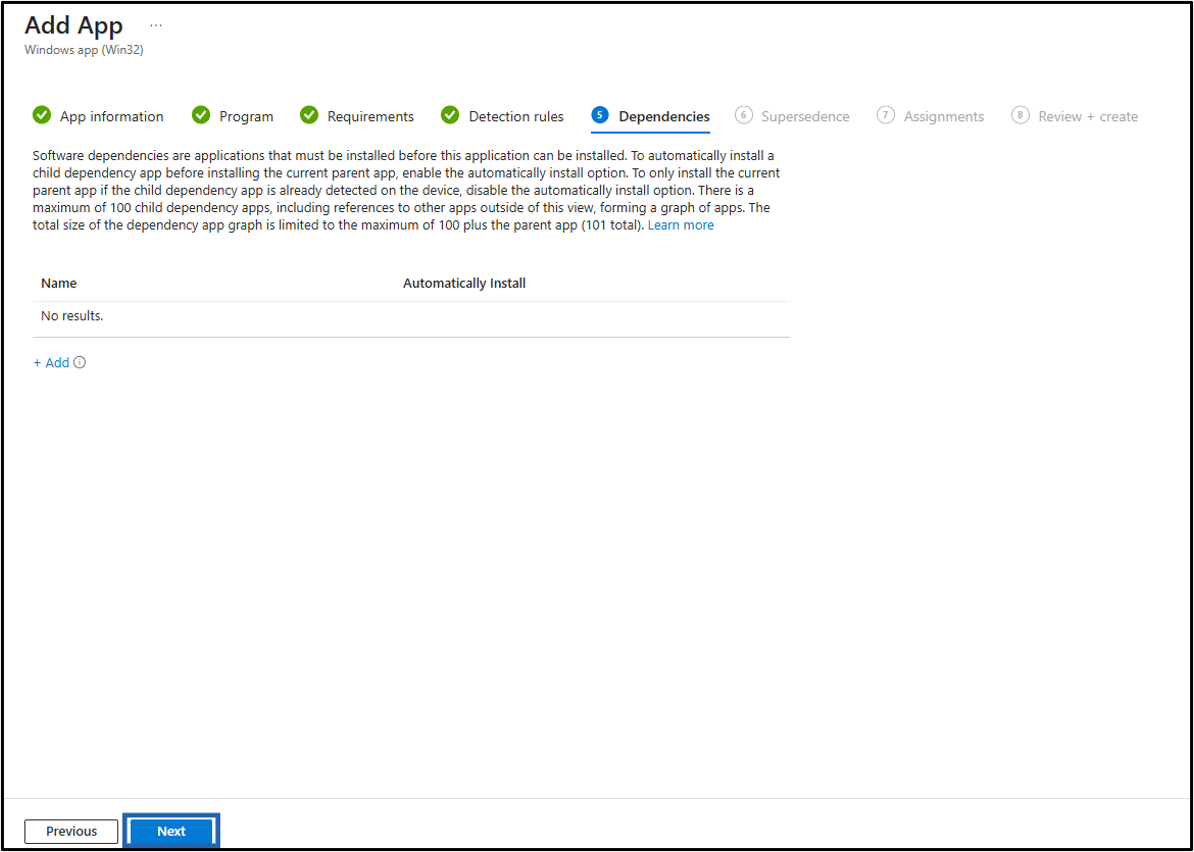
-
Click Next.

-
On the Assignments tab, do the following.
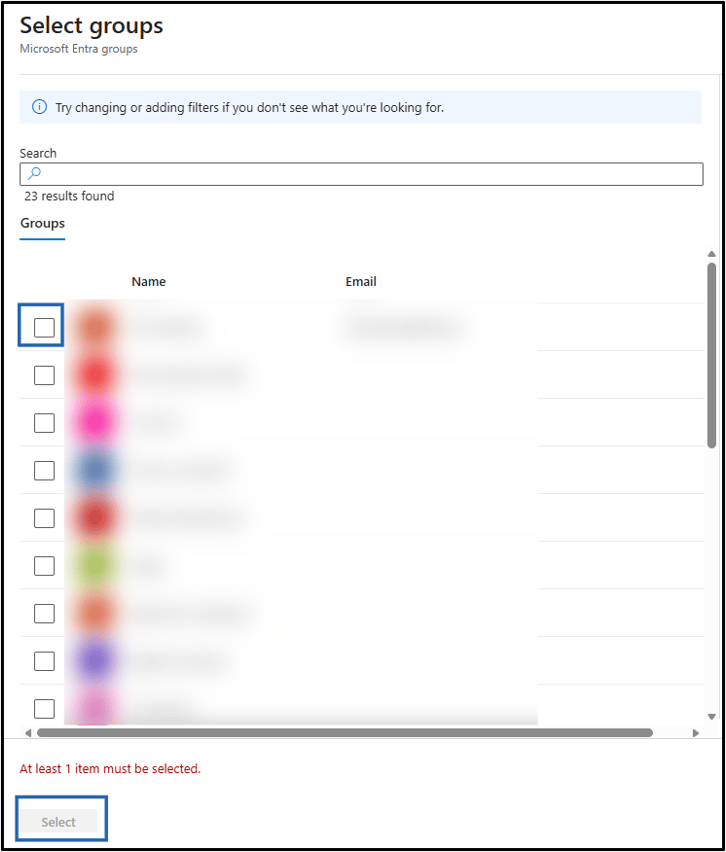
- On Required section, click Add group to assign this profile to your target device groups.
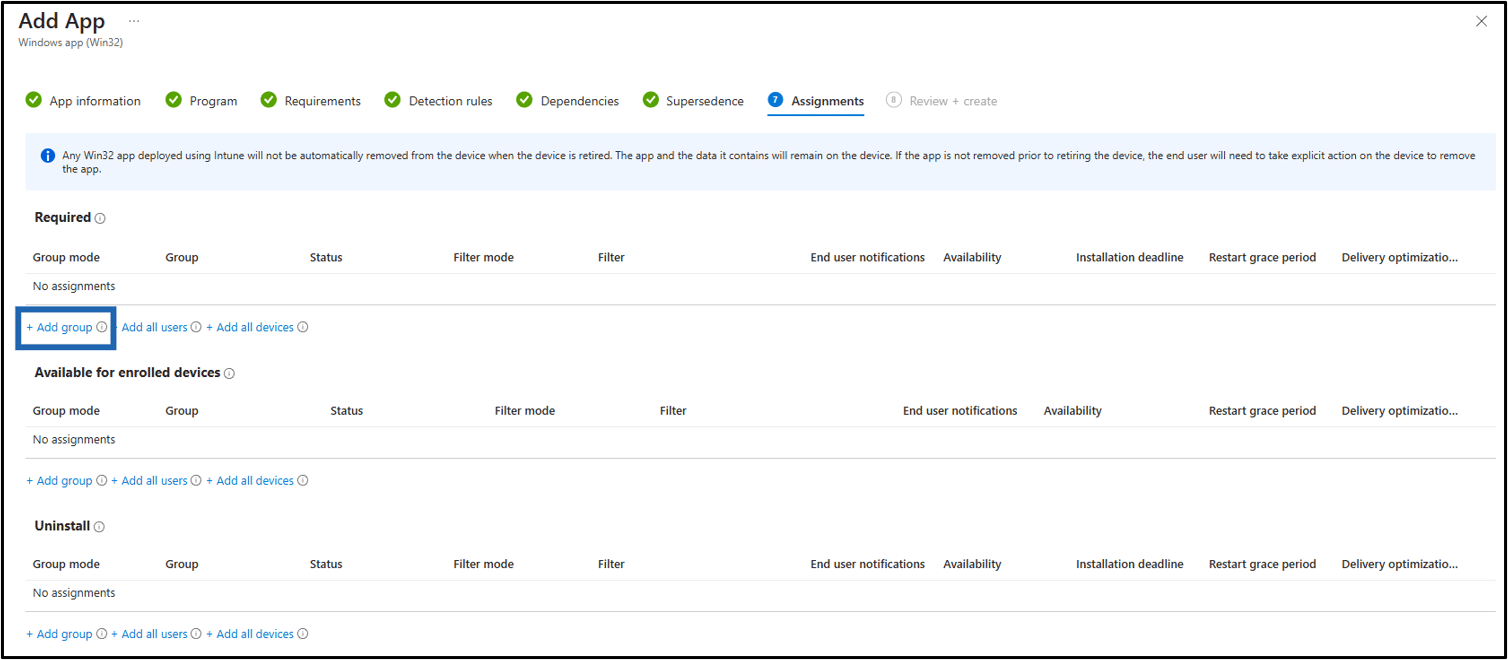
- Do the following.
-
Select the group(s) from the list.
Note: You can select multiple groups (If required).
-
Click Select.
-
Select the group(s) from the list.
- On Required section, click Add group to assign this profile to your target device groups.
-
Click Next.
 Note: To assign groups under the Available for enrolled devices and Uninstall sections, repeat Steps 9a and 9b as required.
 -
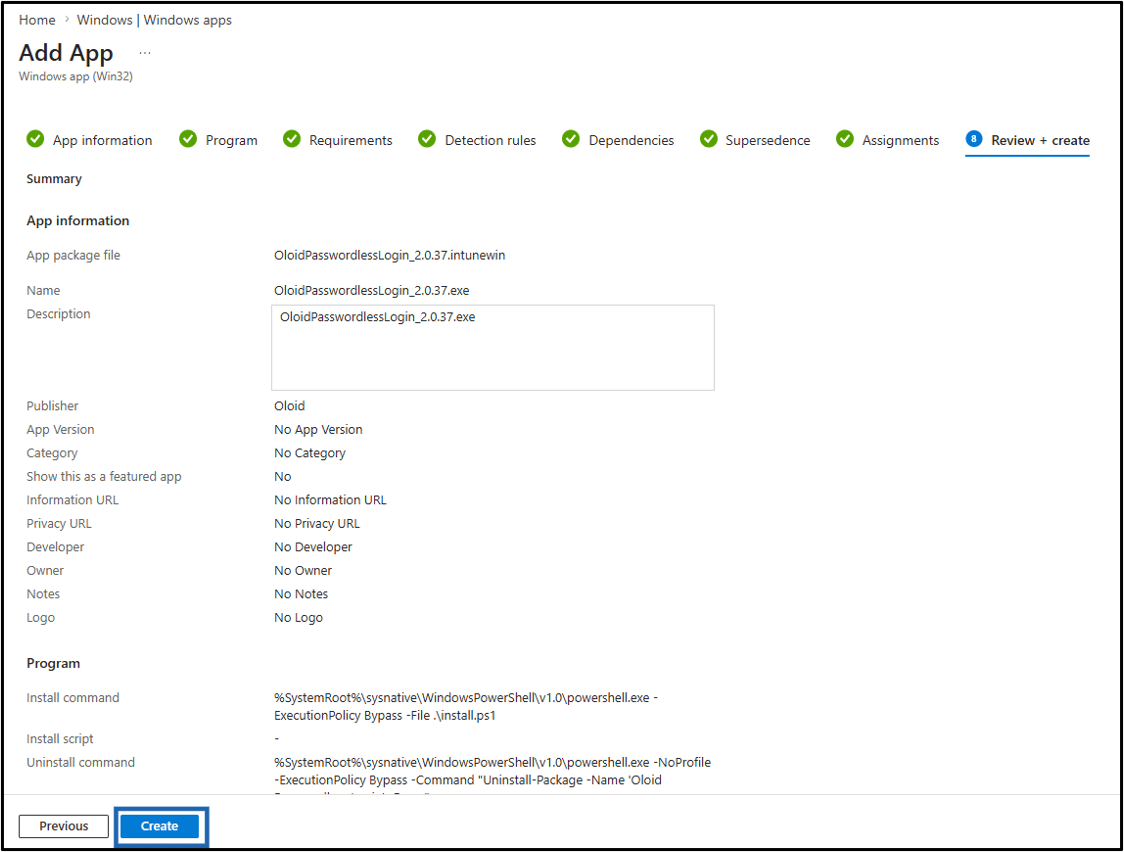
Review all settings and click Create.