Introduction
Focus Monitor helps ensure that users remain attentive while using a Windows device. It monitors whether the authenticated user looks away from the screen beyond a configured angle for a specified duration and triggers the configured action when the defined threshold is exceeded.Prerequisites
- You must have access to the Tenant Admin Portal.
- Ensure the endpoint is paired with the Windows Login application. refer: How to pair endpoint using Pair as Supervisor in Supervisor App
- Ensure that your system is unlocked
- Ensure that your system’s camera is working properly
Steps to** configure **Focus Monitor
- Log in to Tenant Admin Portal.
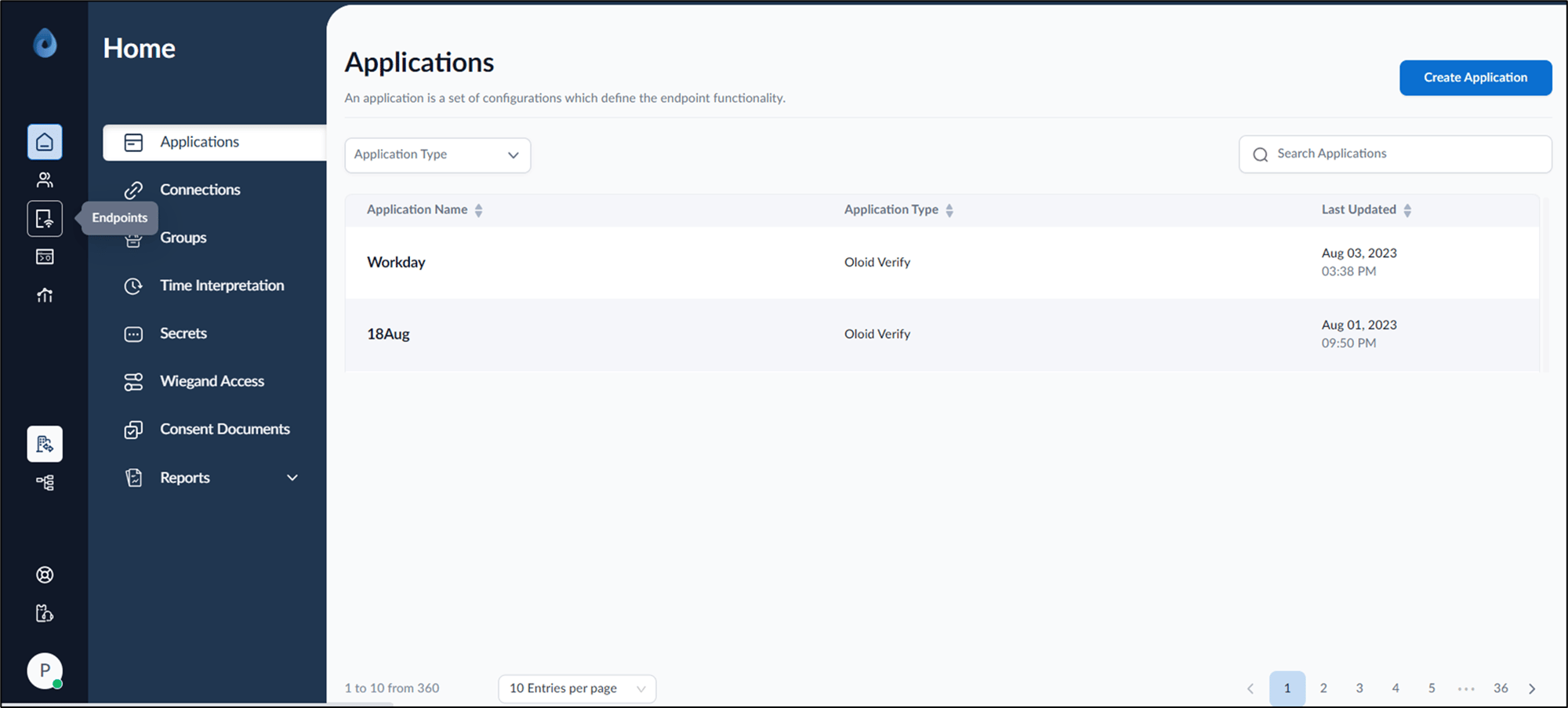
- On the home page of the portal, click Endpoints on the left menu panel.
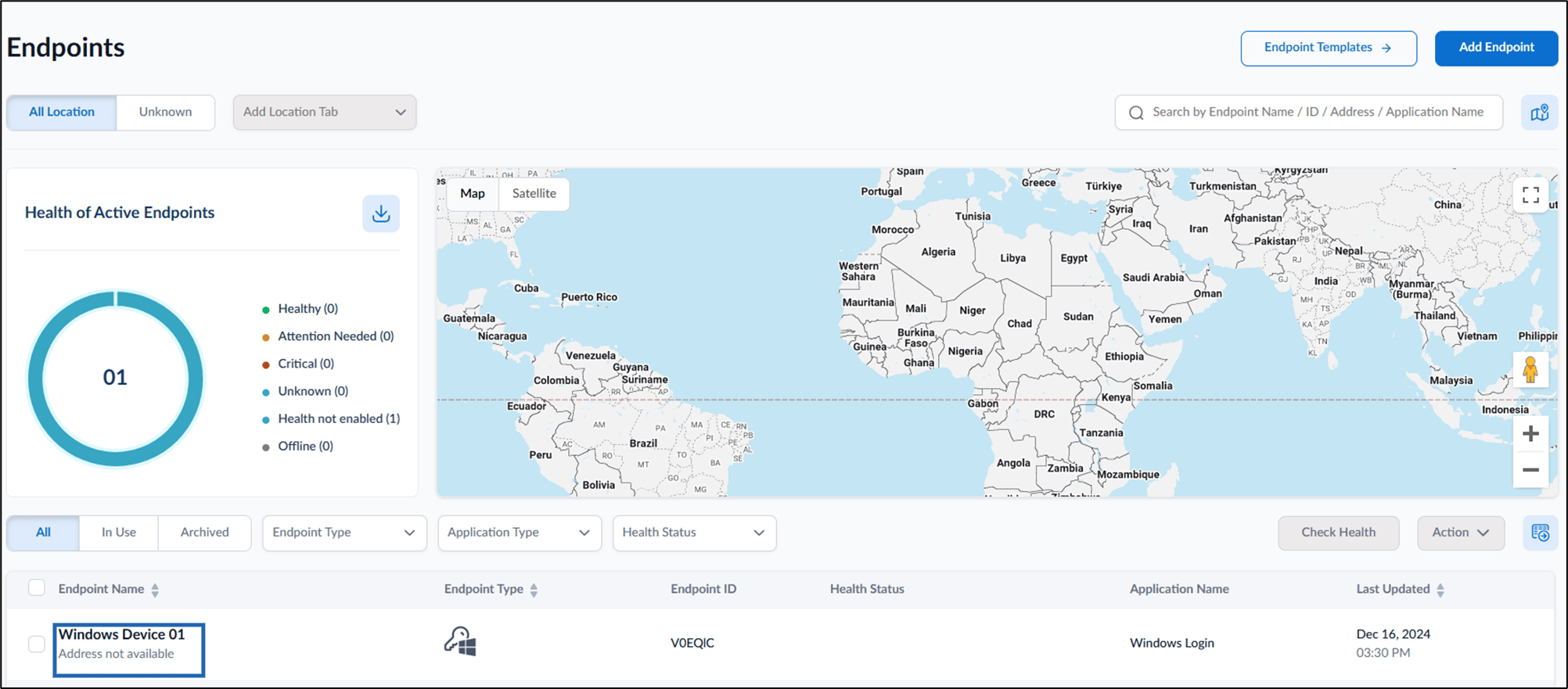
- Click endpoint name (Windows Login) to edit from the listed endpoints.
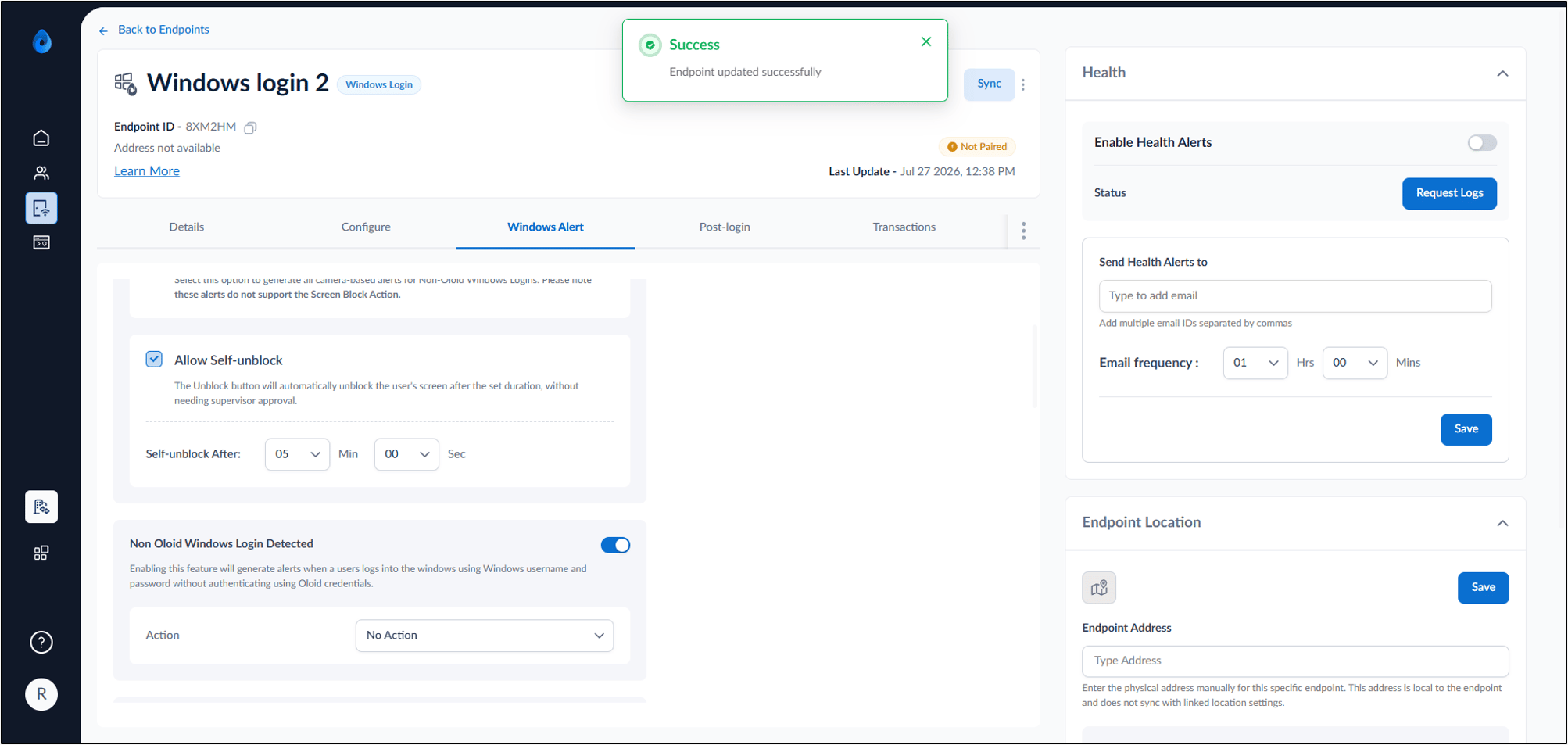
- Go to Windows Alert tab.
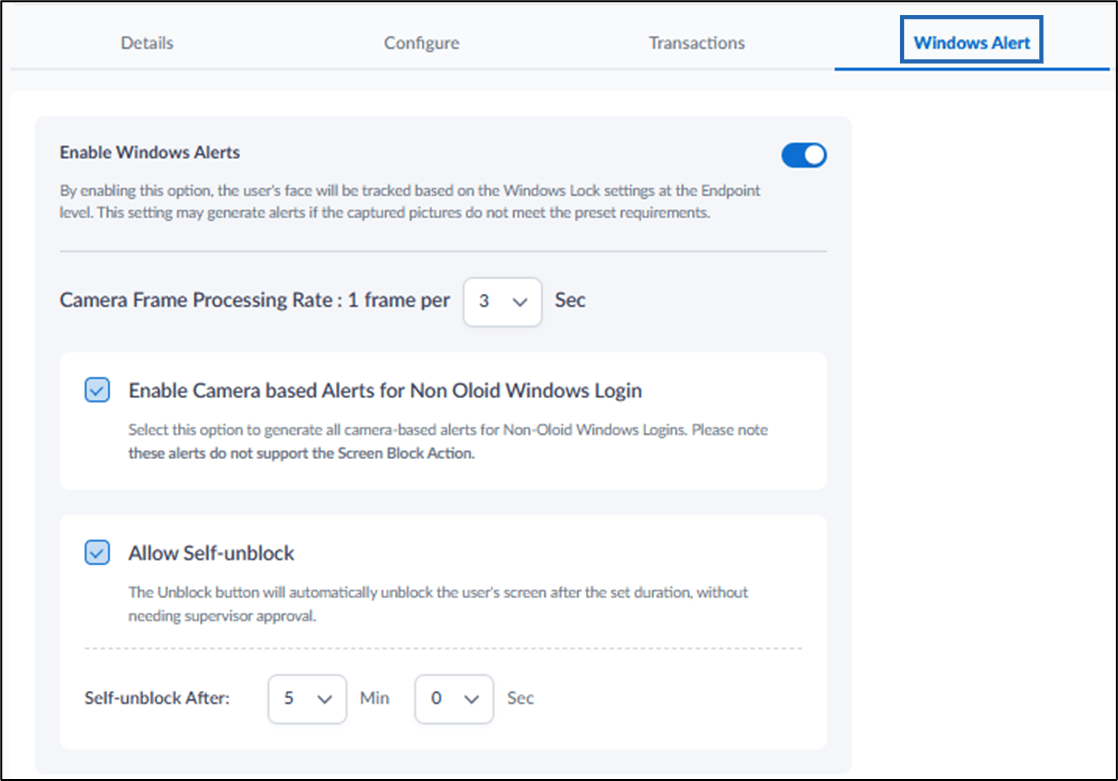
- Do the following:
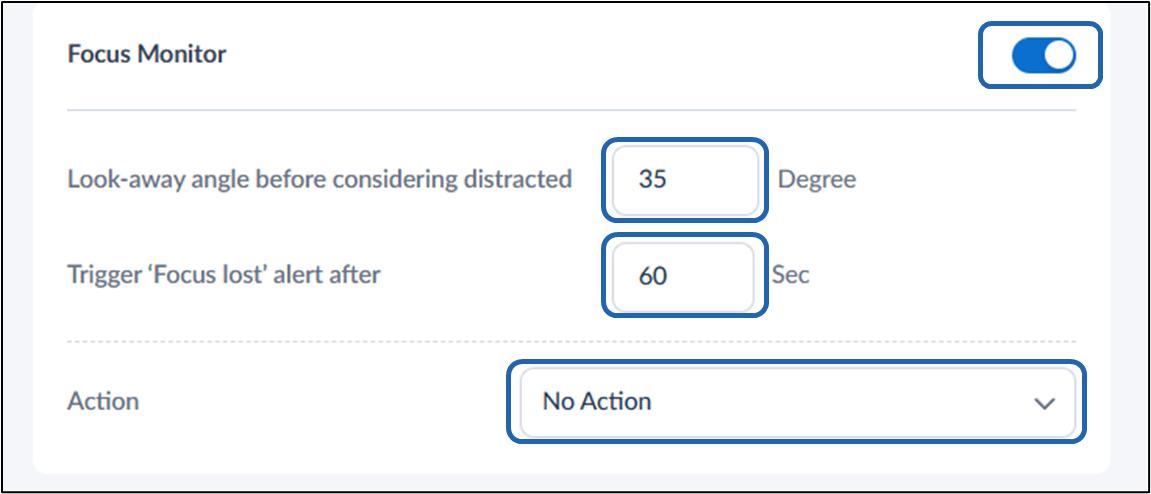
- Enable the Focus Monitor toggle button.
- Enter the Look-away angle. The Look-away Angle defines the maximum angle (in Degrees) a user can turn away from the screen before focus is considered lost.
- Enter the duration for Focus Lost. This defines how long the user must remain outside the allowed angle before an alert is triggered.
- Select Action from drop down.
- Click Save.
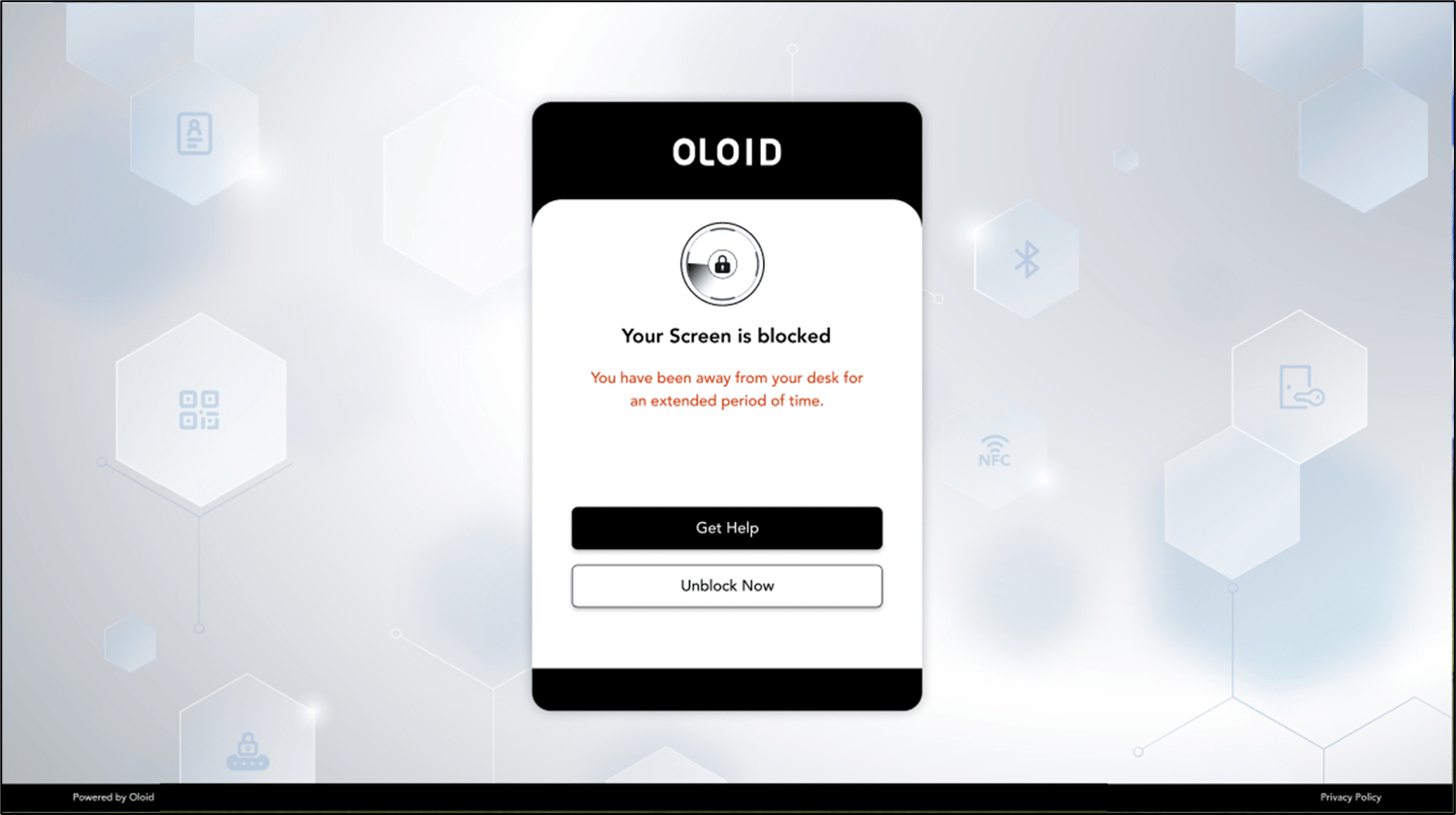
Sample Screen