

Introduction
Windows Login v2.0 supports unattended installation through command-line parameters, allowing administrators to deploy the application using scripts, software deployment tools, or endpoint management solutions. During installation, administrators can specify the features to install, configure the device pairing method, and enable optional components without user interaction.Prerequisites
- All apps using camera access must be closed.
- You must download the Windows Login v2.0 installer file. For more information, refer to Windows Login v2.0 - How to download Windows Login v2.0 installer file from Tenant Admin Portal
Steps to Deploy Windows Passwordless 2.0 using Command Line
-
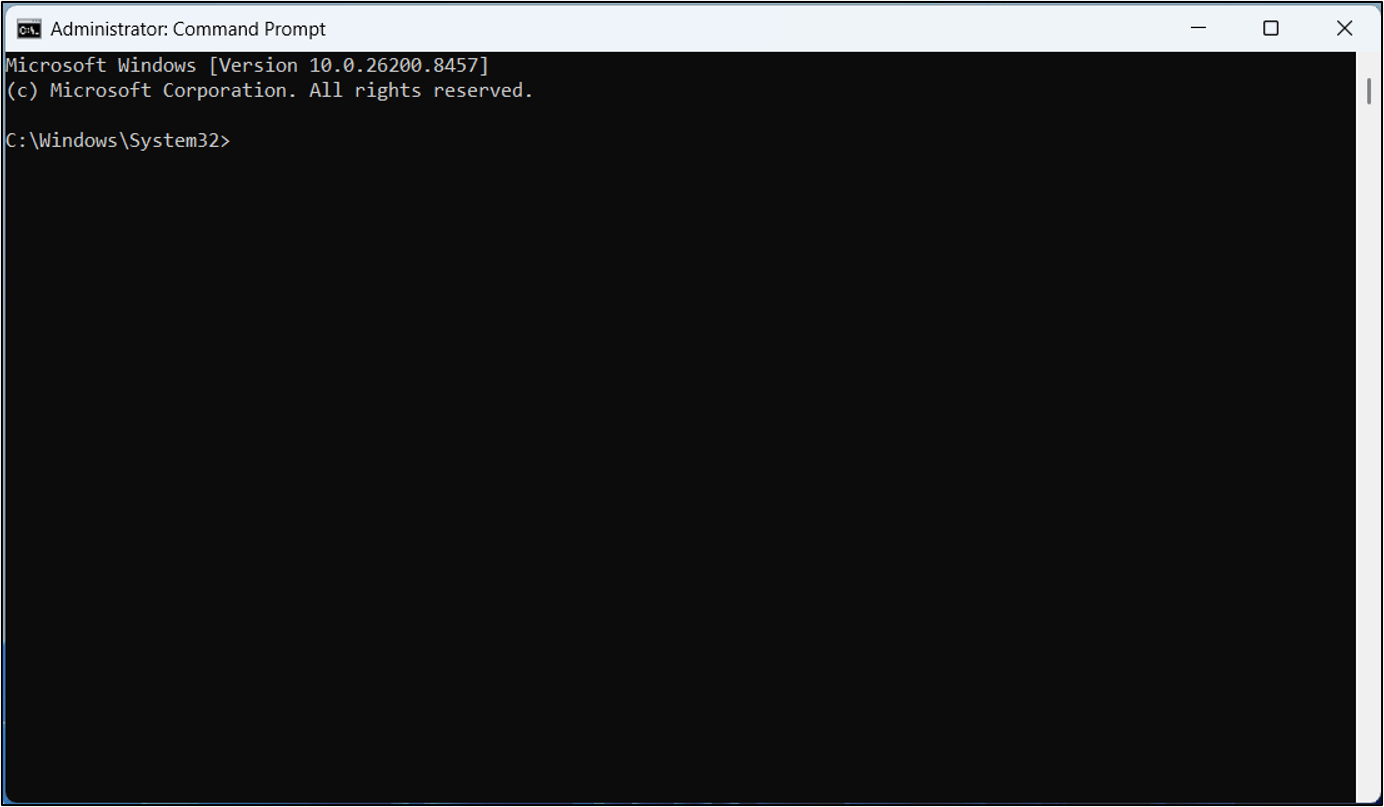
Launch a command prompt window in Administrator mode.
The Command Prompt window is displayed.
-
Navigate to the folder where the Windows Login installer (.exe) is located.
Note: The Windows Installer Zip file must be extracted.

- Note: Refer the Glossary section to see the description of installation parameters.
- Press Enter key on keyboard to begin installation.

Note:
- Please change the version number of the installer EXE (Oloid Passwordless Login Ver 2.0. 28.exe) accordingly.
- CHECKBOX_LOCALCACHE, CHECKBOX_ADMIN, CHECKBOX_FR, CHECKBOX_PRESENCE and CHECKBOX_EPIC can be set to “true” or “false” as per the feature requirement.
- When the PAIRMODE=“Automatic” the encoded string is needed for pairing. Refer: Windows Login - How to generate Auto-Pair config file for Windows Login in Tenant Admin Portal
- This will automatically restart the system after the installation completes. To avoid automatic restart, use the following command:
Glossary
This glossary describes the command-line parameters that can be used during installation. Each parameter defines a specific installation option, feature, or configuration setting. Use the supported values for each parameter, and ensure that any dependent parameters are configured only when the required feature is enabled. Command-line Parameter Description Accepted Values Notes CHECKBOX_FR Enables or disables Face Recognition functionality during installation."true" / "false"
Set to "true" to install with Face Recognition enabled.
CHECKBOX_LOCALCACHE
Enables or disables Local Cache functionality.
"true" / "false"
Set to "true" to enable Local Cache.
CHECKBOX_PRESENCE
Enables or disables Presence Detection.
"true" / "false"
Set to "true" to enable Presence Detection.
CHECKBOX_VIRTUAL_CAMERA
Enables or disables the Virtual Camera feature.
"true" / "false"
Set to "true" to install the Virtual Camera component.
CHECKBOX_OLOID_LAUNCHER
Enables or disables the Oloid Launcher installation.
"true" / "false"
Required to use the EDIT_USERNAME parameter.
EDIT_USERNAME
Specifies the Windows user account that the Oloid Launcher runs under.
"OloidKiosk" or another valid Windows username
This parameter is supported only when CHECKBOX_OLOID_LAUNCHER=“true”.
CHECKBOX_EPIC
Enables or disables Epic integration during installation.
"true" / "false"
Set to "true" to install Epic integration components.
PAIRMODE
Specifies the device pairing method.
"Manual" / "Automatic"
When set to "Automatic", the ENCODED_CONFIG parameter is required.
ENCODED_CONFIG
Specifies the Base64-encoded configuration string used for automatic pairing.
Encoded configuration string
This parameter is supported only when PAIRMODE=“Automatic”.
Example:
CHECKBOX_FR=“true”
CHECKBOX_LOCALCACHE=“true”
CHECKBOX_PRESENCE=“false”
CHECKBOX_VIRTUAL_CAMERA=“true”
CHECKBOX_OLOID_LAUNCHER=“true”
EDIT_USERNAME=“OloidKiosk”
CHECKBOX_EPIC=“false”
PAIRMODE=“Automatic”
ENCODED_CONFIG=“<Base64-encoded configuration>”