

Introduction
Automatic pairing simplifies the deployment of Windows Login by pairing the endpoint with a Windows Login application during installation. Instead of manually pairing each device after installation, administrators can use an Auto-pair configuration string generated from the Tenant Admin Portal to automatically register the endpoint when the system restarts.Prerequisites
- You have local administrator access on the Windows machine.
- Check System Requirements. For more information, refer: Windows Login Version 2 - Hardware and Software Requirements.
- Download the Windows Login v2.0 Installer file. For more details, see: Windows Login v 2.0 - How to download Windows Login v 2.0 installer file from Tenant Admin Portal
Steps to Automatically pair Windows Login App
There are two steps to required to Automatically pair Windows Login App:Generate Config Text
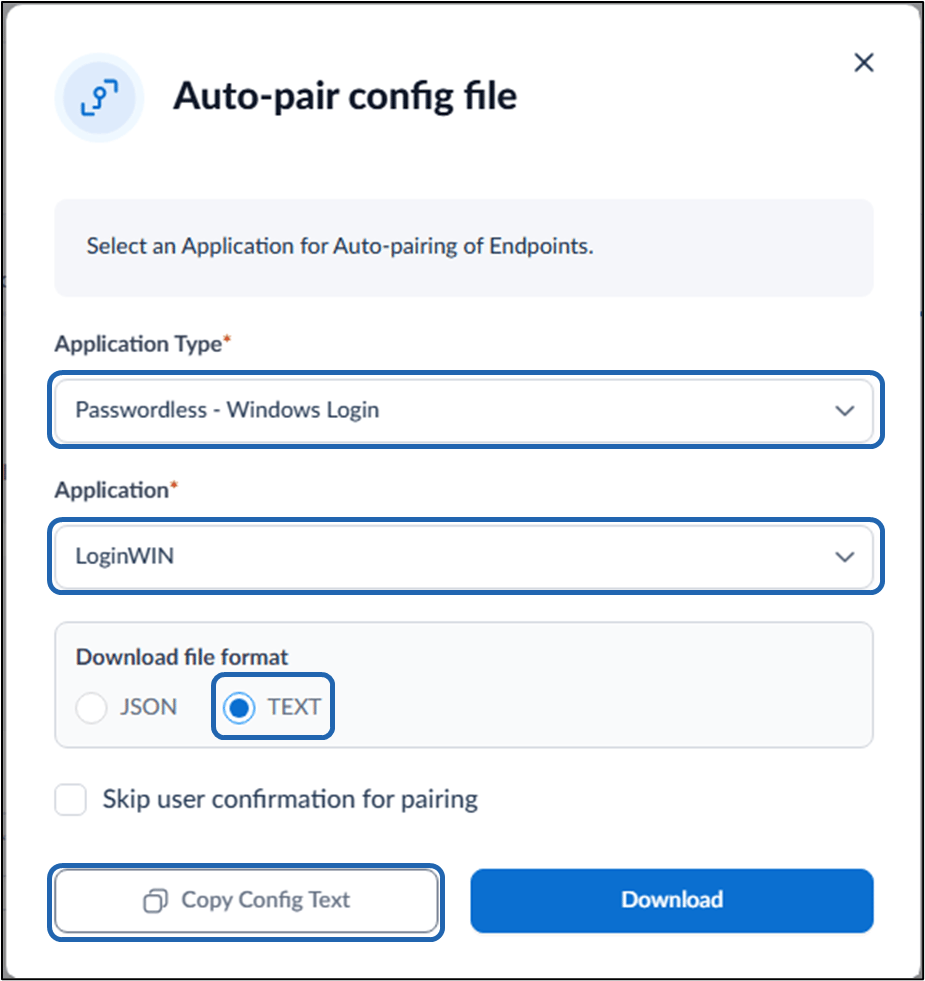
- Generate Autopair Config file. For more information, refer: Windows Login - How to generate Auto-Pair config file for Windows Login in Tenant Admin Portal The Auto-pair config file pop-up box is displayed.
- Do the following:
- Select Application as Passwordless - Windows Login from Application Type dropdown list.
-
From the Select Application drop-down list, select the application that you want the endpoints to pair with.
Note: Select Skip user confirmation for pairing option to auto-pair endpoints without requiring user confirmation.
- Select TEXT as the Download file format.
-
Click Copy Config Text.
Install Windows Login v2.0
Automatic Pairing can be done only at the time of installation of Windows Login v2.0 application for more details refer: Windows Login v2.0 - How to Install, and Auto-Pair Windows Login v2.0 App-
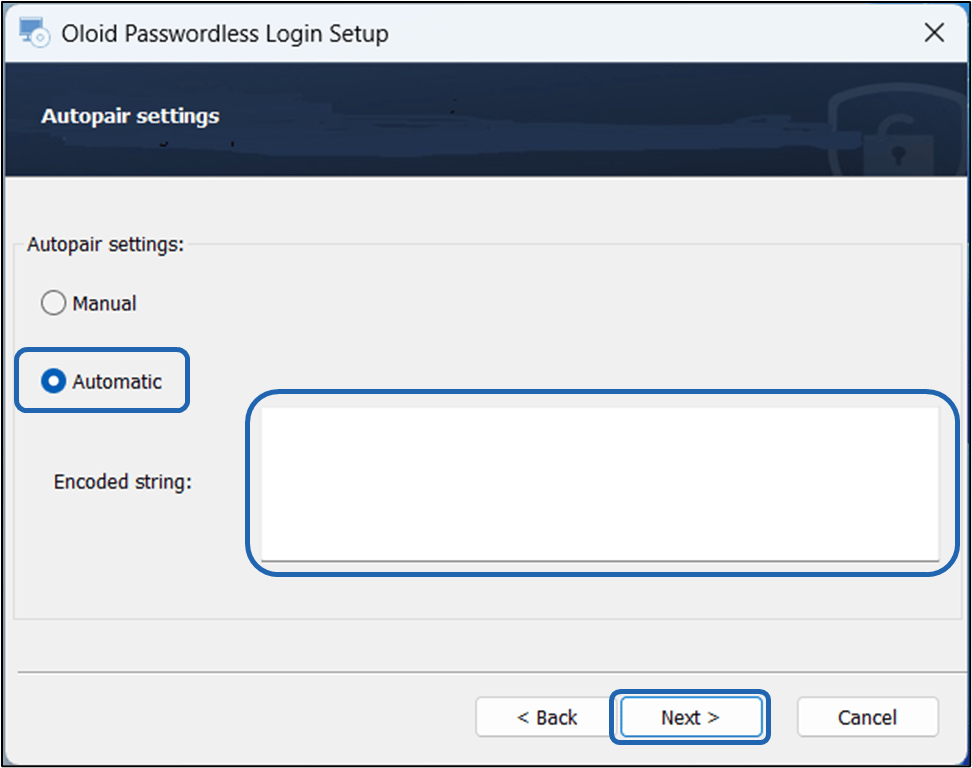
When the Autopair Settings screen is displayed. Do the following: Select Automatic > Enter Encoded String in Text Box> click Next.
Note: Enter the Copied Config text in the Enconded String field.
-
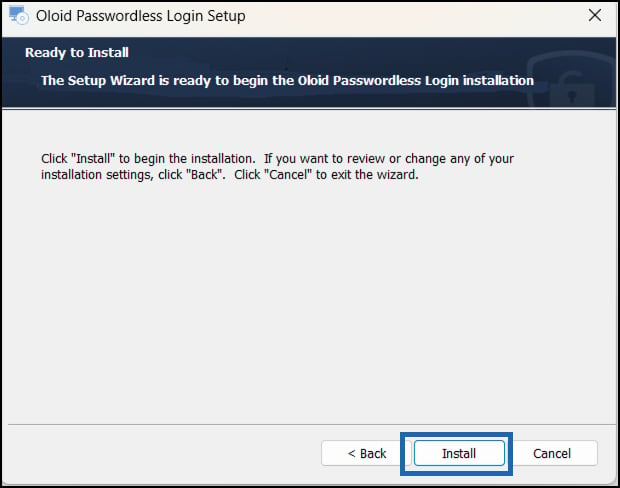
Click Install.
-
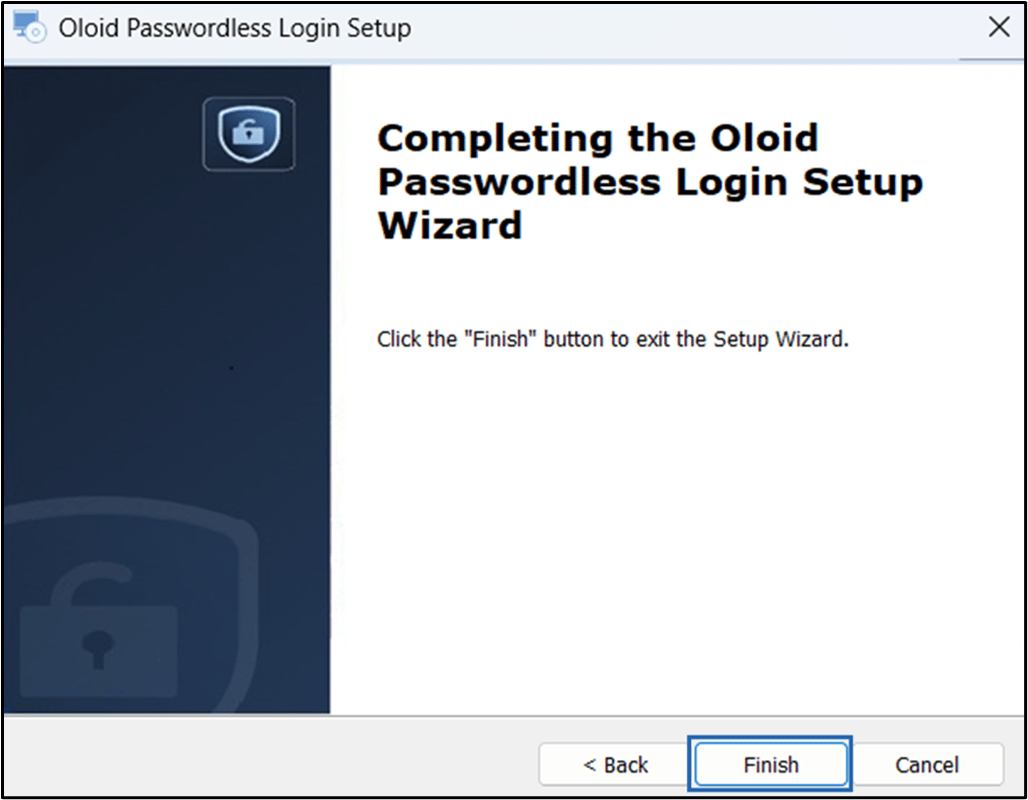
Click Finish.
-
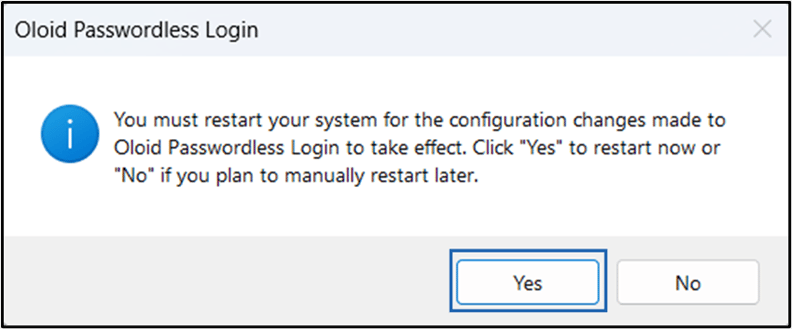
Click Yes to restart the system.
Note: You must restart your system after successful installation.
 Note: The Apache CouchDB is installed on the system by default.