

Introduction
This document explains how to add a supervisor note to a Windows Alert in the Tenant Admin Portal.Prerequisite
- You must have access to the Tenant Admin Portal.
- Ensure that Windows Alerts are enabled and configured.
Steps to Add Supervisor Note in Windows Alert
- Log in to the Tenant Admin Portal.
- Click Transactions on the left menu panel > click Windows Alert.
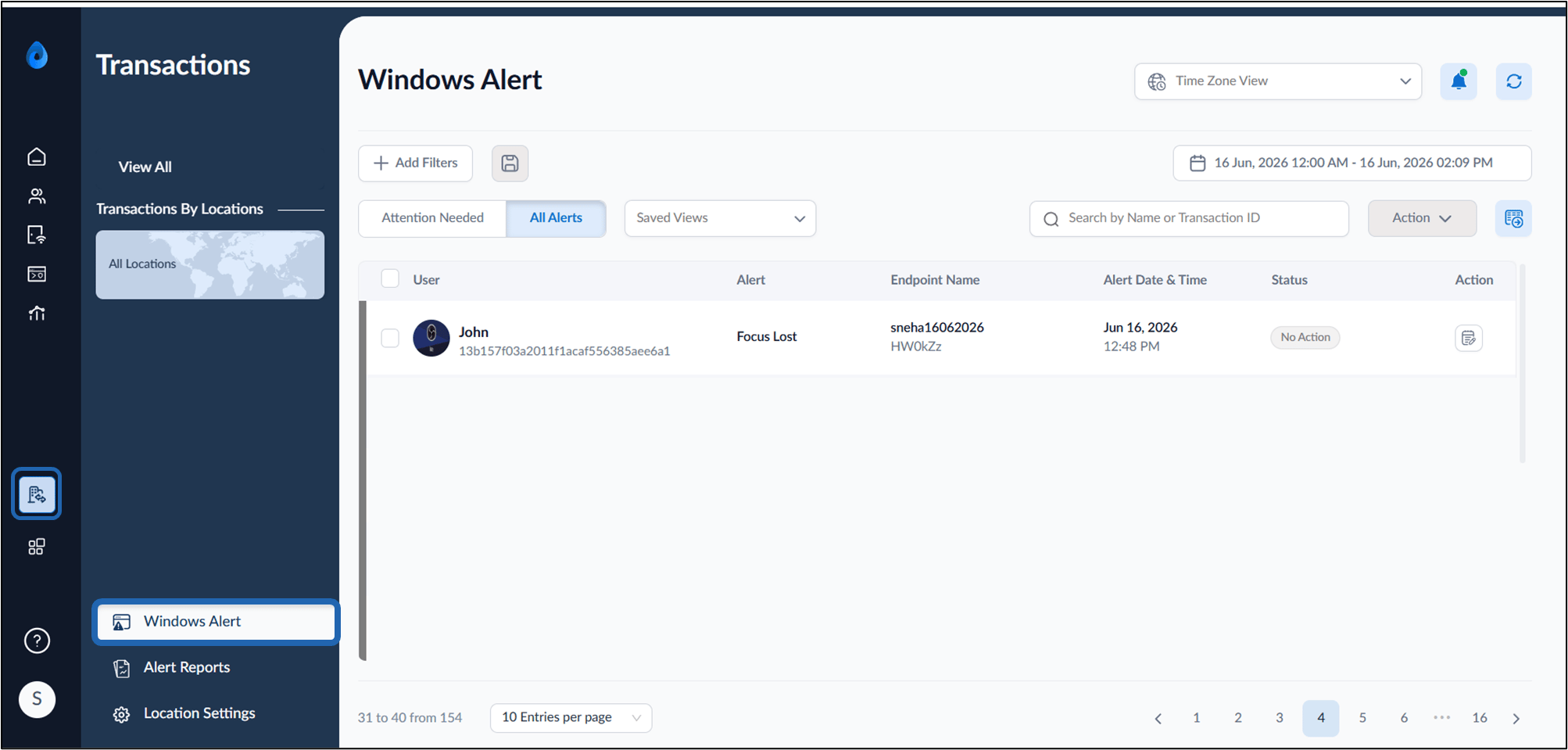
- Click All Alerts.
- Do one of the following:
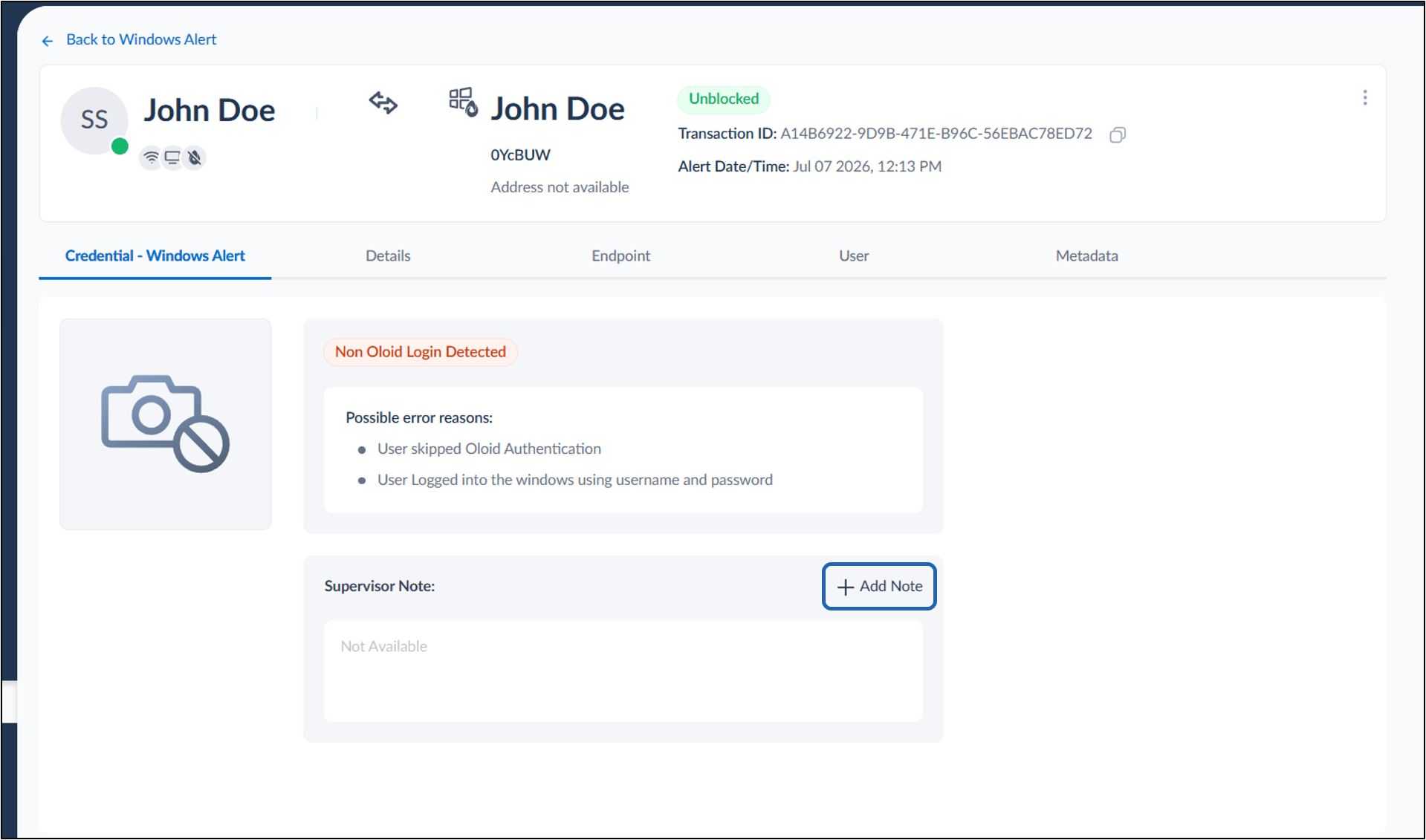
- Click the Alert Name The Windows Alerts Credential page is displayed.
- Click + Add Note.
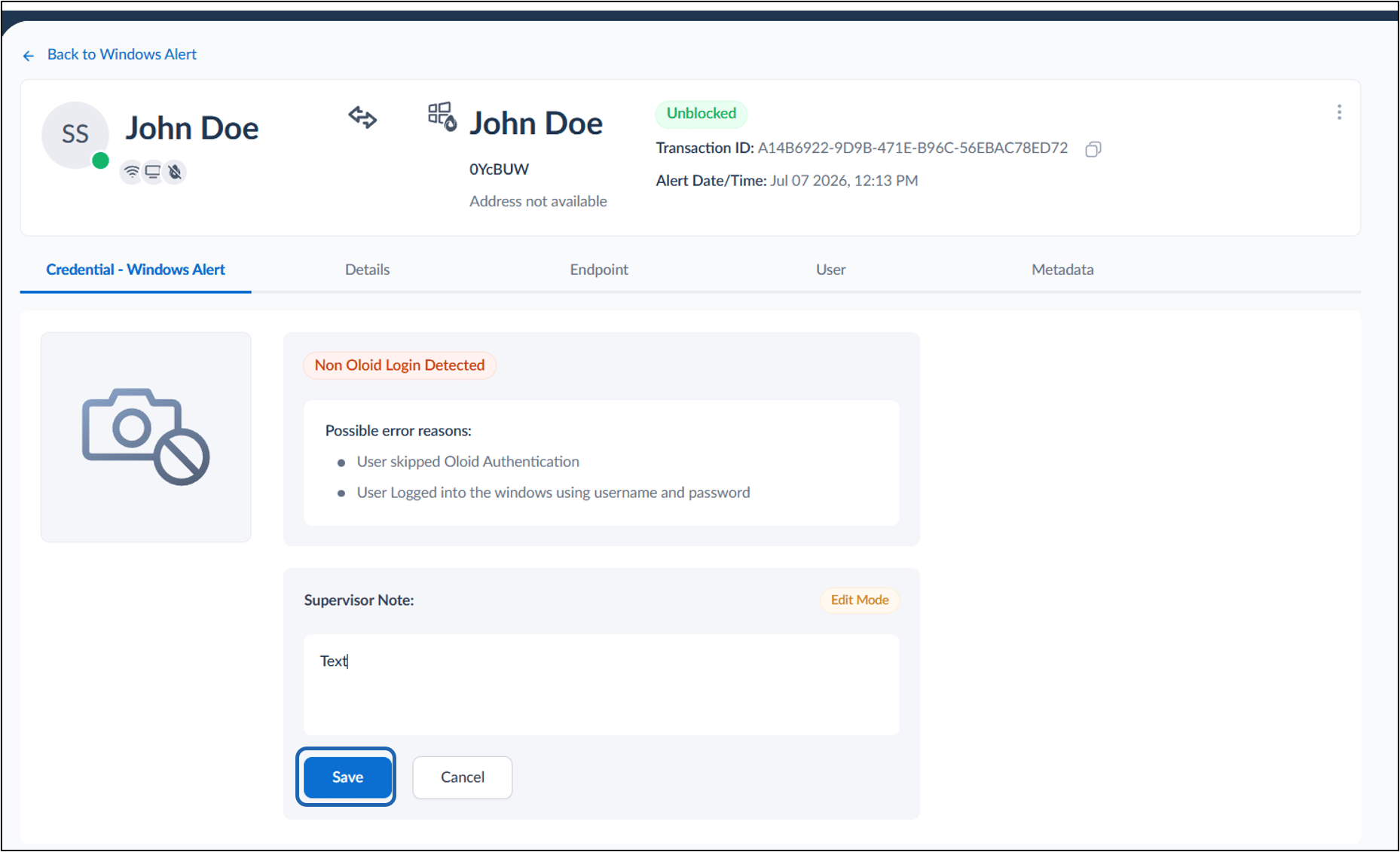
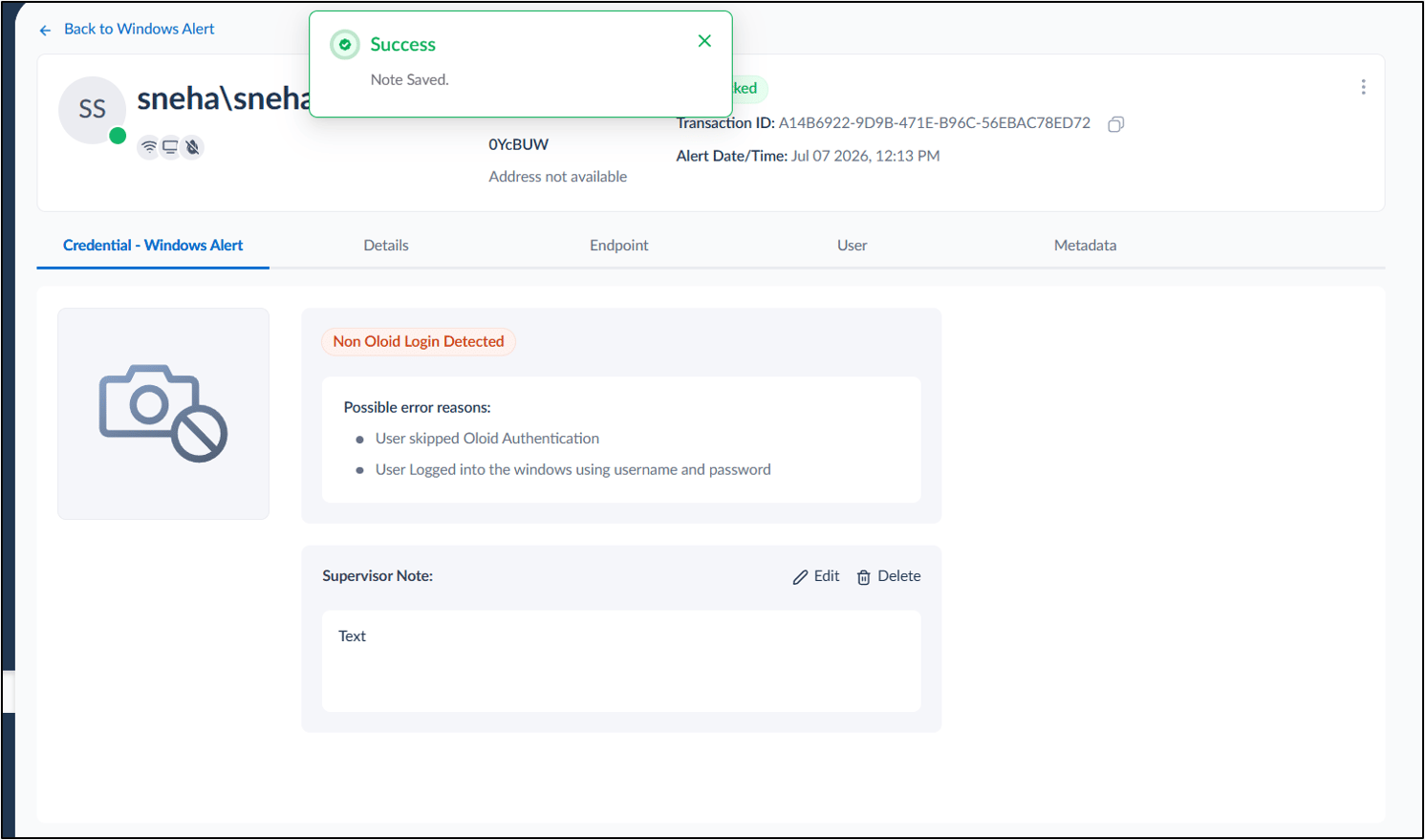
- Enter the Note in the Note field > Click Save.
- Select the Notes icon in the Action column for the required Windows alert.
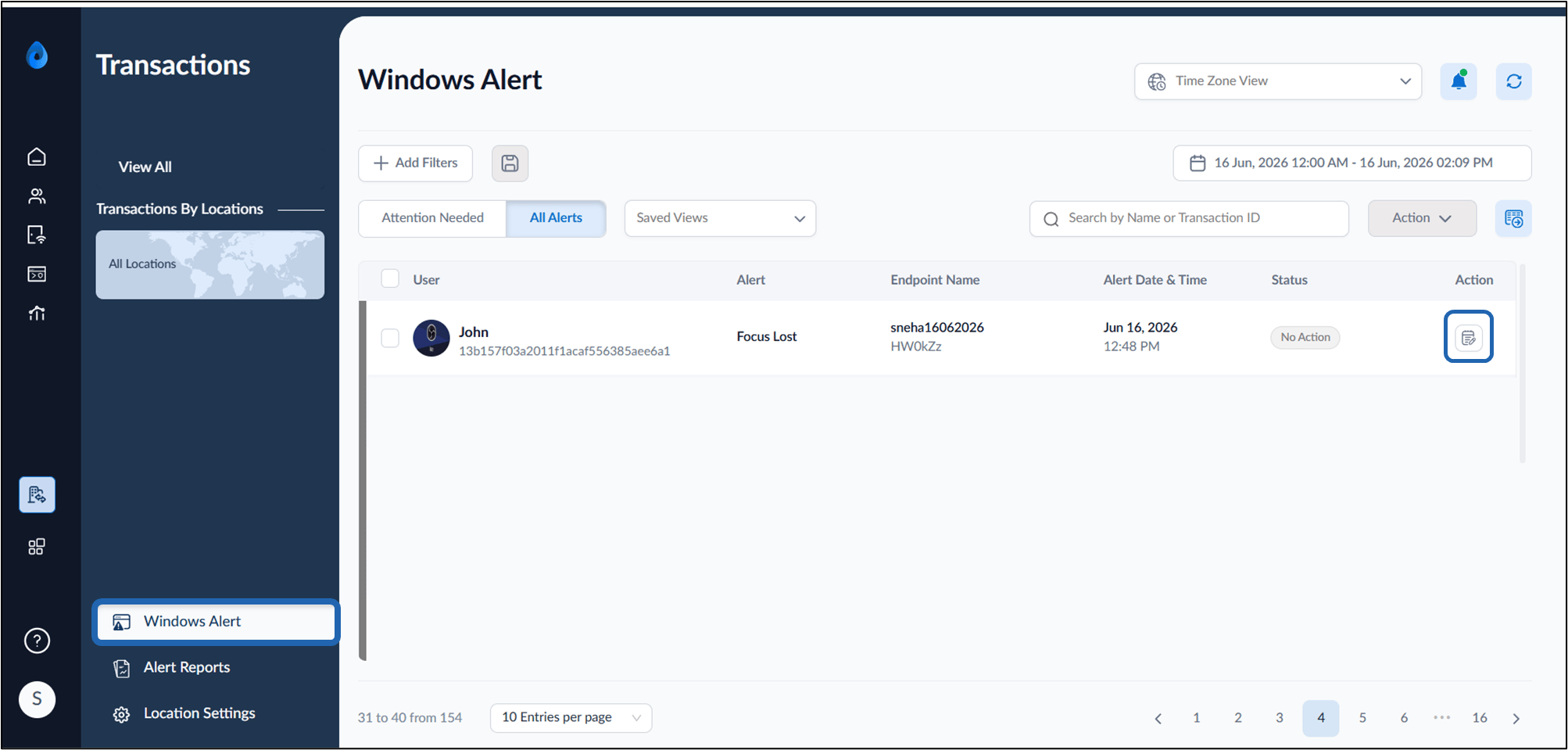
- The Add Note pop-up box is displayed.

