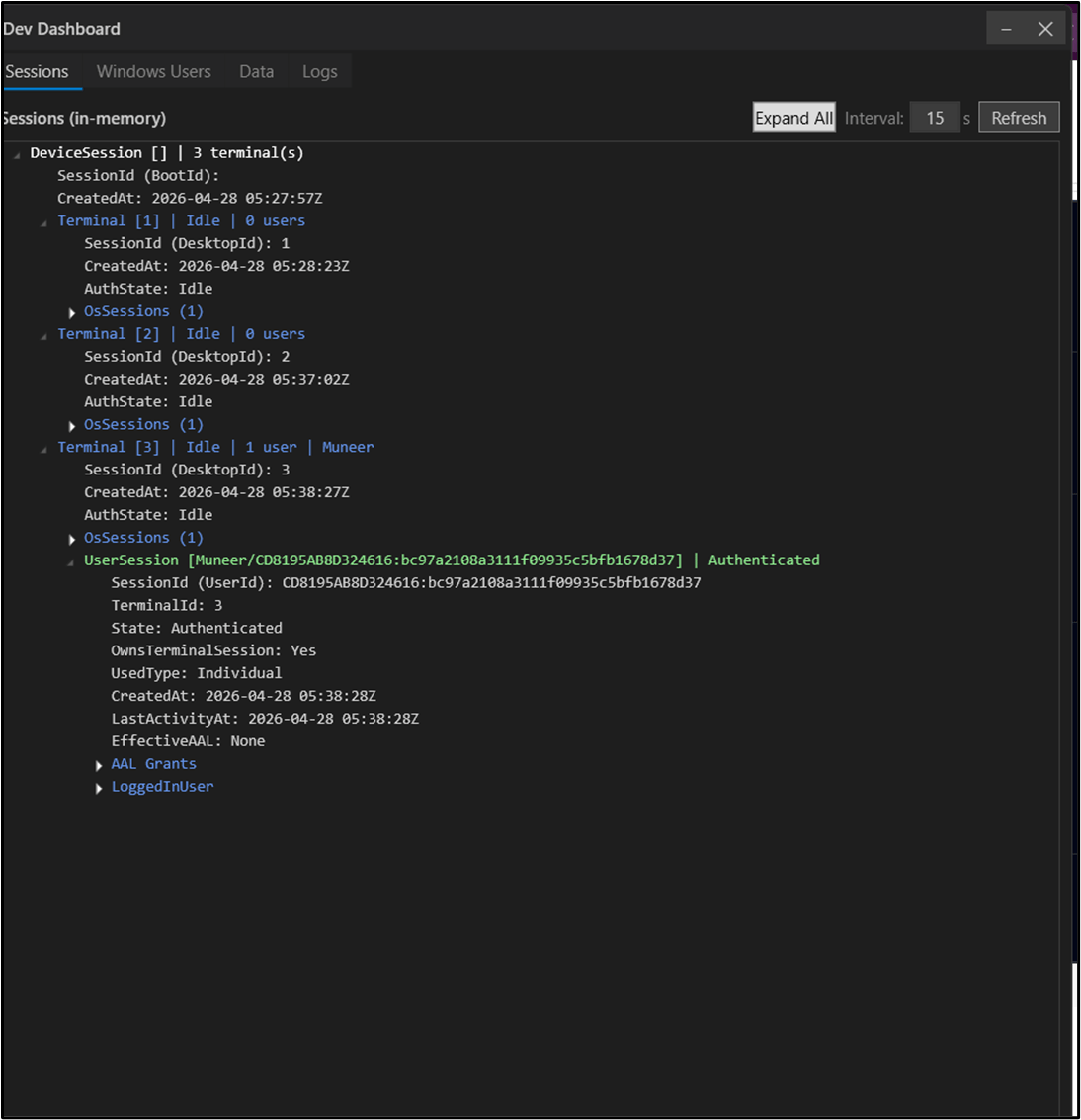
Introduction
The Dev Dashboard in the Windows System Tray application provides access to session tracking for the Windows Login environment. It allows users to view system-level details and validate logs directly from the device.Prerequisites
- You must have the Windows Login version 2.0 installed on your windows machine. Refer: How to Download, Install, and Auto-Pair Windows Authenticator App (Version 2.0)
- Ensure System Tray application is running in the background.
Steps to Access Dev Dashboard
- Log in to Windows device your Windows Machine. refer: How to log in to Windows device using Badge and PIN through Windows Login app
The Windows home screen is displayed.

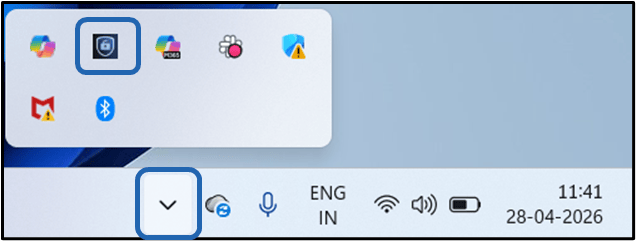
- On the bottom Menu Bar click Show Hidden Icons arrow.
- Click Oloid System Tray icon.
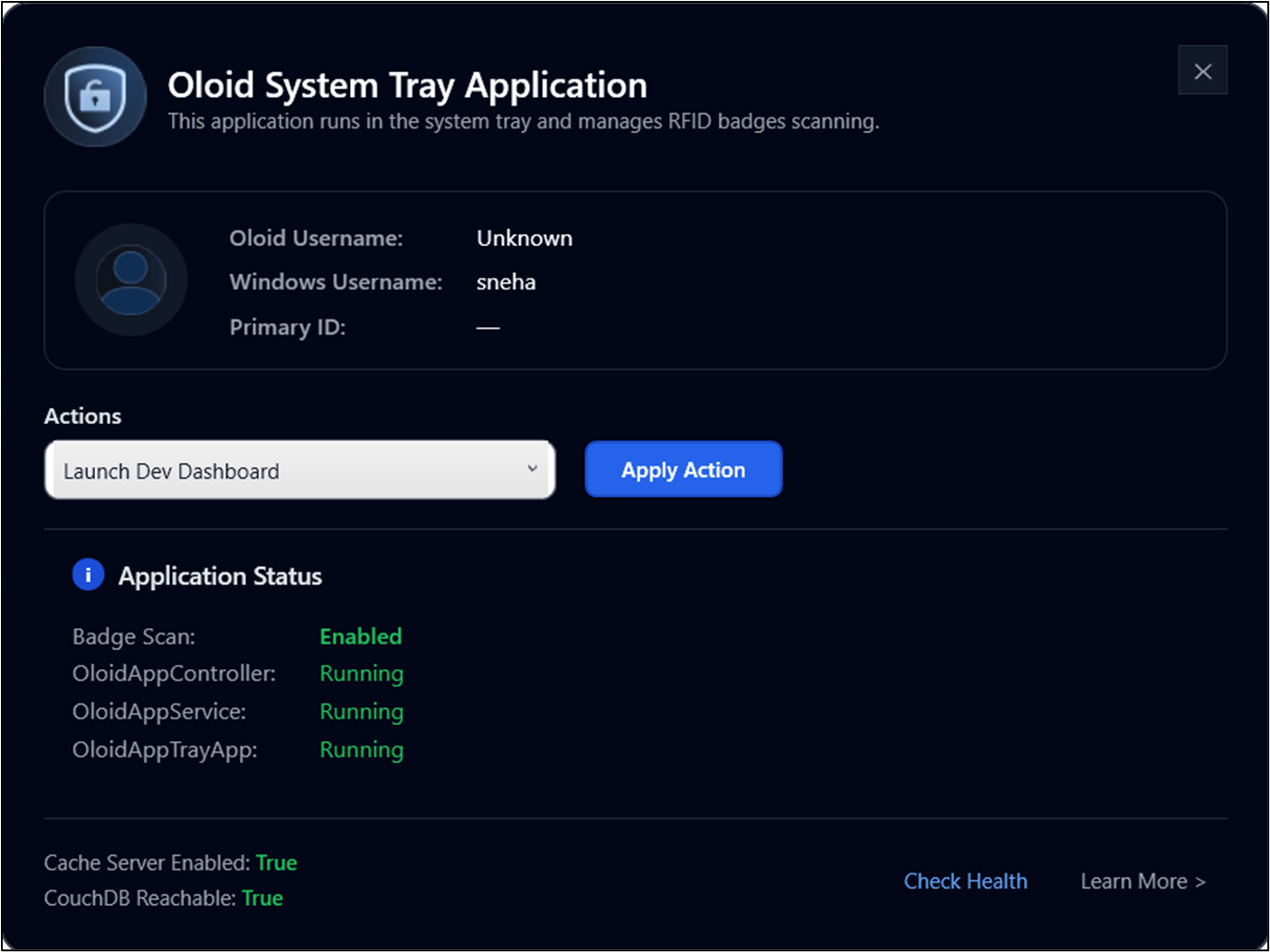
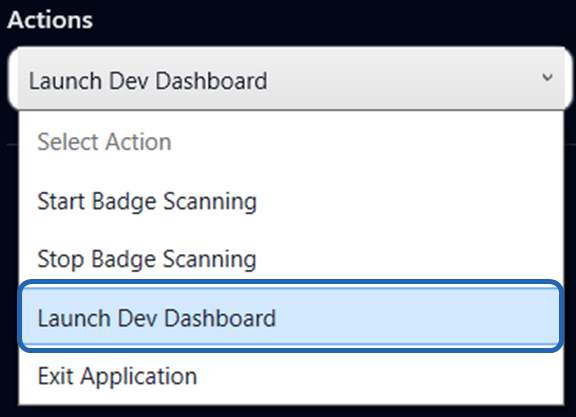
- Select Launch Dev Dashboard from the Actions dropdown.
- Click Apply Action