Introduction
The Windows Post-login Module allows the admin to control post-login behavior on Windows devices after user authentication. Enabling this feature helps customize the user experience by triggering specific actions or workflows immediately after login.Prerequisite
You must have access to the Tenant Admin Portal.Steps to Enable Post Login page
- Log in to the Tenant Admin Portal.
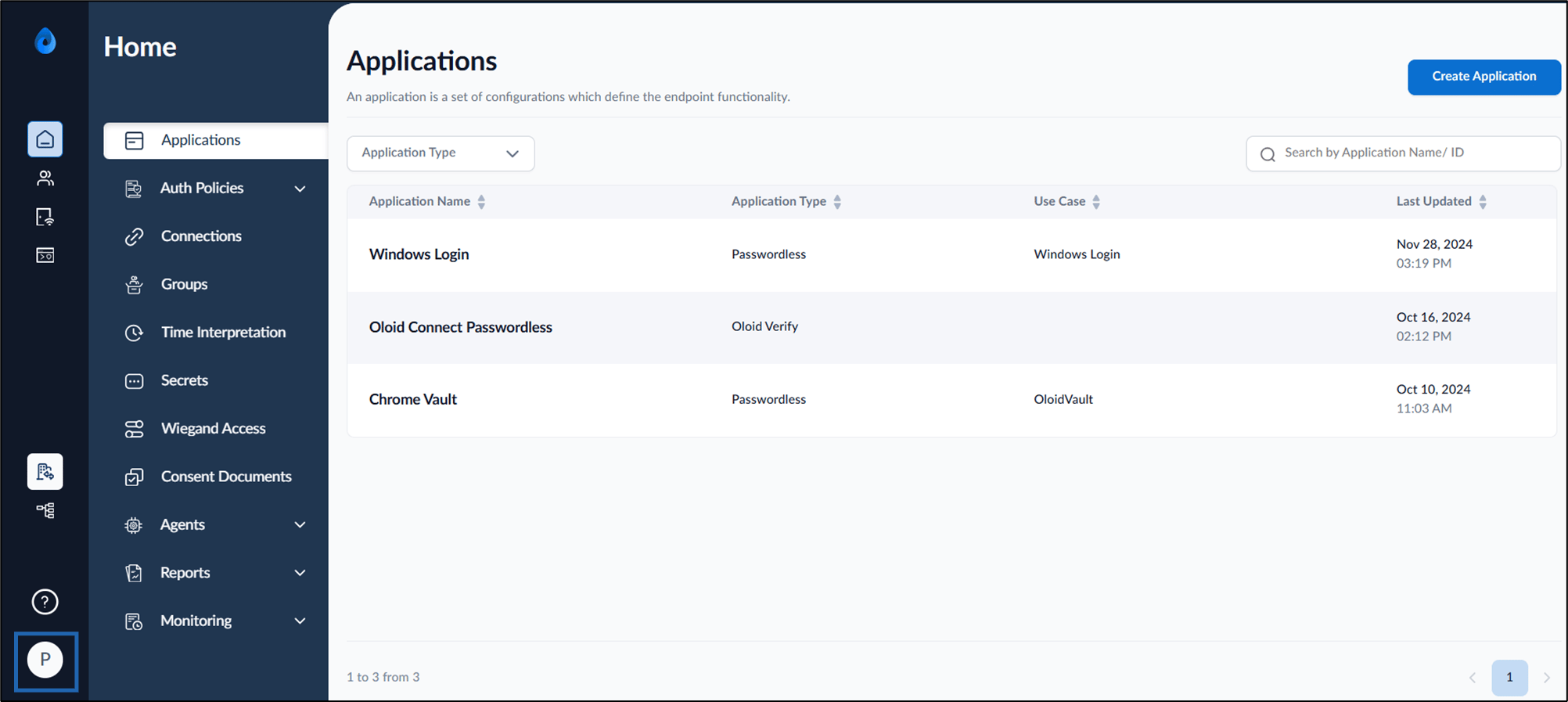
- On the homepage of the portal, click User profile icon on the bottom left corner of the menu panel.
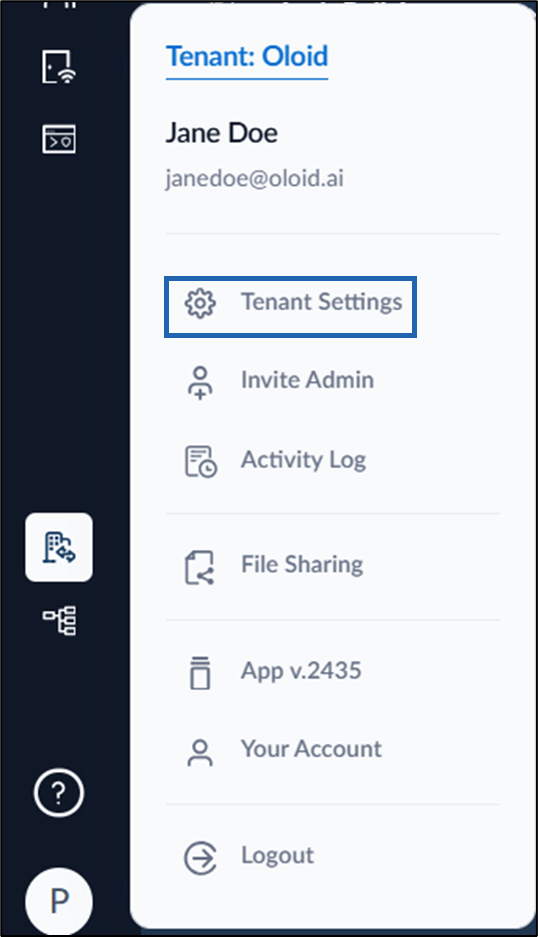
- Select Tenant Settings.
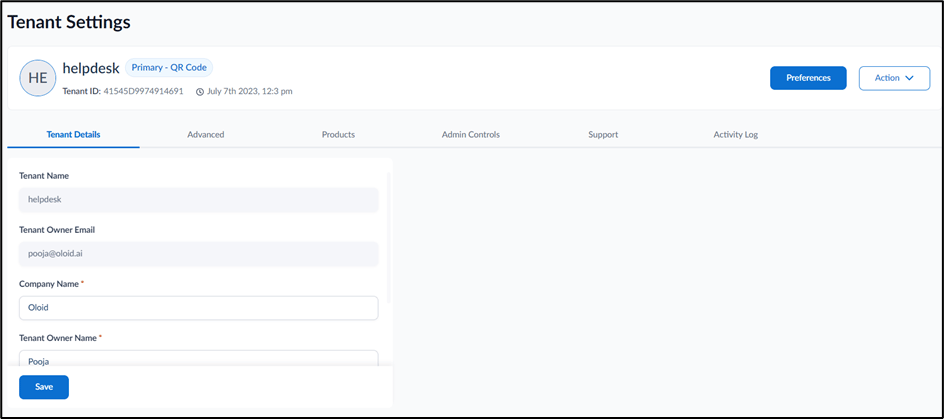
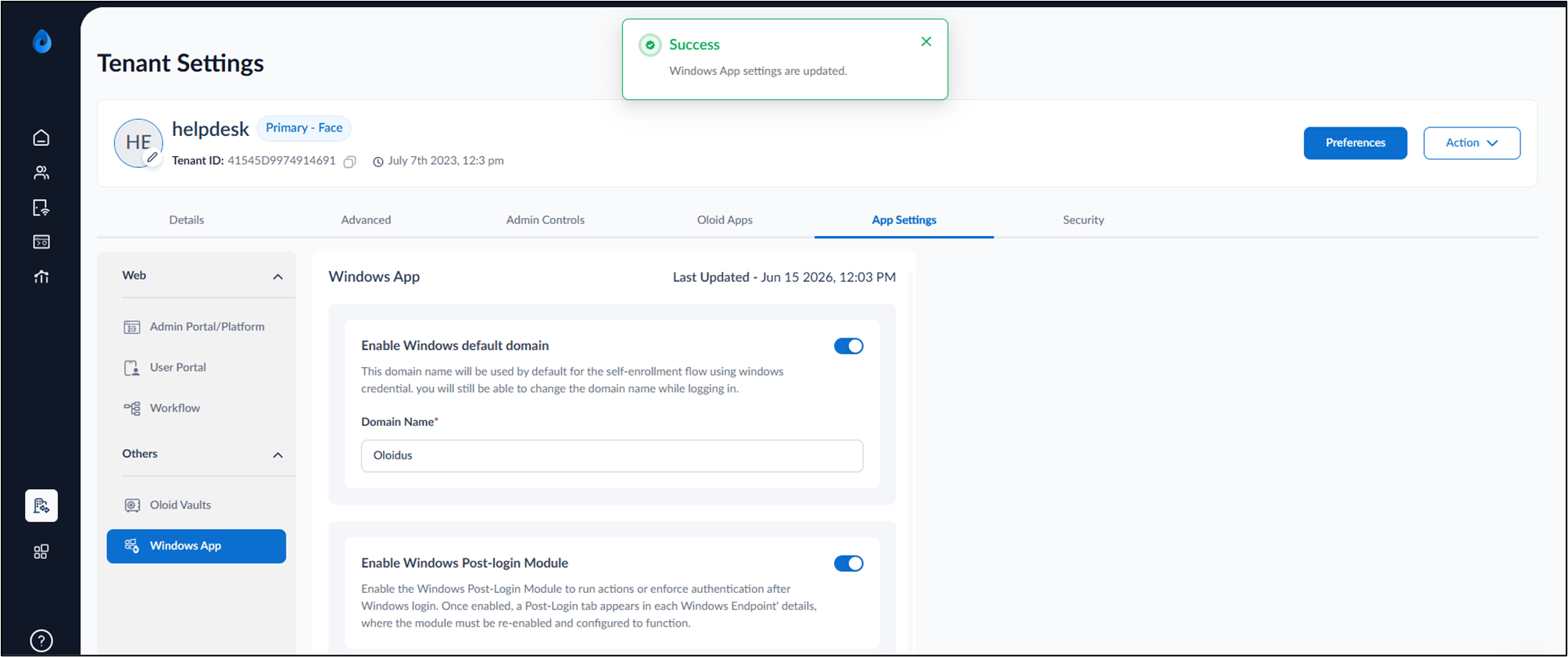
- Go to App Settings tab > Windows App.
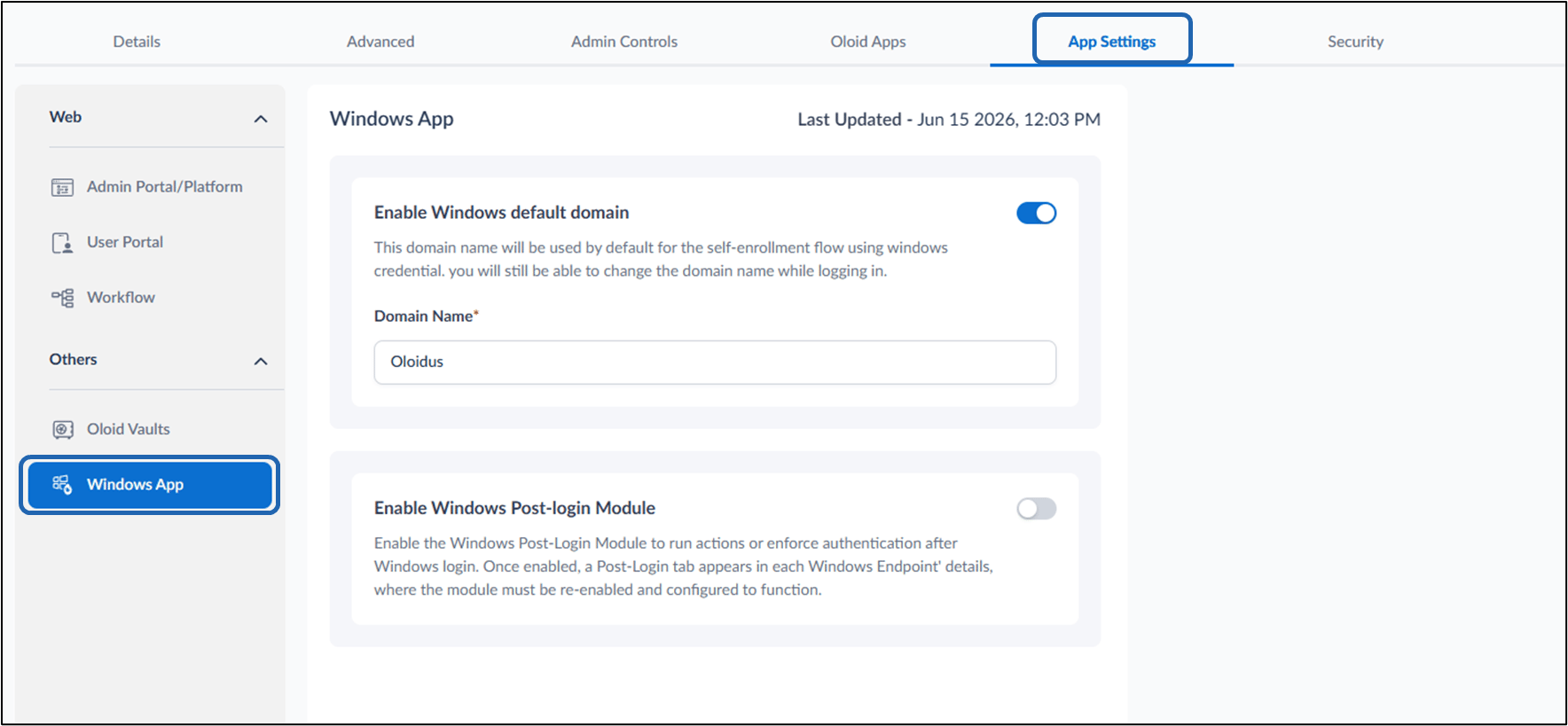
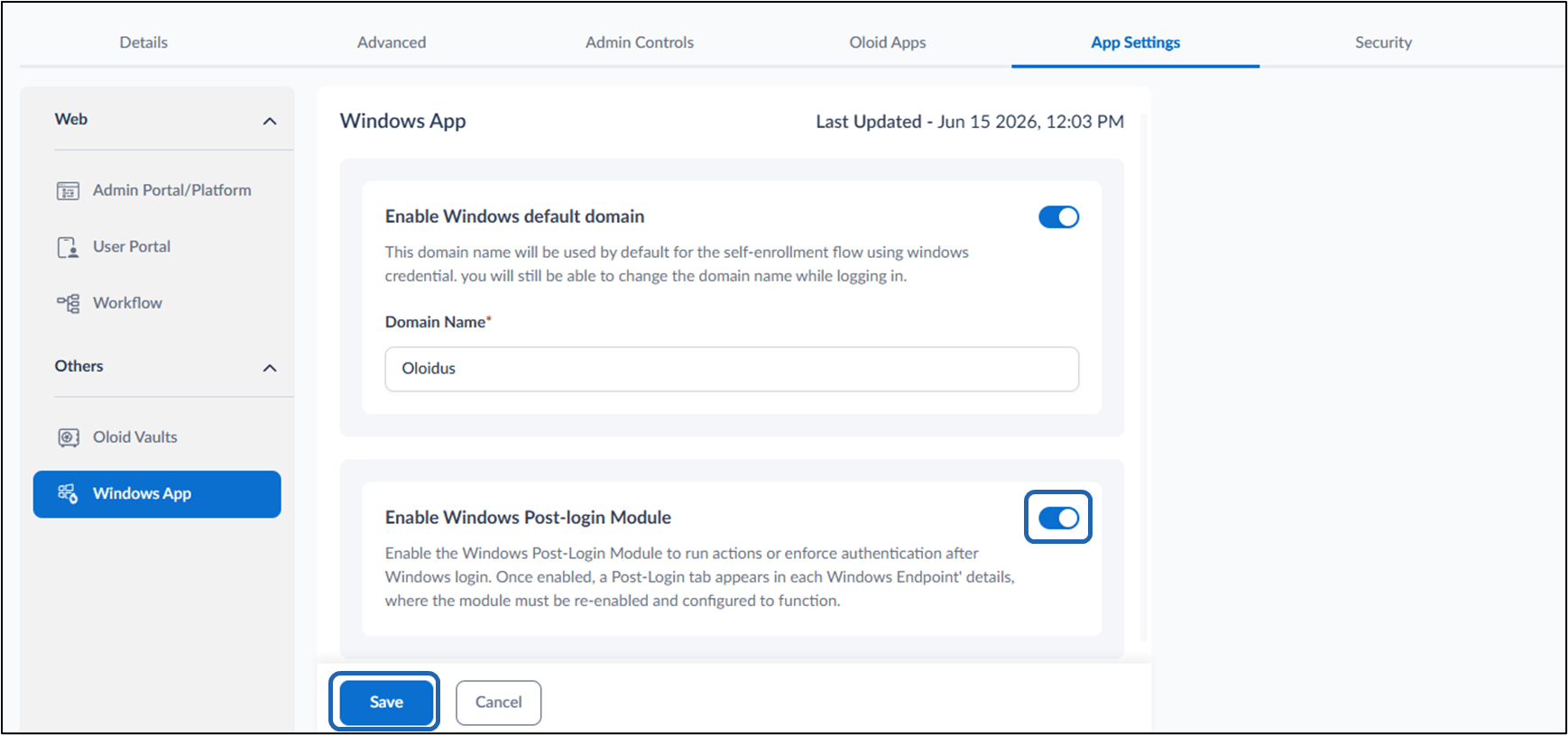
- Turn on the Enable Windows Post-login Module toggle.
- Click Save.