

Introduction
This document explains how to download the Windows Login v2.0 installer from the Tenant Admin Portal. After downloading the installer, you can proceed with the installation and setup of the Windows Login application on your system.Prerequisites
- You must have access to a Tenant Admin account.
- You have local administrator access on the Windows machine.
- Check System Requirements. For more information, refer: Windows Login Version 2 - Hardware and Software Requirements
Steps to download Windows Login v 2.0
- Log in to Tenant Admin Portal.
- On the homepage of the portal, click User profile icon on the bottom left corner of the menu panel.
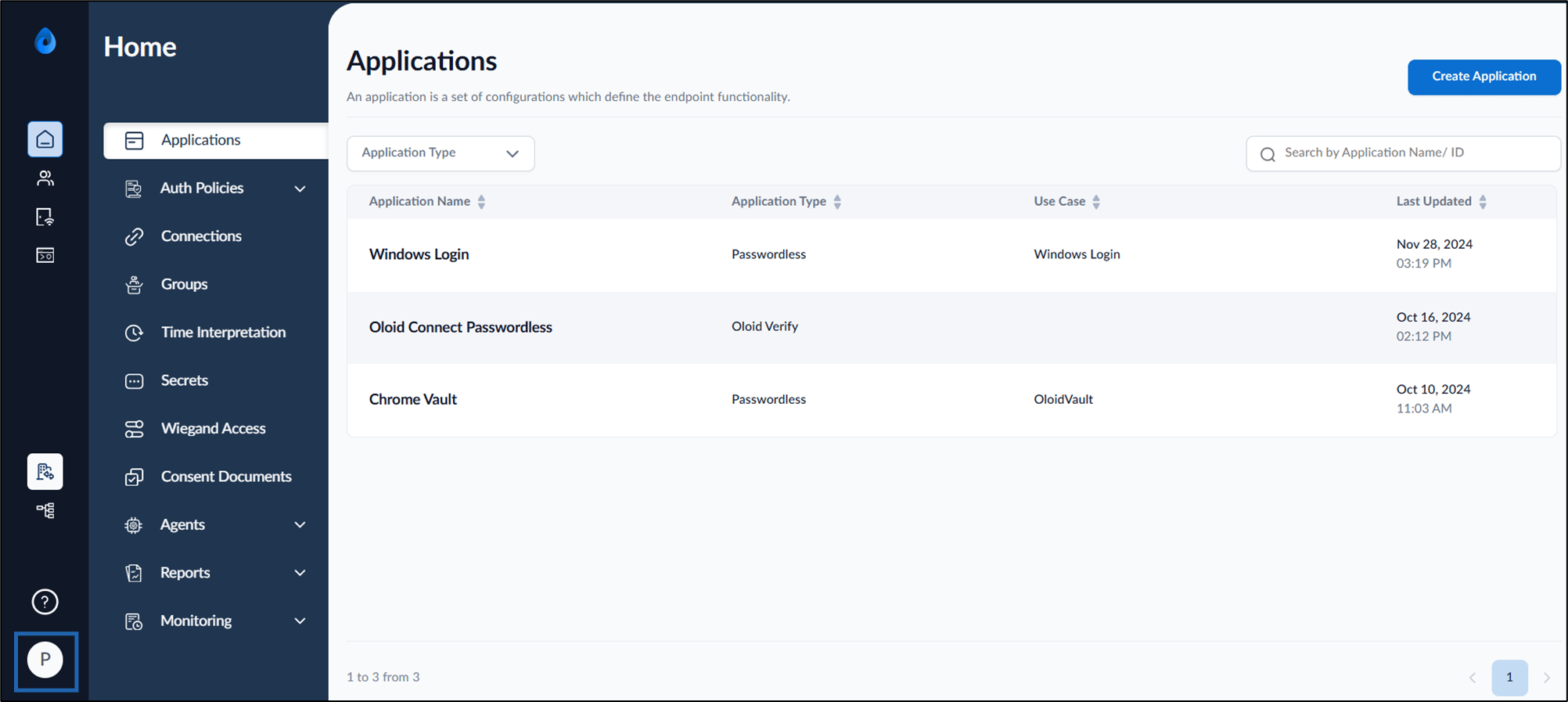
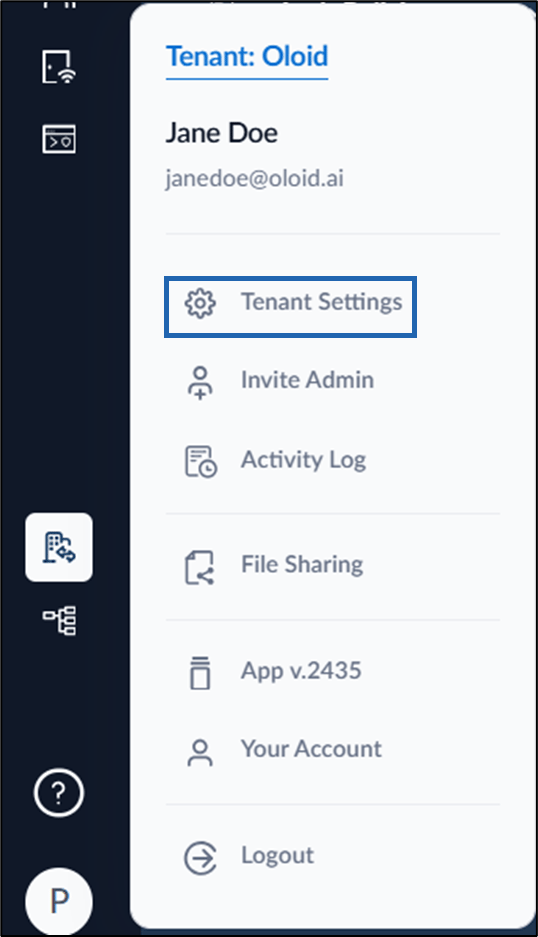
- The user profile menu is displayed.
- Select Tenant Settings.
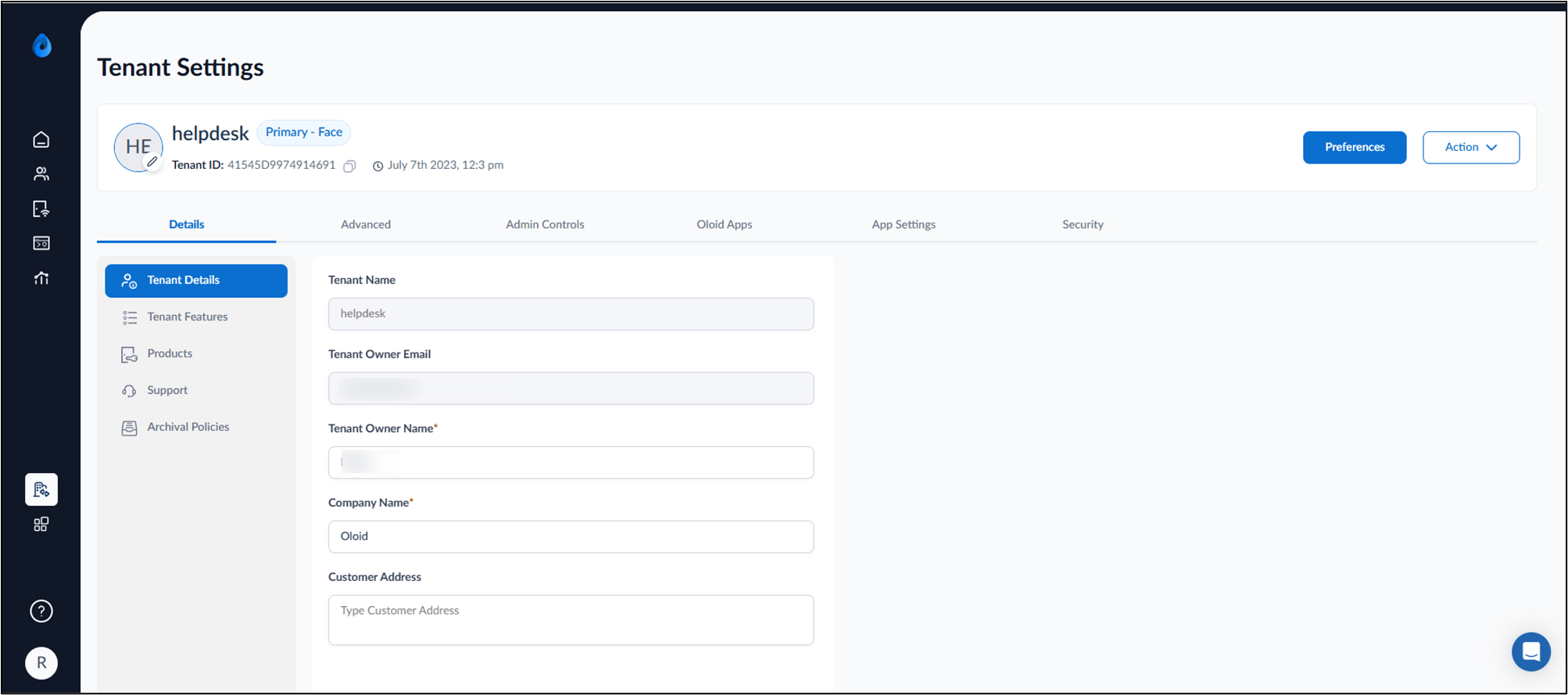
- Go to Oloid Apps tab > Windows Authenticator App V2 Login.
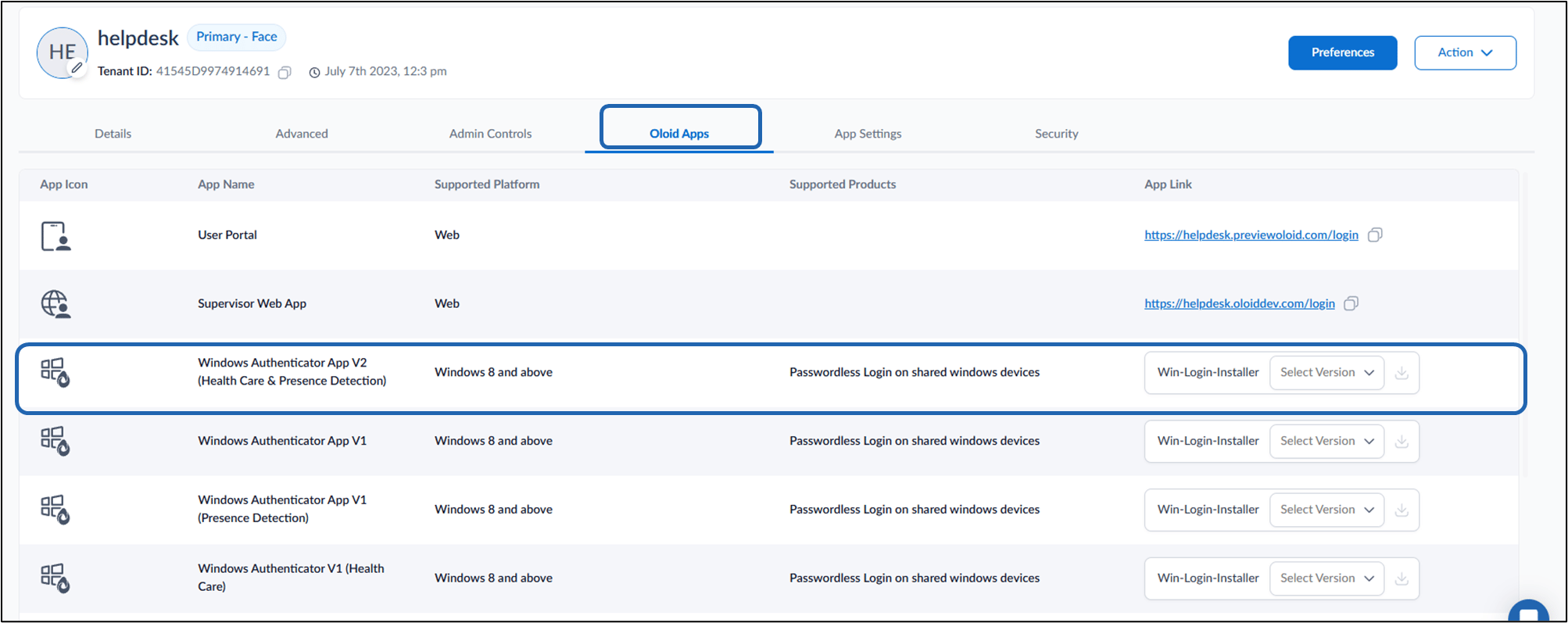
- Select the preferred version from the Win-Login-Installer dropdown list, then click the Download button
 icon.
icon.
