Introduction

This feature of Oloid DeviceLock app allows the user in tenant admin mode to add face using the app.

Prerequisite

You must have Admin account to add a user.

Steps to Add Face

  1. Log in to the Admin mode in DeviceLock App. To log in referHow to log in to admin mode in DeviceLock App.
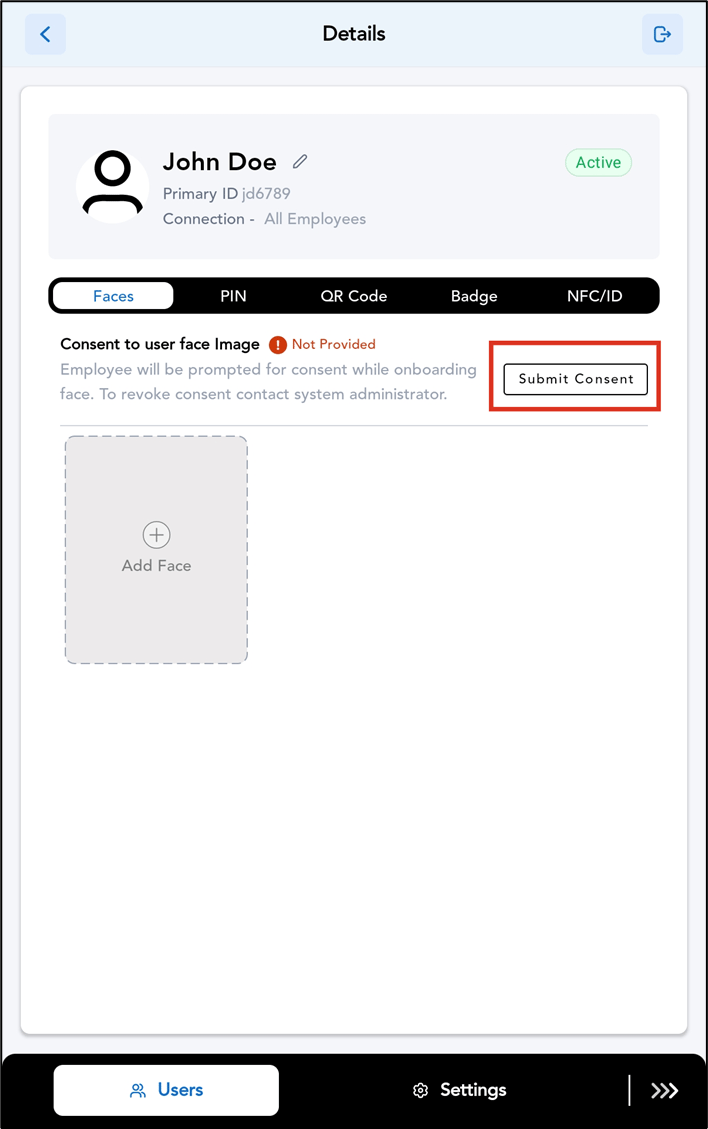
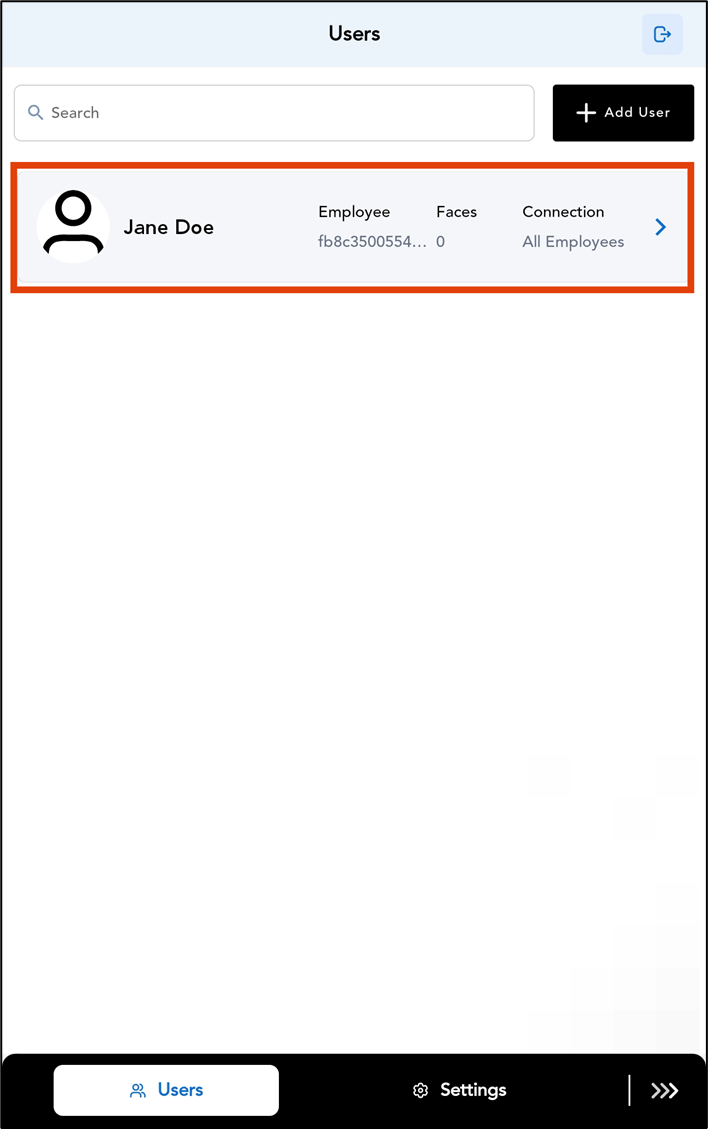
  2. Go to Users tab > select the preferred user. How to Add Face for Users in the... - screenshot 1 The user details screen is displayed.
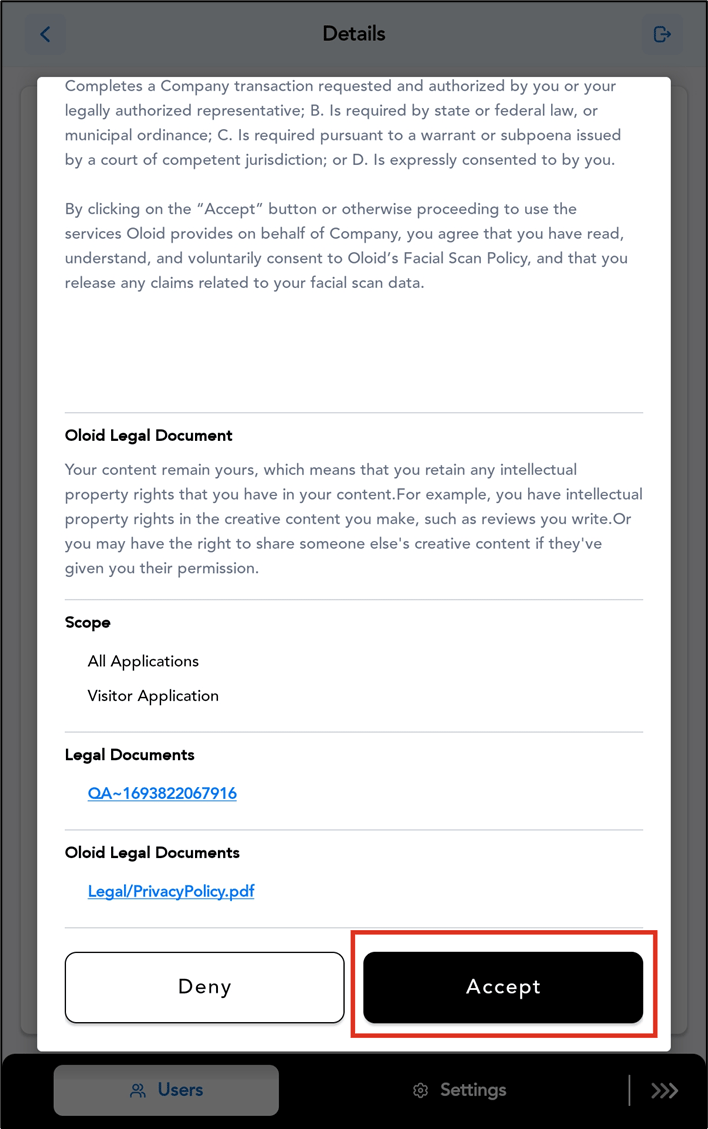
  3. Tap Submit Consent. How to Add Face for Users in the... - screenshot 2 The user consent screen is displayed.
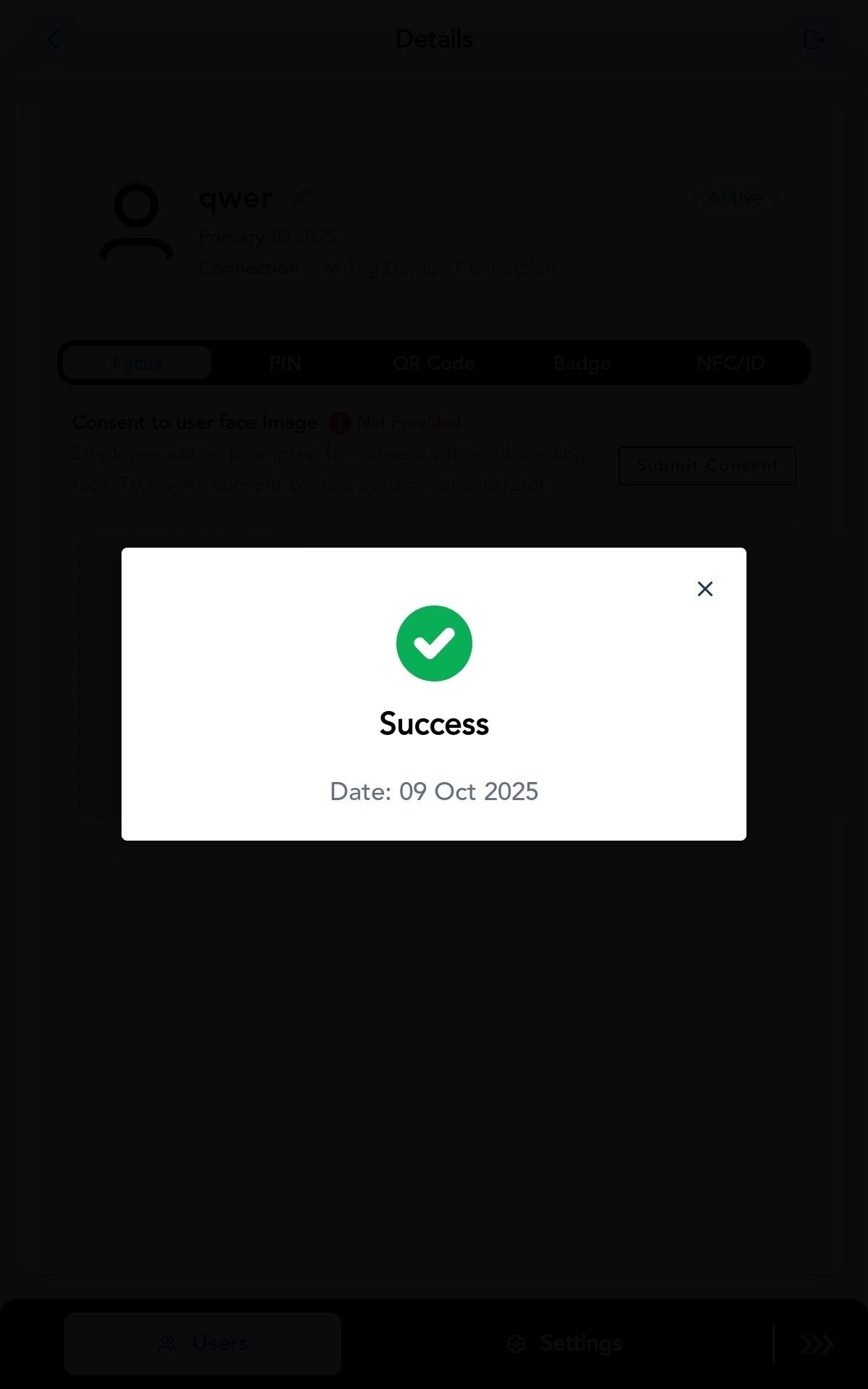
  4. Tap Accept. How to Add Face for Users in the... - screenshot 3 The Consent is submitted successfully. How to Add Face for Users in the... - screenshot 4
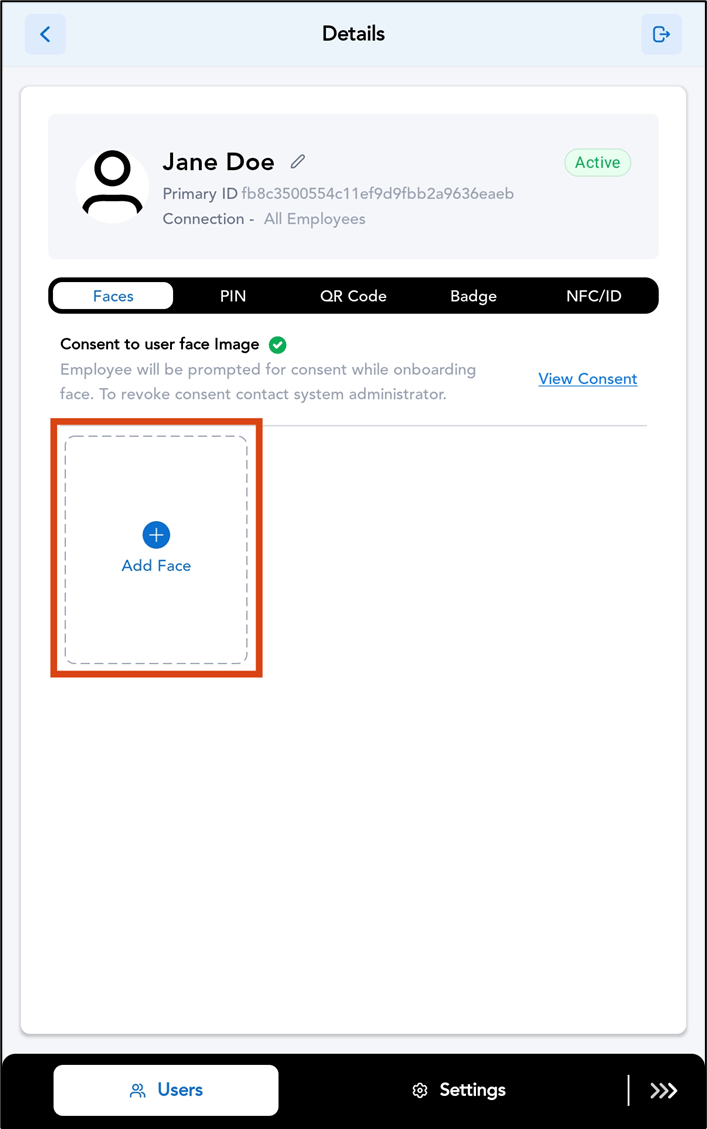
  5. Tap Add Face. How to Add Face for Users in the... - screenshot 5
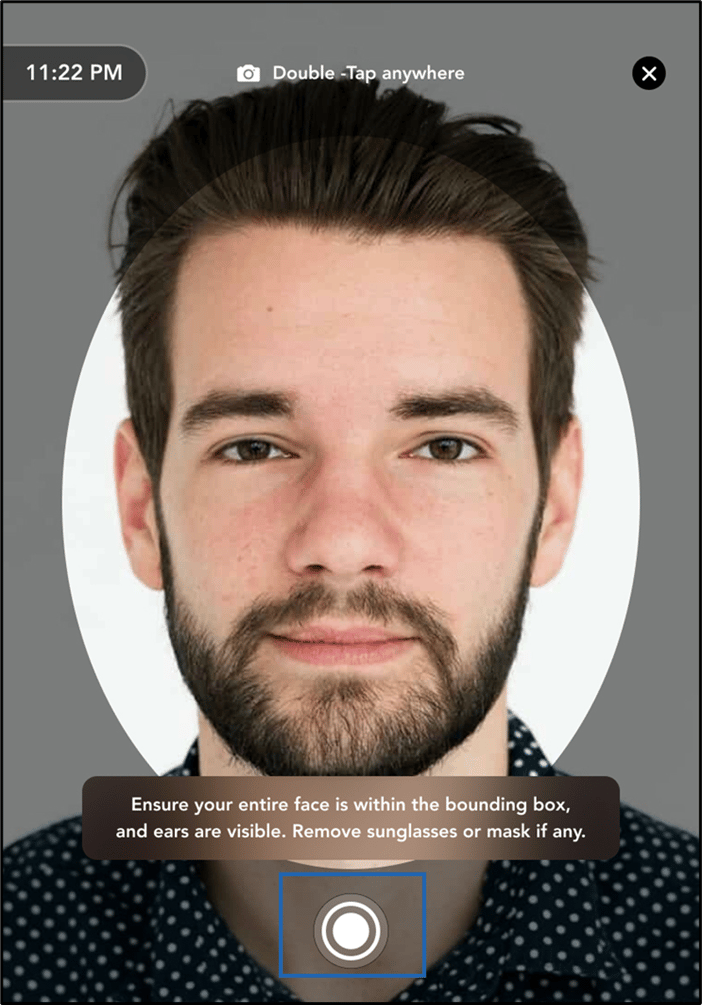
To add a face, position your face in front of the camera and tap the Capture button.
Note: If you do not tap the Capture button, the app automatically captures your face after a few seconds.
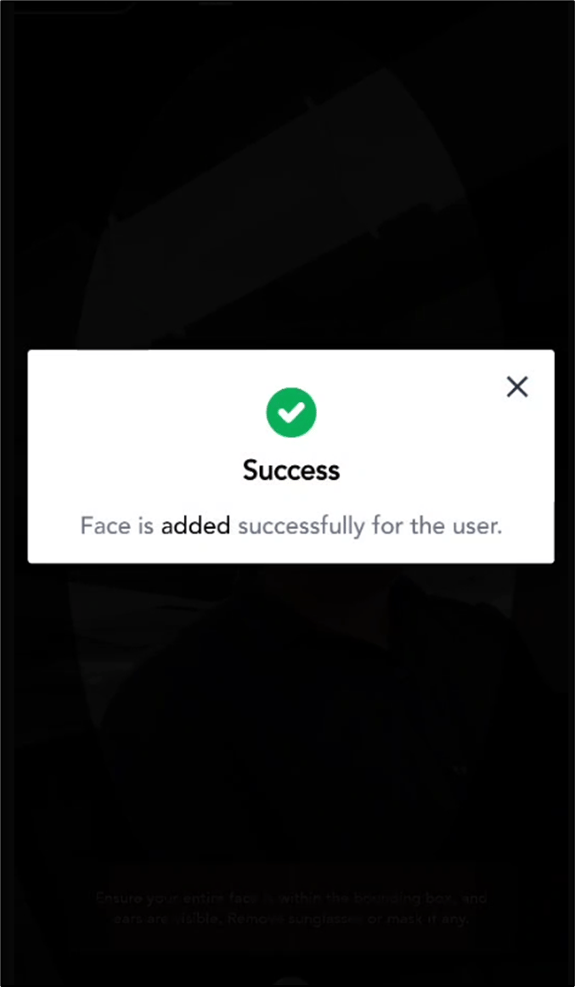
How to Add Face for Users in the... - screenshot 6 Face is added successfully. How to Add Face for Users in the... - screenshot 7