Introduction
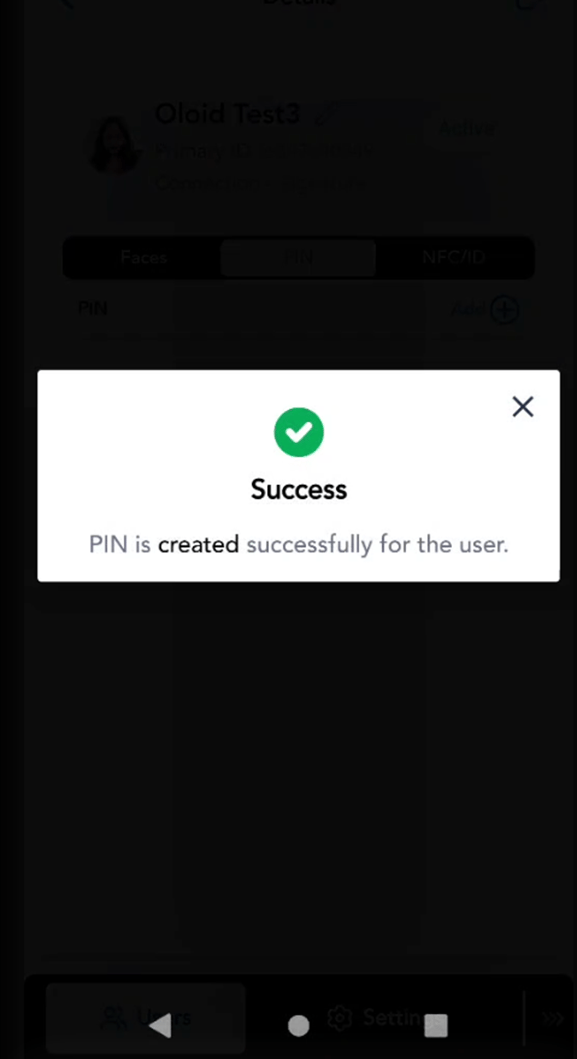
Tenant Admin or Supervisor can assign a PIN for users directly in the DeviceLock app through admin mode. Once enrolled, the PIN is linked to the user’s profile and can be used for authentication purpose, providing an additional or alternative login method to access the device.Steps to enroll PIN
- Log in to the admin mode in DeviceLock App. To log in referHow to log in to admin mode in DeviceLock App.
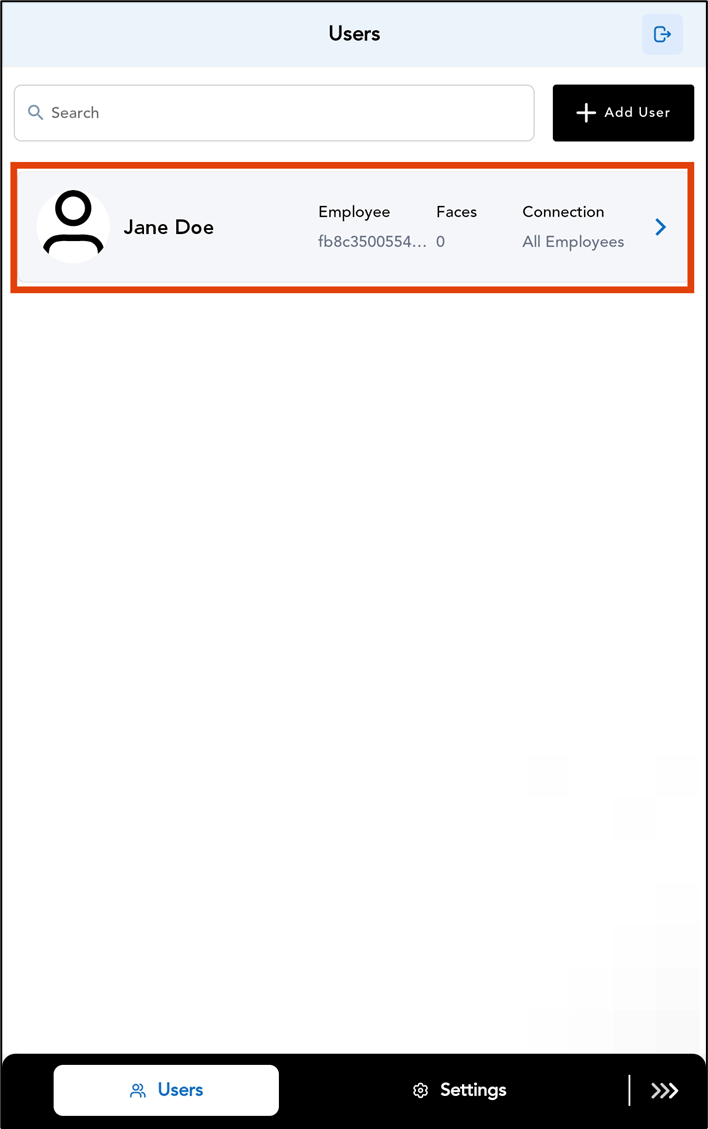
- Go to Users tab > select the preferred user.
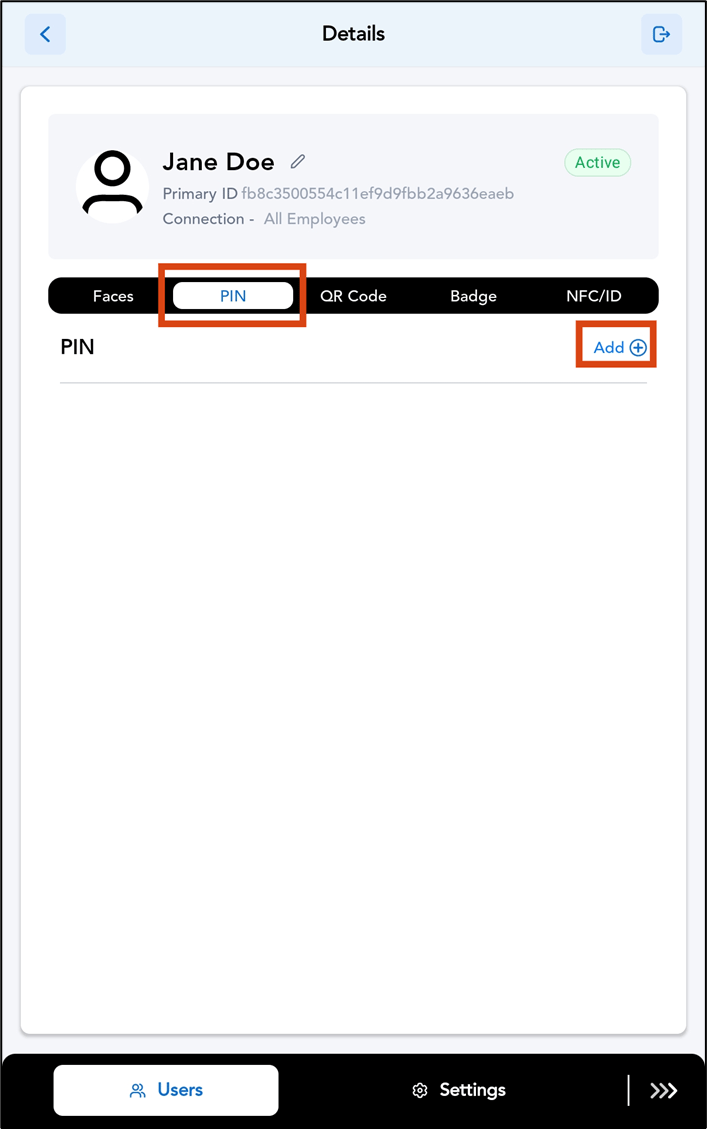
- Go to PIN tab > tap Add PIN.
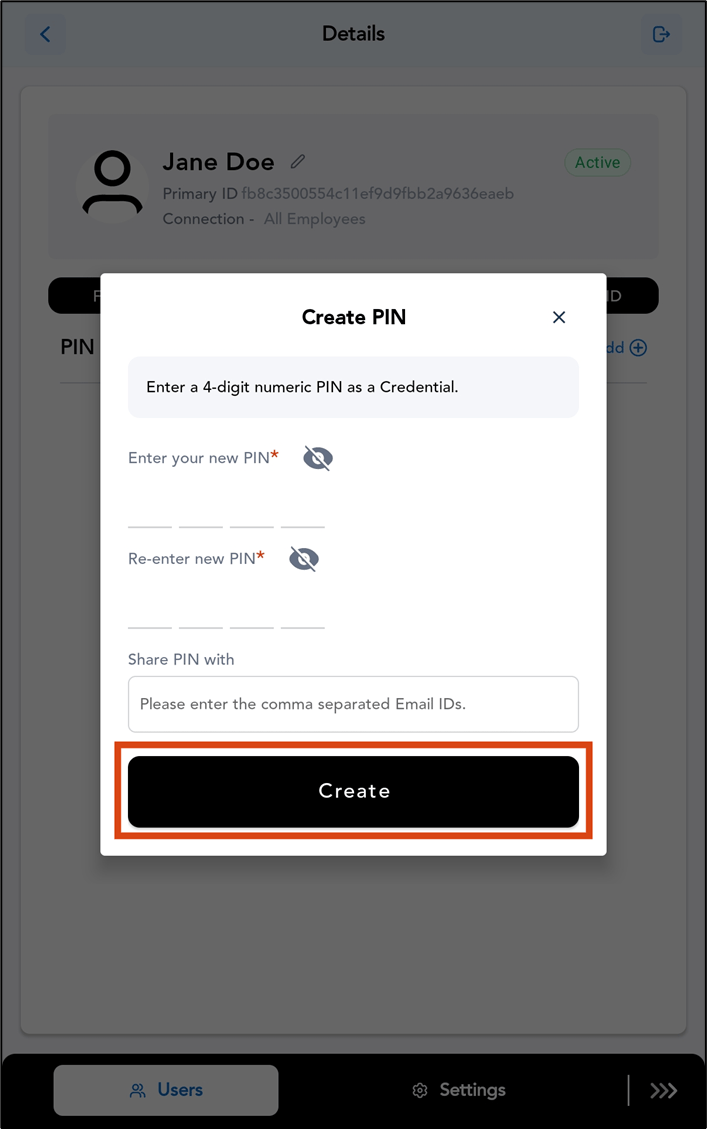
- Do the following:
- Enter the PIN.
- Re-enter the PIN.
- Enter recipient email ID to share the PIN.
-
Tap Create.
Note: The PIN can be configured as a 4-digit, 6-digit, or open (alpha- numeric) PIN from the Tenant Admin Portal.