Introduction
DeviceLock is a secure, passwordless authentication app for Android devices that allows users to authenticate using Facial Recognition, Badge ID, QR Code, NFC ID, or PIN. It enhances security, streamlines user experience, and supports multi-factor authentication in enterprise environments.Prerequisite
You must have access to the Tenant Admin Portal.Steps to create and configure DeviceLock Application
- Log in to theTenant Admin Portal. For more details, refer How to log in to Tenant Admin Portal.
- On the Applications page, click Create Application in the top right corner.
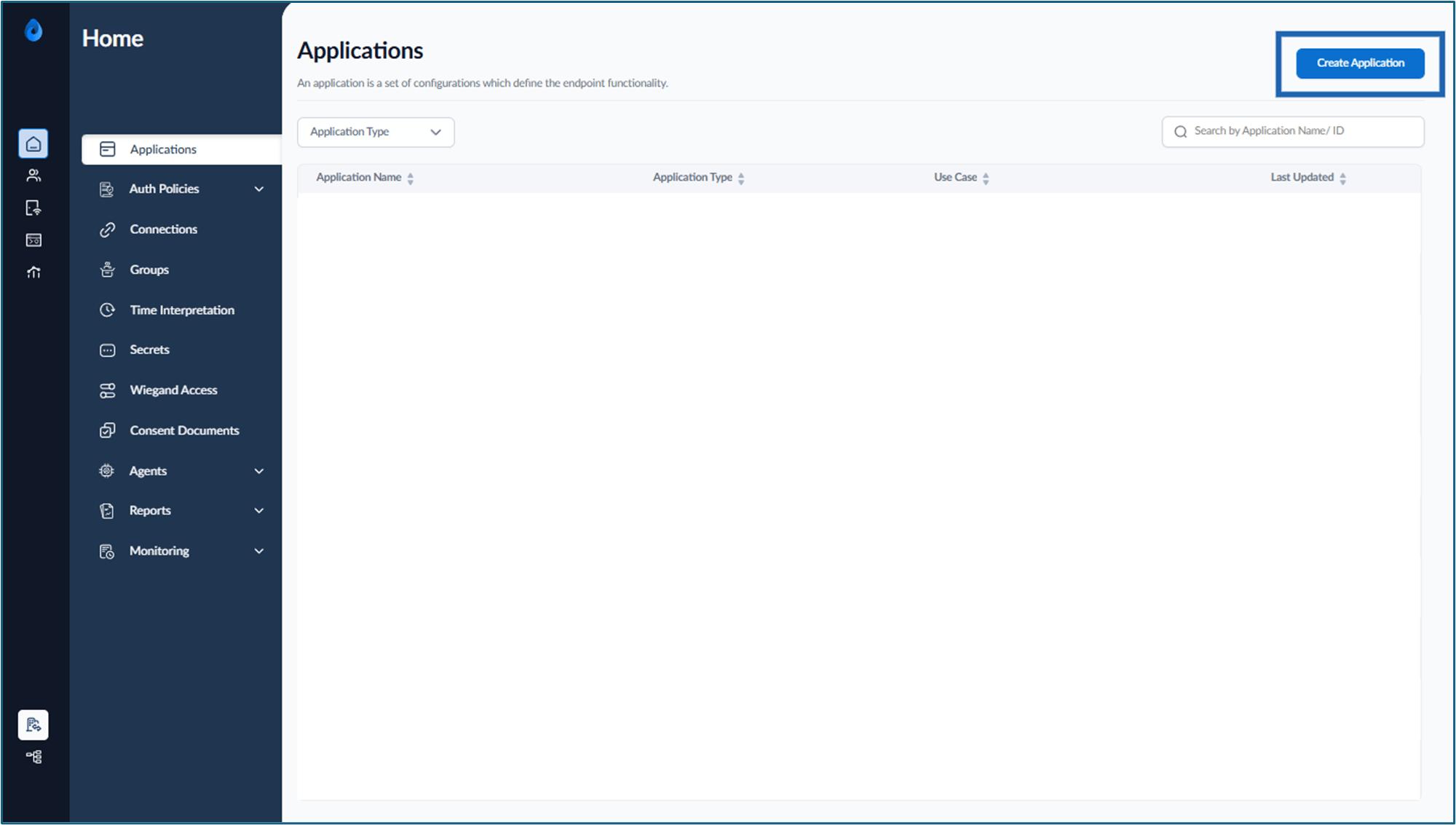
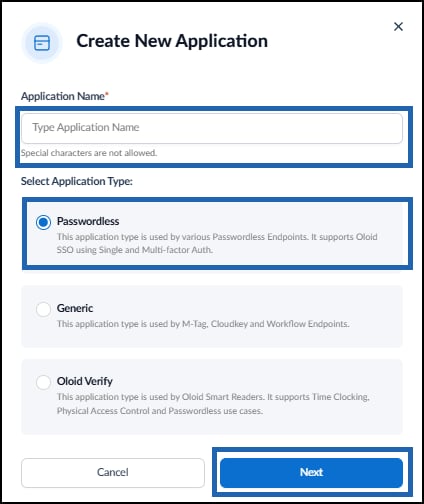
- Do the following:
- Enter Application Name.
- Select Application Type as Passwordless.
- Click Next.
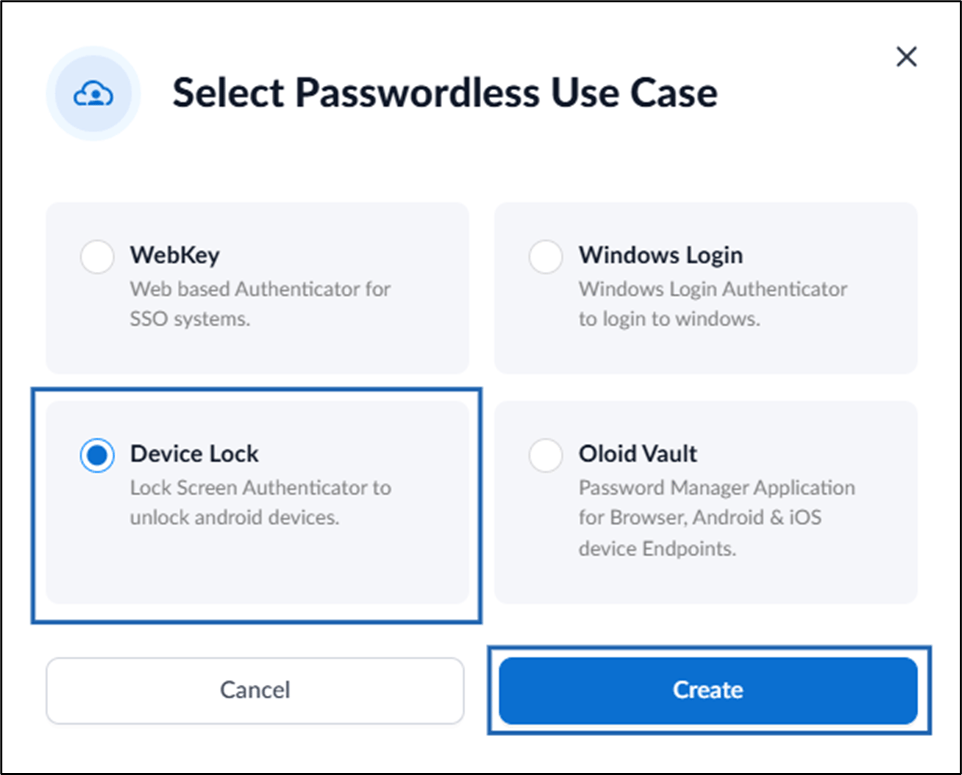
- Select Device Lock.
- Click Create.
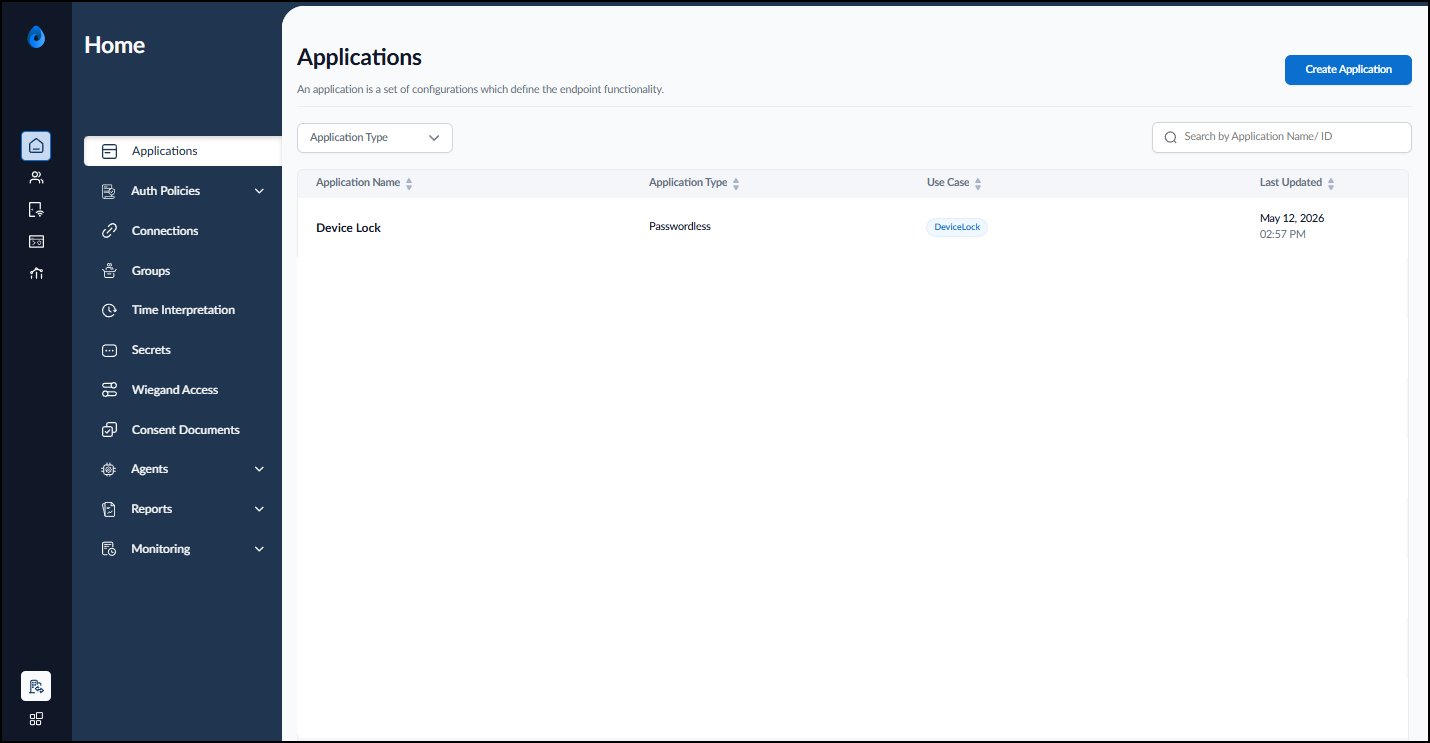
- Configure the following:
- Configure Details tab
- Configure Authenticator tab
- Configure Theme tab
- Setup Configure tab
- Configure Health Setup tab
- Configure Connection tab
- Configure Integration tab
Note: These are one-time settings, and all the default settings are recommended.
Configure Details Tab
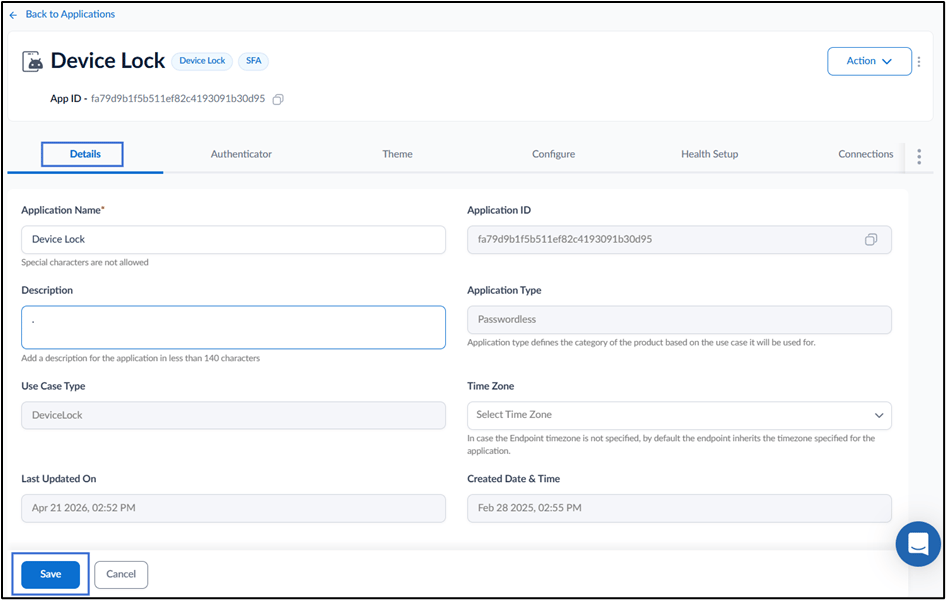
Go to Details tab and do the following:- Update Application Name (if required).
- Add Description. (Optional)
- Set Time Zone from the drop-down list. (Optional)
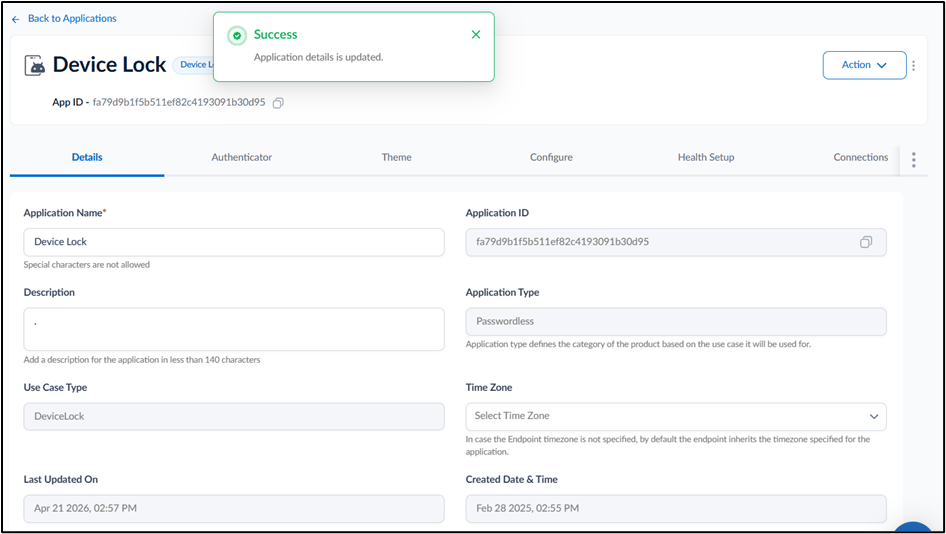
- Click Save.
Configure Authenticator Tab
Go to Authenticator tab and do the following:Enable username
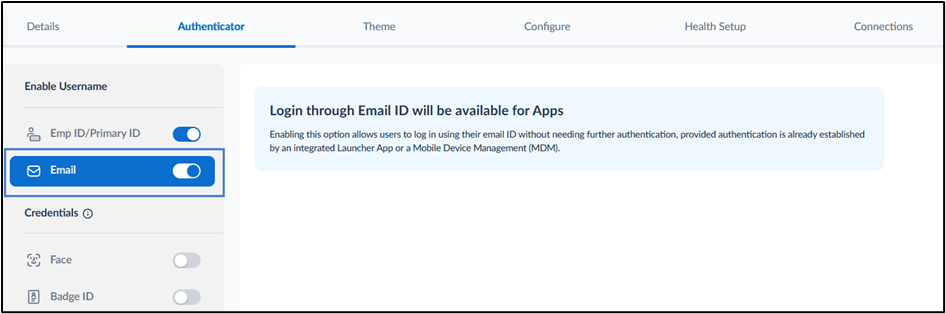
- Emp ID/Primary ID: Enable this option to allow users to authenticate using their Employee ID or Primary ID.
- (Optional) In the Custom Label field, enter a label that appears on the login screen instead of Emp ID / Primary ID.
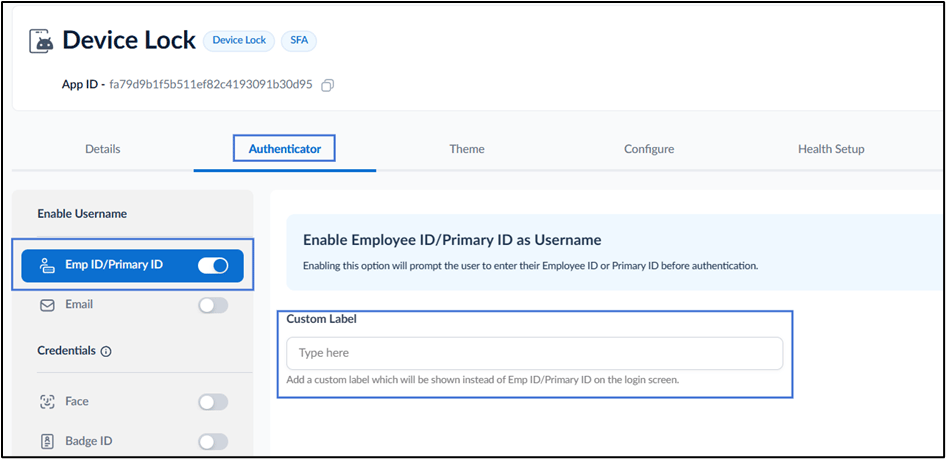
- (Optional) In the Custom Label field, enter a label that appears on the login screen instead of Emp ID / Primary ID.
- Email: Enable this option to allow users to authenticate using their Email ID.
Face
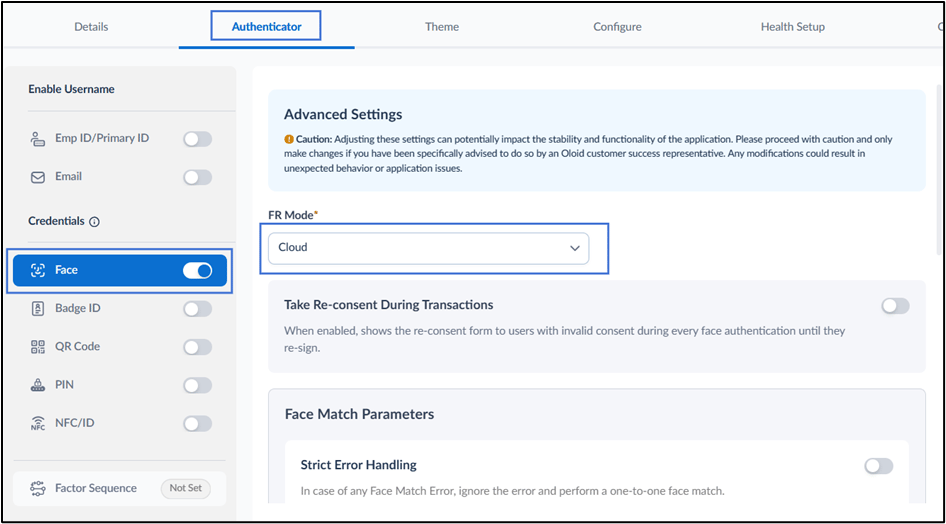
- Turn on Face toggle, to use face as credential.
-
Select the FR Mode from the dropdown list to choose the preferred authentication mode.
select the preferred face recognition mode:(if required)
- Hybrid: Combines cloud and on-device facial recognition.
- Cloud: Uses cloud-based facial recognition.
- On Device: Uses on-device facial recognition. (if required)
-
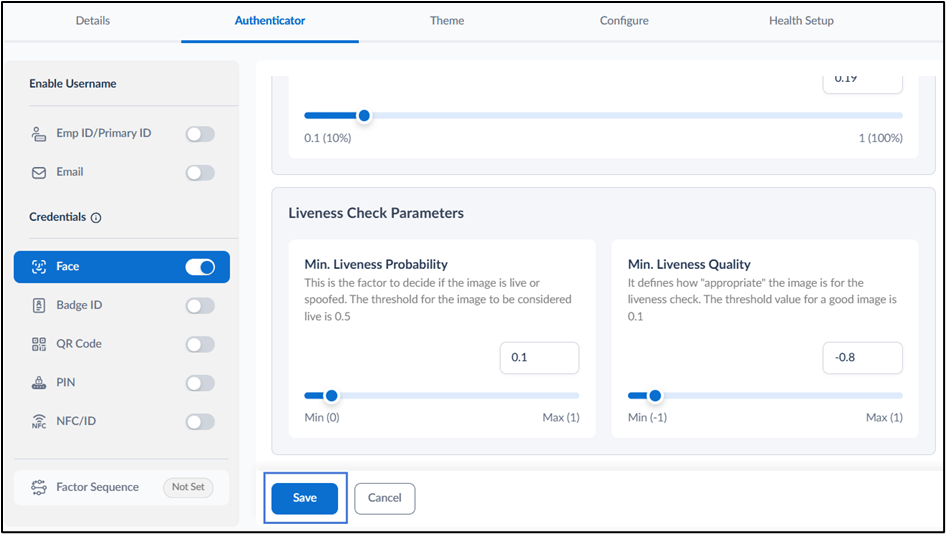
Configure the Face Match Parameters and Liveness Check Parameters on the Advanced Settings page.
Note: The parameters are pre-configured. This is done by Oloid admin.
-
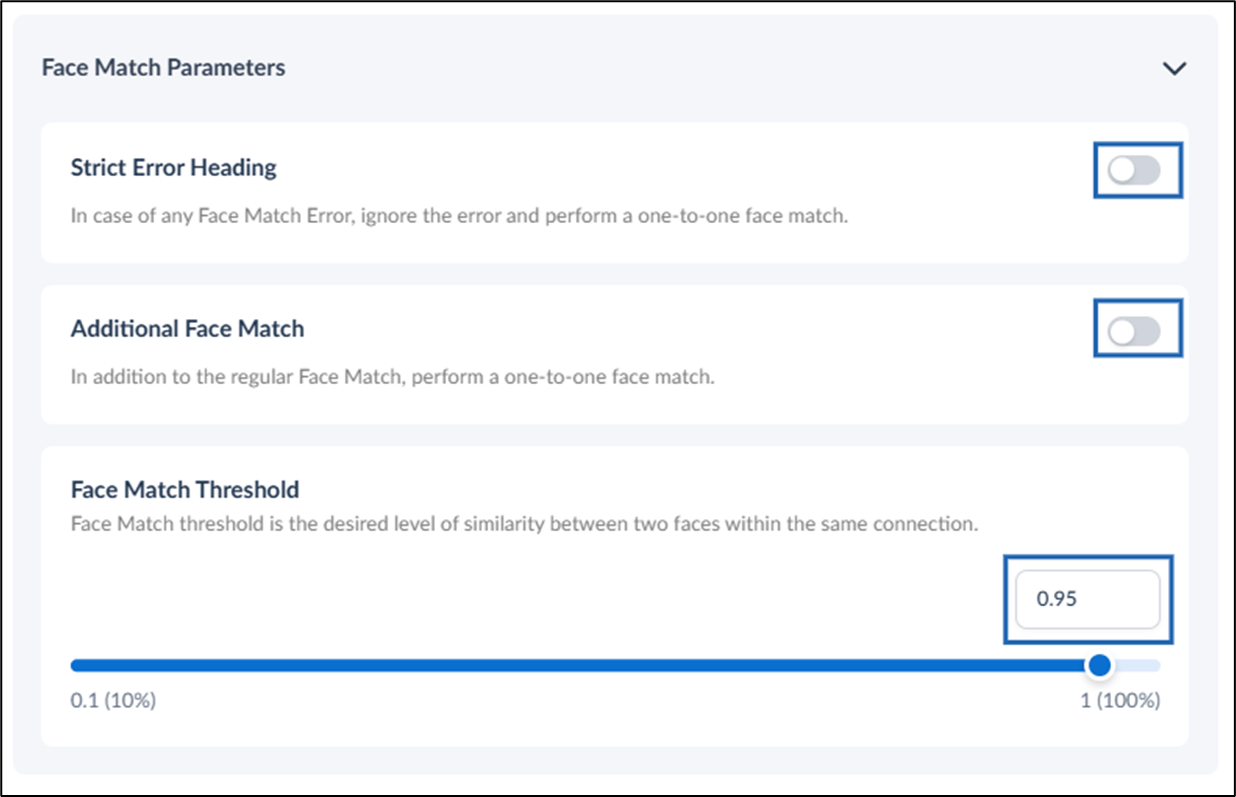
Turn on Strict Error Handing toggle to ignore the face match error and perform one-to-one face match.
Note: If a Face Match error occurs, it will be ignored, and a one-to-one facial comparison will still be performed.
- Turn on Additional face Match toggle to perform a one-to-one face match in addition to the regular Face Match.
-
Adjust the slider or enter a value directly into the input box to set the Face Match Threshold value. (for Oloid internal use)
Note: It defines the required level of similarity between two facial images within the same connection. A higher threshold ensures stricter matching accuracy.
-
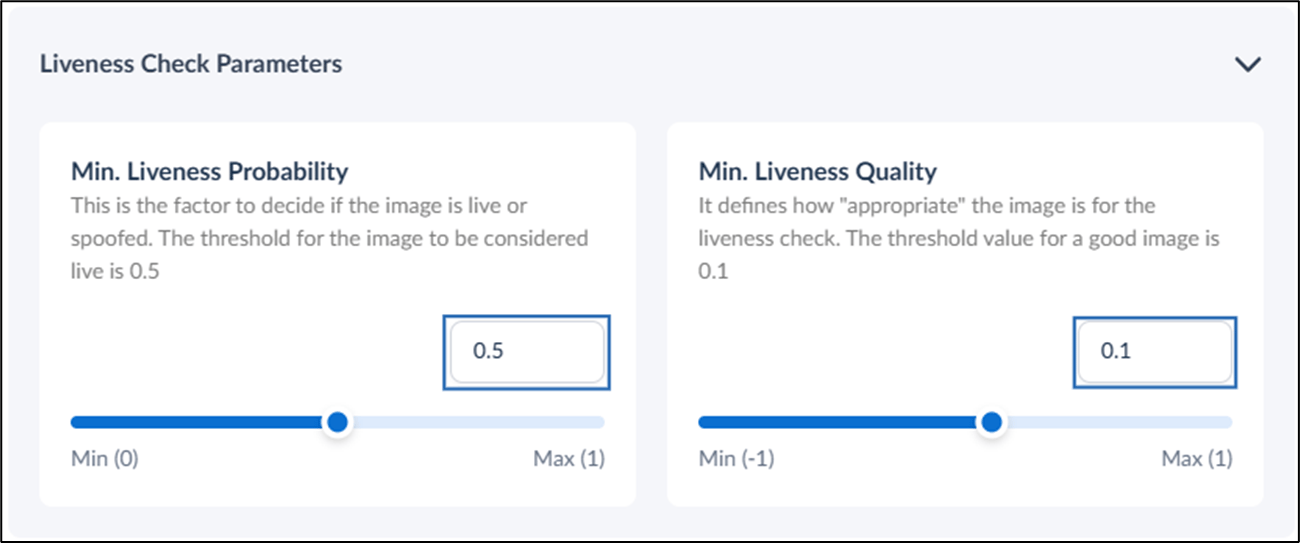
Adjust the slider or enter a value directly into the input box to set the Min. Liveness Probability. (for Oloid internal use).
Note: This is the factor to decide if the image is live or spoofed. The threshold for the image to be considered live is 0.5.
-
Adjust the slider or enter a value directly into the input box to set the Min. Liveness Quality. (for Oloid internal use).
Note: It defines how “appropriate” the image is for the liveness check. The threshold for good image 0.1.
-
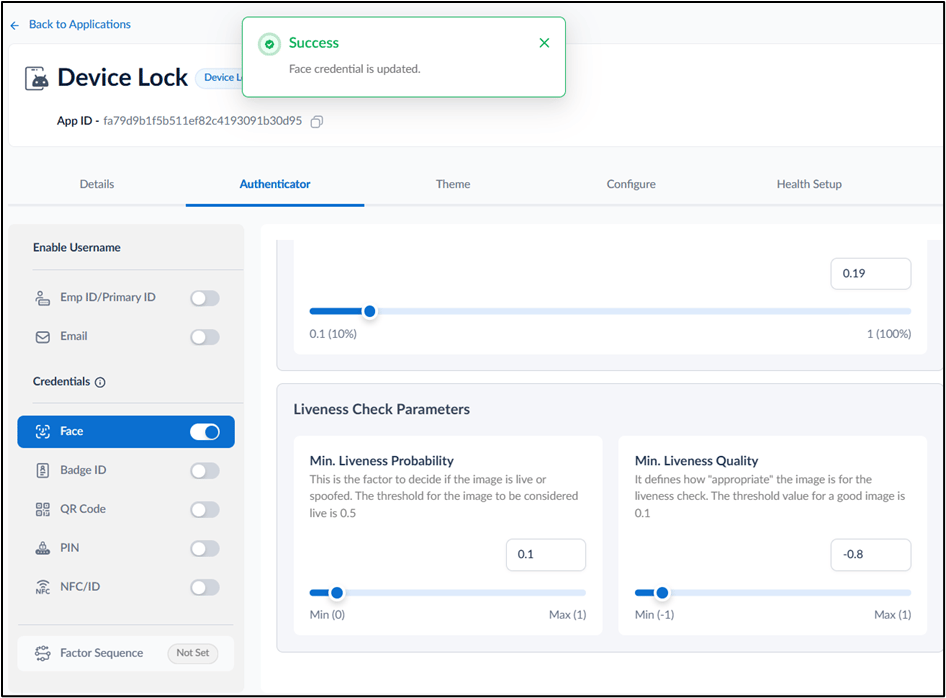
Click Save.
Badge ID
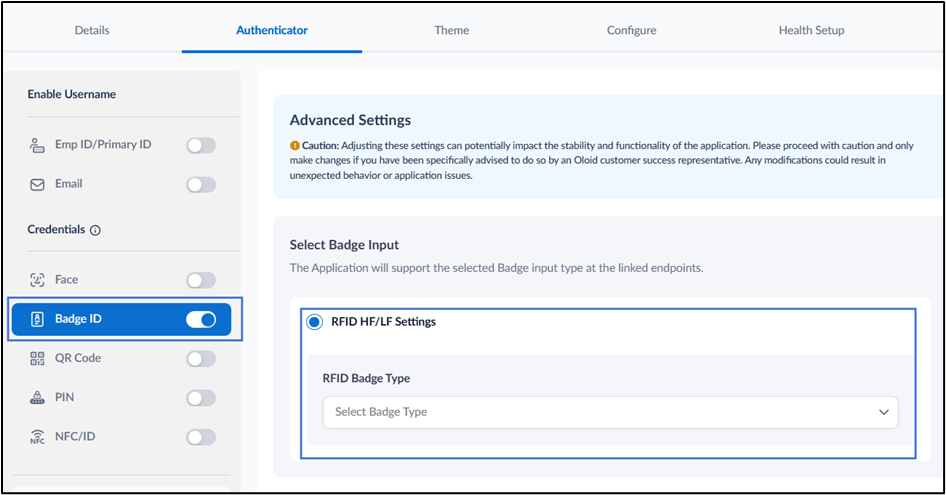
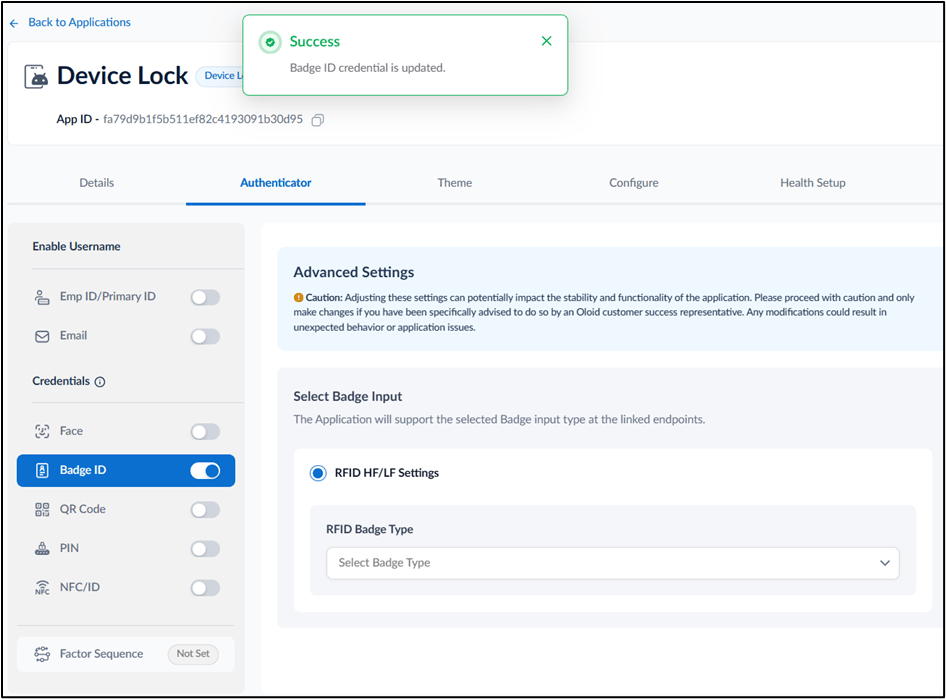
- Turn on Badge ID toggle, to use Badge ID as credential.
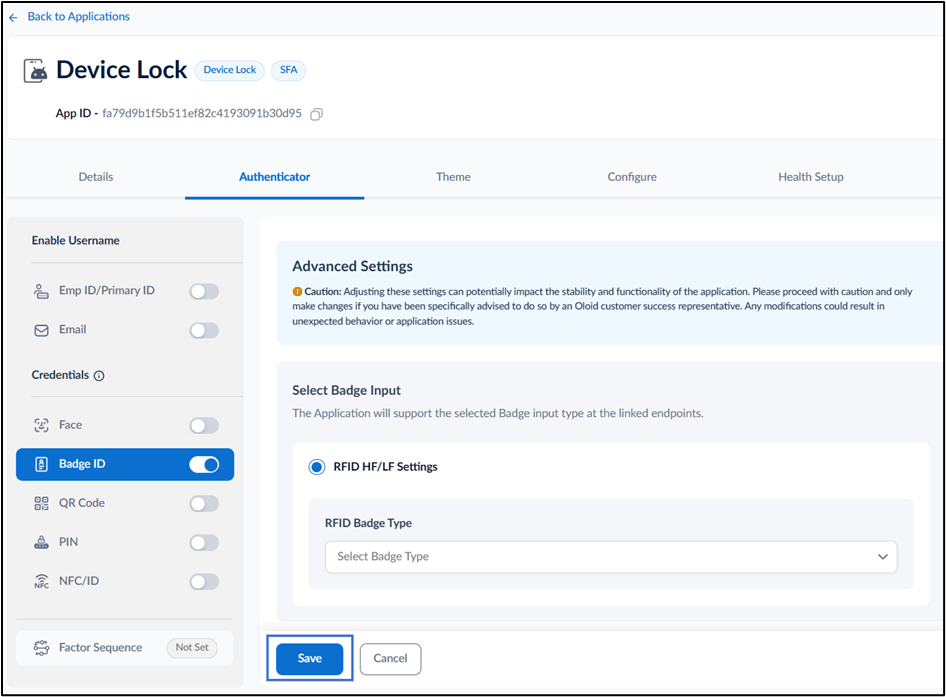
- Select a Badge Type from the dropdown list (Optional).
- Click Save.
QR Code
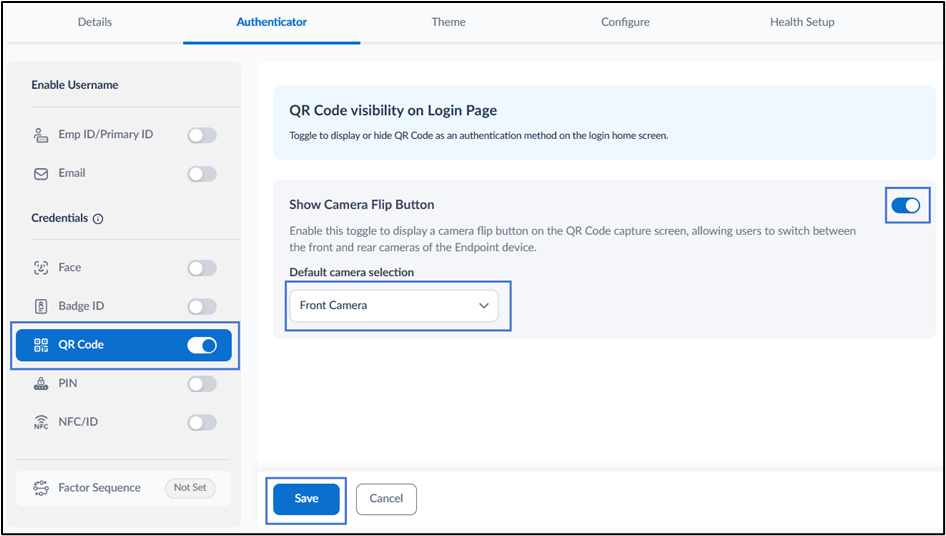
- Turn on QR Code toggle, to use QR Code as credential.
- Turn on Show Camera Flip Button toggle.
- Select the Default camera selection from dropdown list.
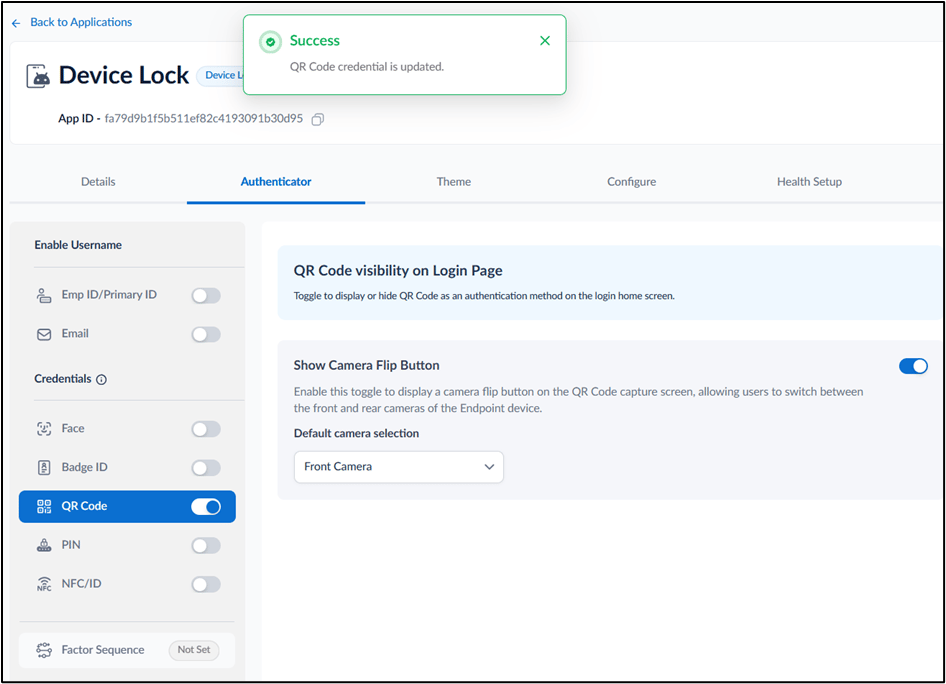
- Click Save.
PIN
Turn on PIN toggle, to use PIN as credential.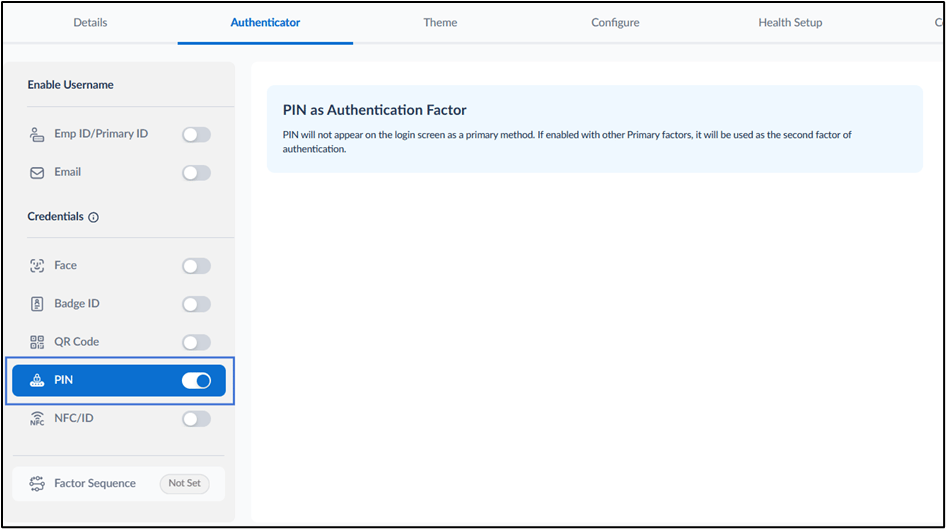
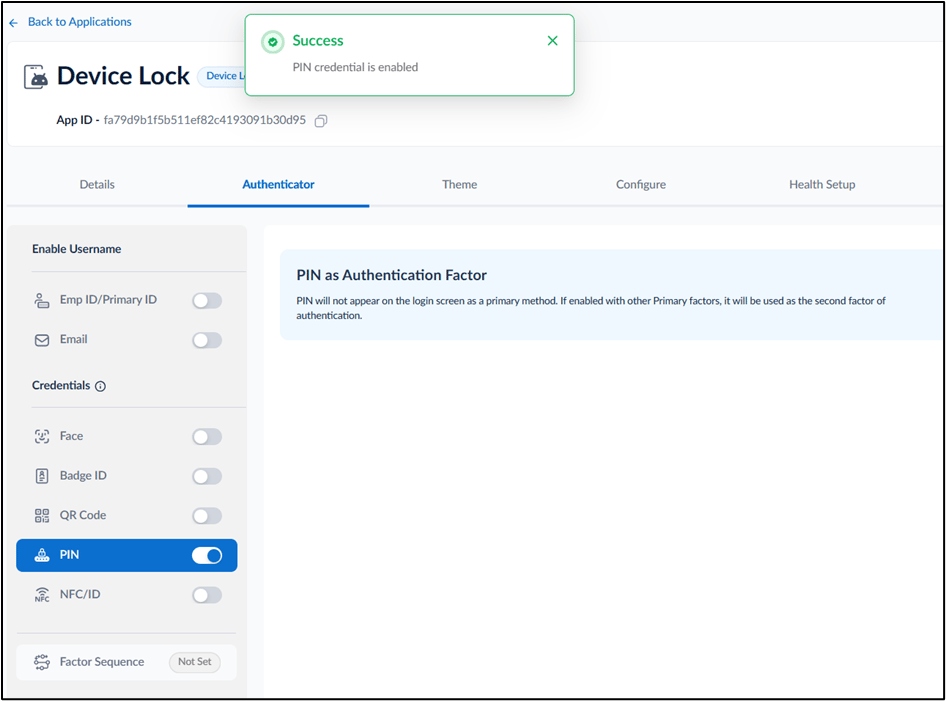
NFC/ID
Turn on NFC/ID toggle, to use NFC/ID as credential.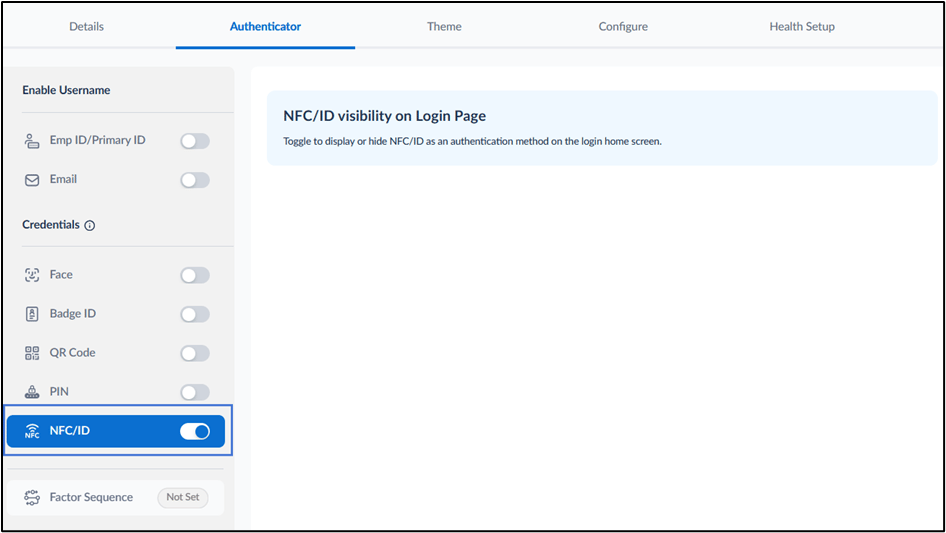
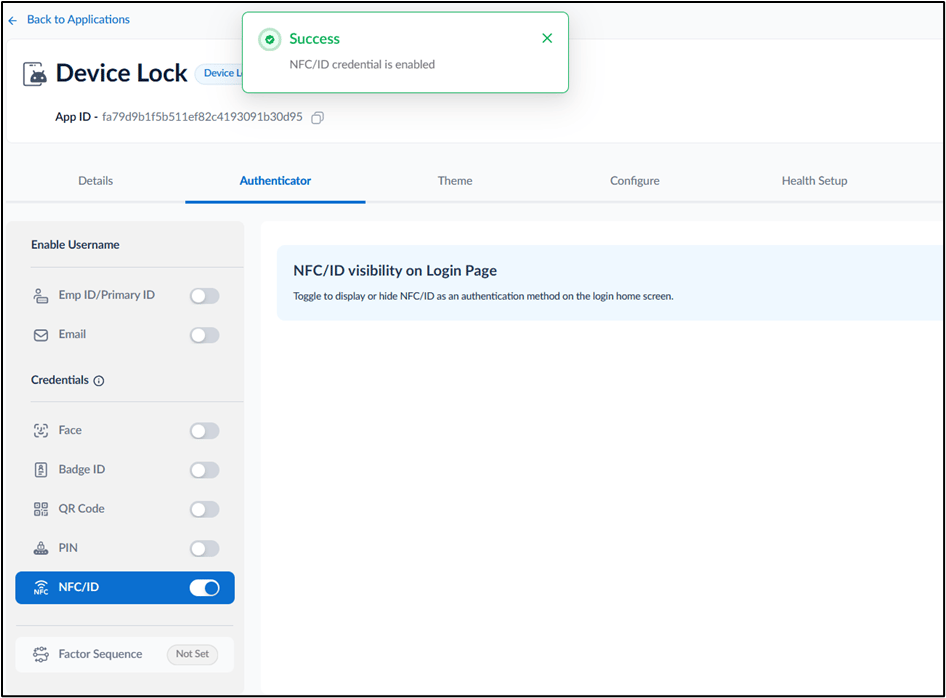
Note: You can enable one or more credential options based on your requirements.
Configure Factor Sequence
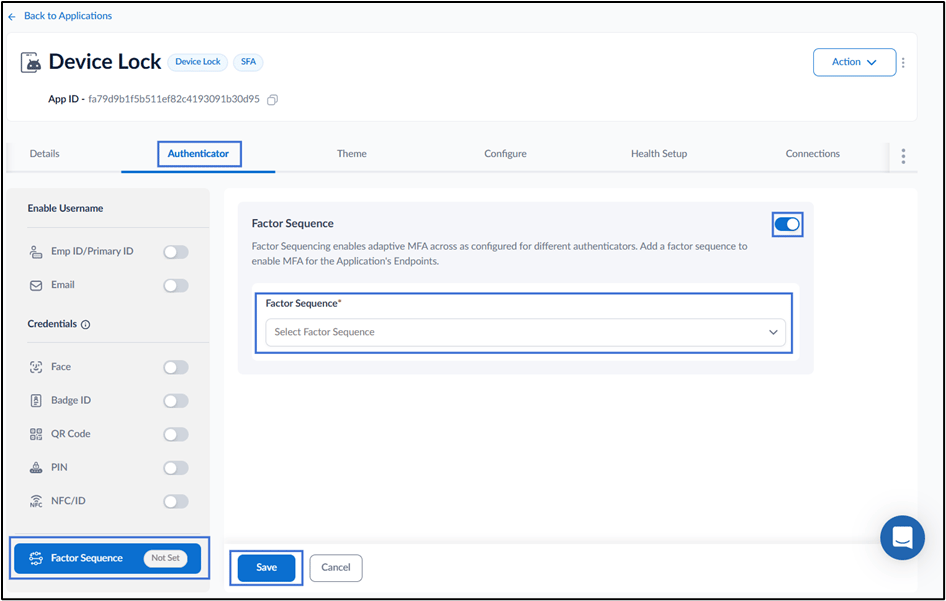
The Factor Sequence section allows to define the order of authentication factors used for multi-factor authentication (MFA). In the Factor Sequence section, do the following:- Enable Factor Sequence toggle.
-
Select Factor Sequence from the drop-down list. To create and configure Factor Sequence refer to How to create and configure Factor Sequence.
Note: The Factor Sequence feature is applicable only when using multi-factor authentication (MFA).
-
Click Save.
Configure Theme Tab
The Theme tab allows you to customize the appearance of the DeviceLock application by following the onscreen instructions. For more details, see How to configure theme in Device Lock App.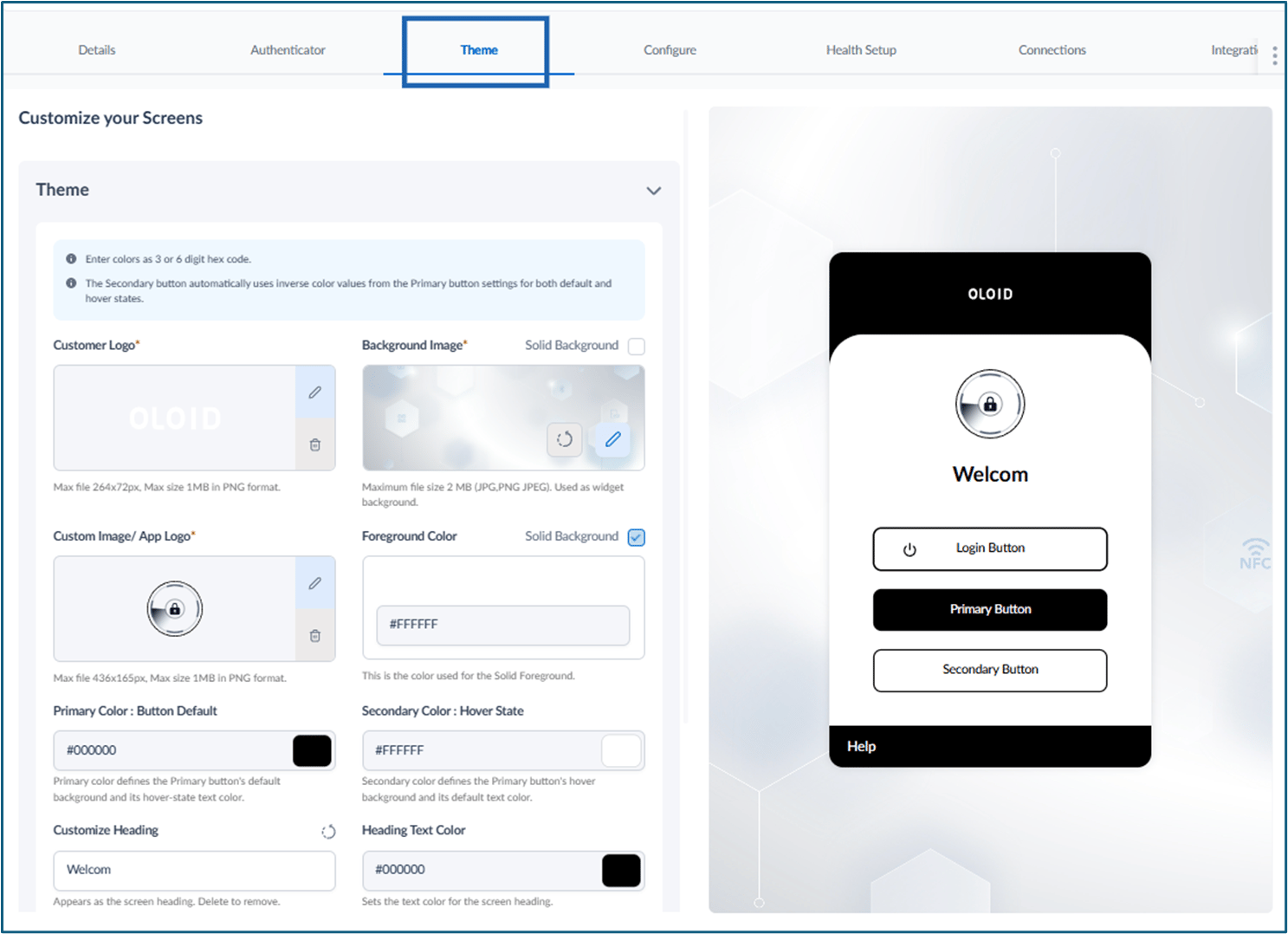
Setup Configure Tab
Go to Configure tab and do the following:- Configure Settings
- Configure Online Intent Screen
- Configure Offline Intent Screen
- Customize Messages
- Configure Passwordless
- Customize Buttons
Configure Settings Tab
The Settings tab is used to configure general endpoint behavior and authentication settings for the application.- Click on Settings tab, the settings tab is displayed.
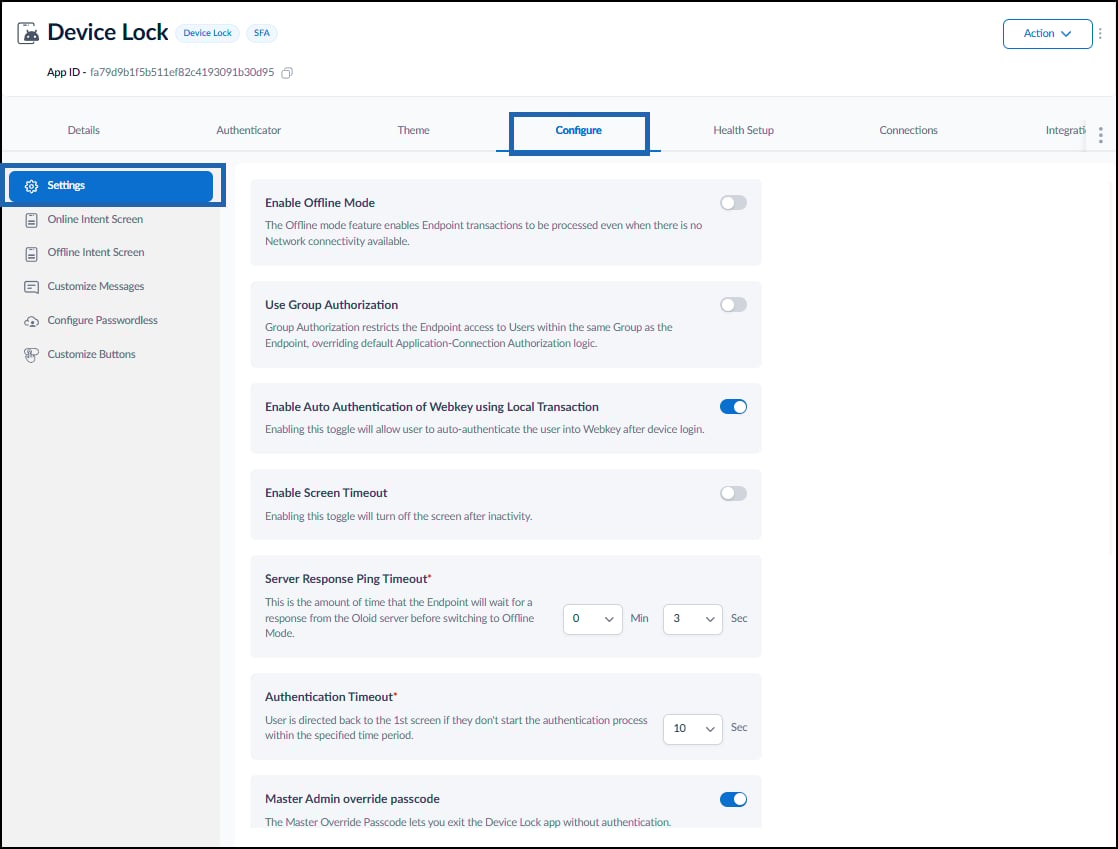
- Do the following:
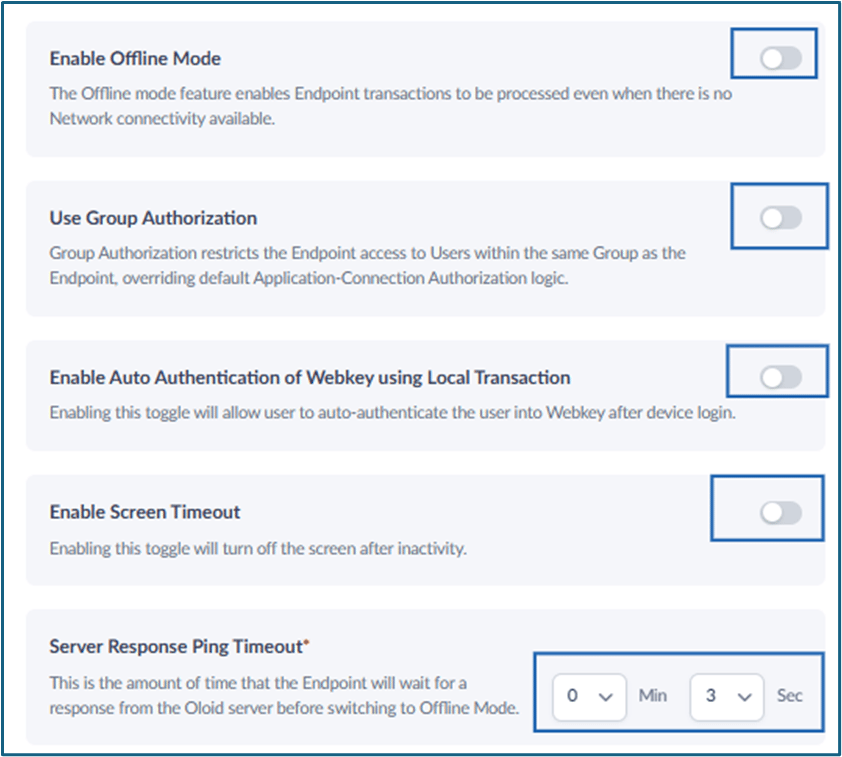
- Turn on Enable Offline Mode toggle to allow endpoint transactions to be processed even when there is no network connectivity.
- Turn on Use Group Authorization toggleto restrict endpoint access to users within the same group associated with the endpoint connected to the application. This ensures that only users in the specified group can authenticate, both online and offline.
- Turn on Enable Auto Authentication of Webkey using Local Transaction toggle to allow user to auto-authenticate the user into Webkey after device login.
- Turn on Enable Screen Timeout toggle to turn off the screen after inactivity.
-
Set Server Response Ping Timeout to define how long the Endpoint should wait for a reply from the server before switching to Offline Mode if no response is received.
-
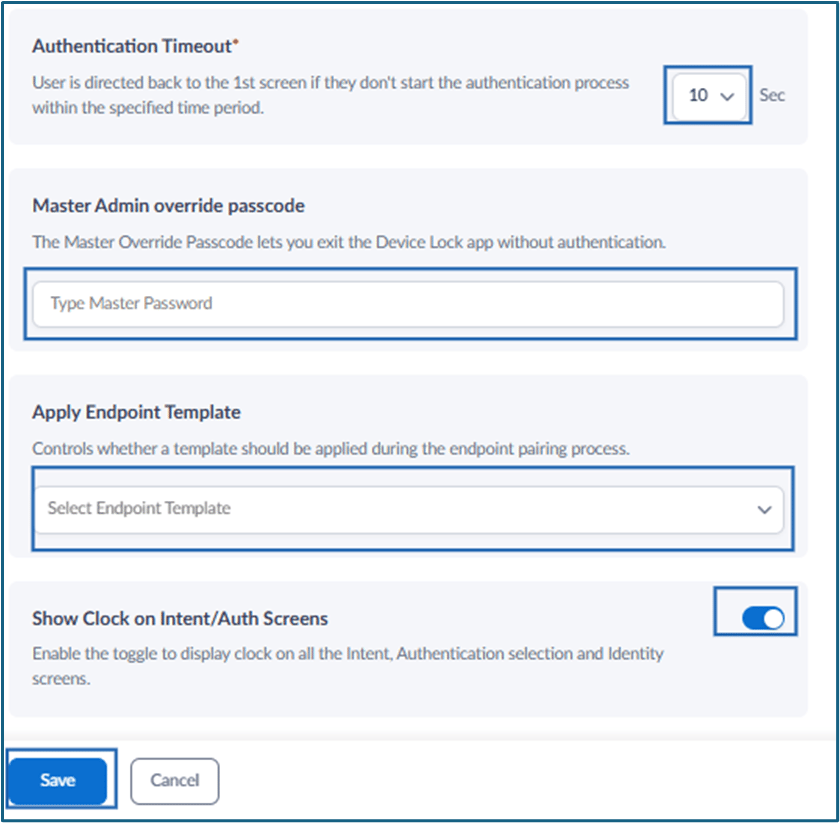
Set Authentication Timeout to define how long the system will wait for the user to begin the authentication process before redirecting them back to the first screen.
Note: The default authentication timeout is 10 seconds.
- Set the Master Admin Override Passcode to exit the Device Lock app when the device is in Kiosk mode and/or no internet connection is available.
- Select Endpoint Template from dropdown list to apply during the endpoint pairing process.
- Turn on Show Clock on Intent/Auth Screens toggle to display clock on all the Intent, Authentication selection and Identity screens.
-
Click Save.
Configure Online Intent Screen
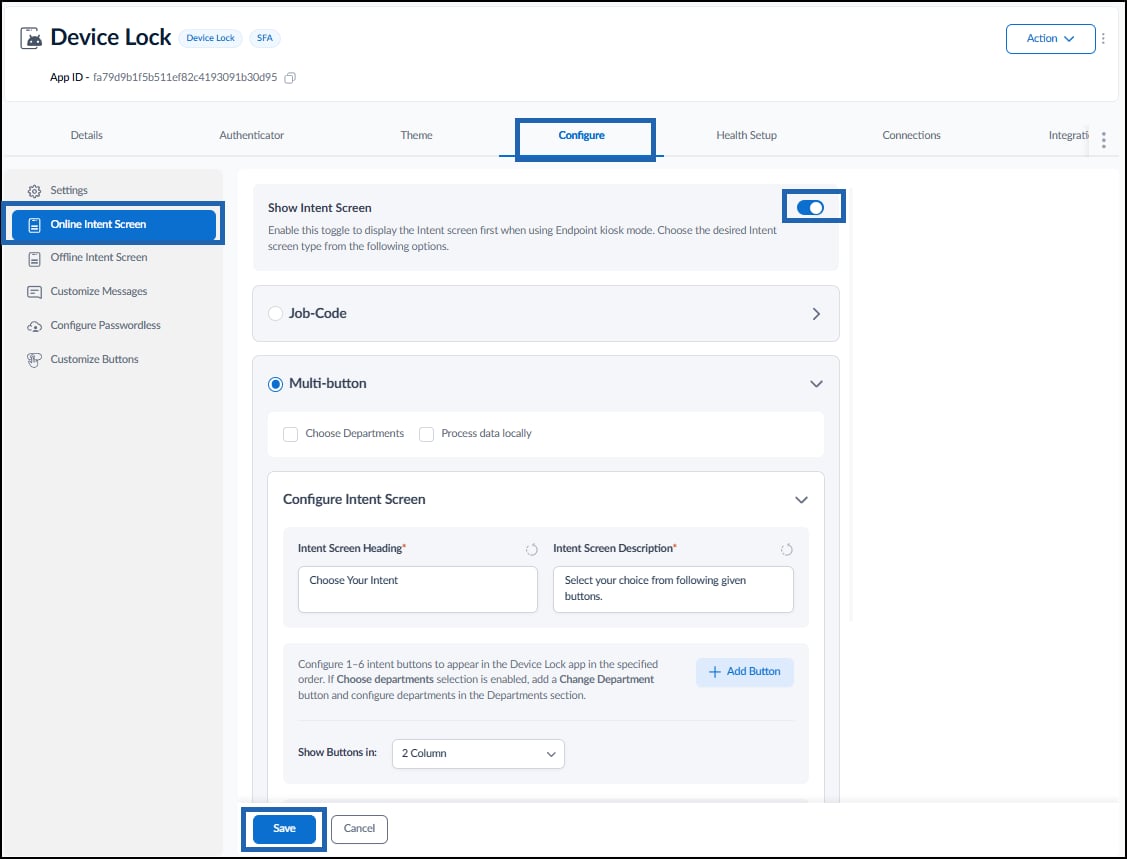
Use the Online Intent Screen to define how intent options are displayed to users.- Click on Online Intent screen, the Online Intent screen is displayed.
- Do the following:
- Enable the Show Intent Screen toggle to allow endpoint transactions.
- Configure the Multi-button Intent screen options.
- Click Save.
Configure Offline Intent Screen
Use the Offline Intent Screen to define how intent options are displayed to users when the device is not connected with internet.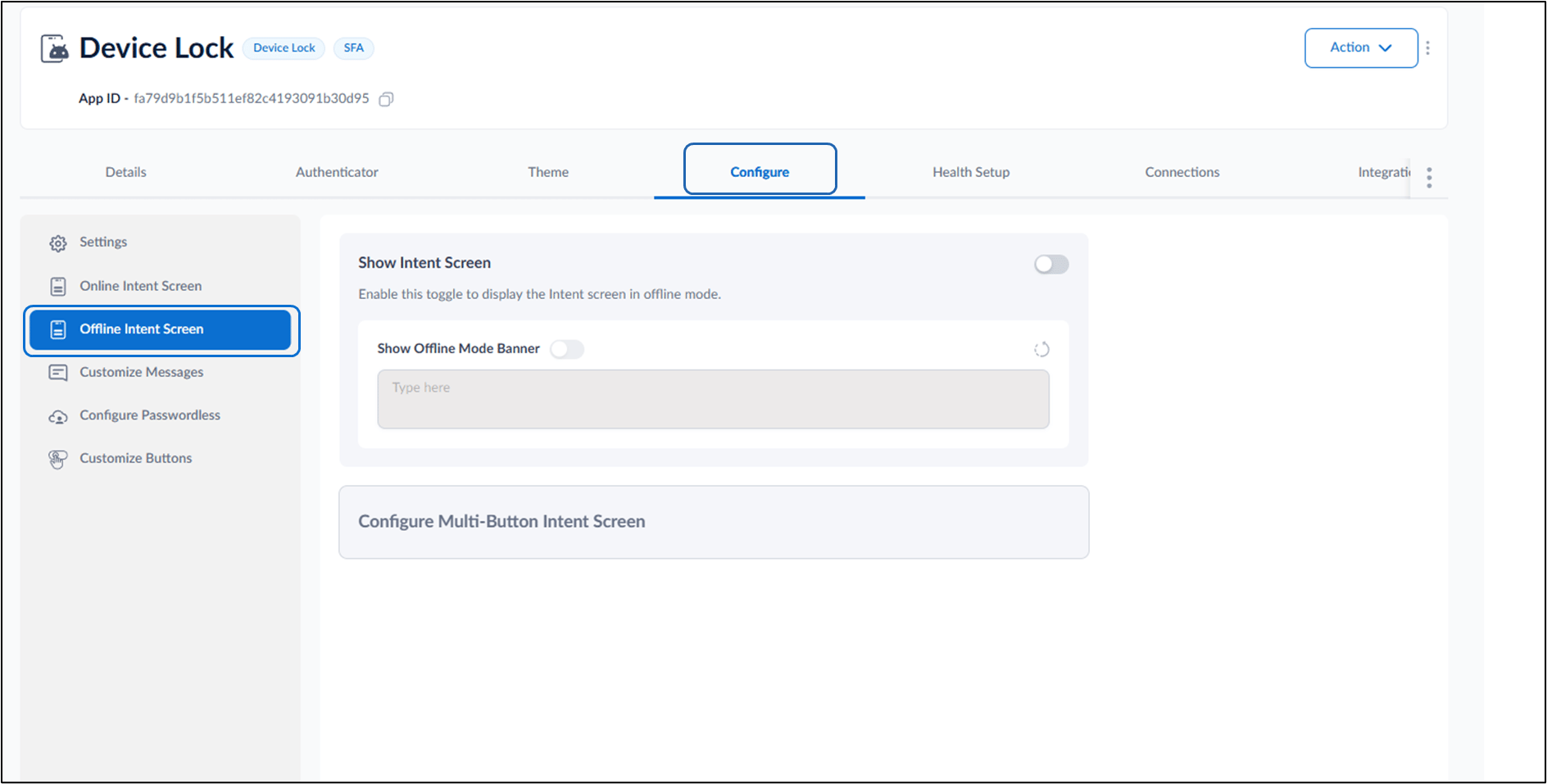
- Click on Offline Intent screen, the Offline Intent screen is displayed.
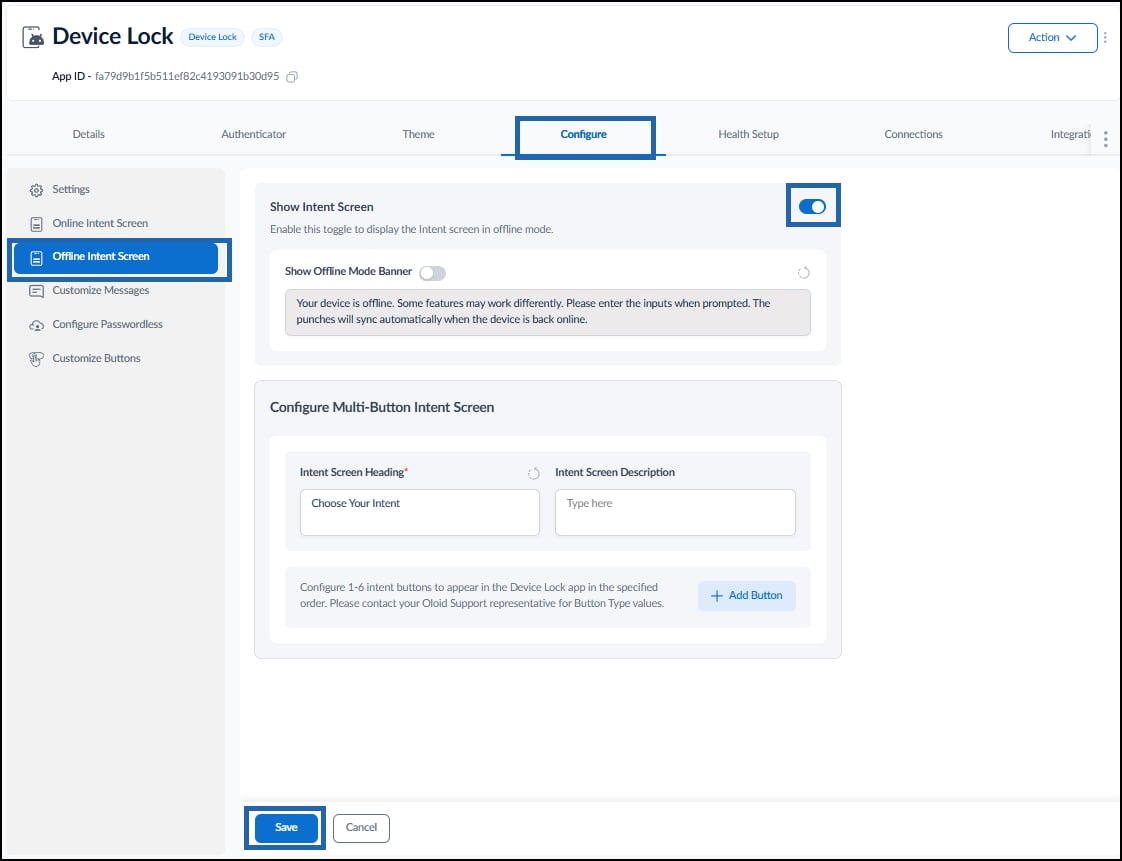
- Do the following:
- Enable the Show Intent Screen toggle to allow endpoint transactions to be processed even when there is no network connectivity
- Enable the Show Offline Mode Banner toggle to display a custom message banner to inform the user that the device is offline.
- Click Save.
Customize Messages
The Customize Messages tab is used to configure the messages displayed to users on the endpoint during authentication. It allows admin to define action initialization, success, and failure messages, and control how status messages appear after authentication.- Click on Customize Messages, the Customize messages screen is displayed.
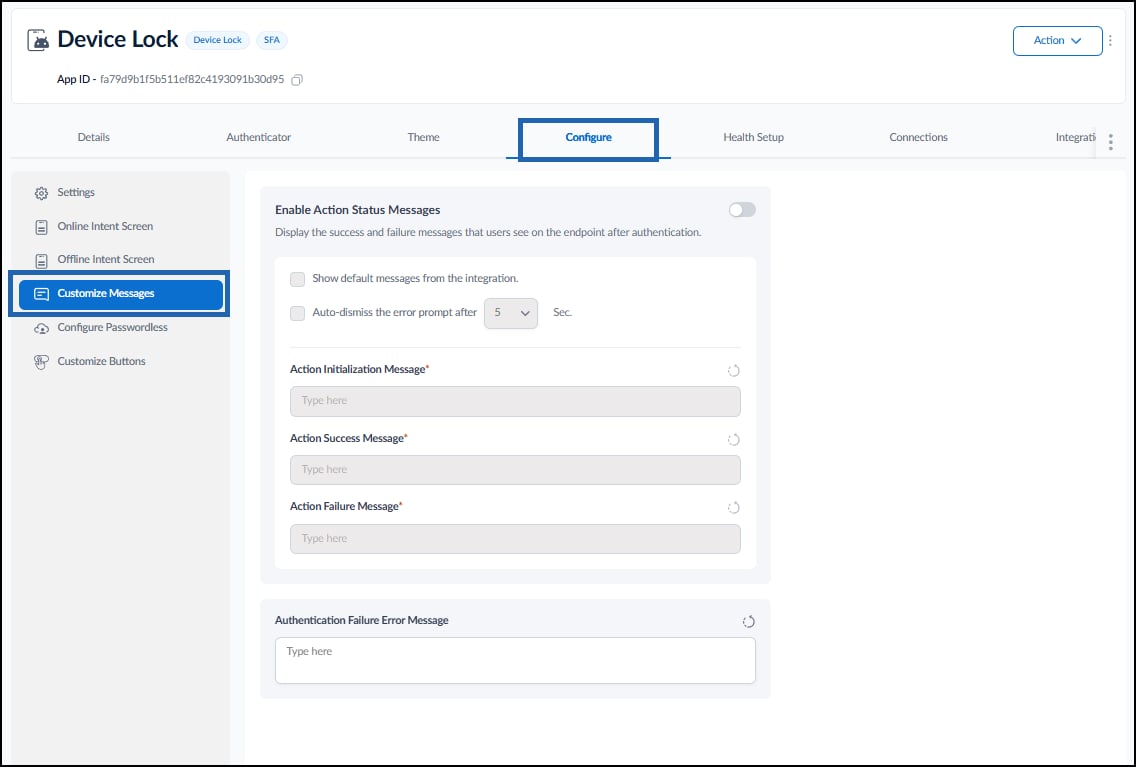
- Turn on Enable Action Status Messages toggle to display the action status of the user’s authentication. You can customize the messages your user sees on the DeviceLock app.
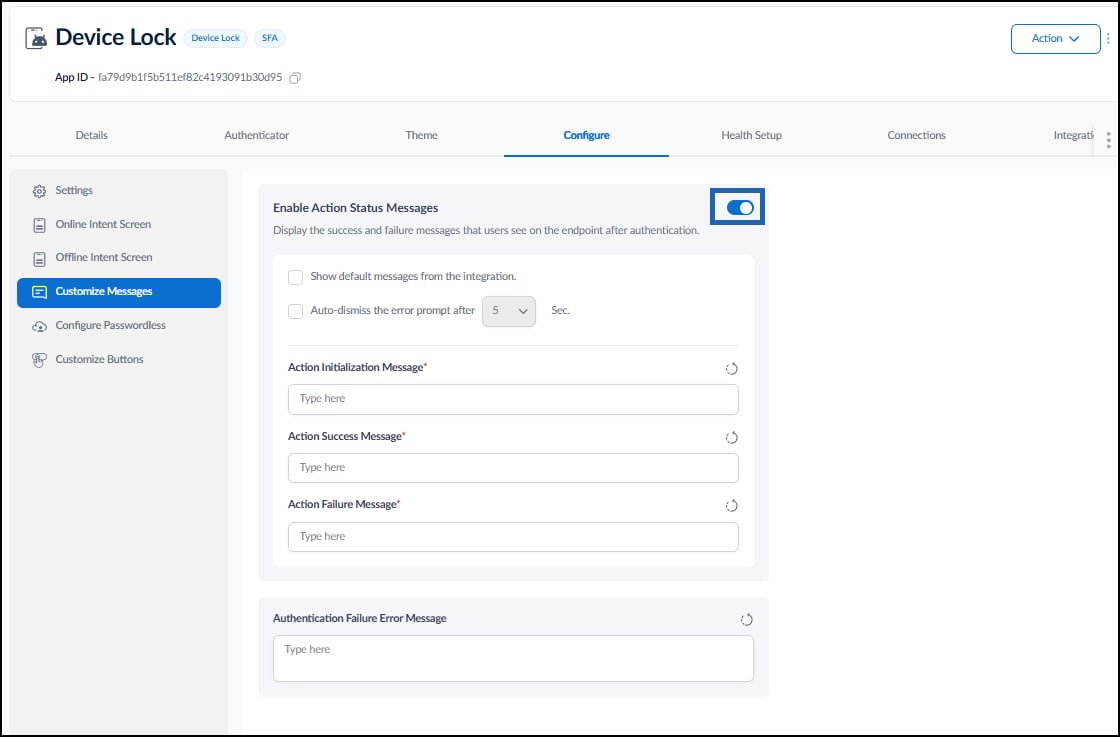
- Do the following:
- Select Show default messages from the integration to display the integration’s predefined messages. (Optional)
-
Select Auto-dismiss the error prompt after and set the preferred time (in seconds).
Note: The default auto-dismiss time is 5 seconds.

- Enter the Action Initialization Message in the text field.
- Enter Action Success Message in the text field.
-
Enter Action Failure Message in the text field.
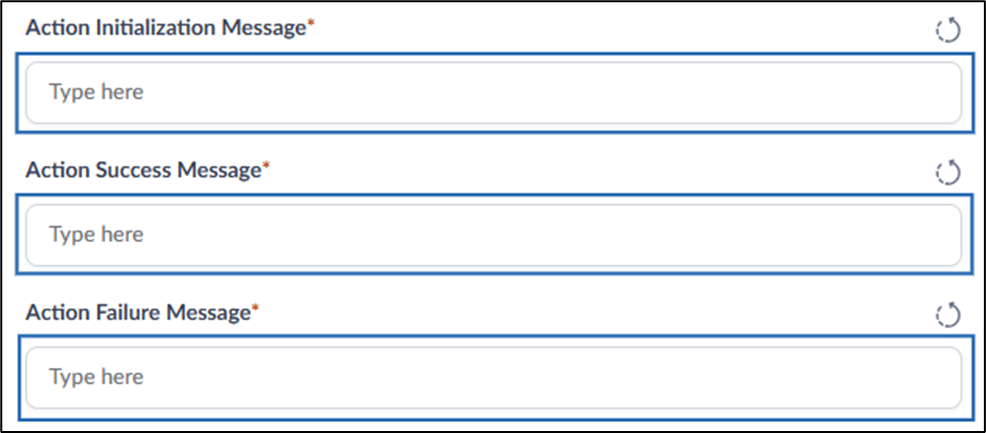
- Edit Authentication Failure Error Message field (Optional).
-
Click Save.
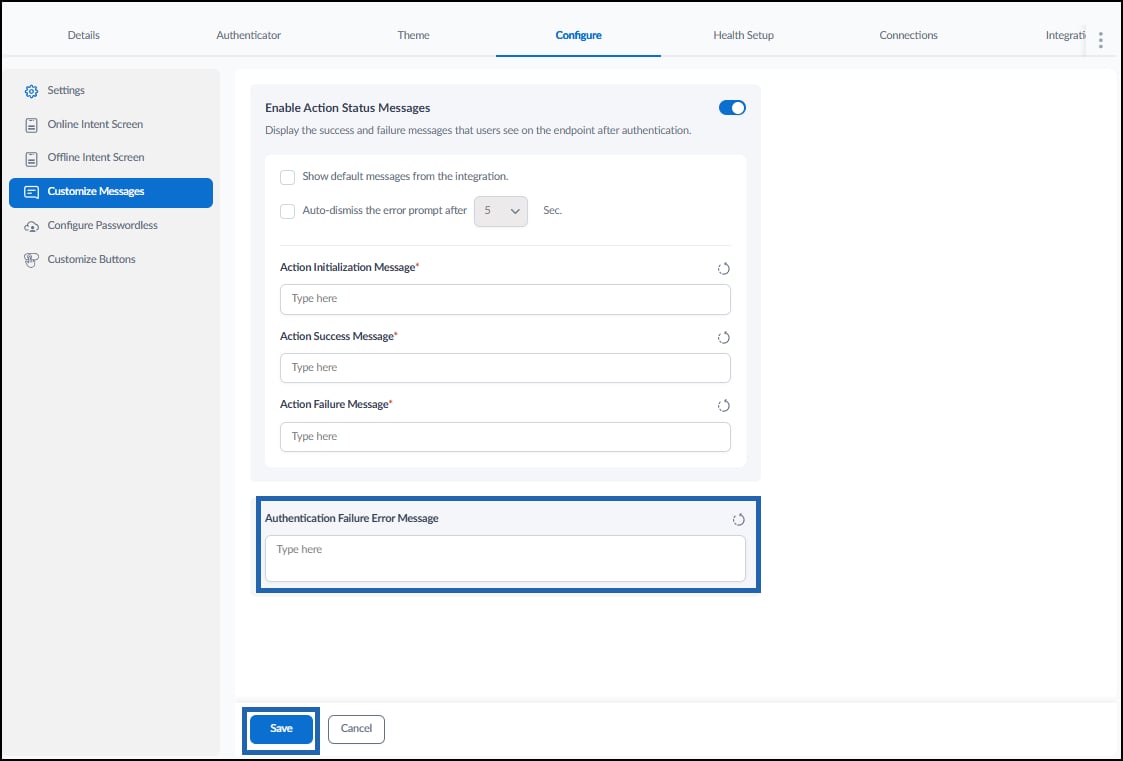
Configure Passwordless
The Configure Passwordless tab is used to enable and configure passwordless authentication for the application. It allows administrators to select the authentication mode, such as Device Lock Mode or Passwordless Login, and define related settings such as SSO URL, logout URL, and browser type.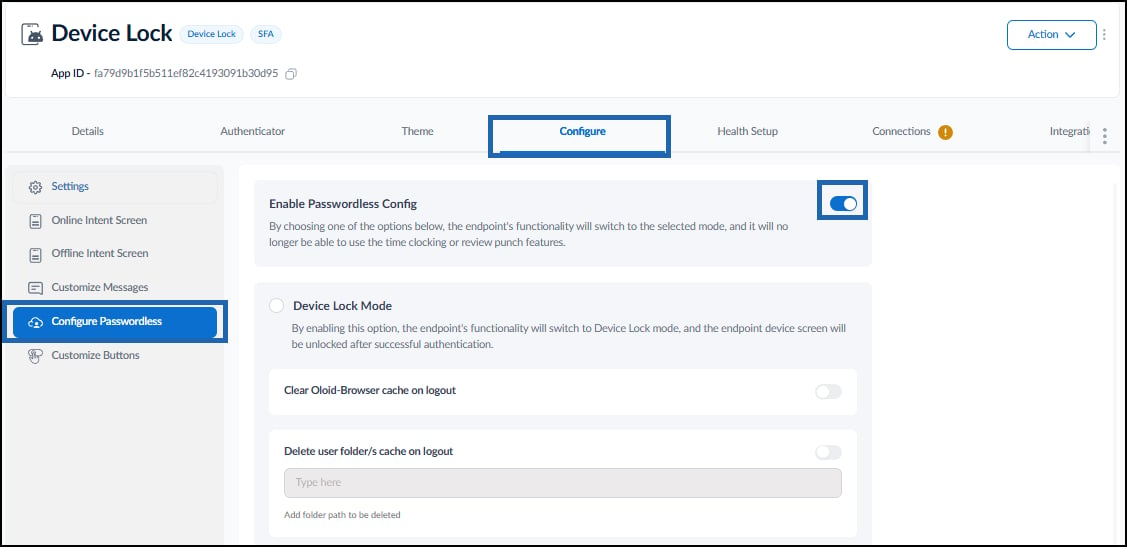
-
Turn on Enable Passwordless Config toggle to switch the endpoint’s functionality to Device Lock Mode or Passwordless Login.
Note: Once enabled, the endpoint will no longer support features like time clocking or review punch data.
-
Do one of the following:
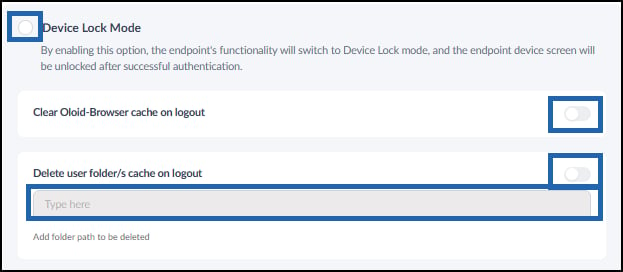
- Device Lock Mode: Select this option to enable Device Lock mode on the endpoint. After successful authentication, the device unlocks and displays the home screen.
- (Optional) To remove cached browser user data on logout, select Clear Oloid-Browser cache on logout.
- To delete cached user file on logout, select Delete user folders/cache on logout.
- In the Folder Path field, enter the folder path to be deleted.
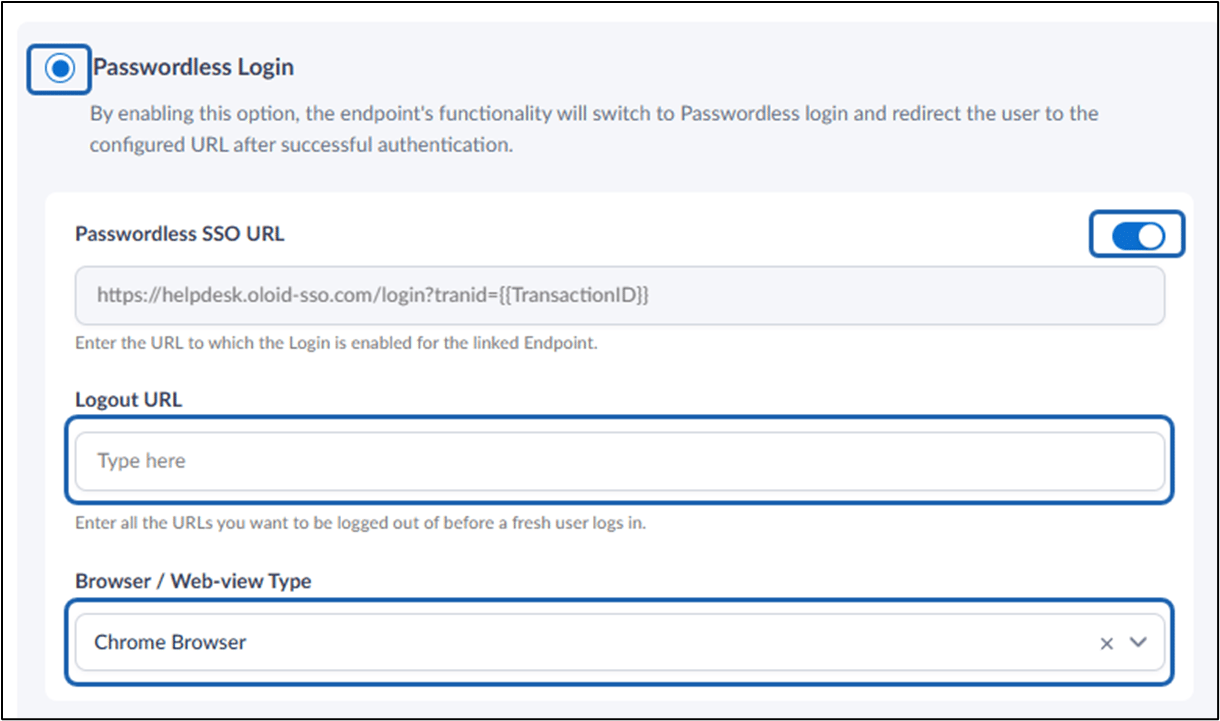
- Passwordless Login: Select this option to enable Passwordless login on the endpoint. After successful authentication, the user is redirected to the configured URL.

- Device Lock Mode: Select this option to enable Device Lock mode on the endpoint. After successful authentication, the device unlocks and displays the home screen.
- Passwordless SSO URL:
- Turn on Passwordless SSO URL toggle.
- Enter all the URLs in the Logout URL field that should be logged out automatically before a new user logs in.
- Select the required Browser or Web-view Type to open the configured URL.
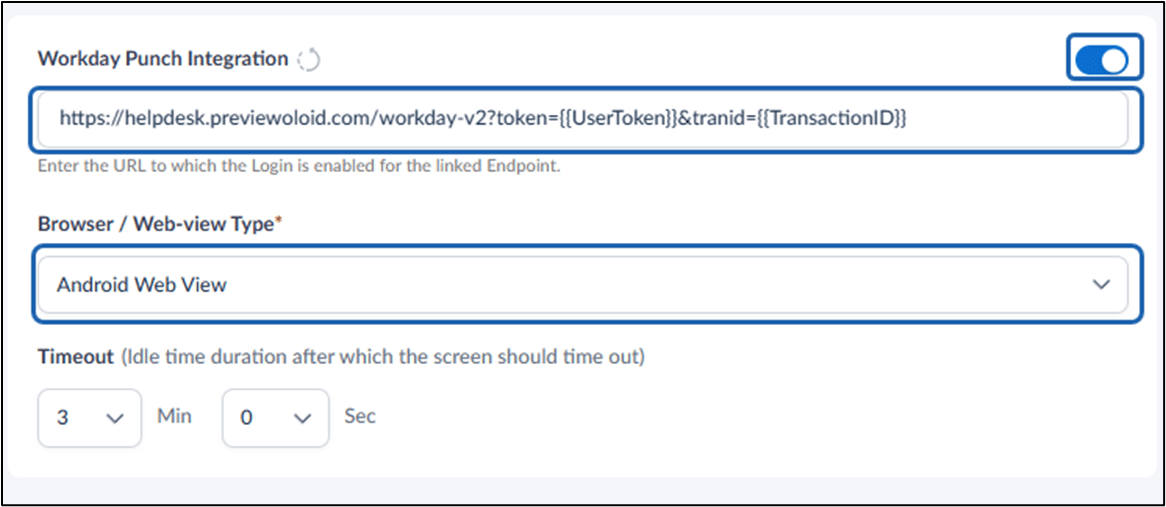
- Workday Punch Integration:
- Enable Workday Punch Integration toggle.
- Enter the URL to which the Login is enabled for the linked Endpoint.
- Select the required Browser or Web-view Type
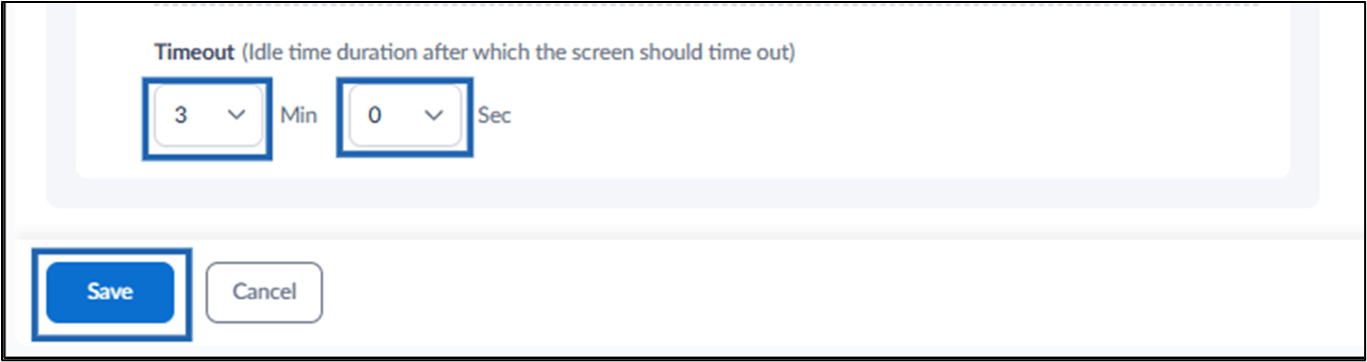
- Set the desired Timeout duration (in minutes and seconds) after which the screen automatically times out.
- Click Save.
Customize Buttons Tab
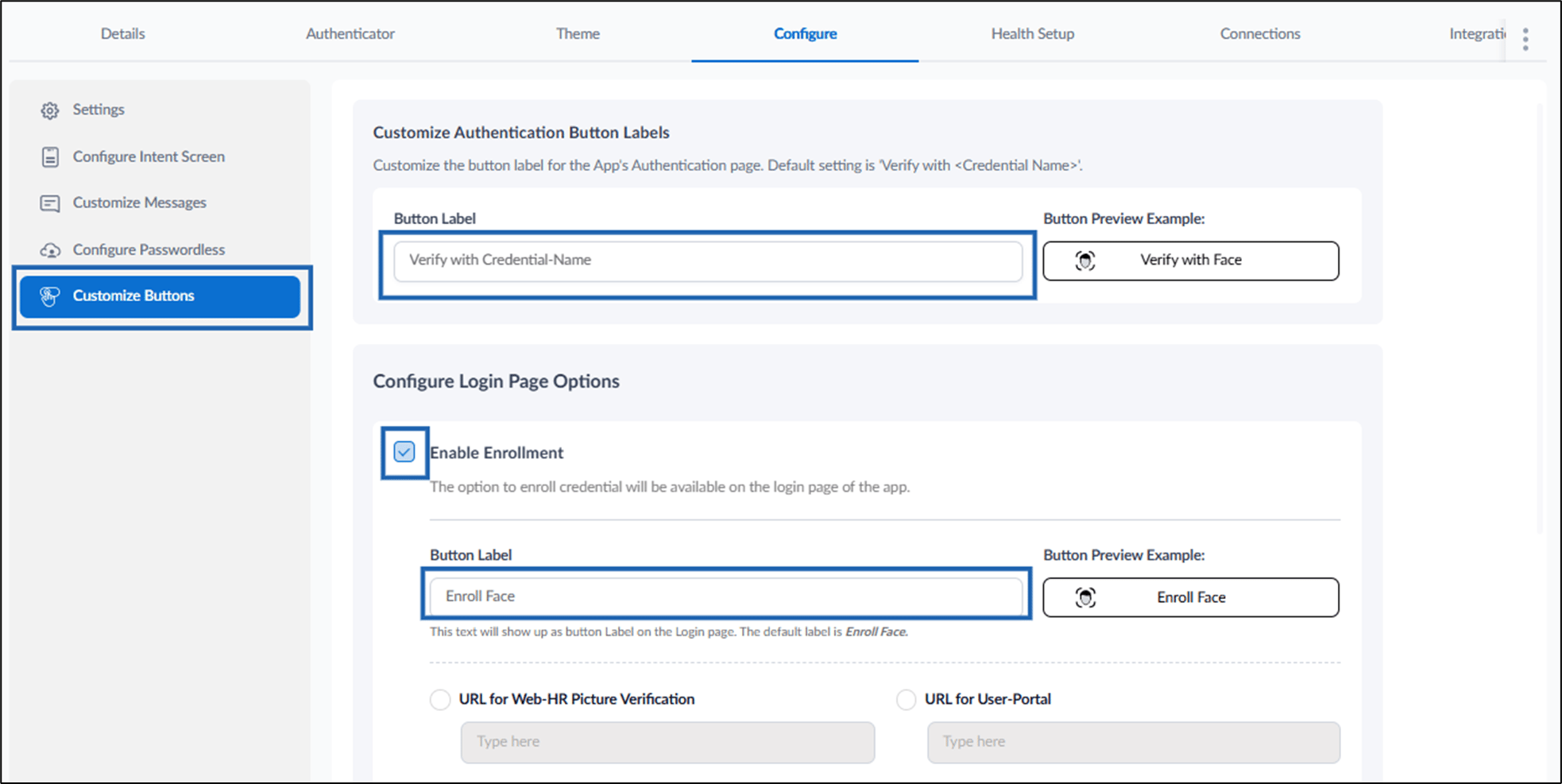
-
On Customize Authentication Button Labels section, edit the Button Label in the text field.
Note: The default is ‘Verify with <Credential Name>’.
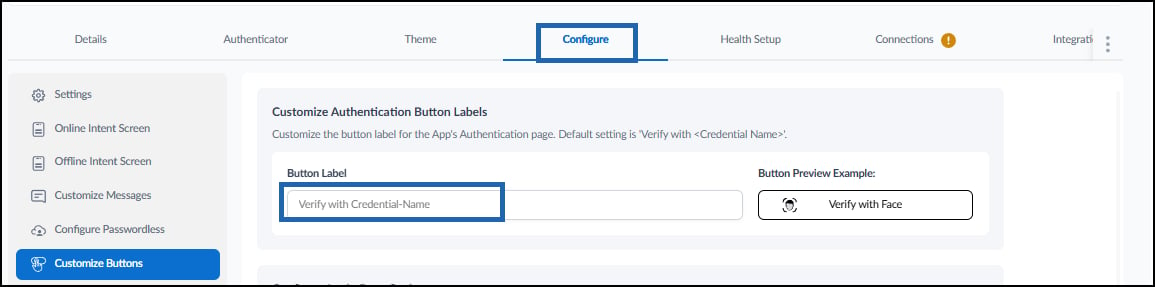
-
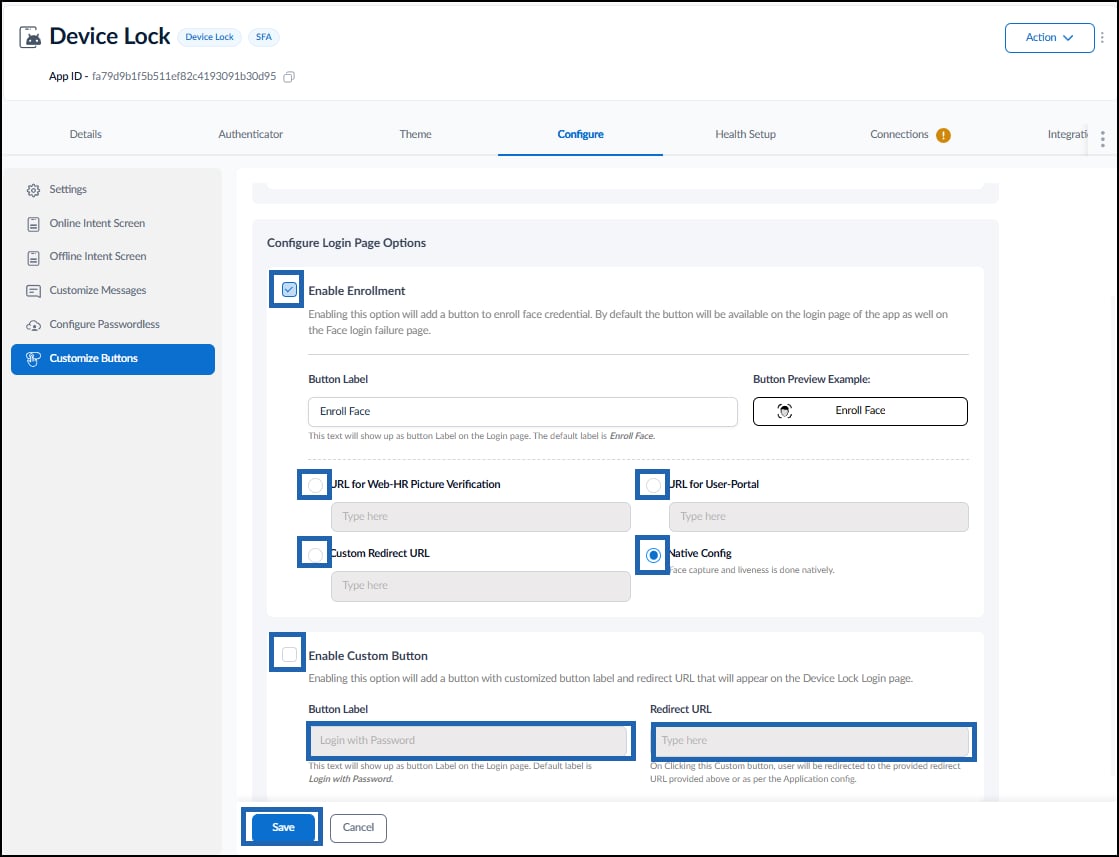
On Configure Login Page Options section, do the following:
- Select Enable Enrollment option to add it on the welcome screen of the DeviceLock application.
- Edit the Button Label. (Optional)
- Do any one of the following:
- Select URL for Web-HR picture verification. OR
- Select URL for User Portal. OR
- Select Custom Redirect URL > enter URL in the text field. OR
- Select Native Config.
- Select Enable Custom Button option to add a button with customized button label and add redirect URL on the welcome screen of DeviceLock application.
- Enter Button Label. (Optional)
- Enter Redirect URL. (Optional)
-
Click Save.
Configure Health Setup Tab
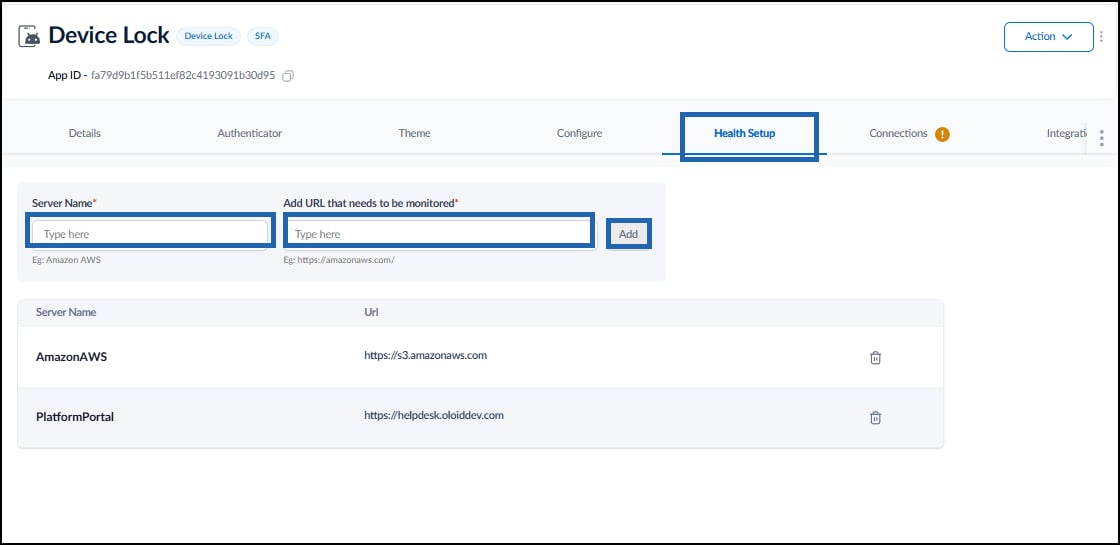
Go to Health Setup tab and do the following:- Enter Server Name in the text field.
- Enter URL in Add URL that needs to be monitored in the text field.
-
Click Add.
Note: By default, when you create the application, two servers i.e., Amazon AWS and Platform Portal are added automatically.
Configure Connections Tab
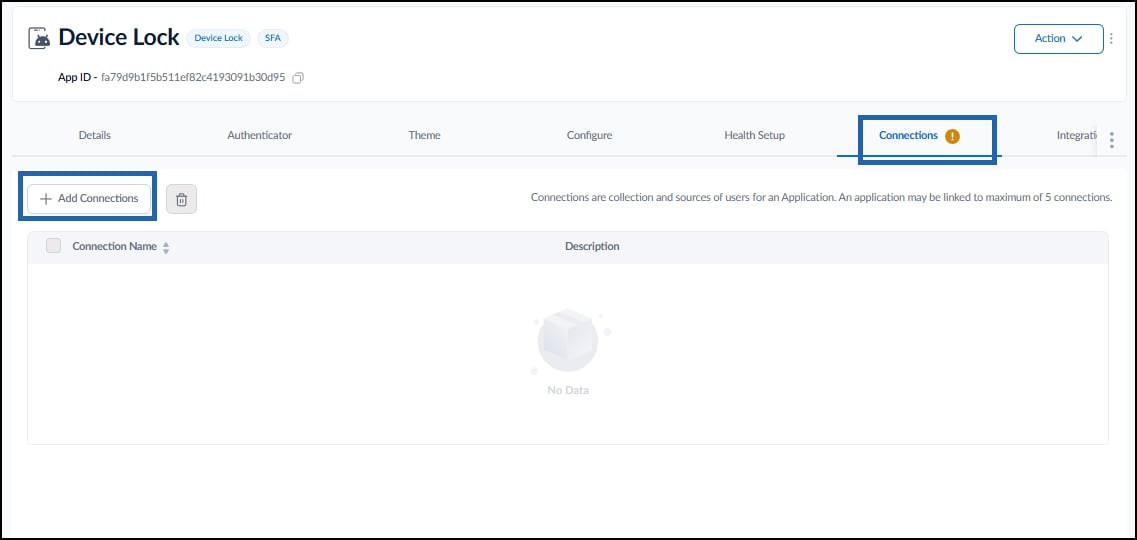
Connection is a collection of multiple users. Go to Connection tab and do the following:-
Click + Add Connections to add a connection to the application.
-
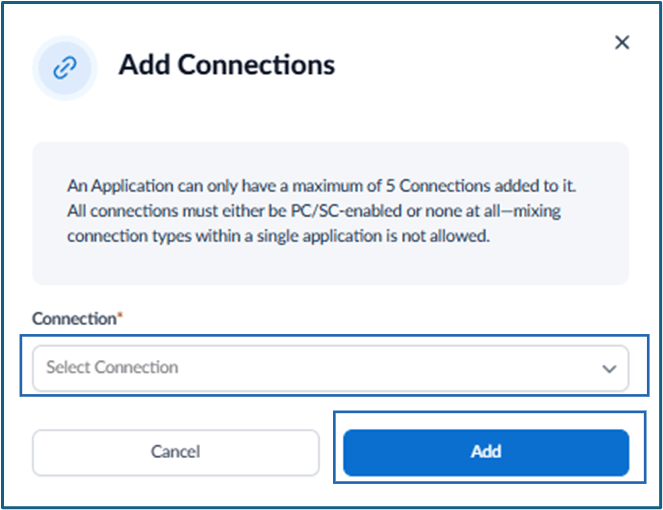
Select connection(s) from the Select Connection dropdown list.
Note: An application can have a maximum of 5 connections.
-
Click Add.
Configure Integrations Tab
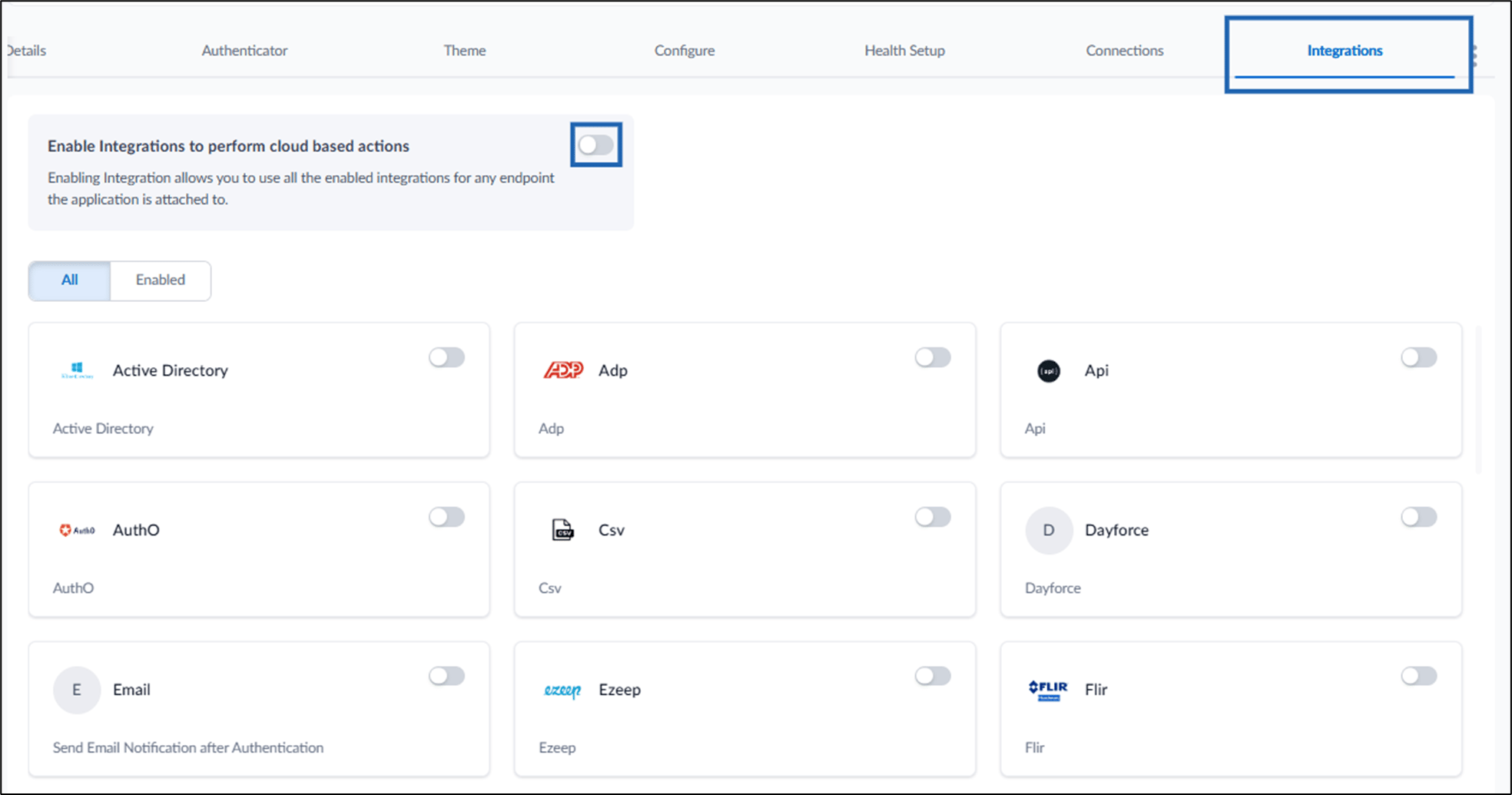
- Go to integrations tab and turn on Enable Integrations to perform cloud-based actions toggle.
-
Enable the applicable Integration.
Note: Click Save after each action to save your configuration.