Introduction
The NFC/ID authentication feature in the DeviceLock app allows users to unlock their Android devices by scanning an assigned NFC tag or ID card. Admin can enroll and assign NFC/ID credentials to users directly from the DeviceLock app, enabling secure, fast, and contactless access to the device.Prerequisites
- You must have Admin access in the DeviceLock app to enroll NFC/ID for users.
-
Ensure the Android device is connected to an external NFC reader/card reader.
Note: If the Android device has a built-in NFC reader, you can scan the tag directly on the device.
- You must have an NFC tag or ID card available for enrollment.
Steps to Assign NFC/ID
- Log in to the Admin mode in DeviceLock App. To log in referHow to log in to admin mode in DeviceLock App.
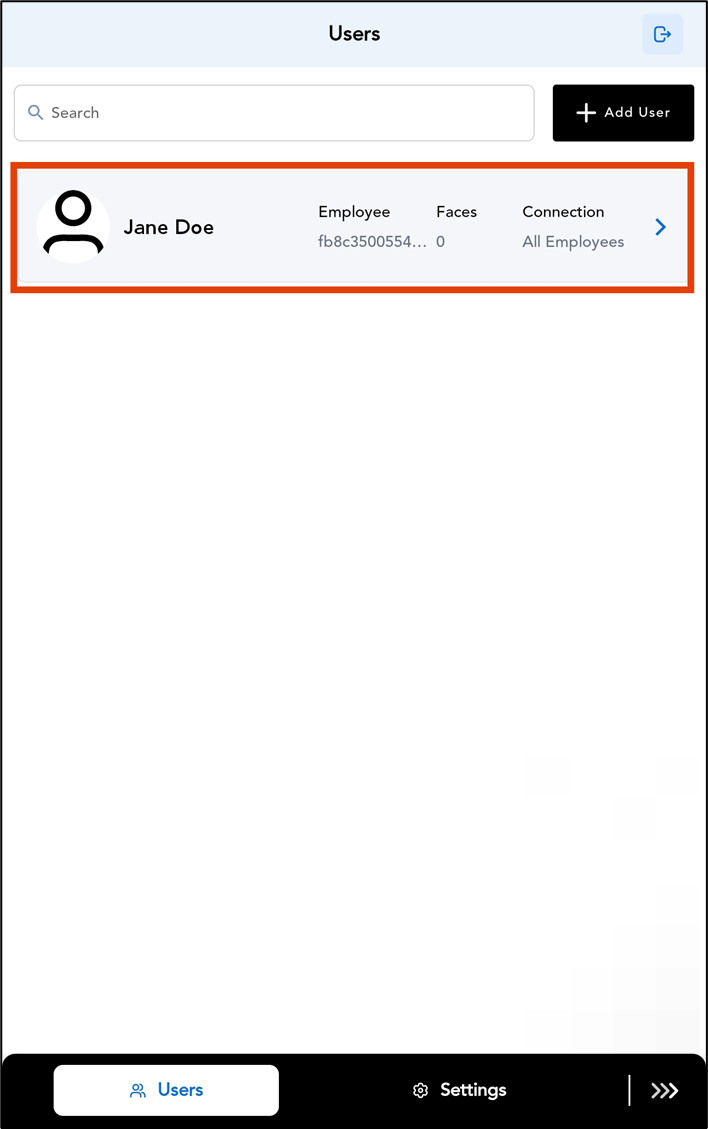
- Go to Users tab > select the preferred user.
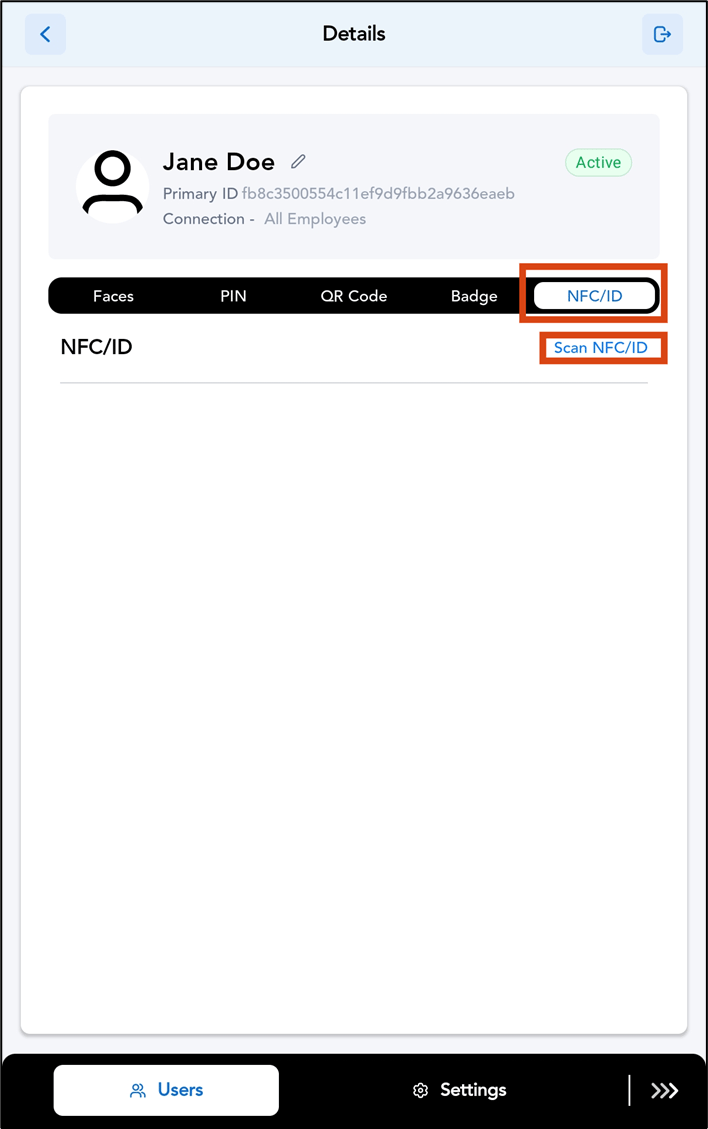
- Go to NFC/ID tab > tap Scan NFC/ID.
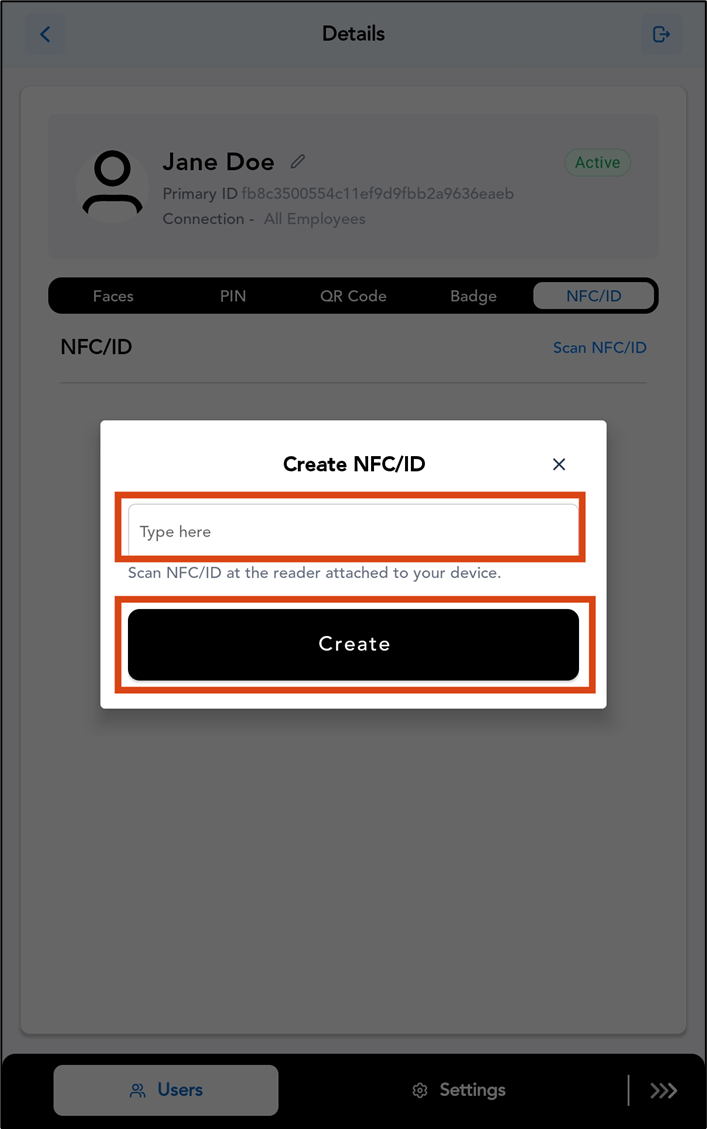
- On the Create NFC/ID pop-up box, do the following:
- Enter the NFC ID manually or scan the NFC tag using the connected card reader.
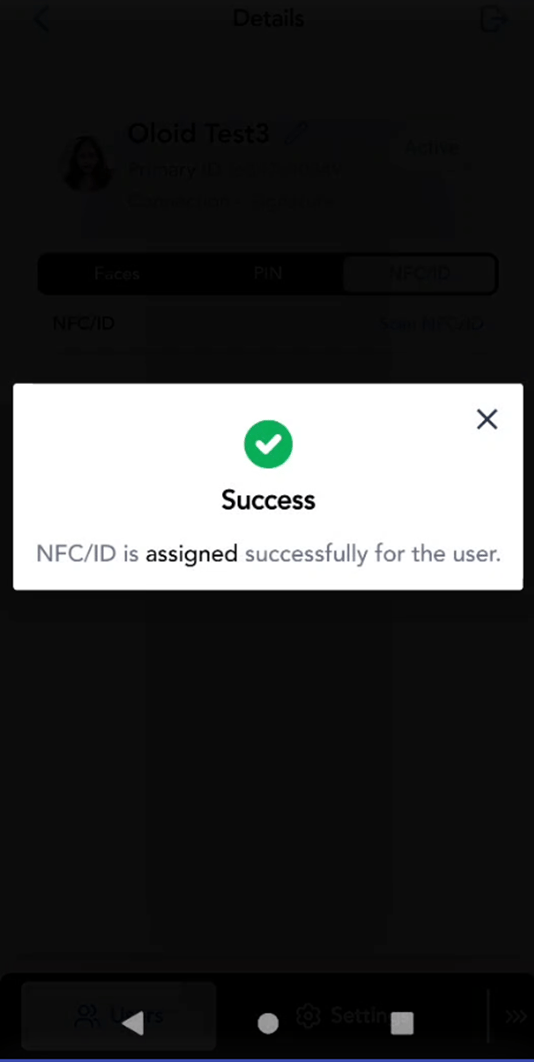
- Tap Create.