Introduction
Device Lock Mode in the Oloid Tenant Admin Portal allows users to authenticate through the Device Lock app. After successful authentication, the device unlocks and displays the device home screen.Prerequisite
You must have Tenant Admin access to the Oloid Tenant Admin Portal.Steps to Enable Device Lock Mode
- Log in to the Tenant Admin Portal.
-
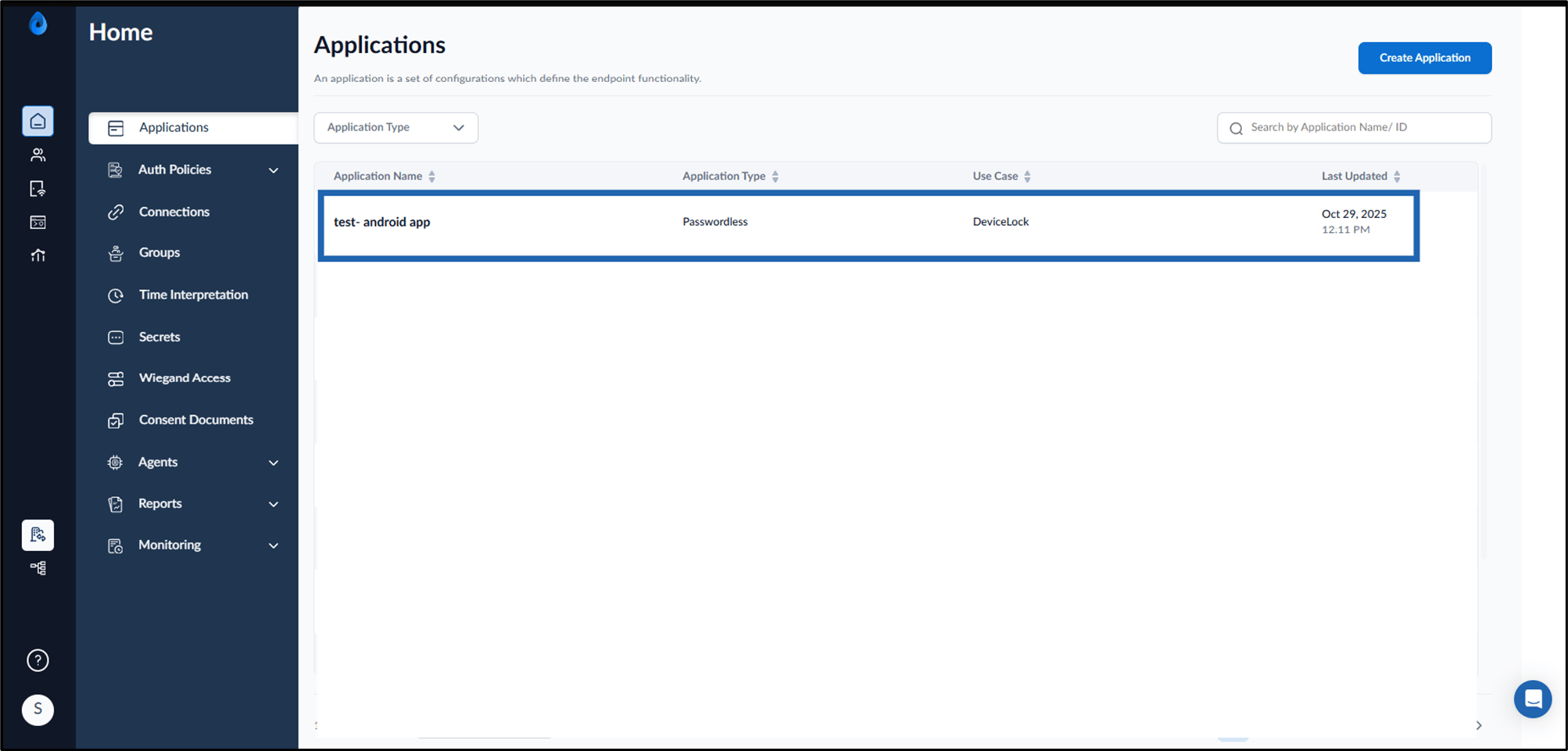
On the homepage of the portal, click the preferred application from the application list.
-
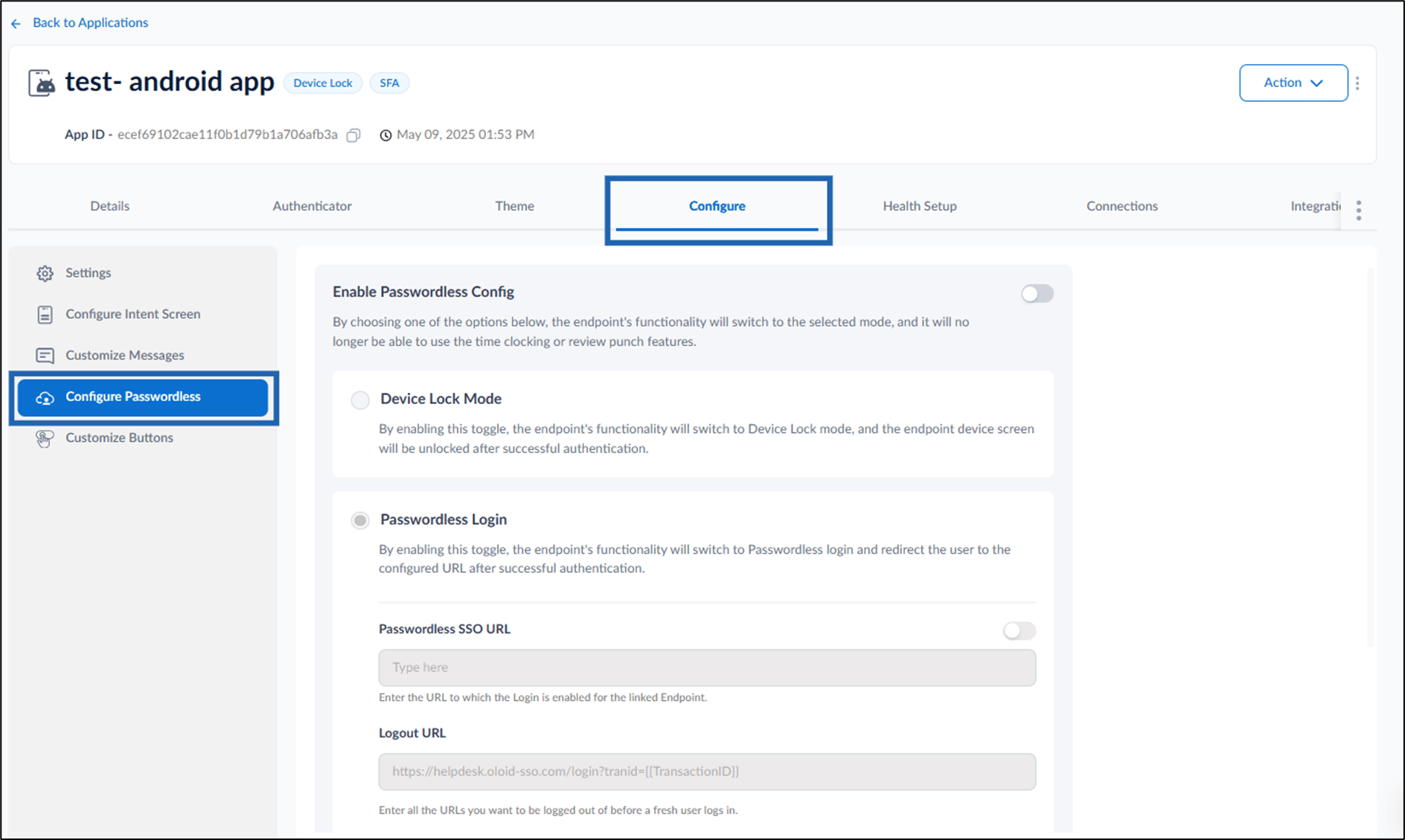
Go to Configure tab > click Configure Passwordless from the left menu panel.
-
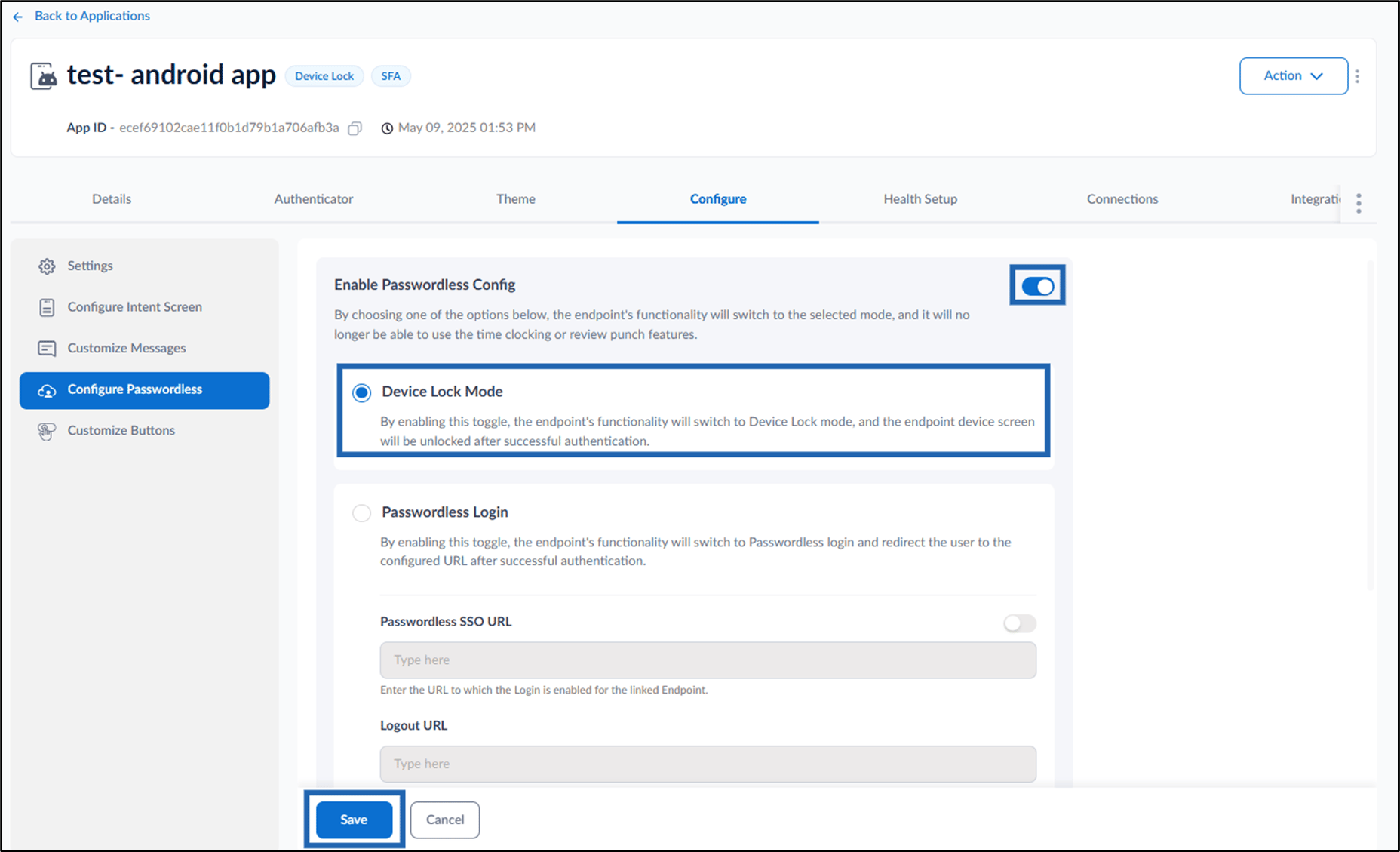
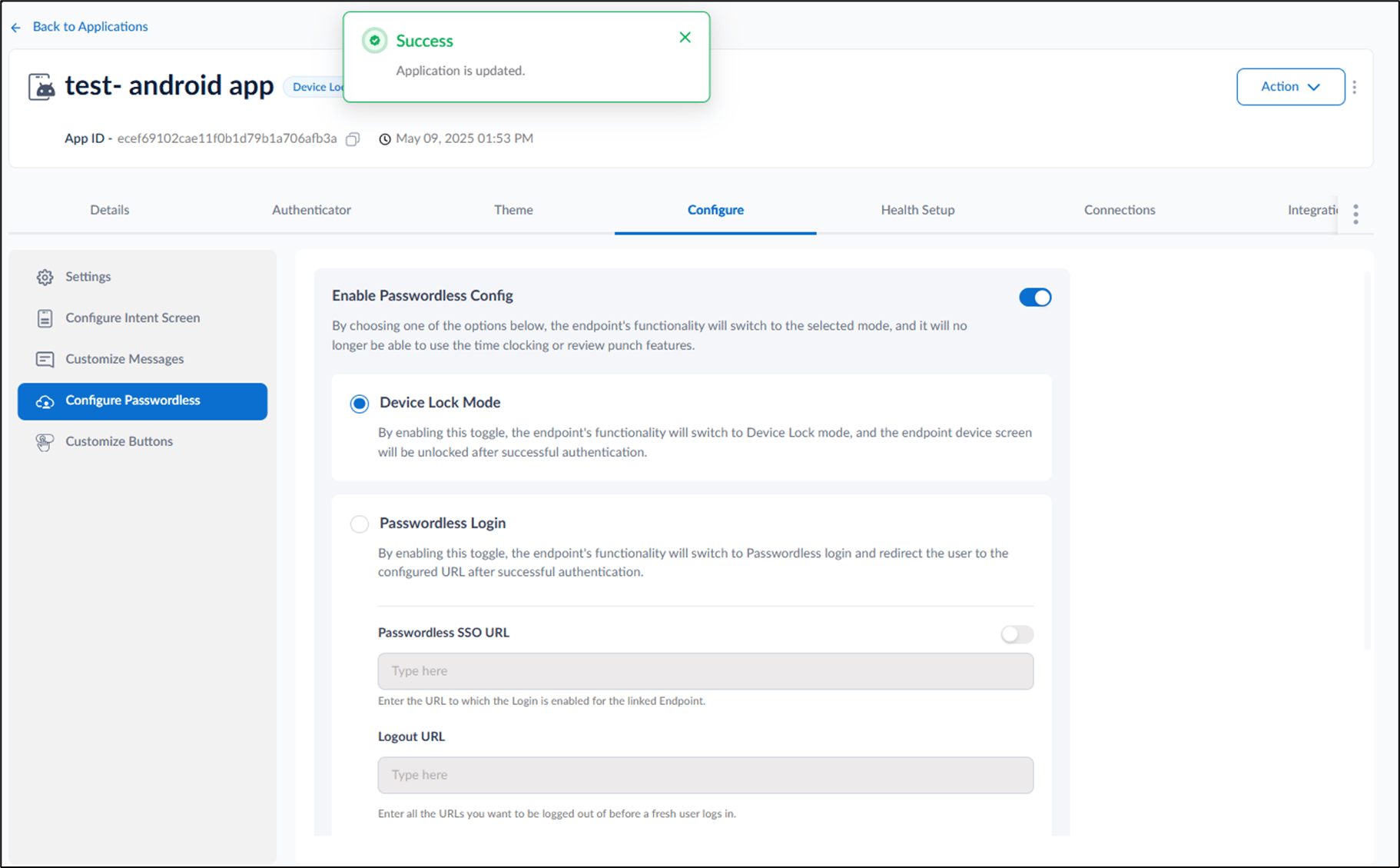
Turn on Enable Passwordless Config toggle > select Device Lock Mode > click Save.
Note: Turning on this toggle will disable Clock In / Clock Out mode.