Introduction
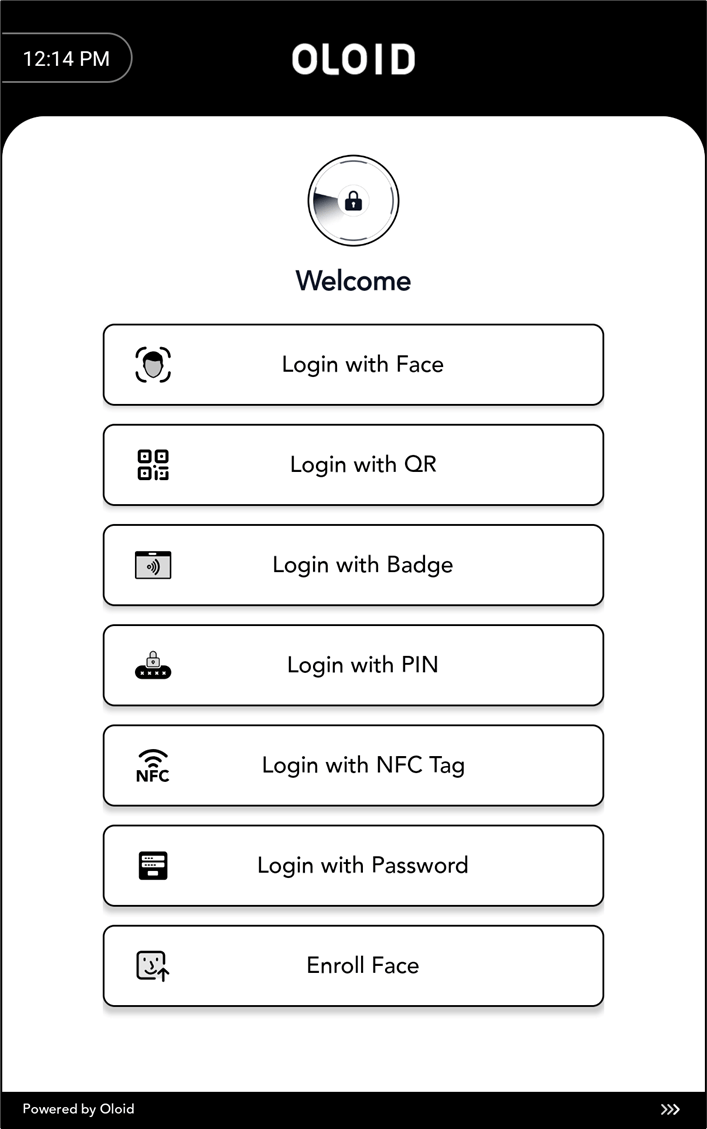
The Logout feature in the Oloid DeviceLock app allows administrators and supervisors to securely exit Admin Mode after completing configurations or management tasks. Logging out ensures that unauthorized users cannot access administrative settings on the device.Prerequisite
You must have Admin access to the DeviceLock app.Steps to log out of Oloid Devicelock App
-
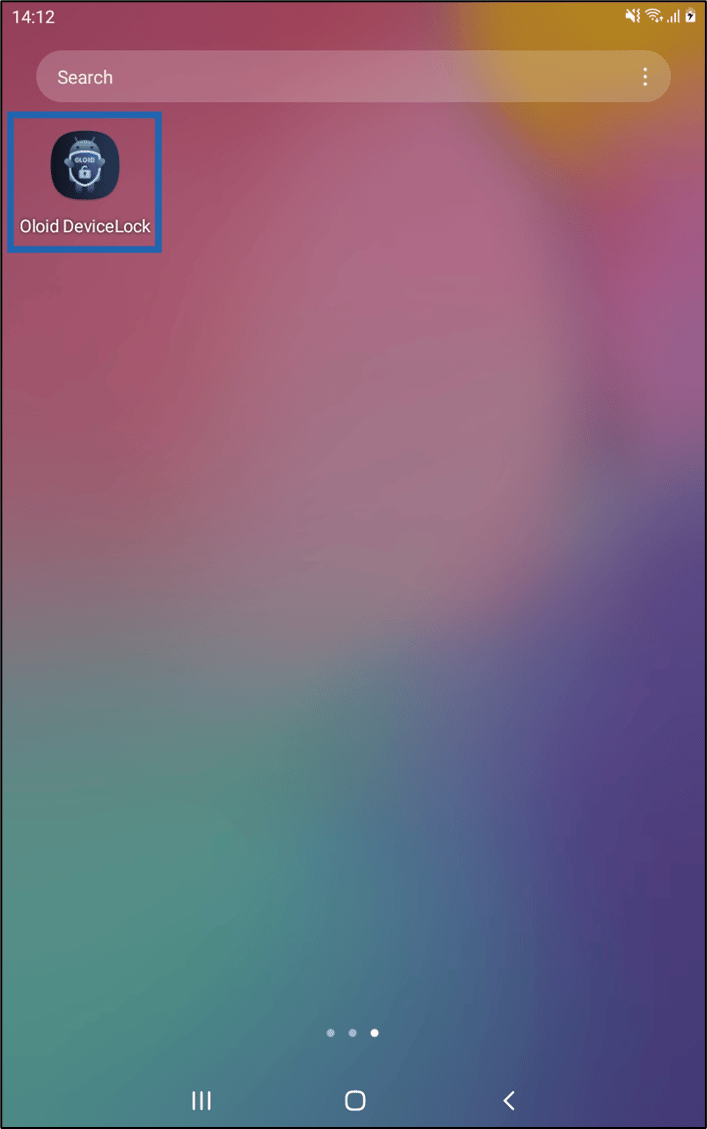
Launch Oloid DeviceLock App on your device.
- Log in to the admin mode in DeviceLock App. For more details, refer How to log in to admin mode in DeviceLock App.
-
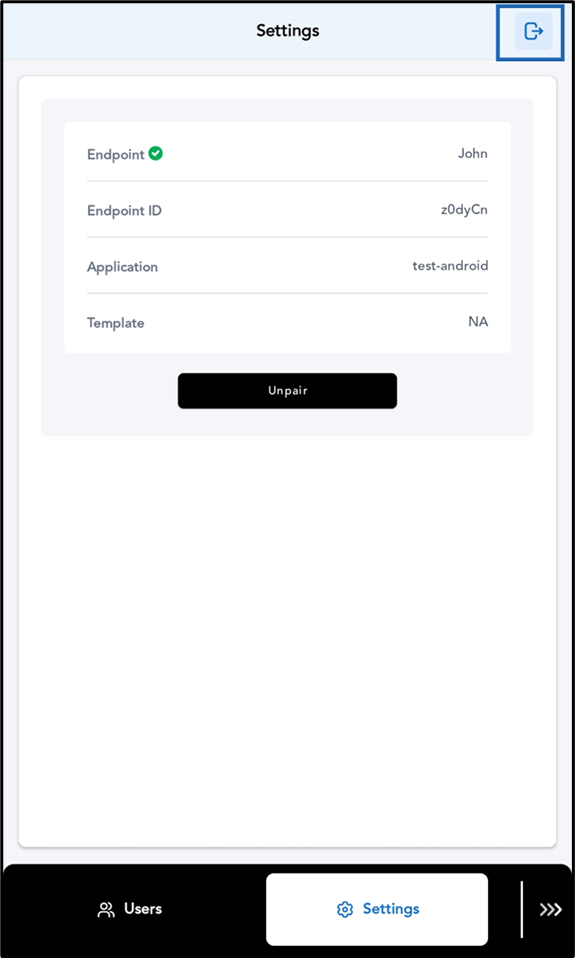
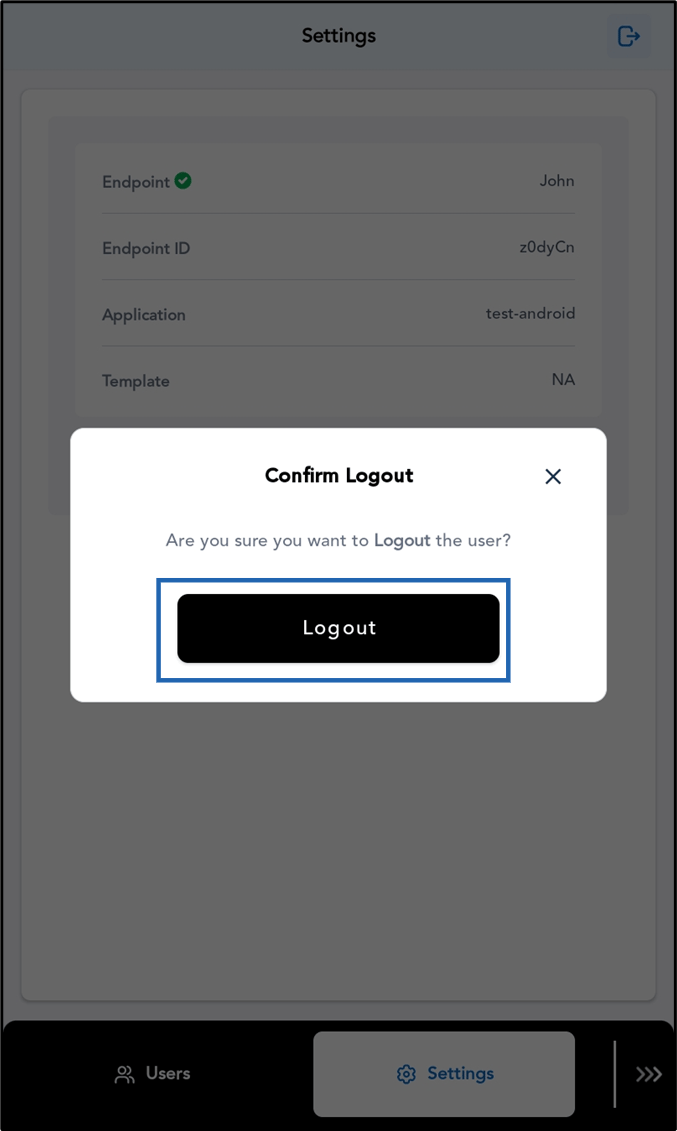
Tap Logout icon (
 Note: You can exit Admin Mode from any screen, as the top header with the Logout icon remains fixed and always accessible.