

- Launch your chrome browser.
-
Enter localhost: port number in your browser address bar. Then, press Enter on your keyboard.
Default port number: 80 The Workflow Login page is displayed.Note: Port number should be same as used during installation.
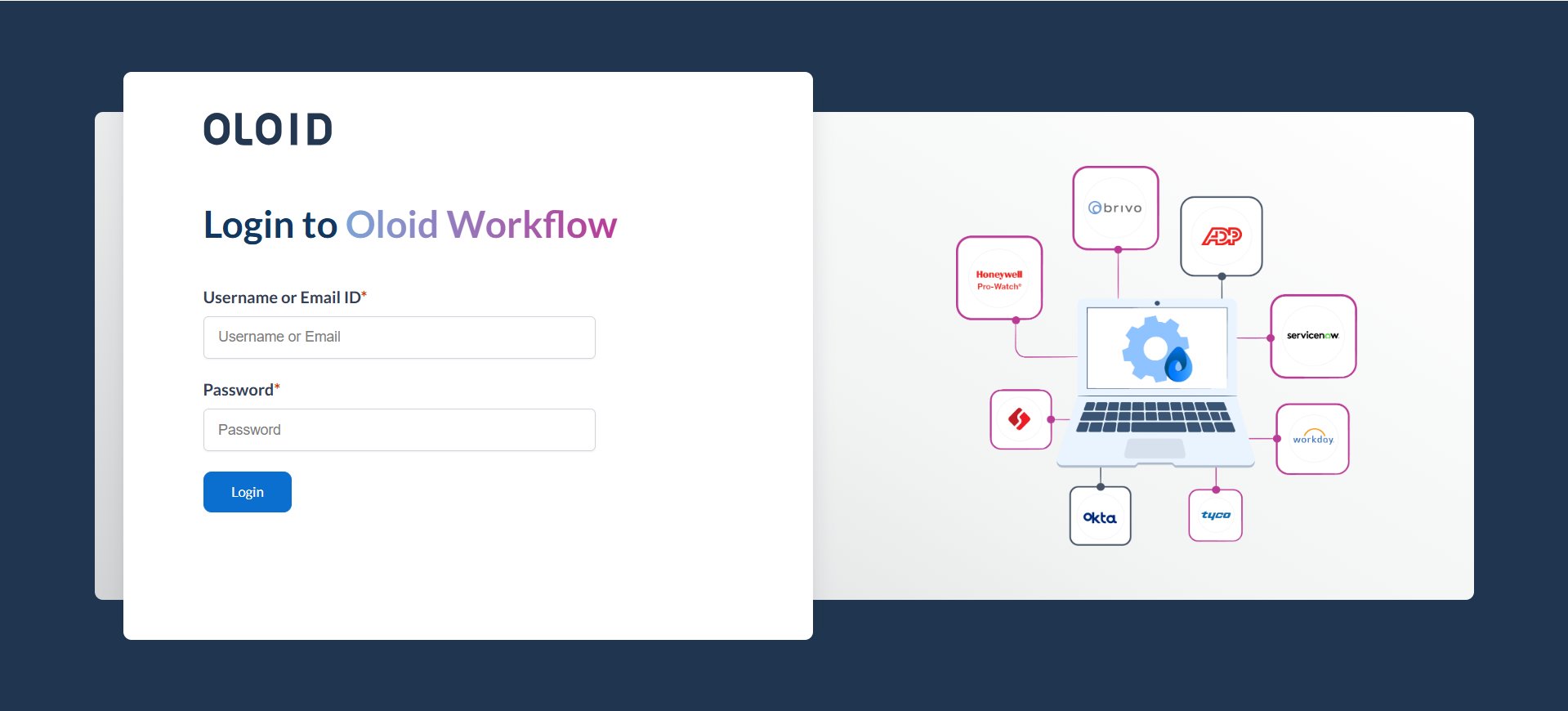
- Enter username and password in the appropriate fields.
-
Click Login.
The Oloid Workflow application page is displayed.
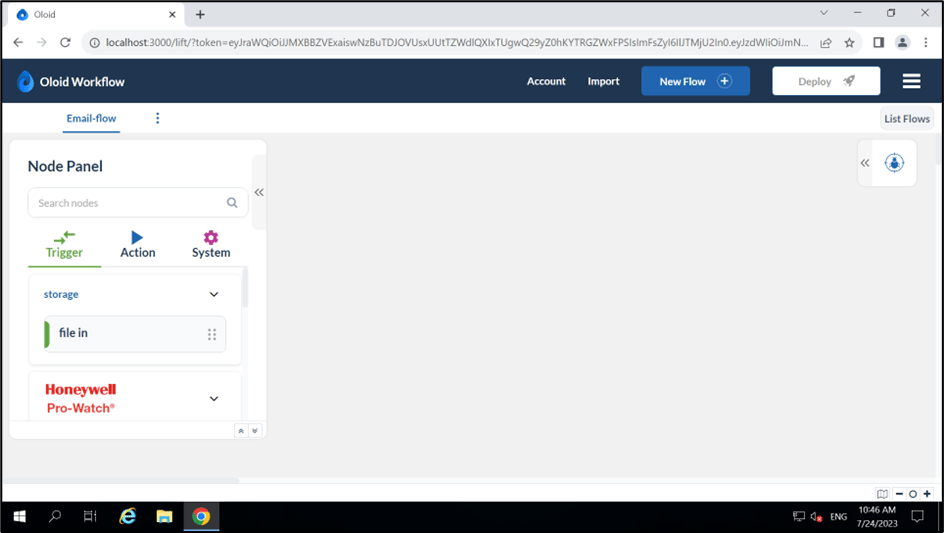
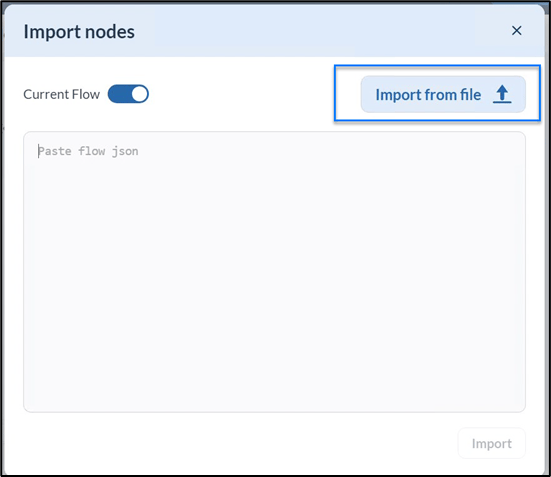
- Click Import on the top menu. The Import Nodes pop-up box is displayed.
-
Click Import from file in the pop-up box.
-
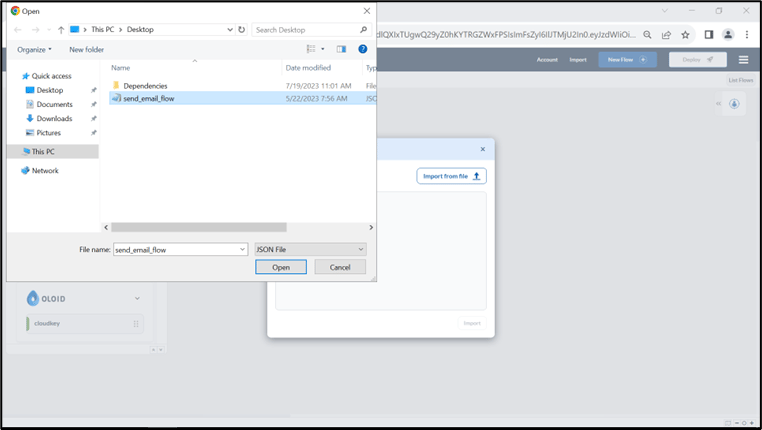
Select the json file to be imported from your system.
-
Verify the json flow data and Click Import.
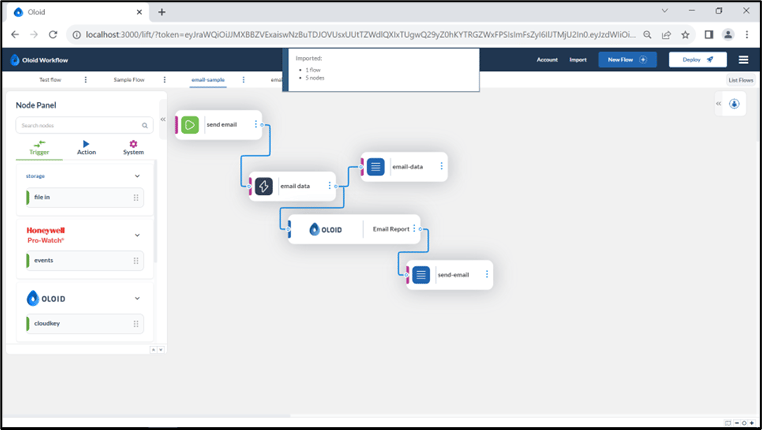
The file import success message is displayed. It shows the number of flows and nodes imported.
-
Click Deploy.
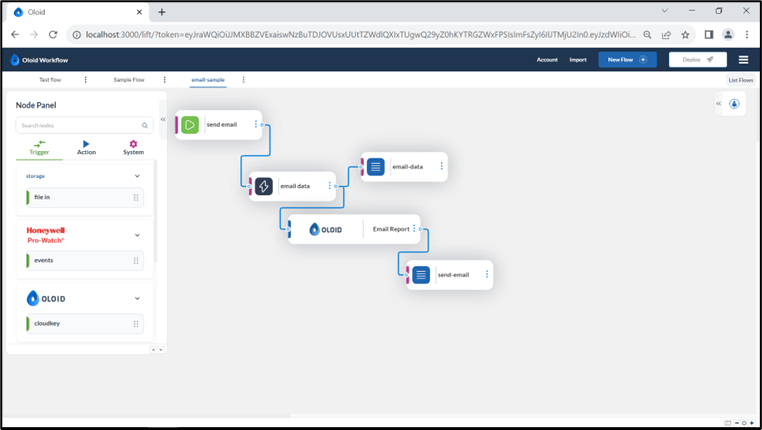
The file is successfully deployed and displayed as a tab in the Workflow Application.
How to import a flow?
This document provides step by step instruction on how to import a flow in Oloid Workflow Application.
Steps to import a Flow
⌘I