

- Take a back up of Flows via export feature. See, How to export Flows
- Stop the Oloid Workflow Service. See, How to stop the Service
- Uninstall the Oloid Workflow Software. See, How to uninstall Oloid Workflow
 Do not delete the folder C:\Oloid
 - Install new version of Oloid workflow. See, How to install Oloid Workflow
- Restart Oloid Workflow Services.
- Import the Flows that were taken as backup. See, How to import Flows
Note:Windows Upgrades :
- Oloid Workflow application is supported across Windows Server upgrades. Windows upgrades typically occur once every 3-5 years. The application is designed to maintain compatibility through these upgrades with minimal disruptions.
- Oloid Workflow application is supported across integration application upgrades, including systems like ProWatch, Lenel OnGuard, S2 NetBox and others. The application manages forward and backward compatibility to ensure seamless operation across different versions of these integrated systems.
Reference Documents
How to export Flows
Steps to export a Flow
- Launch the workflow on prem machine.
- Navigate to the localhost URLin your browser address bar. Then, press Enter on your keyboard.
The Workflow Login page is displayed.
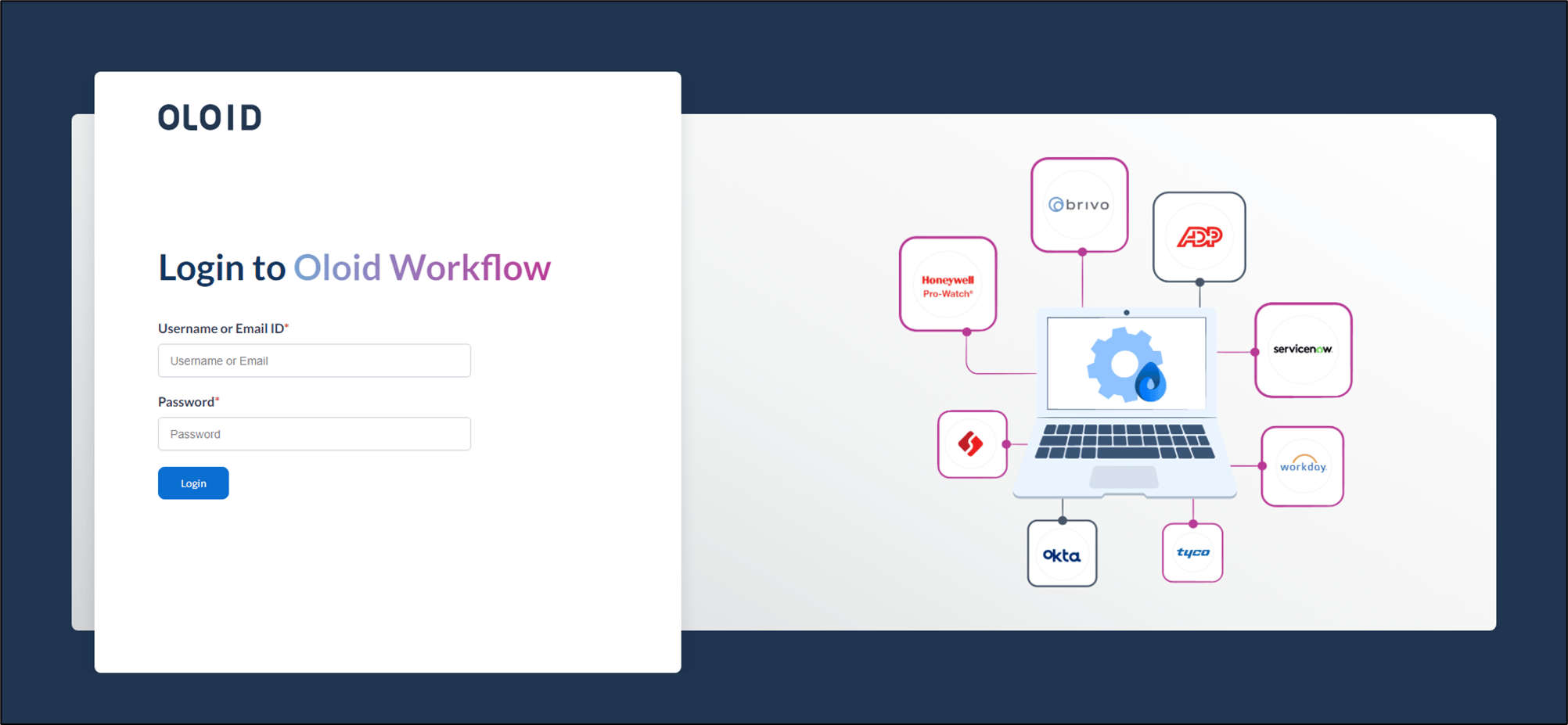
- Enter username and password in the appropriate fields.
- Click Login.
The Oloid Workflow application page is displayed.

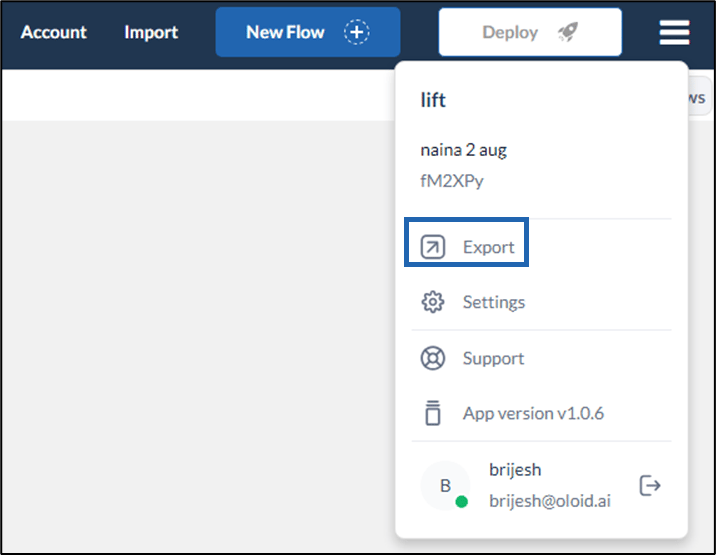
- Click navigation menu

- Select Export to export the flows.
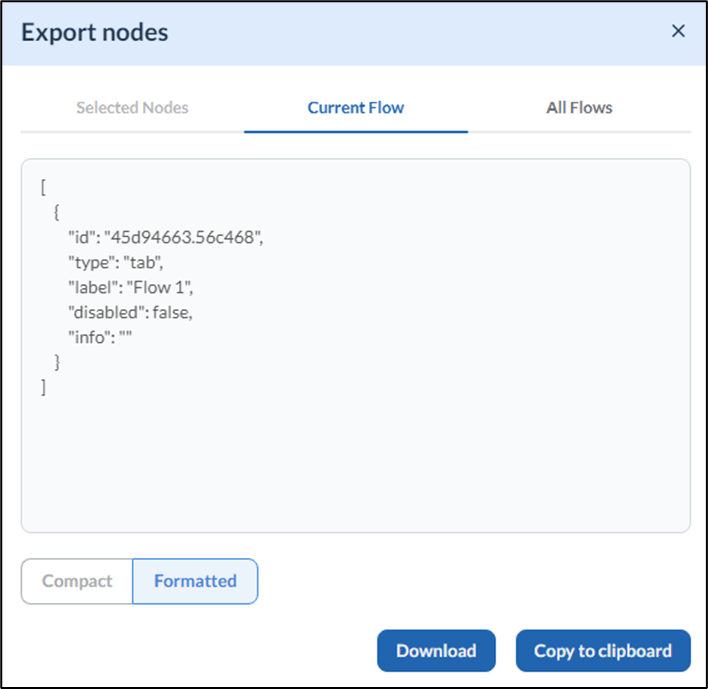
- Select All Flows tab, then click Download.

How to stop the Service
Steps to stop the Service
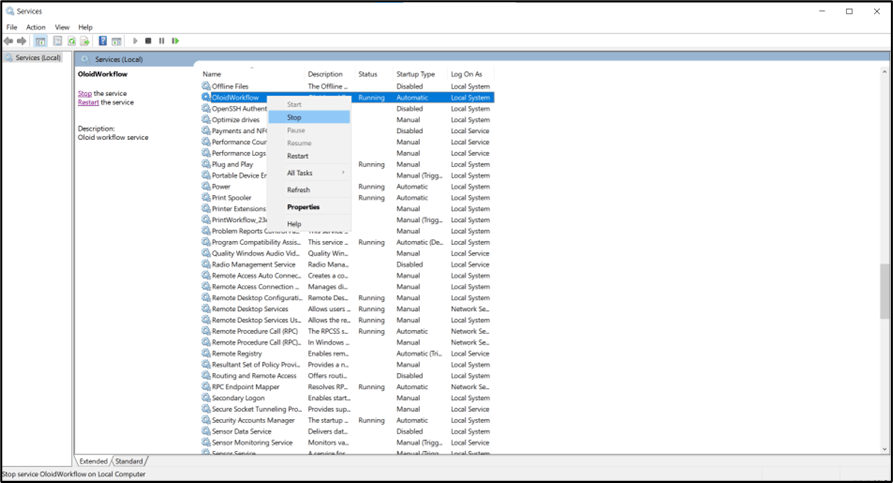
- Search Services in the Start menu and select it from the corresponding result. The Services window is displayed.
- Select Oloid Workflow.
- Then right-click on the service, select Stop, and wait for the service to stop.
How to uninstall Oloid Workflow
To uninstall
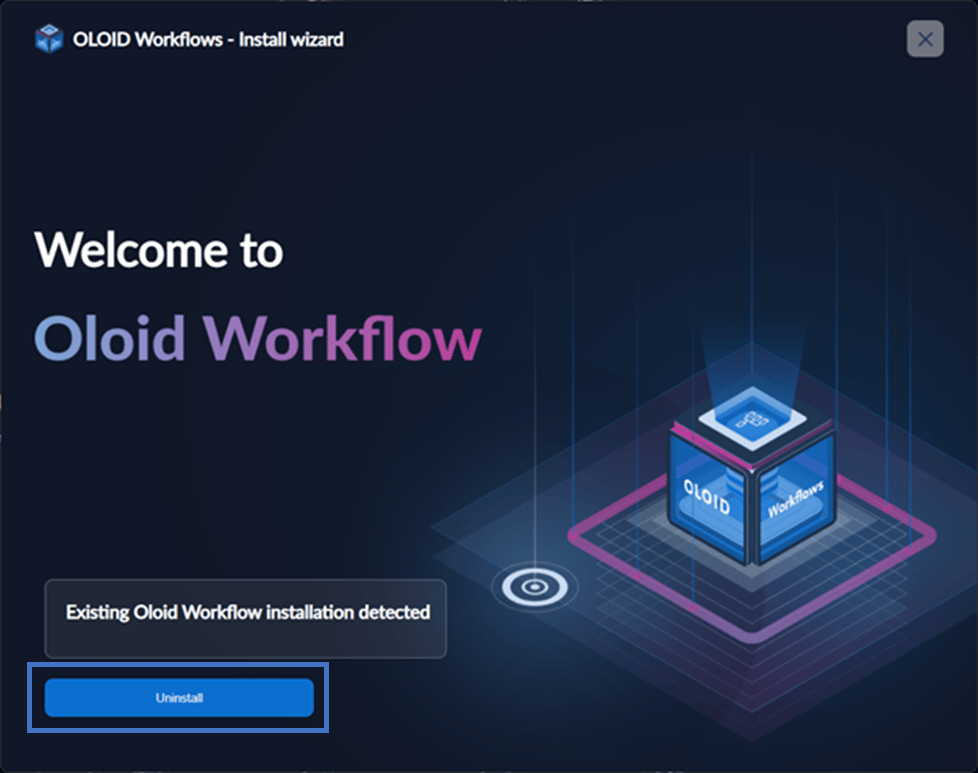
- Right click & open Oloid Workflow Installer with Run as Administrator option. The installer will auto detect existing installation and requests for Uninstall.
- Click Uninstall to proceed.
- A windows pops up to show the uninstallation progress.
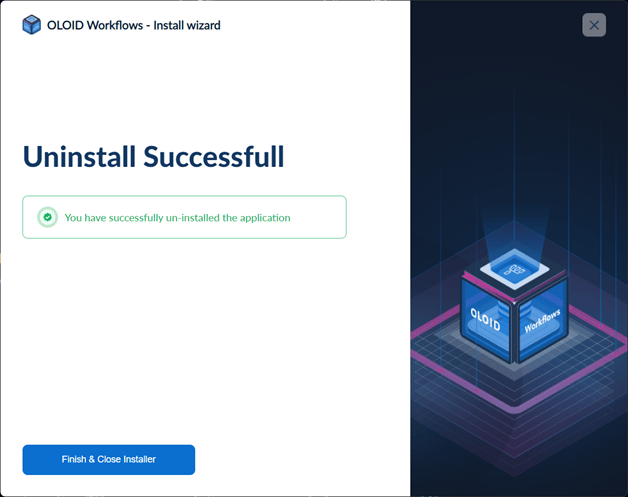
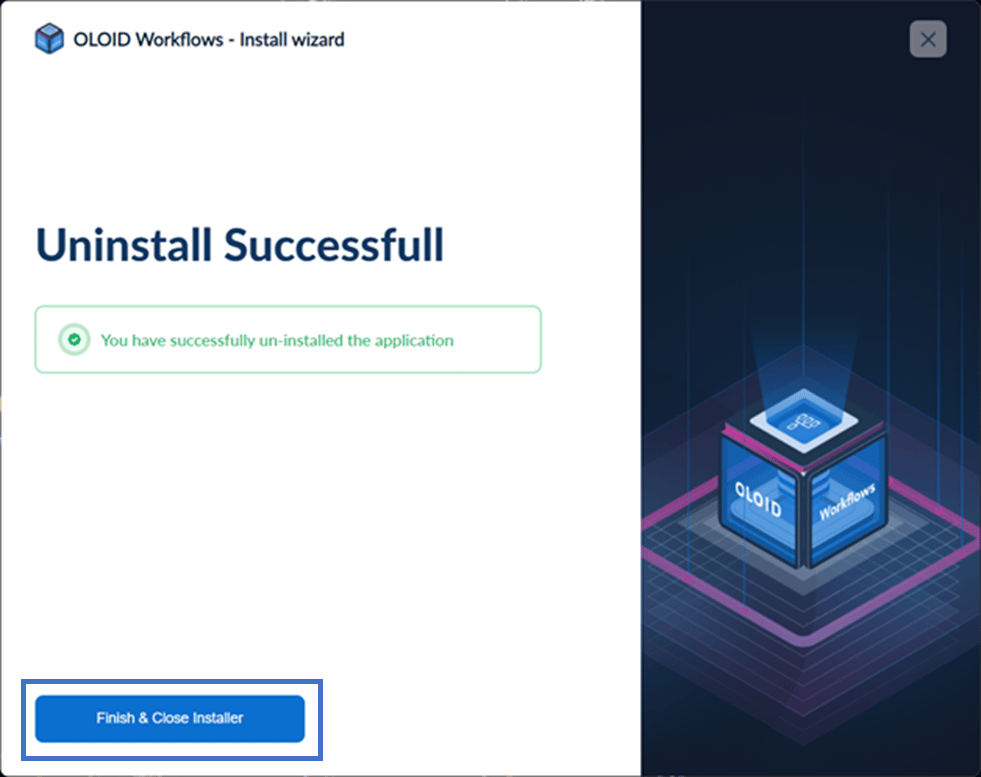
- Once the installation is complete, a confirmation message will appear. To close the installer, click Finish & Close Installer.
How to install Oloid Workflow
Steps to Install Oloid-Workflow
- Right-click & open Oloid Workflow Installer with Run as Administrator option.
-
Select Installation mode and click Initiate Installation.
(In Online mode, the installer will fetch necessary install files from internet)
(In Offline mode, the installer will fetch necessary install files from build.zip file shared by Oloid executive)

-
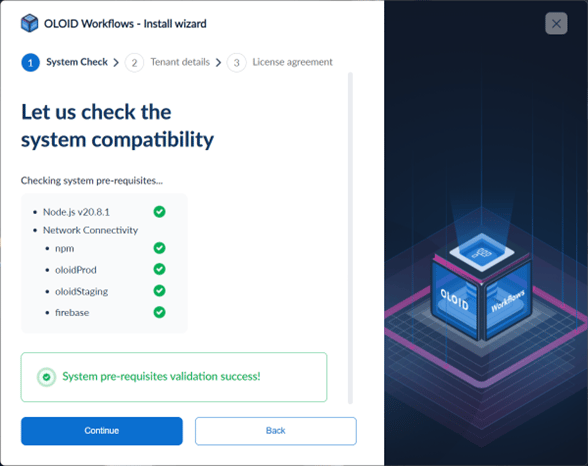
Click Continue.
Note: The installer will do various checks and show the status here. In case, installer detects any failure, please contact Oloid executive with screenshot.
-
Fill in the required details – Please talk to Oloid executive for this information.
- Tenant Name – Please talk to Oloid executive for this information
- Tenant ID – Please talk to Oloid executive for this information
- Choose Installer version – Please talk to Oloid executive for this information
- Installation Path – local path where application will be installed
- Port – default is 80
- Installation environment – UAT for sandbox, Prod for Production
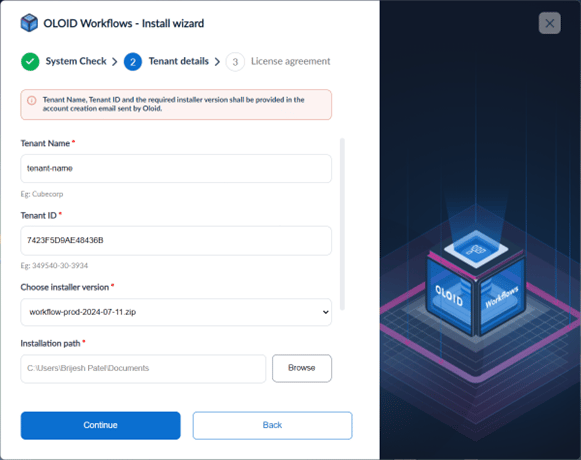

-
Check the license agreement and Click Install.
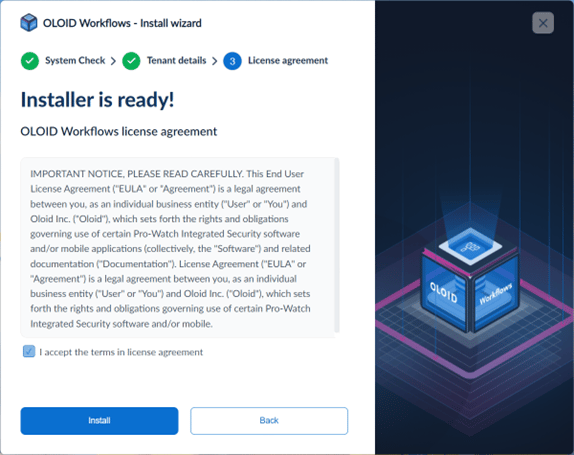
-
Wait till the installation is complete.
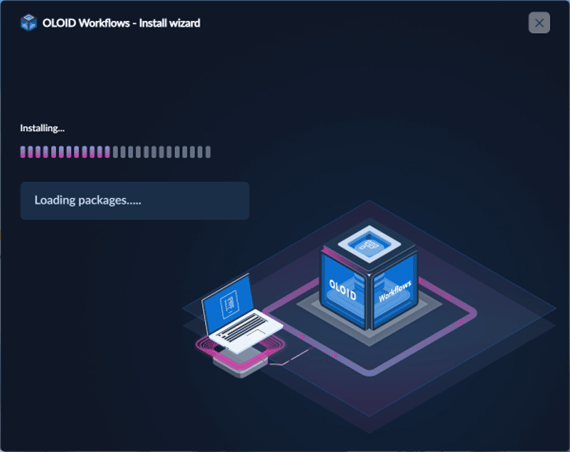
-
Installation Progress will be shown here.
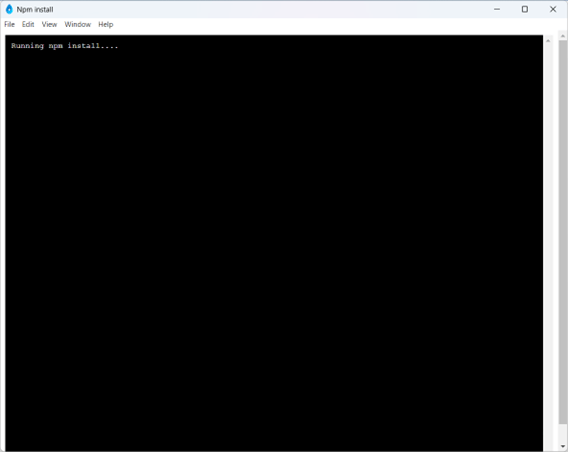
- Installation is complete.
-
Click Finish and Open Application.
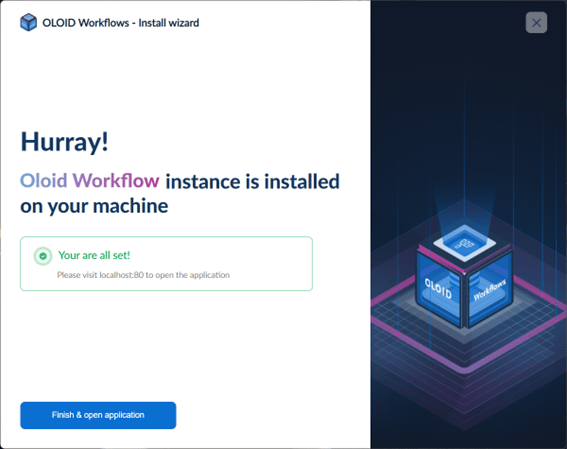
How to import Flows
Steps to import a Flow
- Launch the workflow on prem machine.
- Navigate to the localhost URLin your browser address bar. Then, press Enter on your keyboard.
The Workflow Login page is displayed.
- Enter username and password in the appropriate fields.
- Click Login.
The Oloid Workflow application page is displayed.
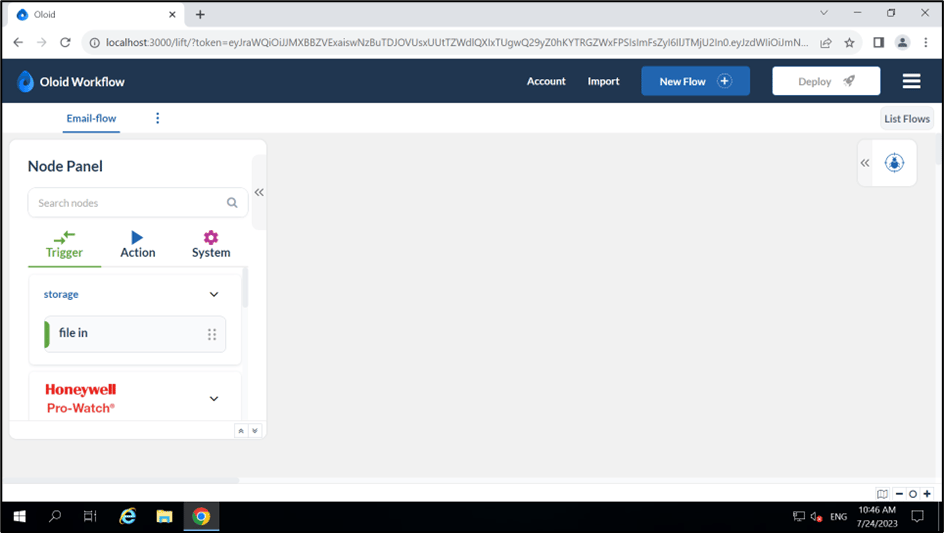
- Click Import on the top menu. The Import Nodes pop-up box is displayed.
- Click Import from file in the pop-up box.
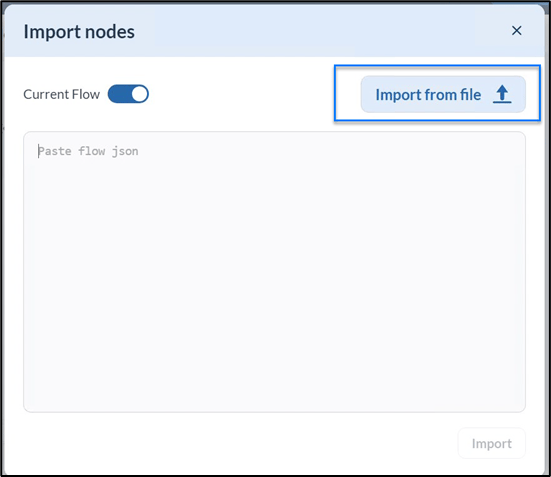
- Select the json file to be imported from your system.
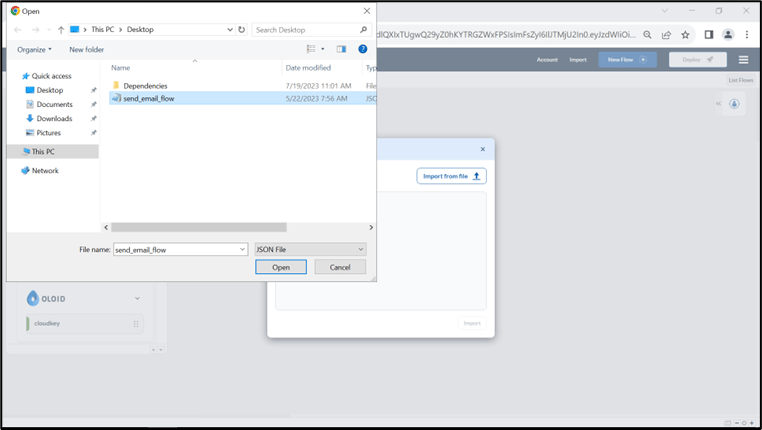
- Verify the json flow data and Click Import.
The file import success message is displayed. It shows the number of flows and nodes imported.

- Click Deploy.
The file is successfully deployed and displayed as a tab in the Workflow Application.
