

Introduction
This feature of Oloid Connect app allows the user to add faces to their profile.Note: If connection is enabled to take consent for user, it will ask for consent before uploading the pic.
Pre-requisite
User should be added to the connection. To add faces,- Do one of the following:
- For existing user:
- Tap Users on the menu at the bottom of the screen.


- Select user to add a face from Users list.

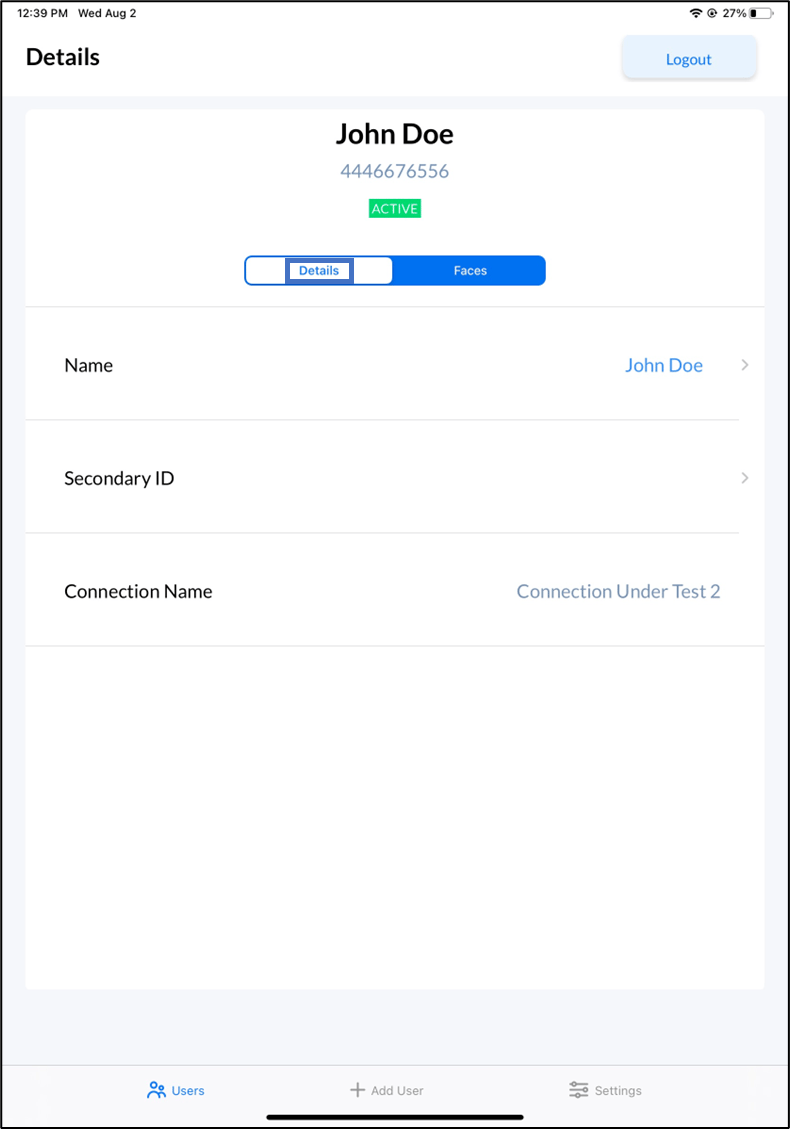
- Tap Users on the menu at the bottom of the screen.
- For new User:
- Tap +Add User on the menu at the bottom of the screen to add a user. See Add User.
The User details screen opens.
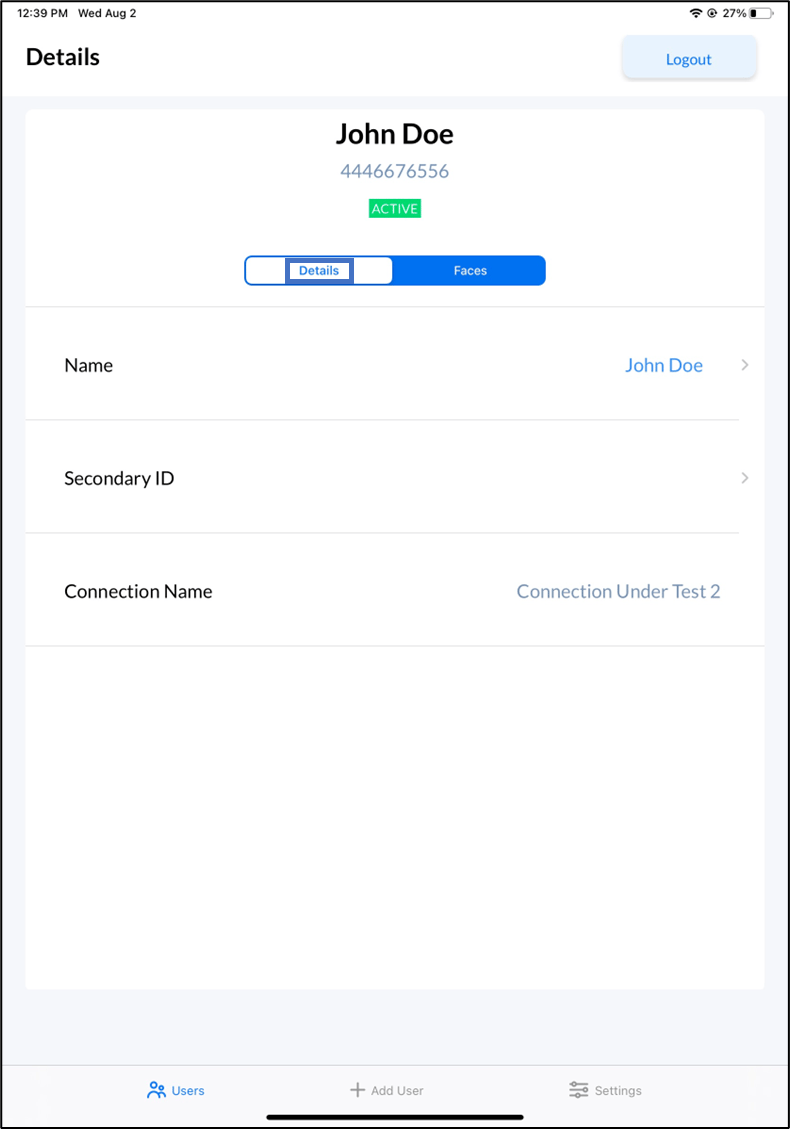
- Tap +Add User on the menu at the bottom of the screen to add a user. See Add User.
The User details screen opens.
- For existing user:
- Tap Faces tab and select Add Face.
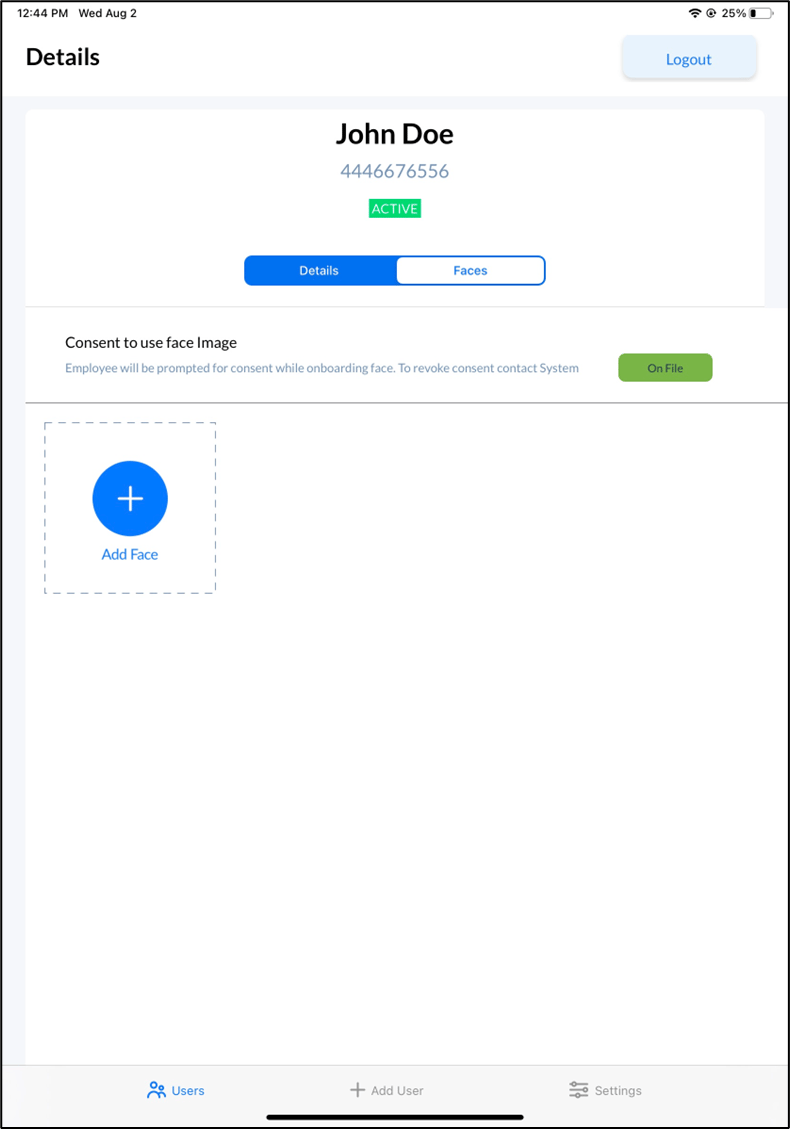
- Capture the user face.
- The pop-up screen appears with the captured image.
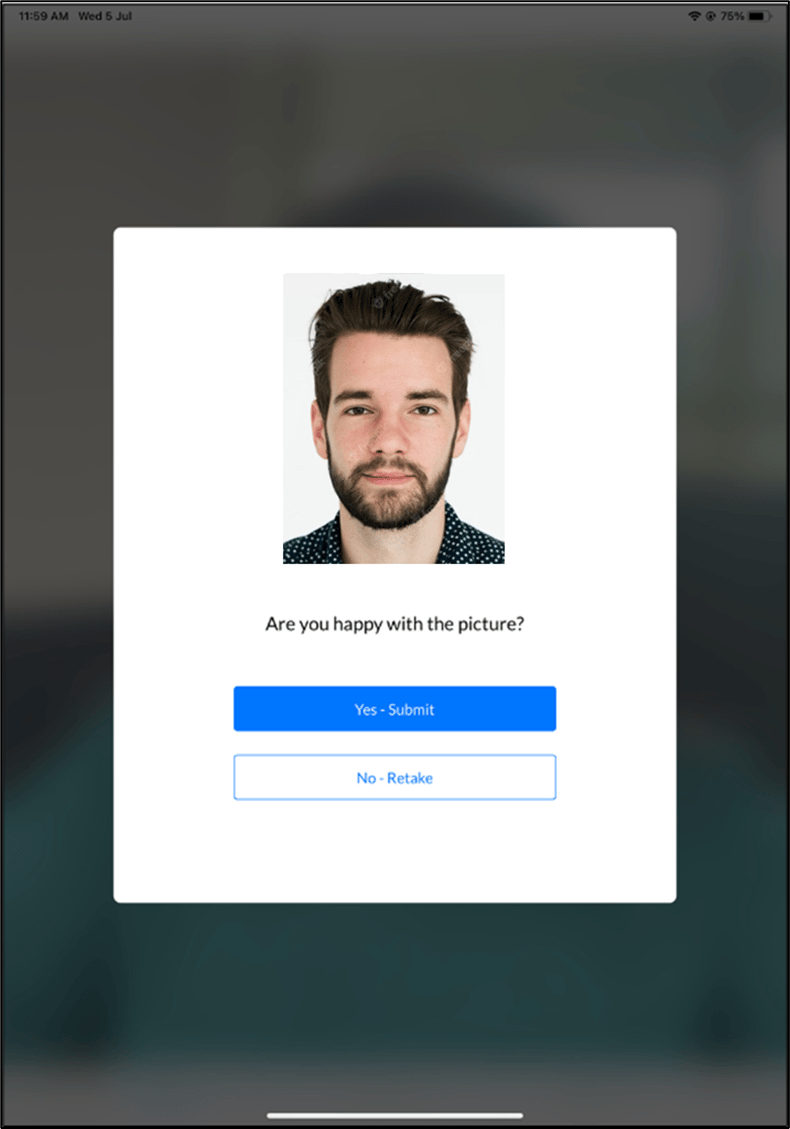
- Do one of the following:
- Tap Yes- Submit to submit the image. The face is submitted successfully and is displayed on the details screen.
-
Tap No- Retake to take the photo again.
The camera turns on to retake photo.
Your face should be visible in the camera, else it might get rejected. It is recommended to avoid wearing things that cover your facial features such as sunglasses, masks, headbands etc. Refer to Oloid’s Image Reference Guide to see guidelines on face onboarding images.Note: You can add a maximum of five faces per user.