

- Log in to the Oloid Portal.
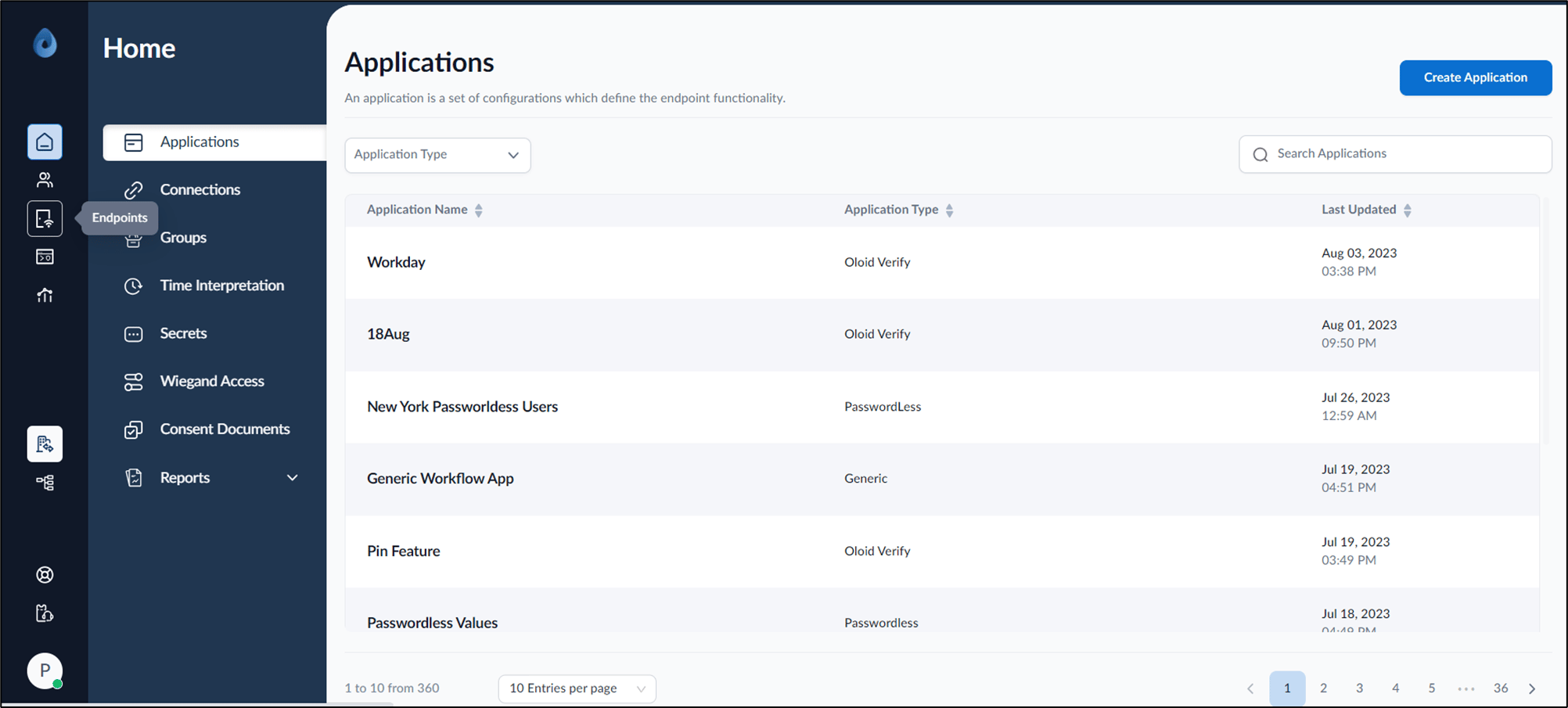
- On the home page of the portal, click Endpoints on the left menu panel.
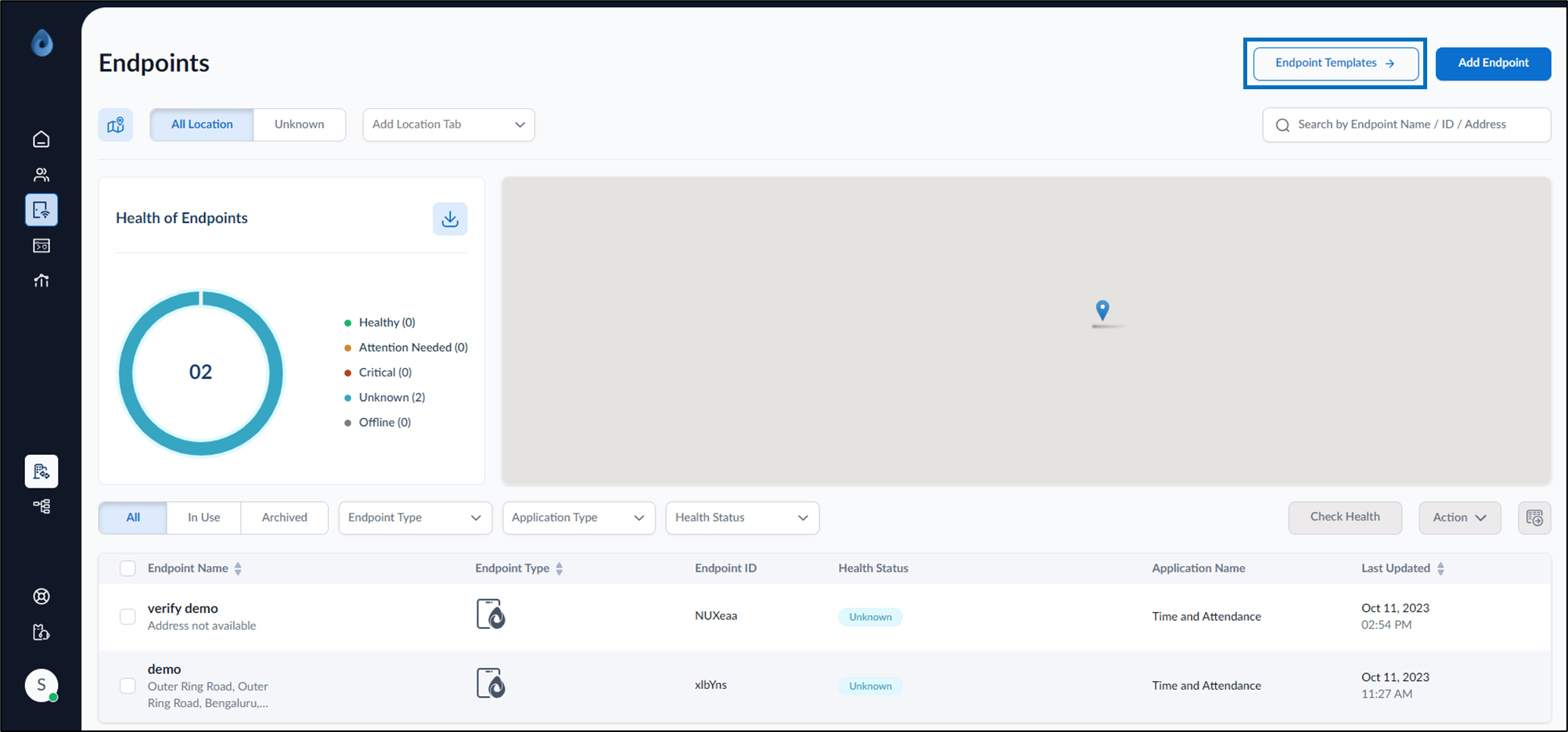
- On the top right, click Endpoint Templates.
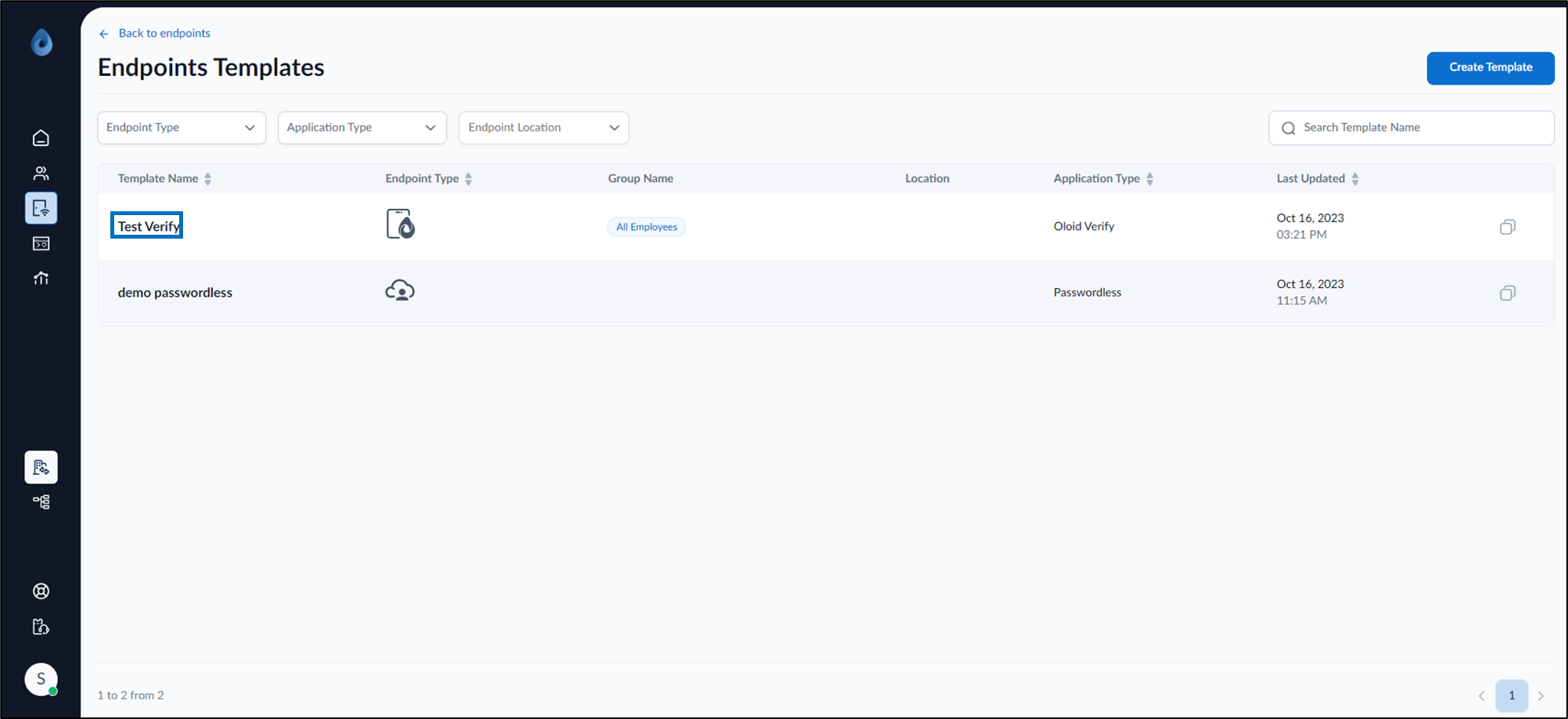
- Click the endpoint template to be configured from the listed templates .
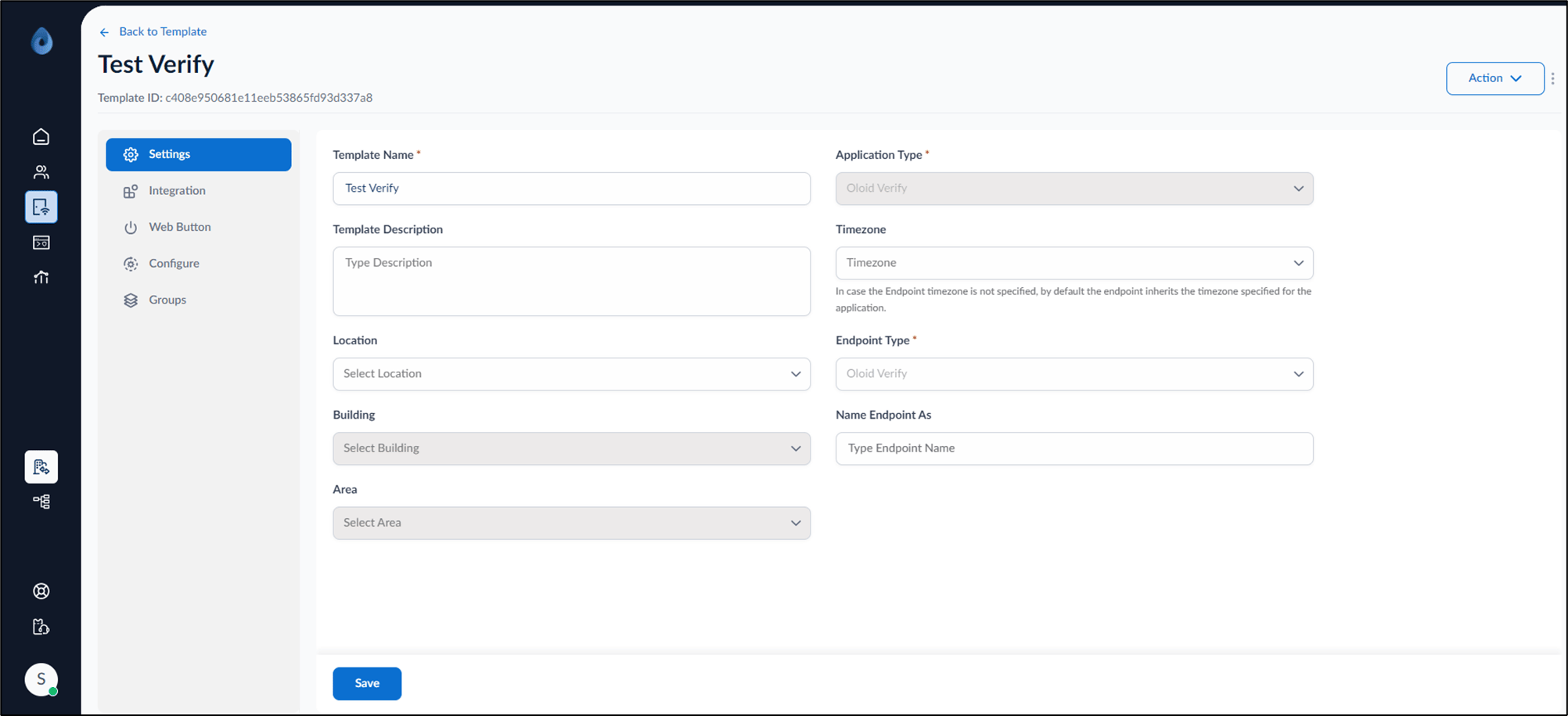
- Do the following:
- Settings tab:
-
Edit Template Name.
Note: Template name is auto populated. You may edit it if required.
- Enter Template Description (Optional).
- Select time from Timezone dropdown list (Optional).
- Select Location from Location dropdown list (Optional).
-
Select Building from Building dropdown list (Optional).
Note: The Building field is enabled on selecting location.
-
Select Area from Area dropdown list (Optional).
Note: The Area field is enabled on selecting Building.
- Enter Endpoint Name in the Name Endpoint As field.
- Click Save.
-
Edit Template Name.
- Integration tab: Enable Integrations to perform cloud-based actions.
- Web Button tab: Turn on Enable Web Button toggle button to view transactions.
- Configure tab:
- Turn on Enable Heath Alerts toggle button to receive health alerts of the endpoint at your configured email.
- Enter integration in the Integration Name field and enter URL in the Add URLs that needs to be monitored field.
- Groups tab: Add Group to Endpoint Template. The Verify endpoint template is configured.
- Settings tab:
How to configure endpoint template for Oloid Verify/Connect App
This document provides step-by-step instructions to configure Verify Template in the Oloid Portal.
Steps to configure Verify Endpoint Template:
⌘I