

- Log in to the Oloid Portal.
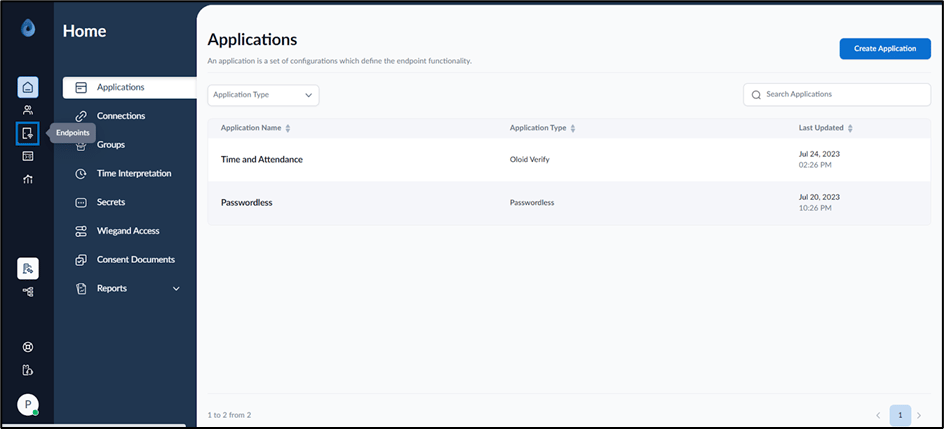
- On the homepage of the portal, click Endpoints on the left panel menu.
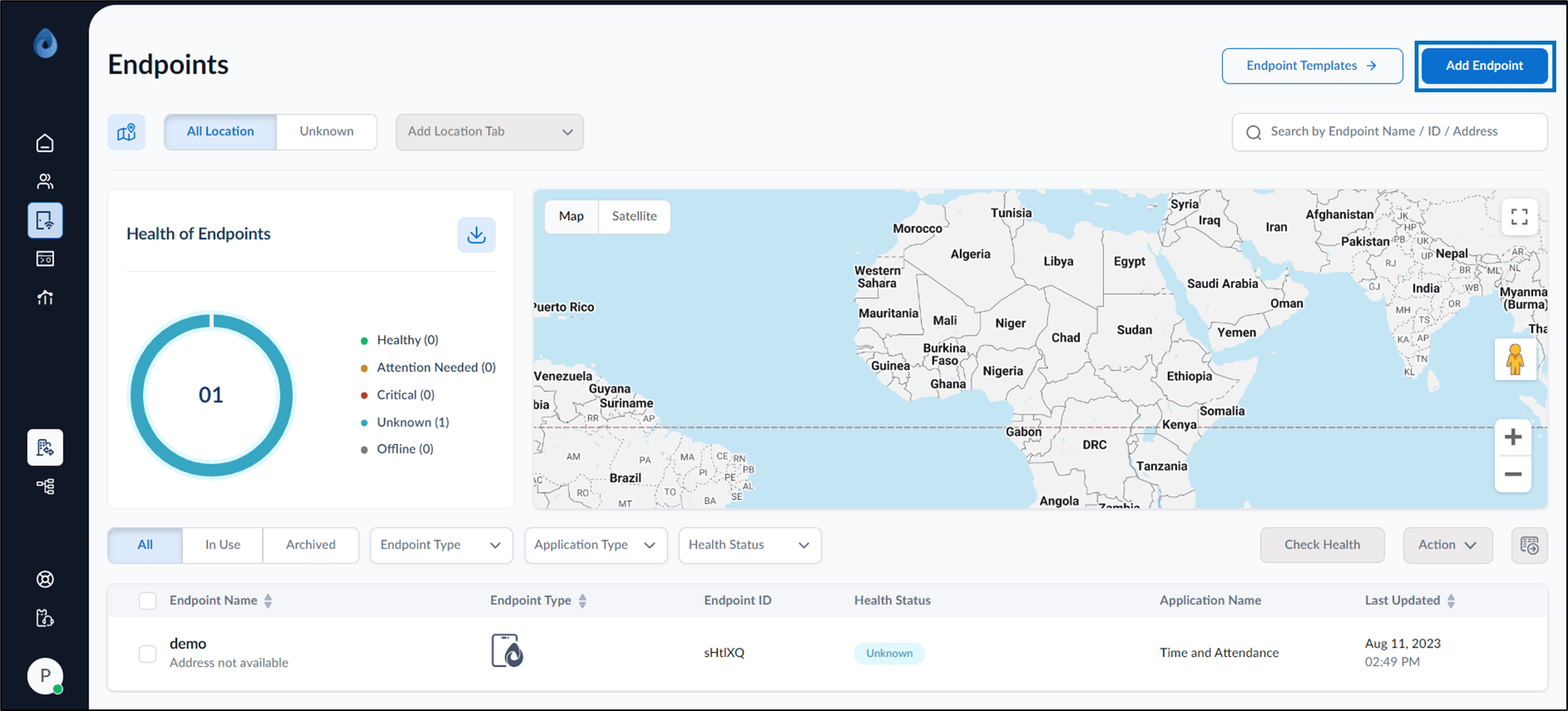
- Click Add Endpoint on the top right corner of the page.
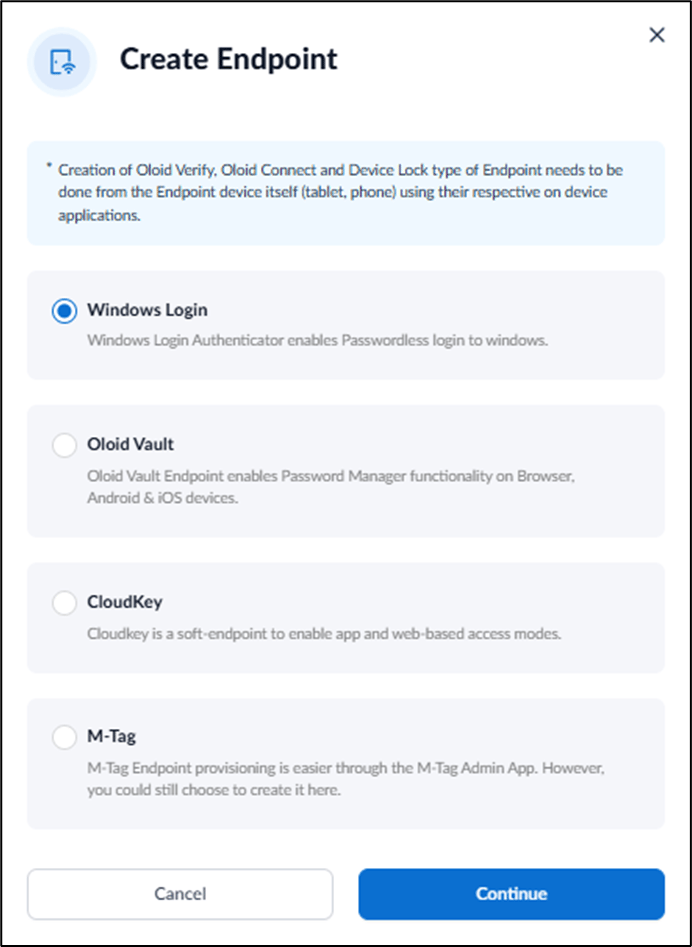
- Select Windows Login and select Continue.
The Create Windows Login Endpoint pop-up box is displayed.

- On the pop-up box, do the following:
- Enter Endpoint Name.
- Select Application from the application list**.**
- Select Template (optional).
- Click Create. The endpoint is created and listed on the Endpoints page.
How to add Windows Login endpoint
This document provides instructions to add a Windows Login endpoint to the Oloid Portal.
Steps to add a Windows Login endpoint:
⌘I