

Introduction
Oloid DeviceLock is an Android app that enables secure Workforce/HRMS login, including platforms like Okta, using physical identity factors such as Face, Badge and PIN, NFC and PIN, or Password, while supporting Multi-factor Authentication (MFA). The Oloid Device Lock App helps you to access your Okta account. For more info see, How to create and configure Device Lock application. Once the setup is complete, you can use one of the following ways to log in to Okta.Login with Face
Pre-requisite:- The user face is added to the credential tab within User section on the Oloid Portal.
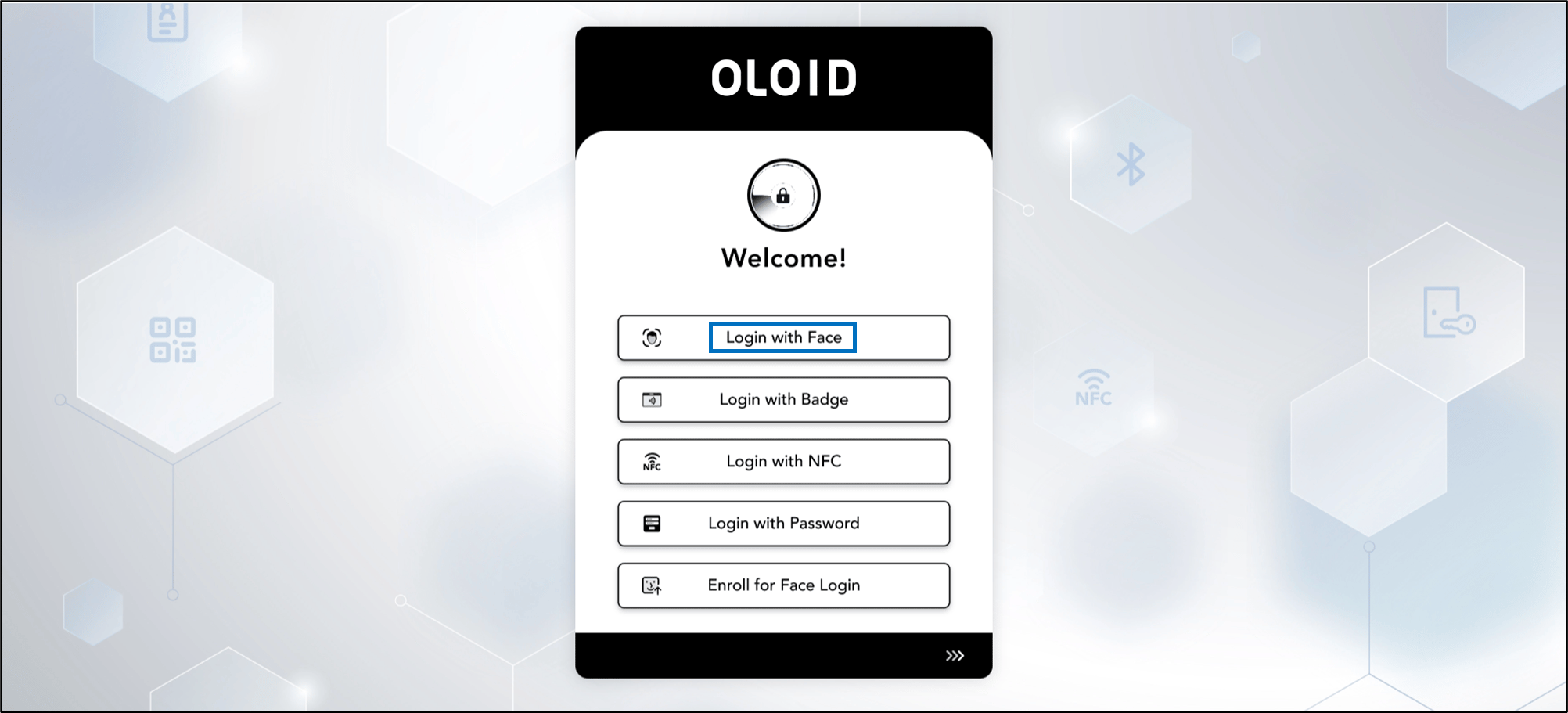
- Oloid Device Lock App is launched and Welcome screen is displayed.
-
Tap Login with Face.
-
Look at the camera to confirm your identity.
 The application compares your face with the reference image and on a successful face match displays the Okta home screen.Note: Tap Capture button to manually take your photo.
Login with Badge
Pre-requisite:- You must have an Okta account.
- The badge reader should be connected to your android tablet.
- Oloid DeviceLock App is launched and Welcome screen is displayed.
- Tap Login with Badge.
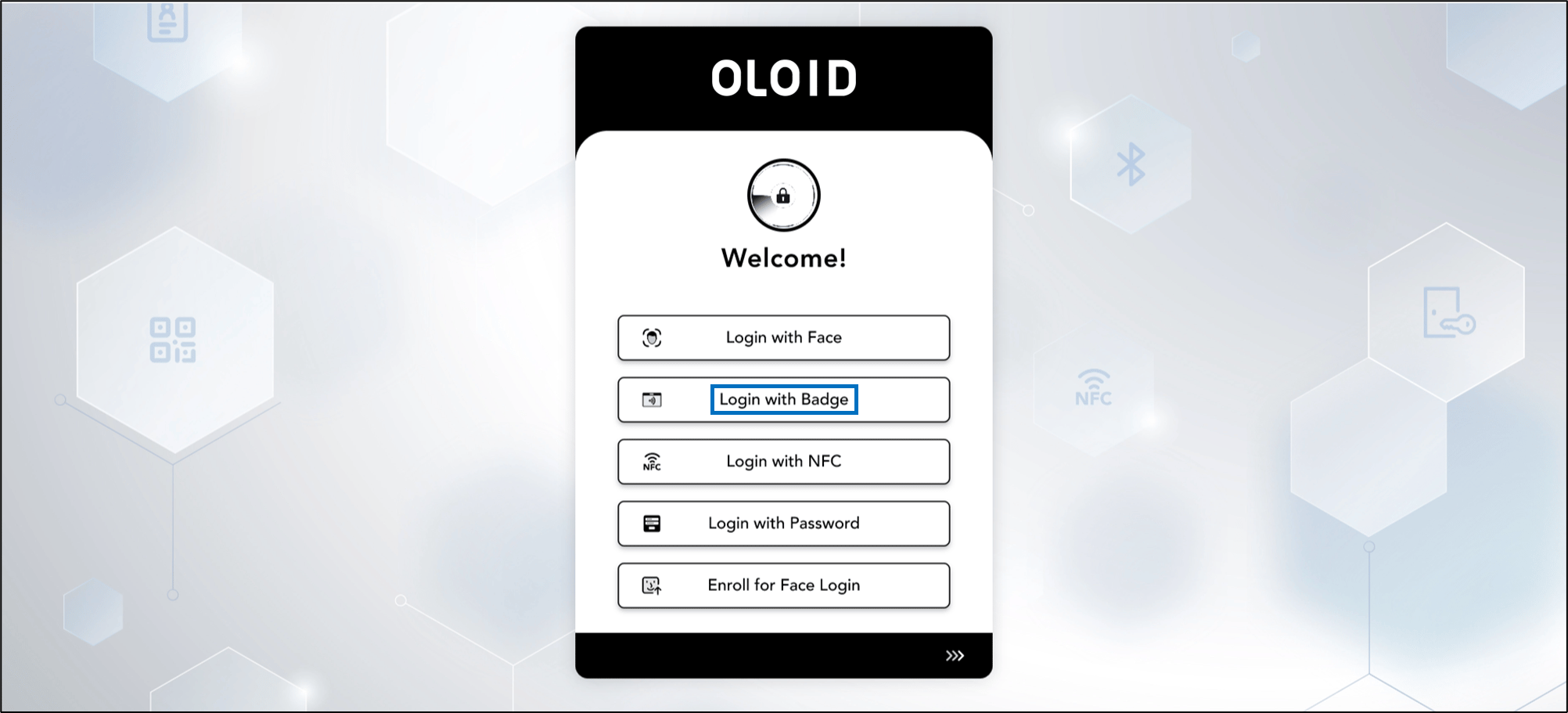
- Scan your badge in the Badge Reader.

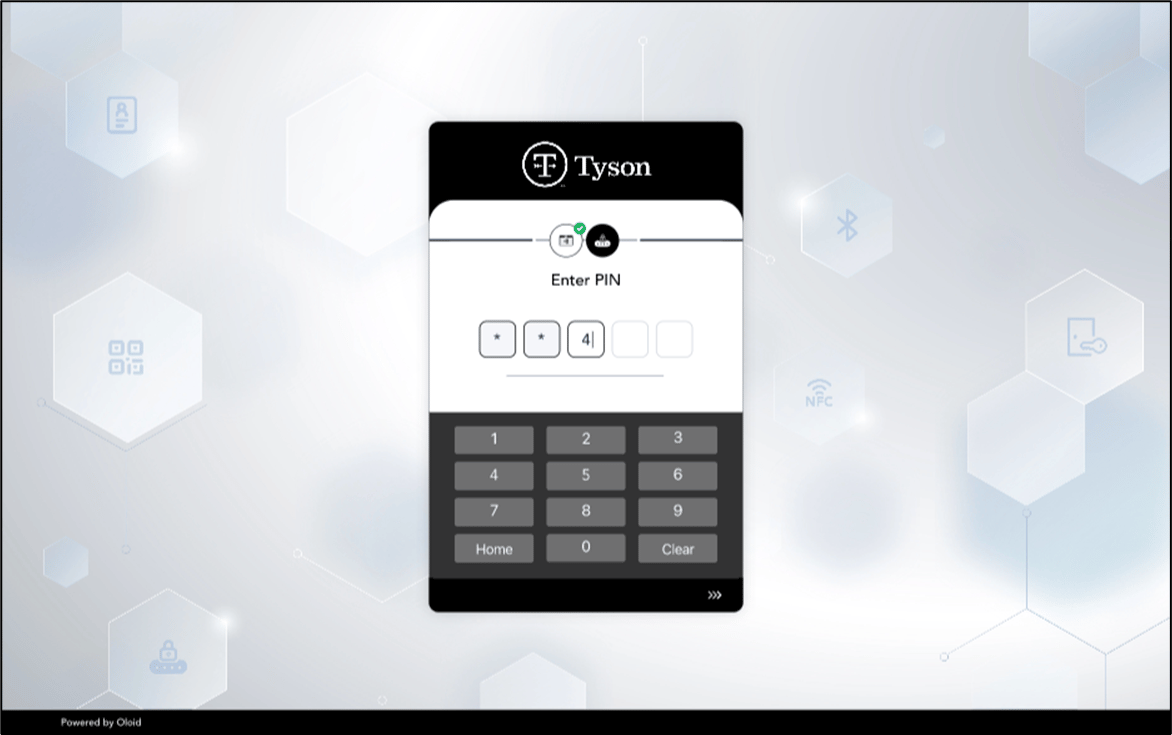
- Enter the PIN.
Login with Password
Pre-requisite:- You must have an Okta account.
- Oloid DeviceLock App is launched and Welcome screen is displayed.
- Tap Login with Password.
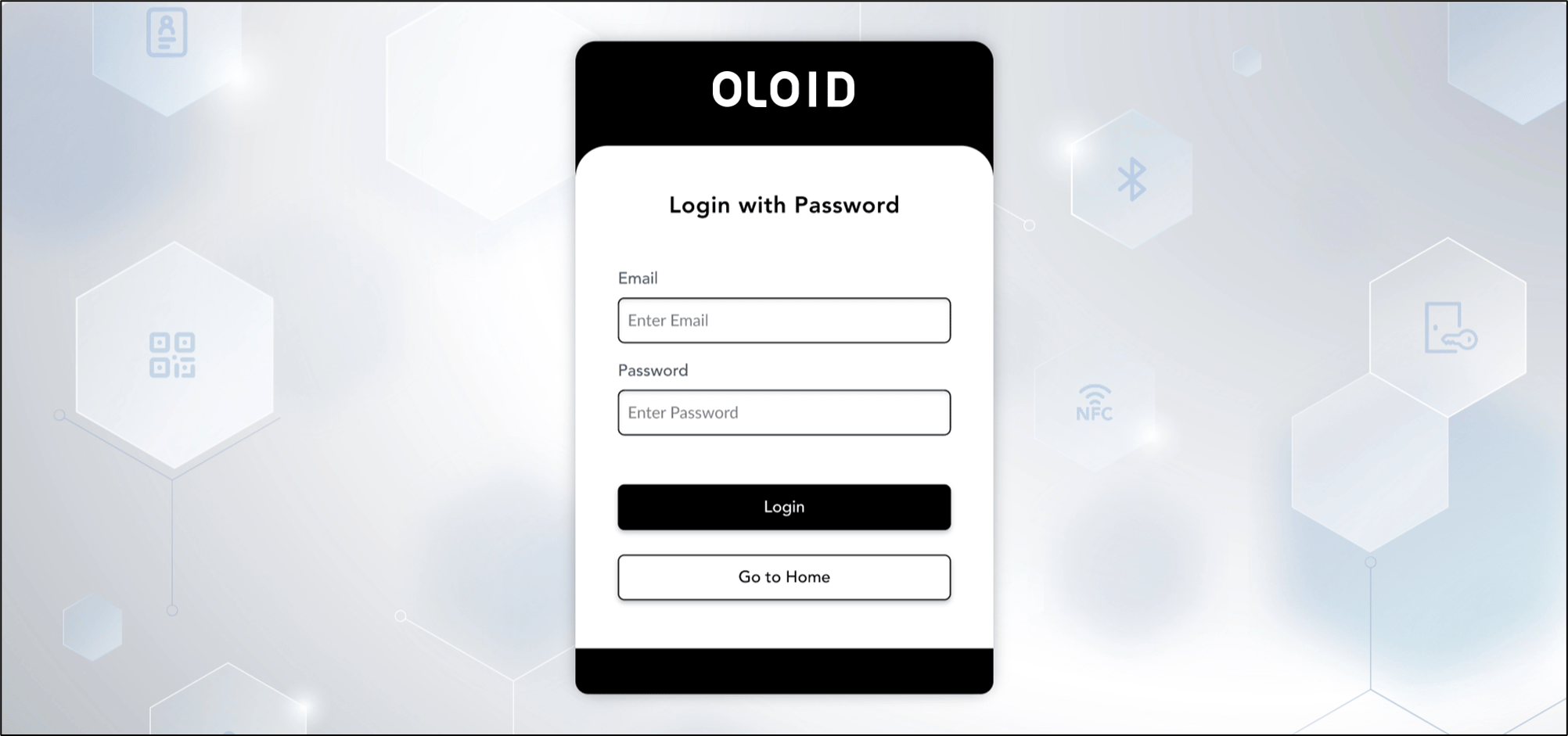
- Enter your login credential.
You are successfully signed in to the Okta system.
Login with NFC
Pre-requisite:- The android tablet must support NFC.
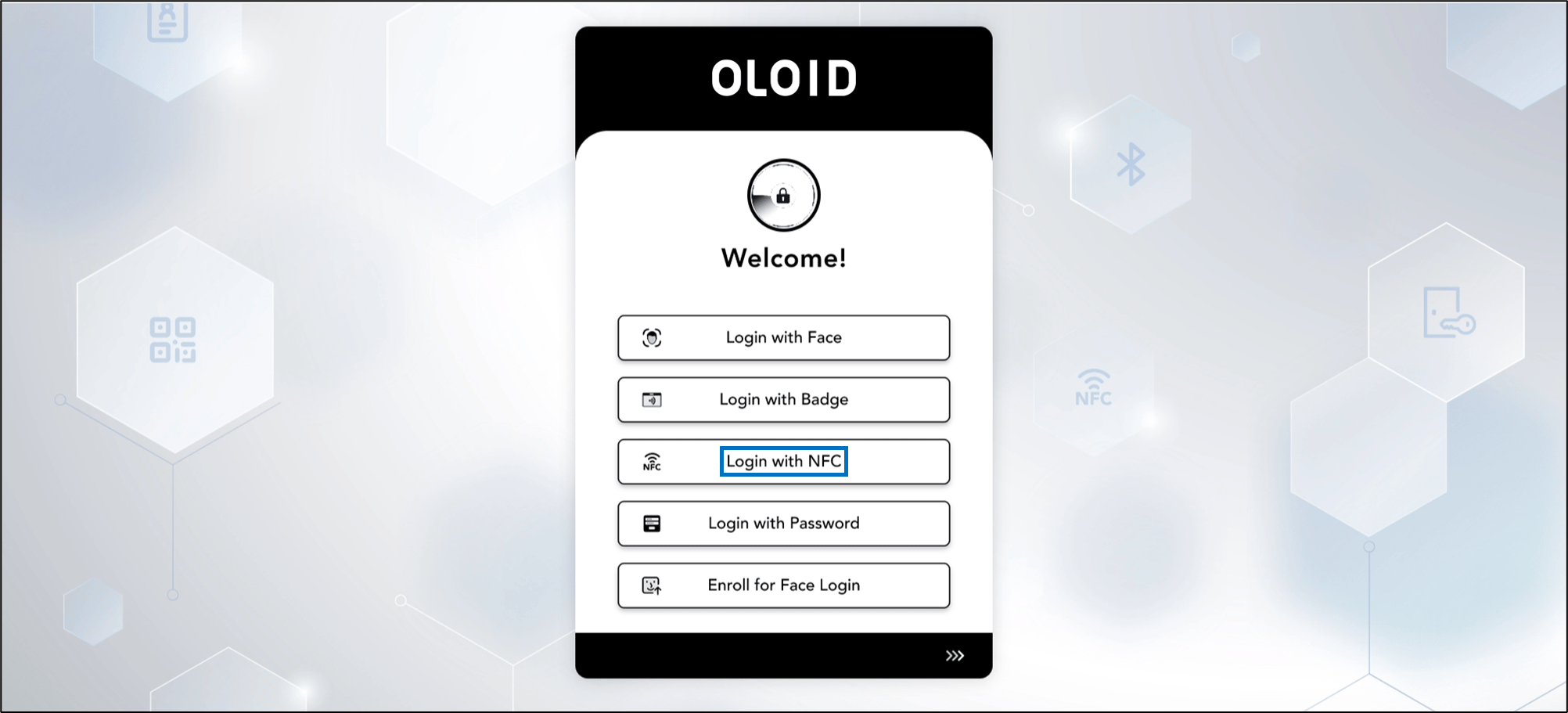
- Oloid DeviceLock App is launched and Welcome screen is displayed.
- Tap Login with NFC.
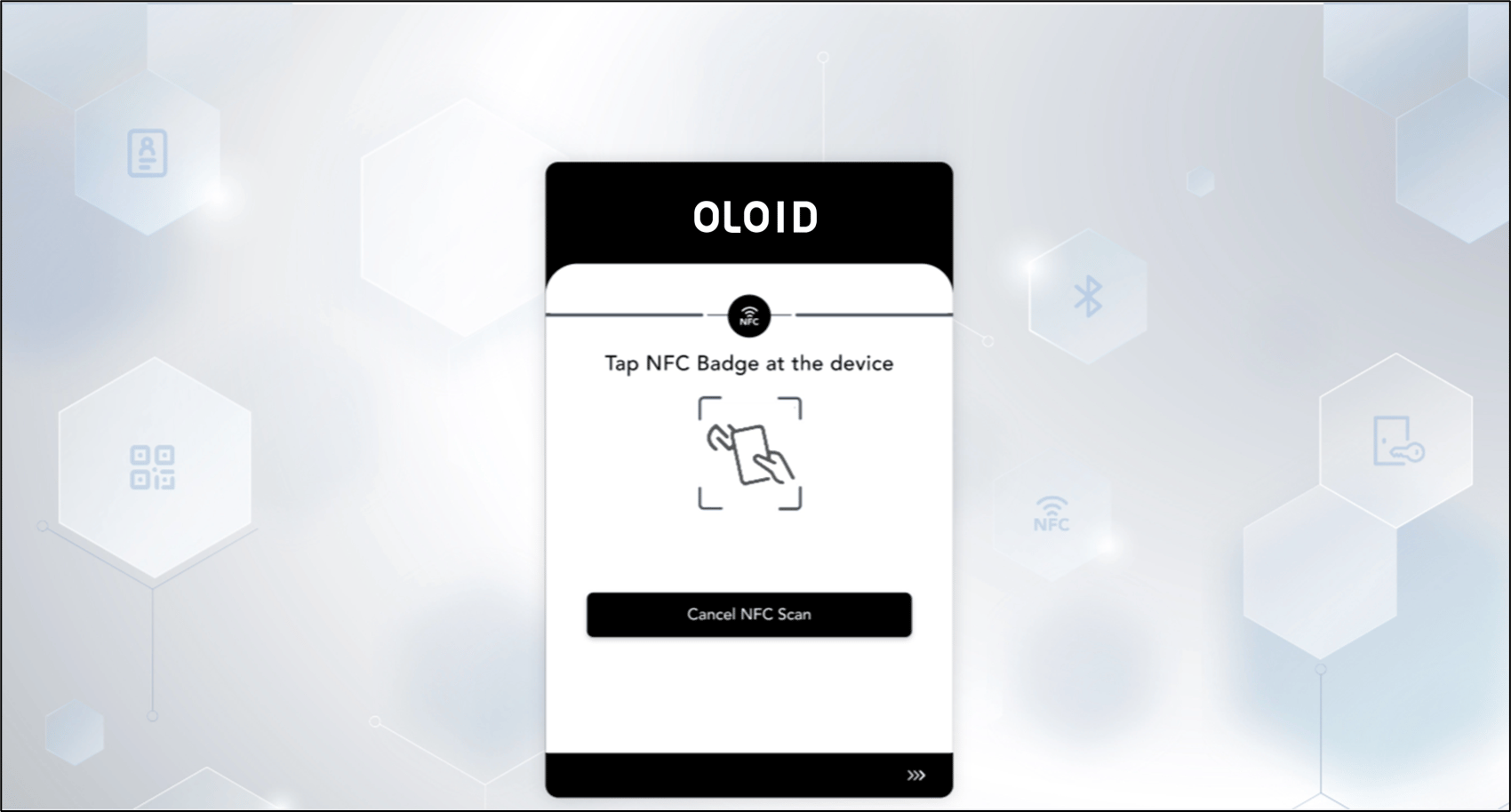
- Scan the NFC tag on the back of your device.
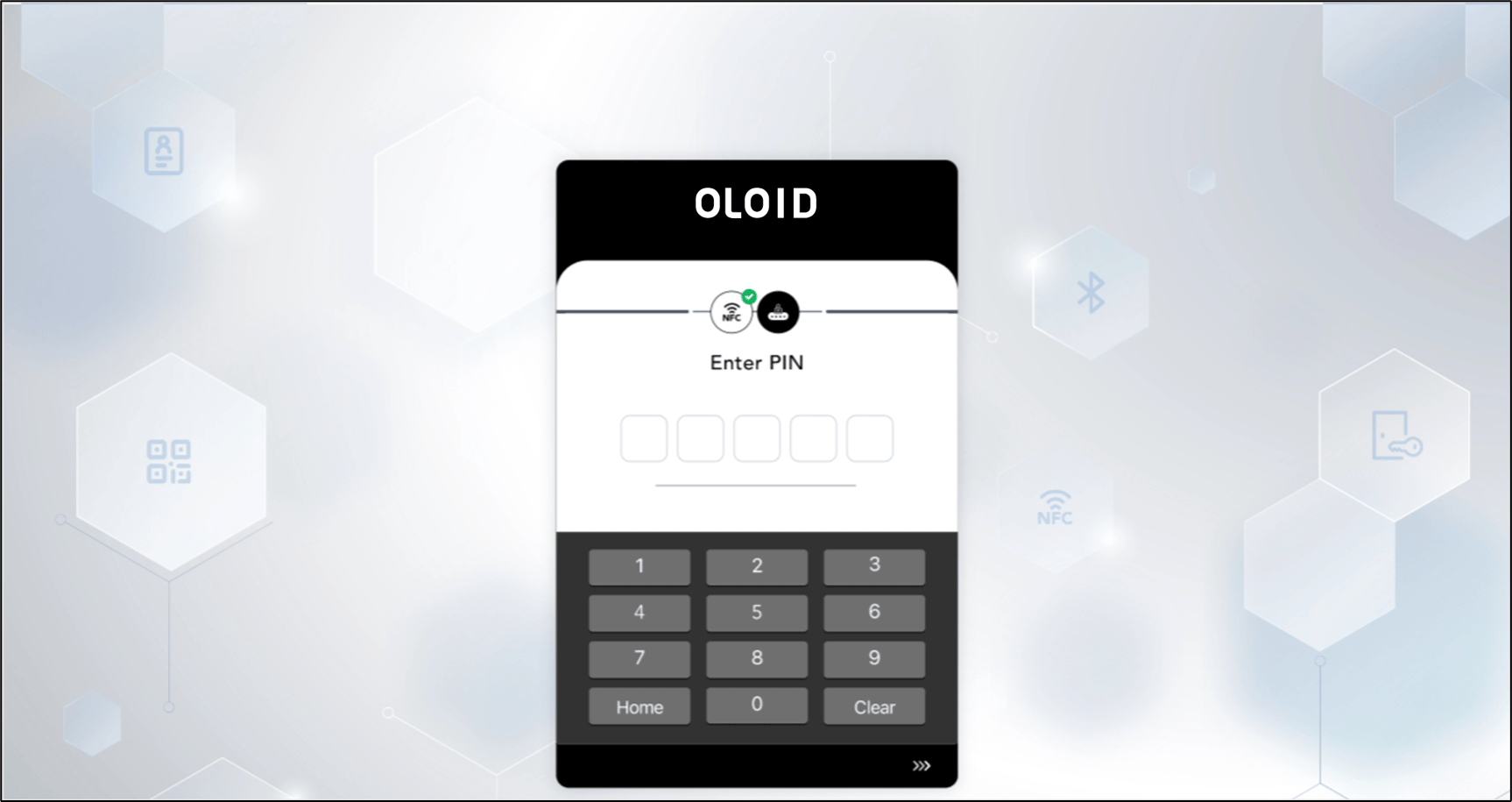
- Enter the PIN.
Enroll for Face Login
Pre-requisite:- Reference image must be added for face enrollment. Contact Oloid support to add your reference image.
- Oloid Device Lock App is launched and Welcome screen is displayed.
- Tap Enroll for Face Login.

- On the Enroll Face page, enter your primary ID.
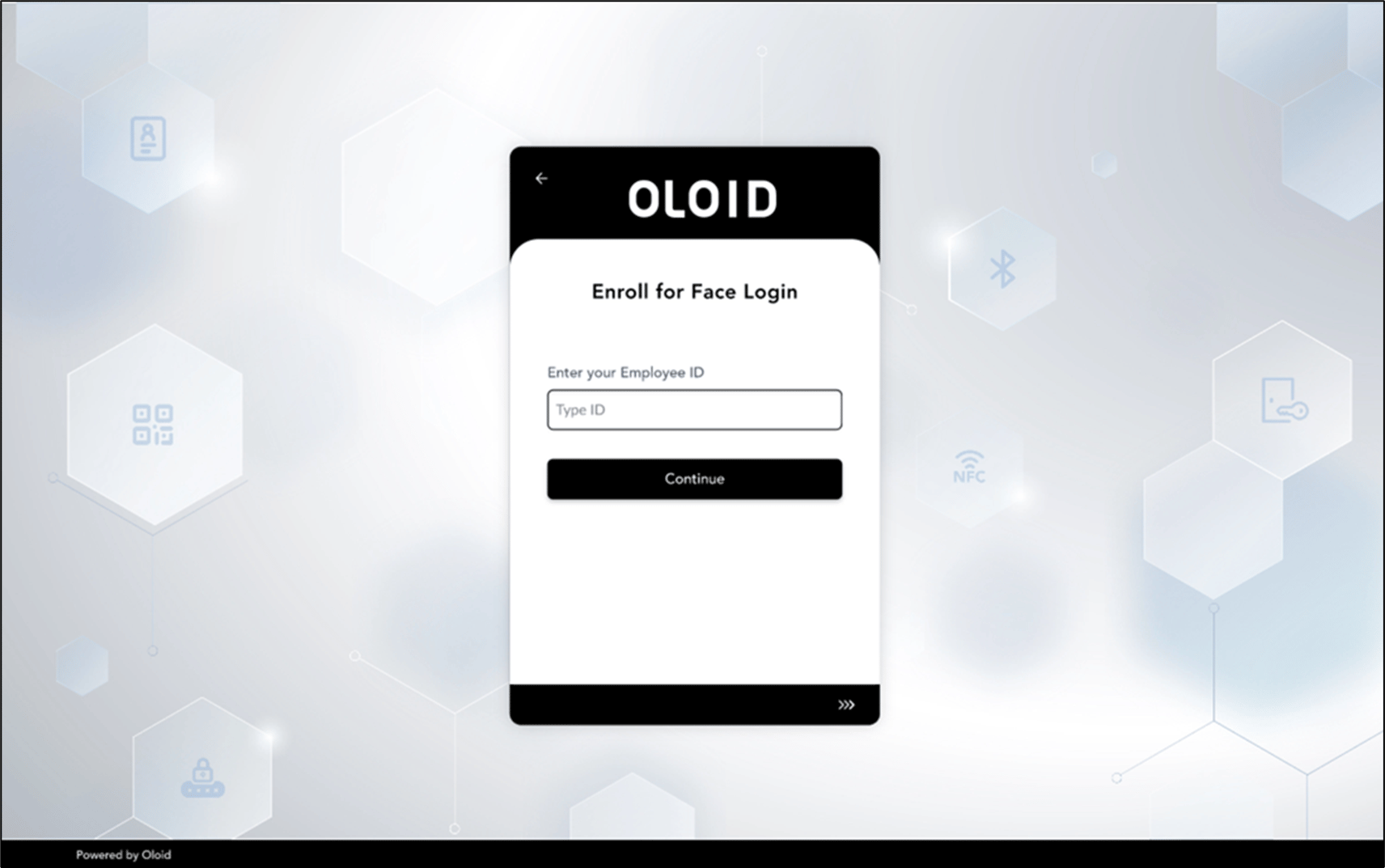
- Select Continue.
TheConsentpage is displayed.
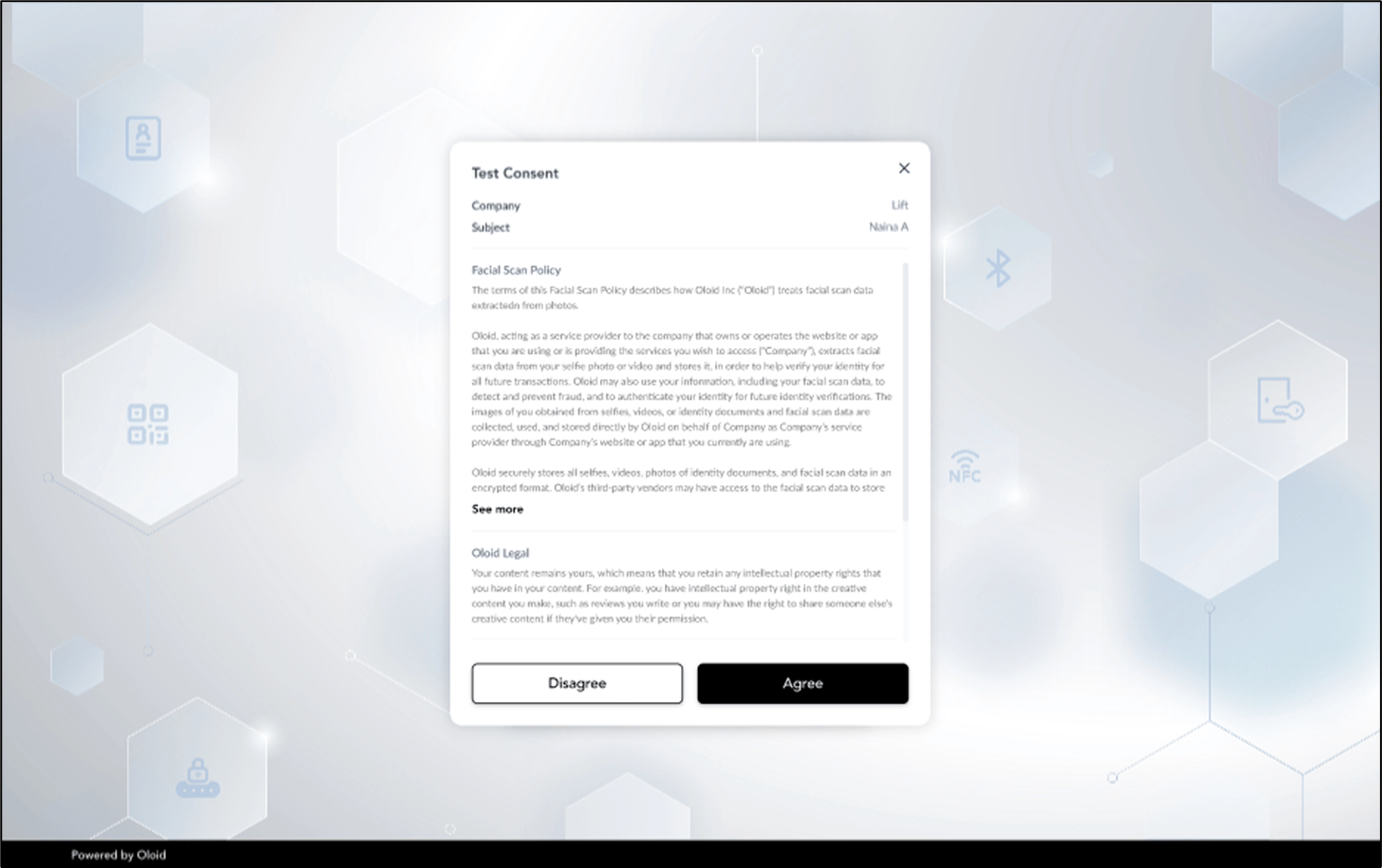
- Tap Agree. This opens the camera on your device.
- Look at the camera to capture your face for enrollment.
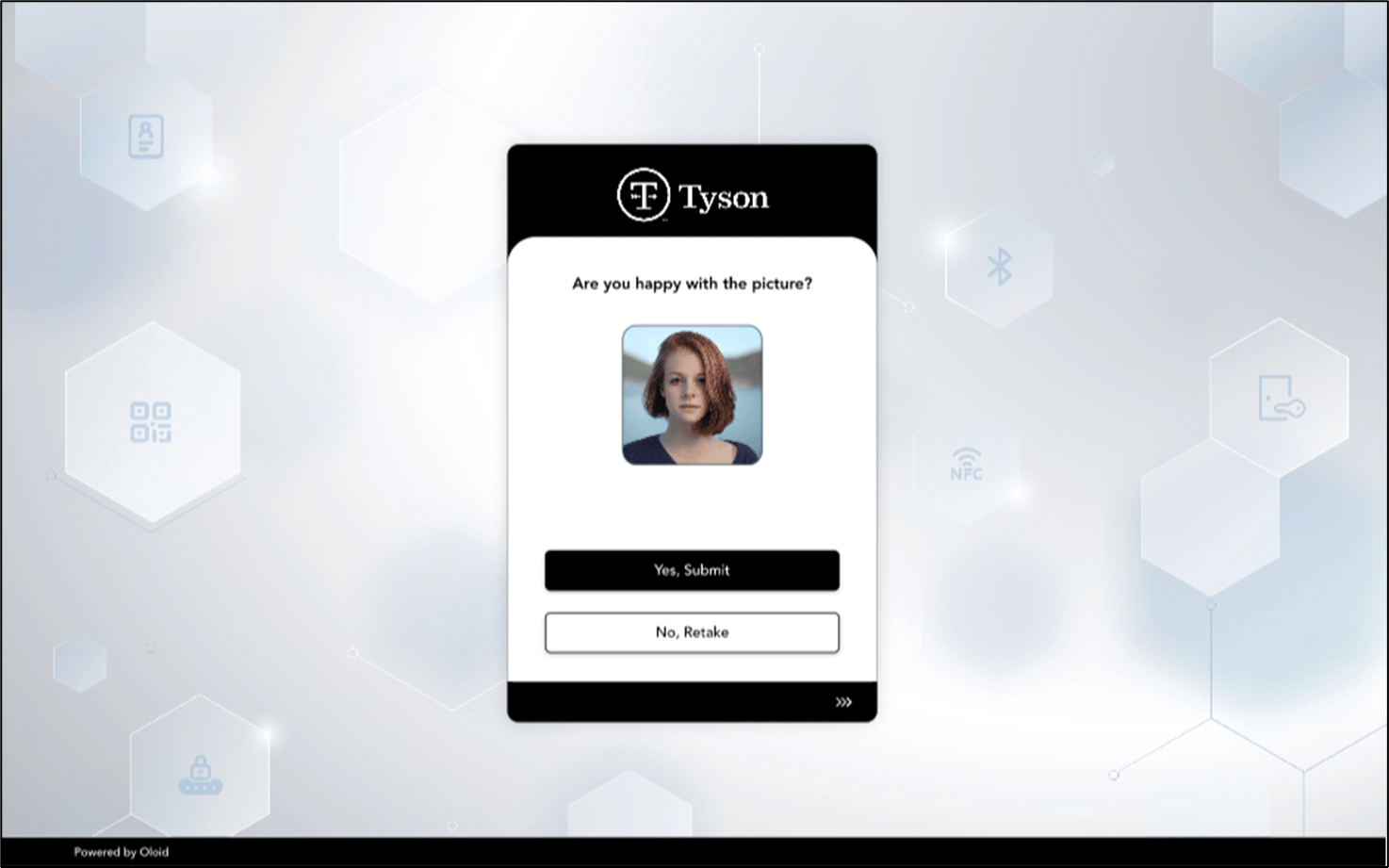
- Do one of the following:
- Tap Yes- Submit to submit the image. The face is submitted successfully and is displayed on the details screen.
-
Tap No- Retake to take the photo again.
The camera turns on to retake photo.
You’ve now enrolled your face in the Oloid Device Lock app. You can log in successfully.Note: You can add a maximum of five faces per user. The user’s face is added to the Oloid portal only if it matches the reference image.