

Introduction
In Tenant Admin Portal, enabling Auto update windows device agent feature automatically updates the windows device agent for Windows authenticator app.Steps to enable Auto Update Windows Device Agent
- Log in to the Tenant Admin Portal.
-
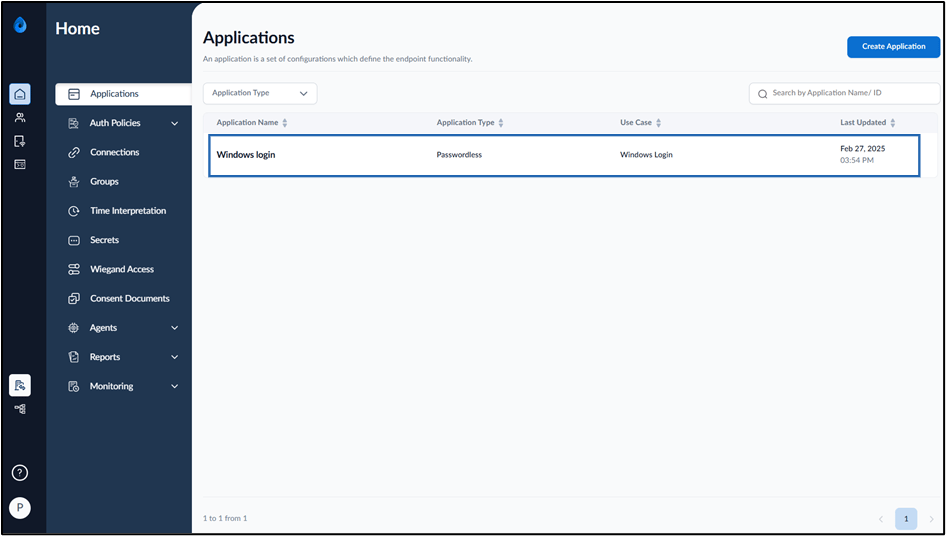
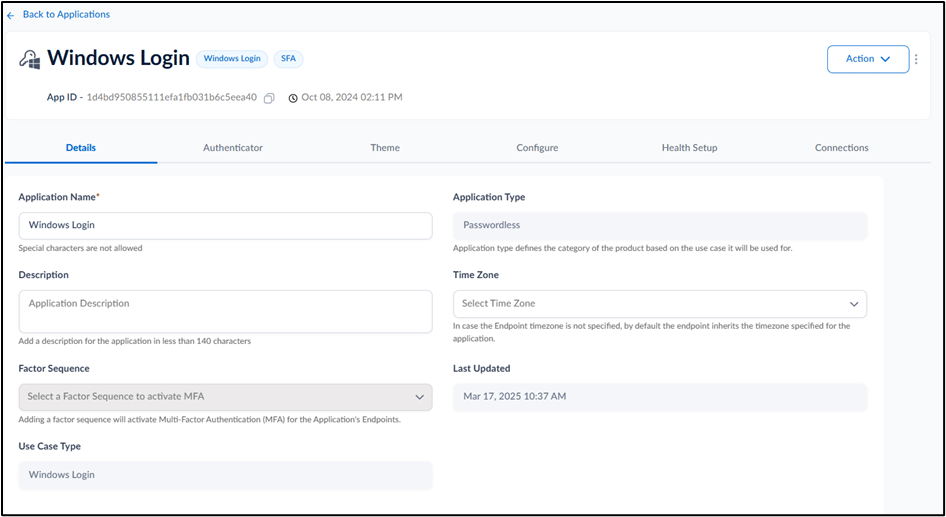
On the Applications page, select the application paired in the Supervisor App (Windows Authenticator App).
-
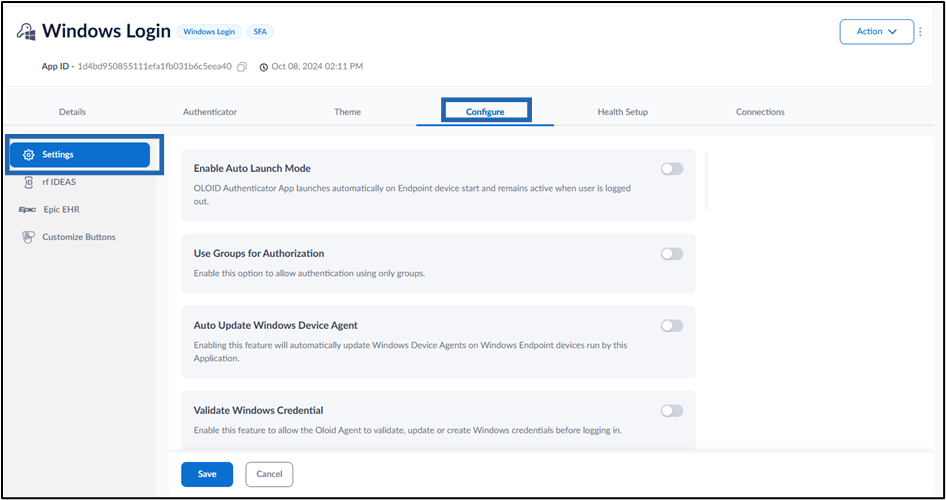
Go to Configure > Settings tab.
-
Turn on Auto Update Windows Device Agent toggle button to automatically update the windows device agent for Windows authenticator app.

-
Click Save.
 For more details, refer How to sync configuration in Supervisor AppNote: In Windows Authenticator app,you must sync the configuration for auto Update Windows Device Agent.