Create New Flow
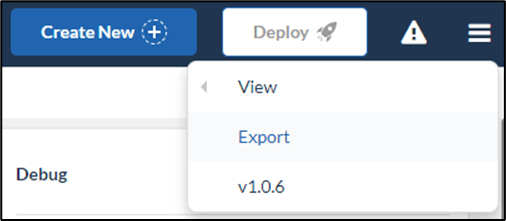
To create a new flow, click on “Create New” button on top-right corner of the application. It will display pop-up to enter name and description for new flow. Once the flow is created, flow will be visible in the Flow tab bar.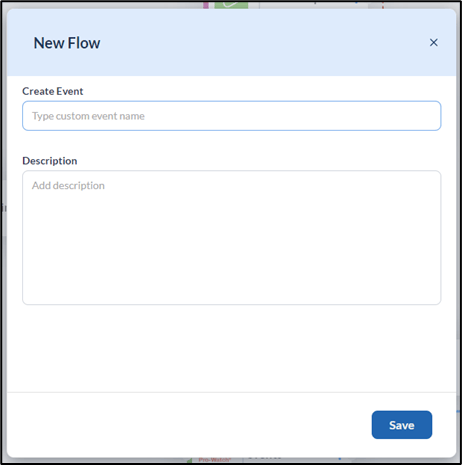
Deploy Flow
Once the flow is configured fully, it is ready to deploy to run the intended business logic. To deploy the flow, click on “Deploy” button on top-right corner of the application.
Import Flow
To import a flow, click on “Import” button on top-right corner of the application. It will display pop-up to browse the files for importing flow.

Export Flow
To export a flow, click on hamburger menu button on top-right corner of the application. It will display option to export a flow. In export flow pop-up window, you can either copy the flow json OR download the flow json.