Applications to be installed Installation Procedure Steps to Install Node JS: Steps to Install Python Steps to Install Oloid-Workflow:

Applications to be installed

  1. Python 3.10.x (prerequisite)
  2. Node JS 14.x (prerequisite)
  3. Oloid Workflow application

Installation Procedure

  1. Copy and paste the installer files from the local desktop to the destination machine.
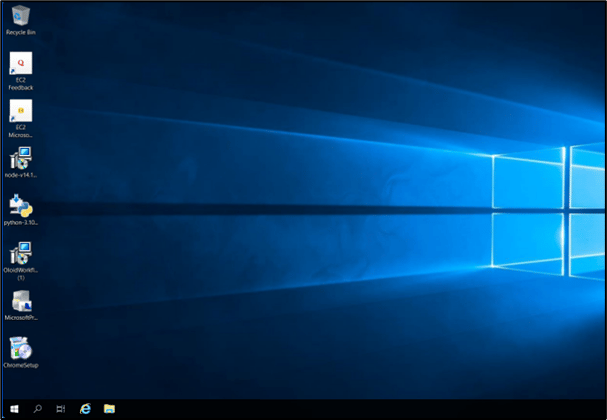
Instruction for Workflow Instance Setup... - screenshot 1
  1. Always verify files have been installed in the Start → Services or Command prompt or Control panel → uninstall a program.
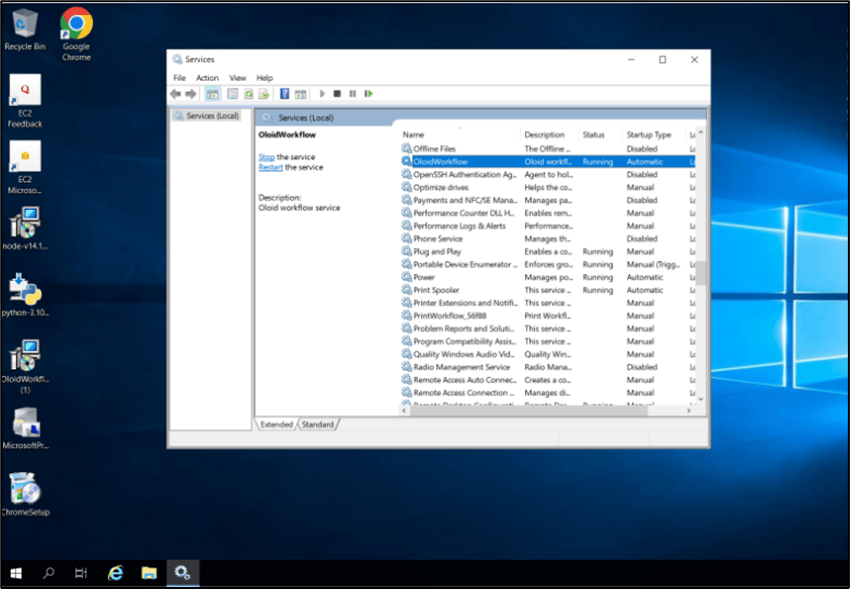
Instruction for Workflow Instance Setup... - screenshot 2 Instruction for Workflow Instance Setup... - screenshot 3

Steps to Install Node JS

  1. Double click on node-v14.x and click Next on the pop-up screen to continue with the installation.
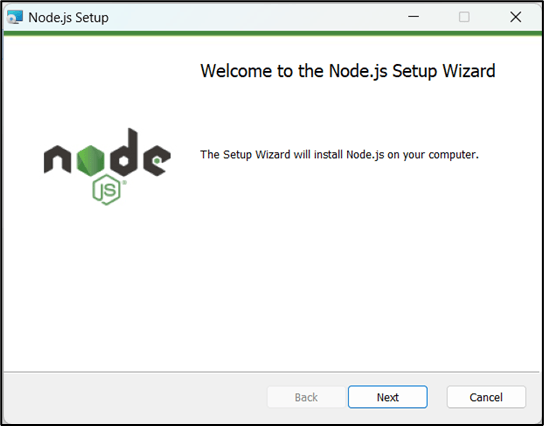
Instruction for Workflow Instance Setup... - screenshot 4
  1. Accept the license agreement and click Next.
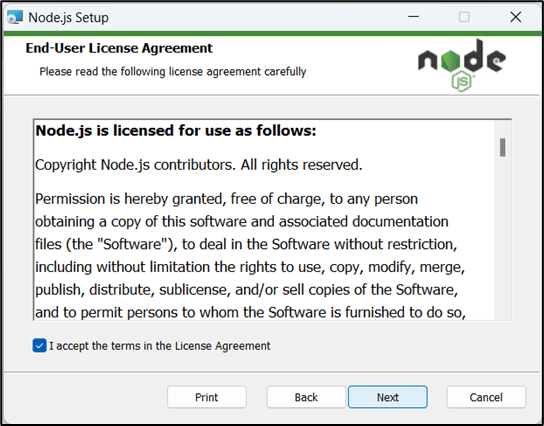
Instruction for Workflow Instance Setup... - screenshot 5
  1. Click Next on Destination Folder screen.
  2. Click Next on Custom Setup screen.
Instruction for Workflow Instance Setup... - screenshot 6
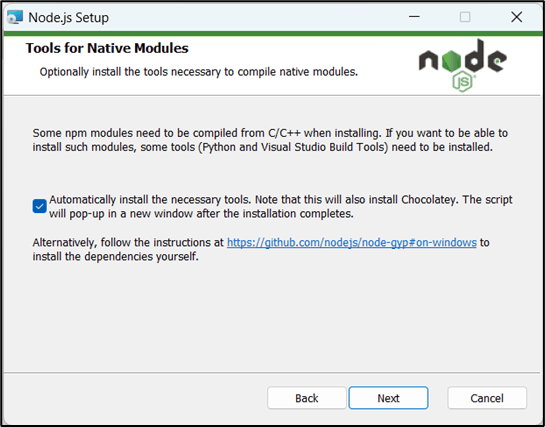
  1. Check the Automatically install the necessary tools and click Next.
Instruction for Workflow Instance Setup... - screenshot 7
  1. Click Install.
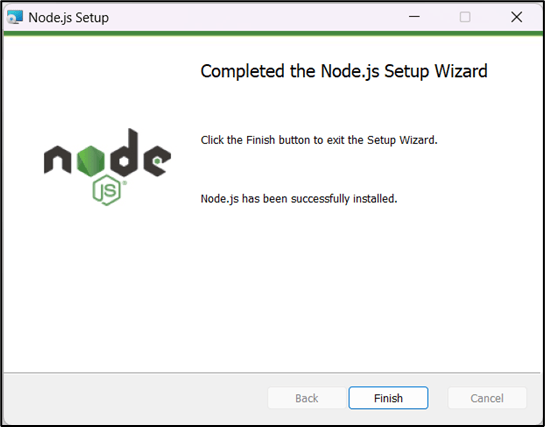
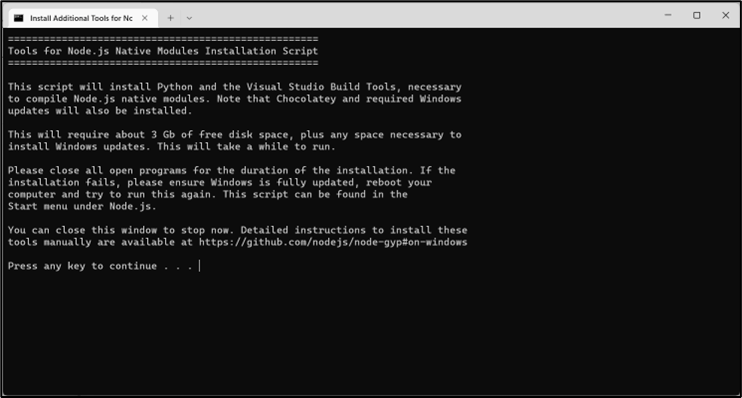
Instruction for Workflow Instance Setup... - screenshot 8 7. Click Finish. Instruction for Workflow Instance Setup... - screenshot 9 The Command line screen opens. Instruction for Workflow Instance Setup... - screenshot 10
  1. Press Enter.
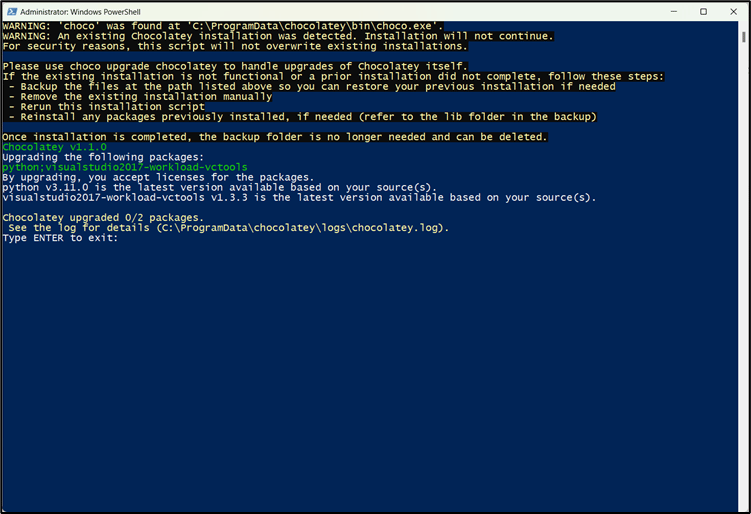
Wait until Windows starts PowerShell and successfully complete installation.
  1. Press Enter to exit.
Instruction for Workflow Instance Setup... - screenshot 11

Steps to Install Python

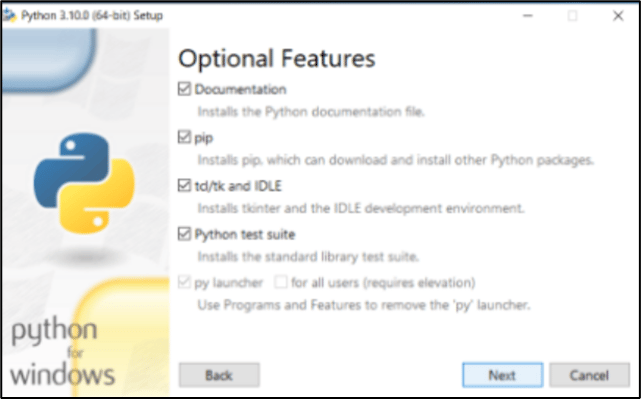
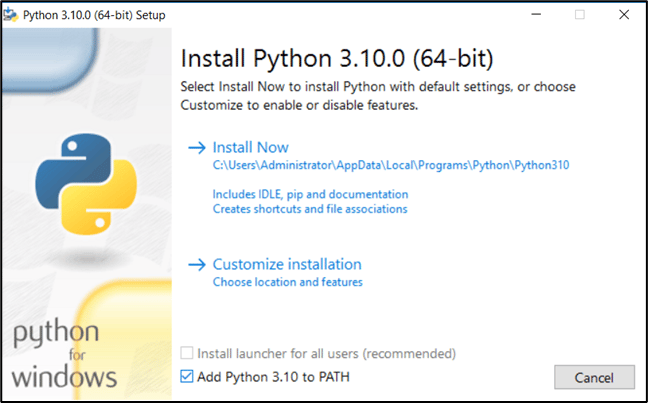
  1. Double click on Python-3.10.x → Select Add Python checkbox → Choose Customize installation → Click Next.
Instruction for Workflow Instance Setup... - screenshot 12 Instruction for Workflow Instance Setup... - screenshot 13 2. Select Install for all users checkbox and click Install. Instruction for Workflow Instance Setup... - screenshot 14
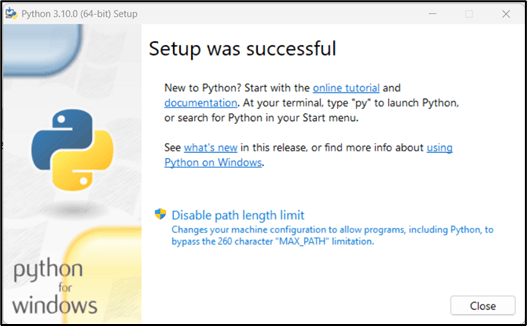
  1. Wait till Setup progress is successful.
Instruction for Workflow Instance Setup... - screenshot 15

Steps to Install Oloid-Workflow

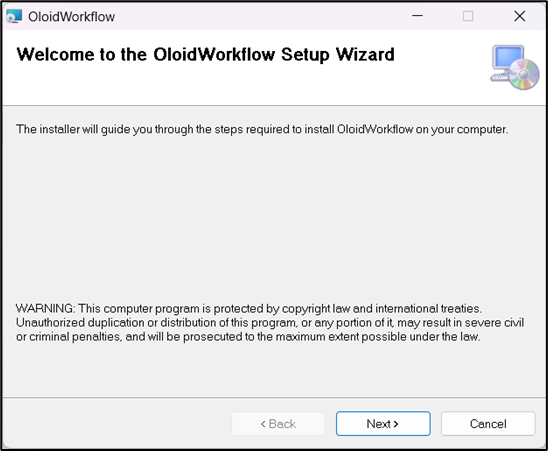
  1. Double click on Oloid-Workflow.
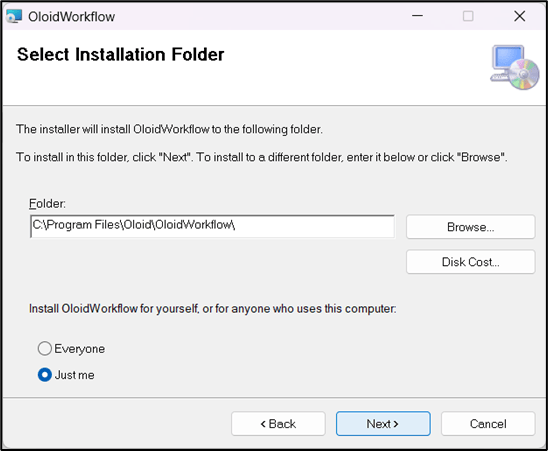
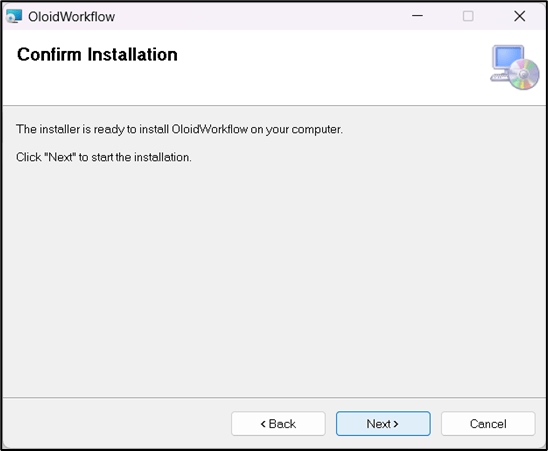
The OloidWorkflow Setup Wizard is displayed. 2. Click Next on the OloidWorkflow Setup Wizard welcome screen. Instruction for Workflow Instance Setup... - screenshot 16 3. Click Next on the Select Installation Folder screen. Instruction for Workflow Instance Setup... - screenshot 17 4. Click Next on the Confirm Installation screen. Instruction for Workflow Instance Setup... - screenshot 18
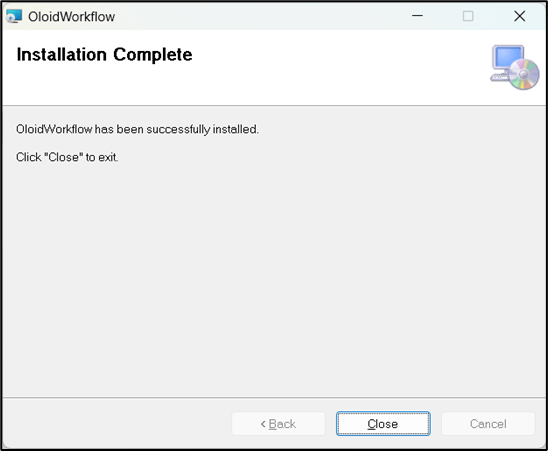
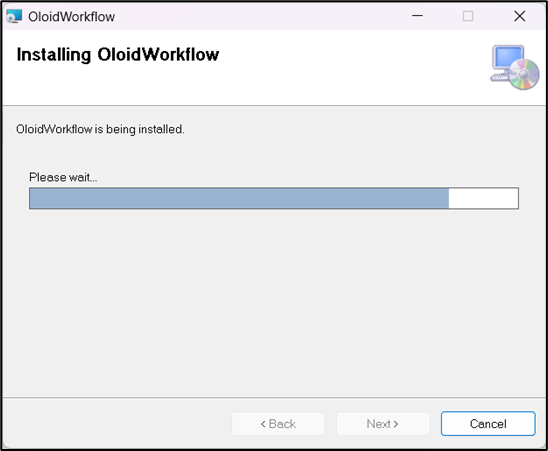
  1. Wait till the Oloid Workflow installation is complete.
Instruction for Workflow Instance Setup... - screenshot 19 Instruction for Workflow Instance Setup... - screenshot 20
  1. Open Microsoft Services in the instance and see that Oloid Workflow service is up and running.
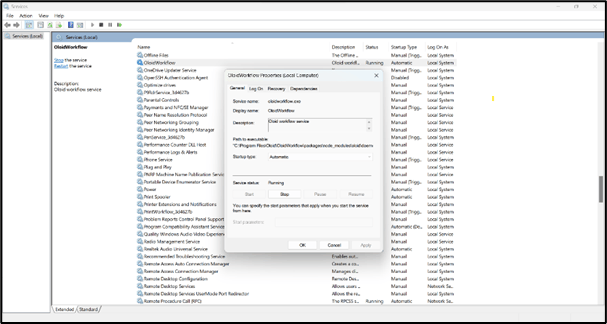
Instruction for Workflow Instance Setup... - screenshot 21
  1. To verify Workflow is installed→ Enter localhost: 3000 in your browser.
The Login page is displayed. Instruction for Workflow Instance Setup... - screenshot 22 8. Enter username and password → Click Login. The Oloid Workflow application page is displayed. Instruction for Workflow Instance Setup... - screenshot 23