Pre-requisite
If endpoint is created through the Oloid Portal, you need to download the config file of the preferred endpoint from the Oloid Portal. For details, refer How to download endpoint config file for Windows Login? To pair an endpoint:-
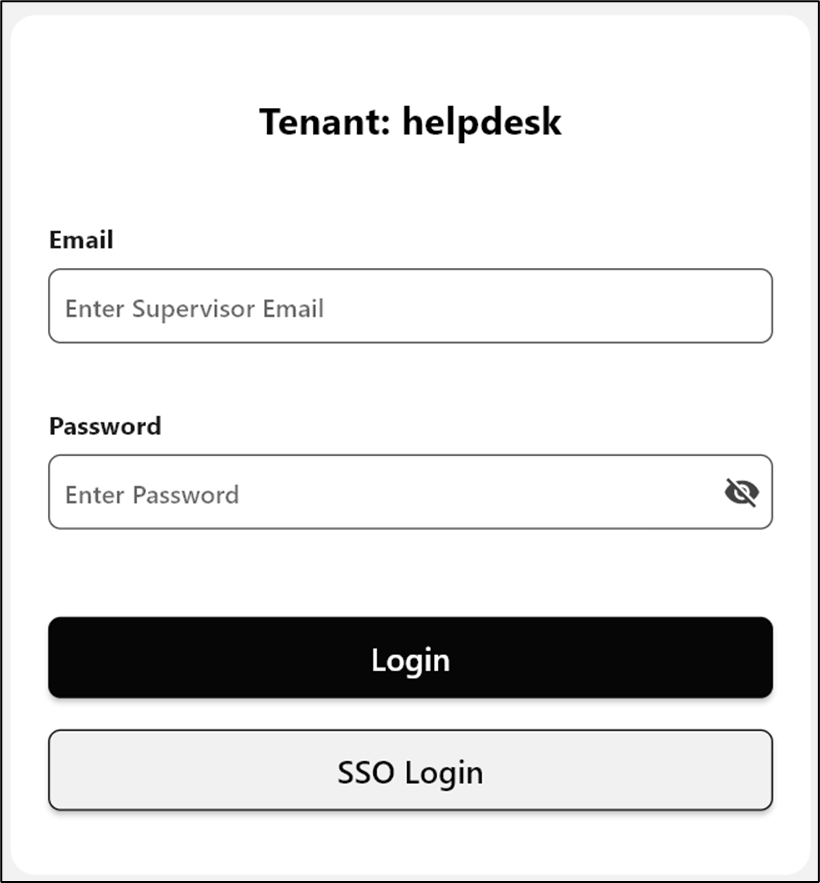
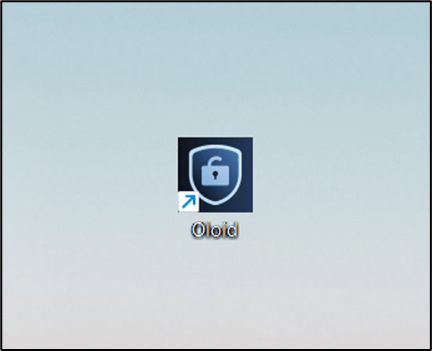
Double-click on the Supervisor App to start.
-
Select Pair Device Using Config File.

-
Select the json file you want to upload and click Open.
 Note: Check mark to Use the Machine Name as Endpoint Name (Optional).
 -
Click to Upload the endpoint JSON file.
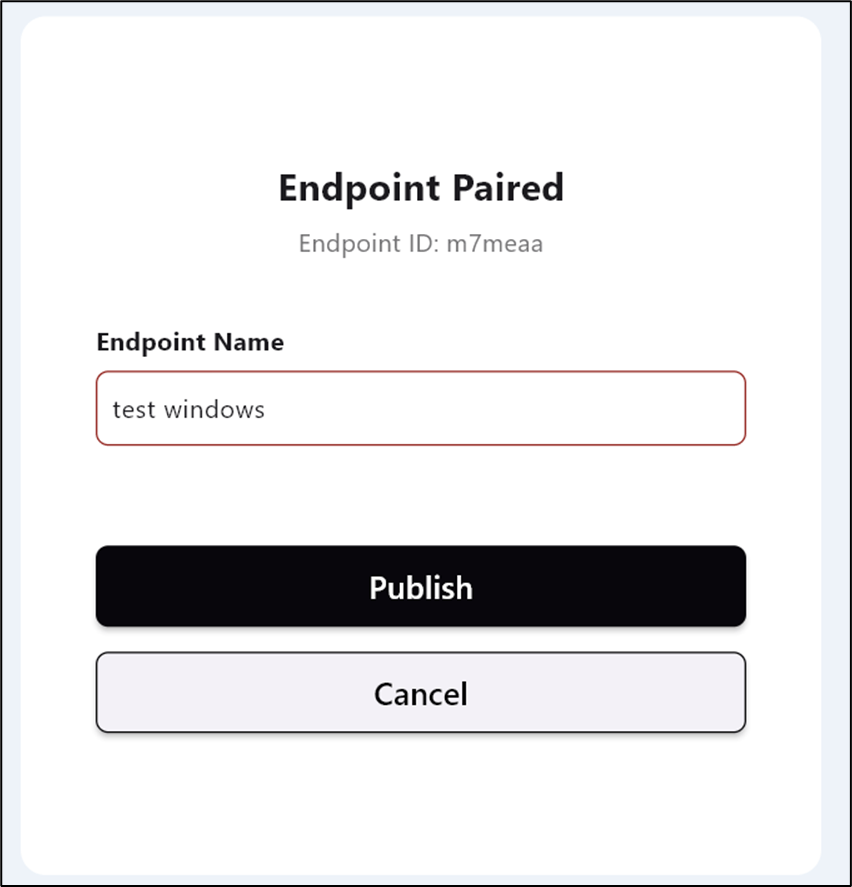
The Pairing endpoint screen is displayed.Note: You can choose Reset to upload the JSON file again.
-
The Endpoint Name is auto-populated.
-
Select Publish.
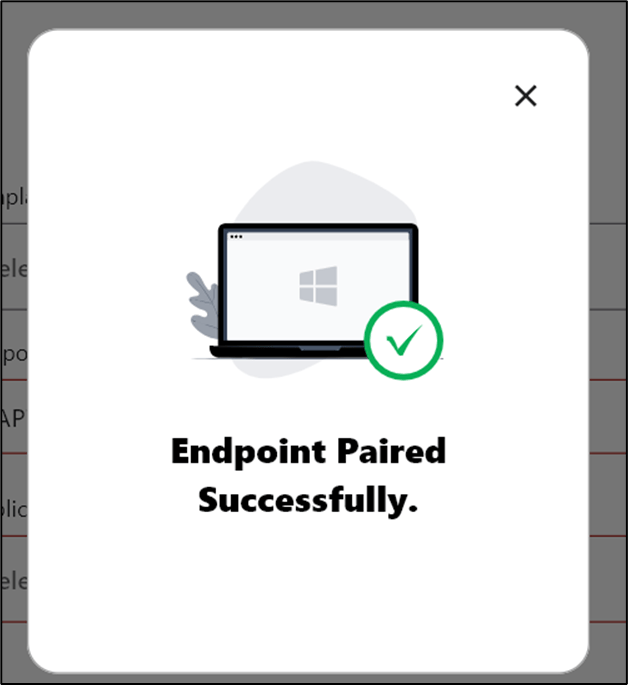
The endpoint is paired successfully.