

Introduction
This feature of the Oloid Verify app allows Tenant Admins and Supervisors to add PIN credentials for users.Pre-requisite
- User should be added to the connection.
- Ensure that the endpoint is properly paired. For more, refer to How to pair an Oloid Verify endpoint
Steps to Add PIN
- Log in to Oloid Verify App. For more, refer to How to log in to the admin mode of Oloid Verify App as a Supervisor/Admin. The Settings page is displayed.
- Tap Users on the menu at the bottom of the screen.

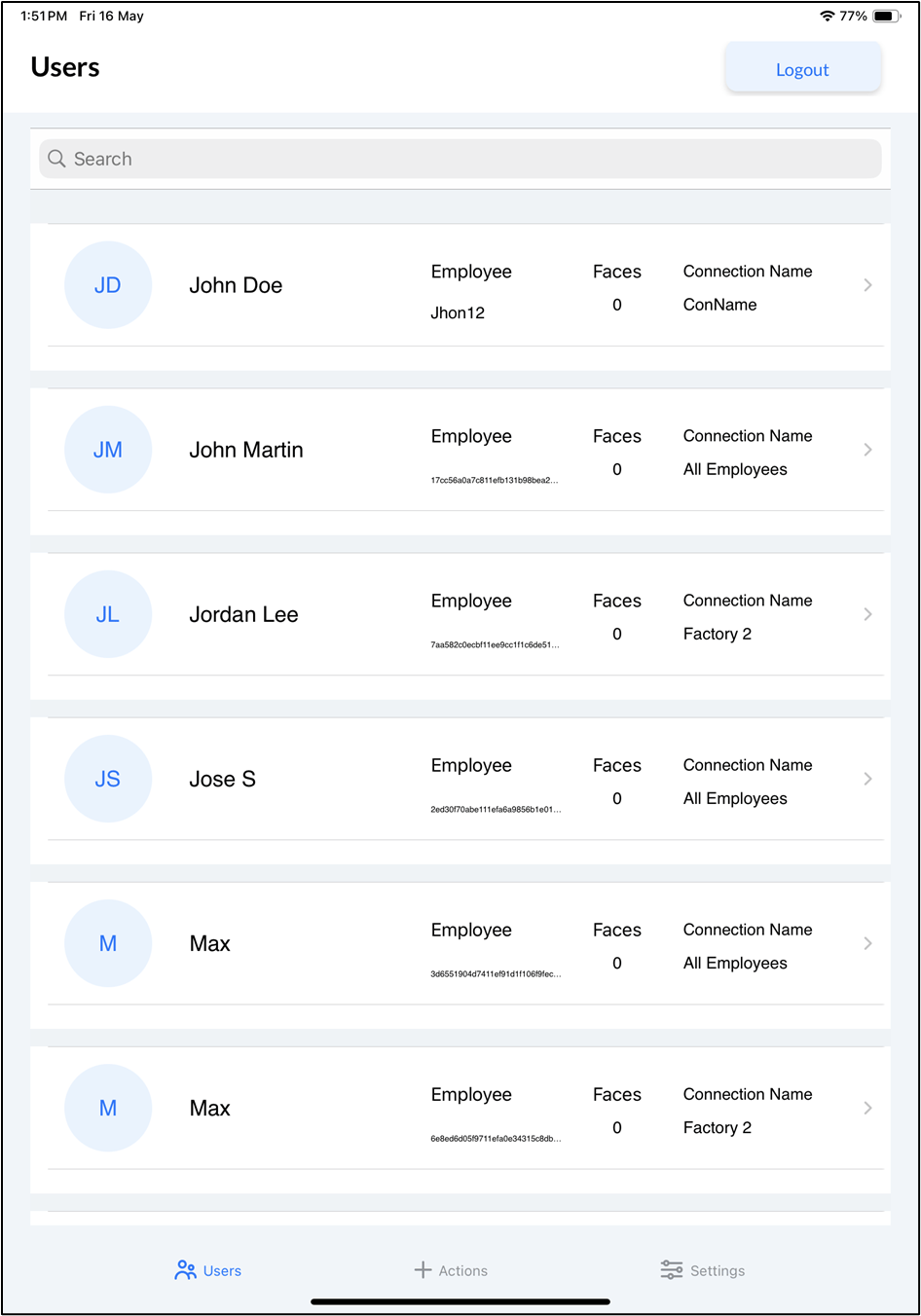
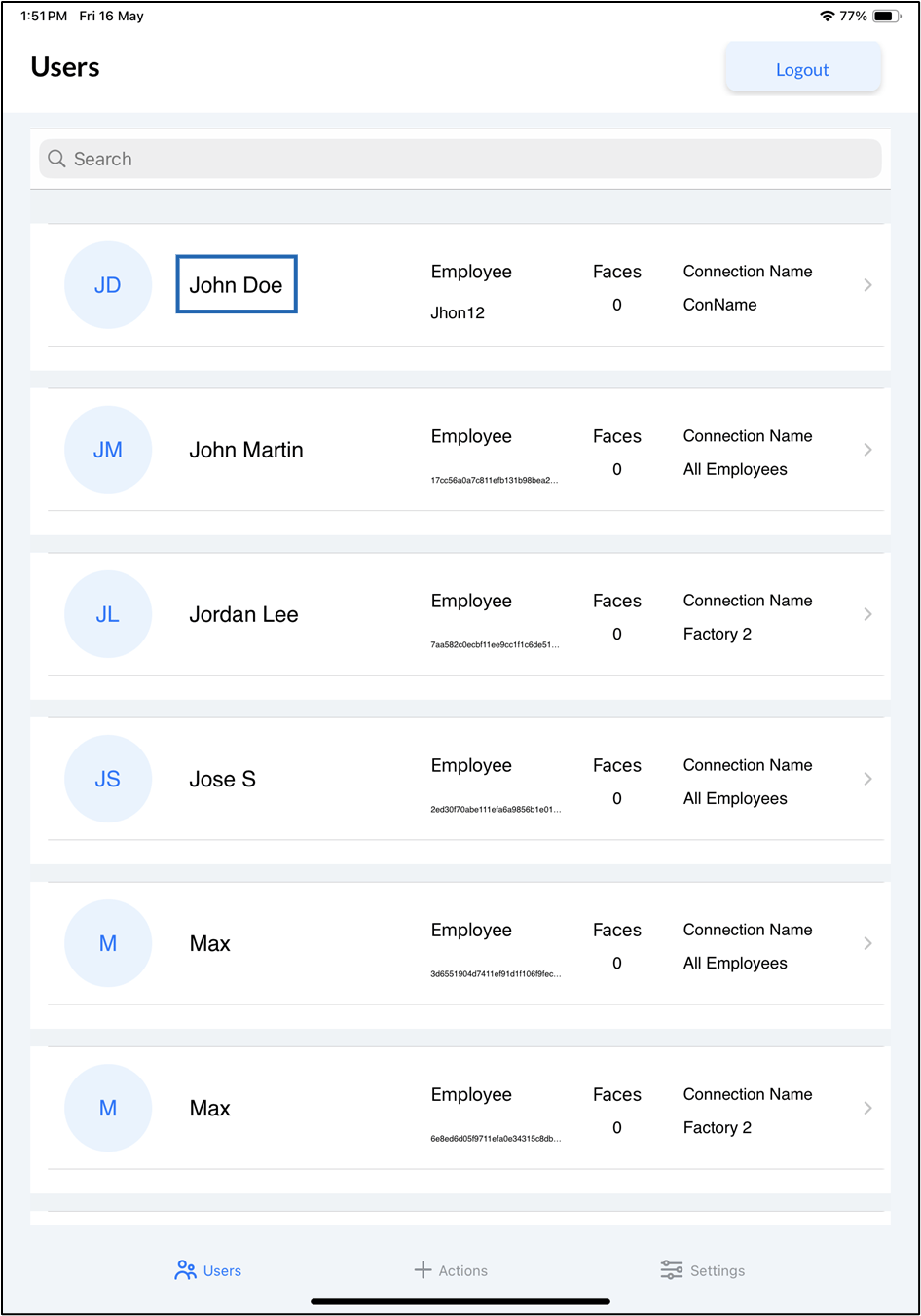
- Select user to add QR code from Users list.
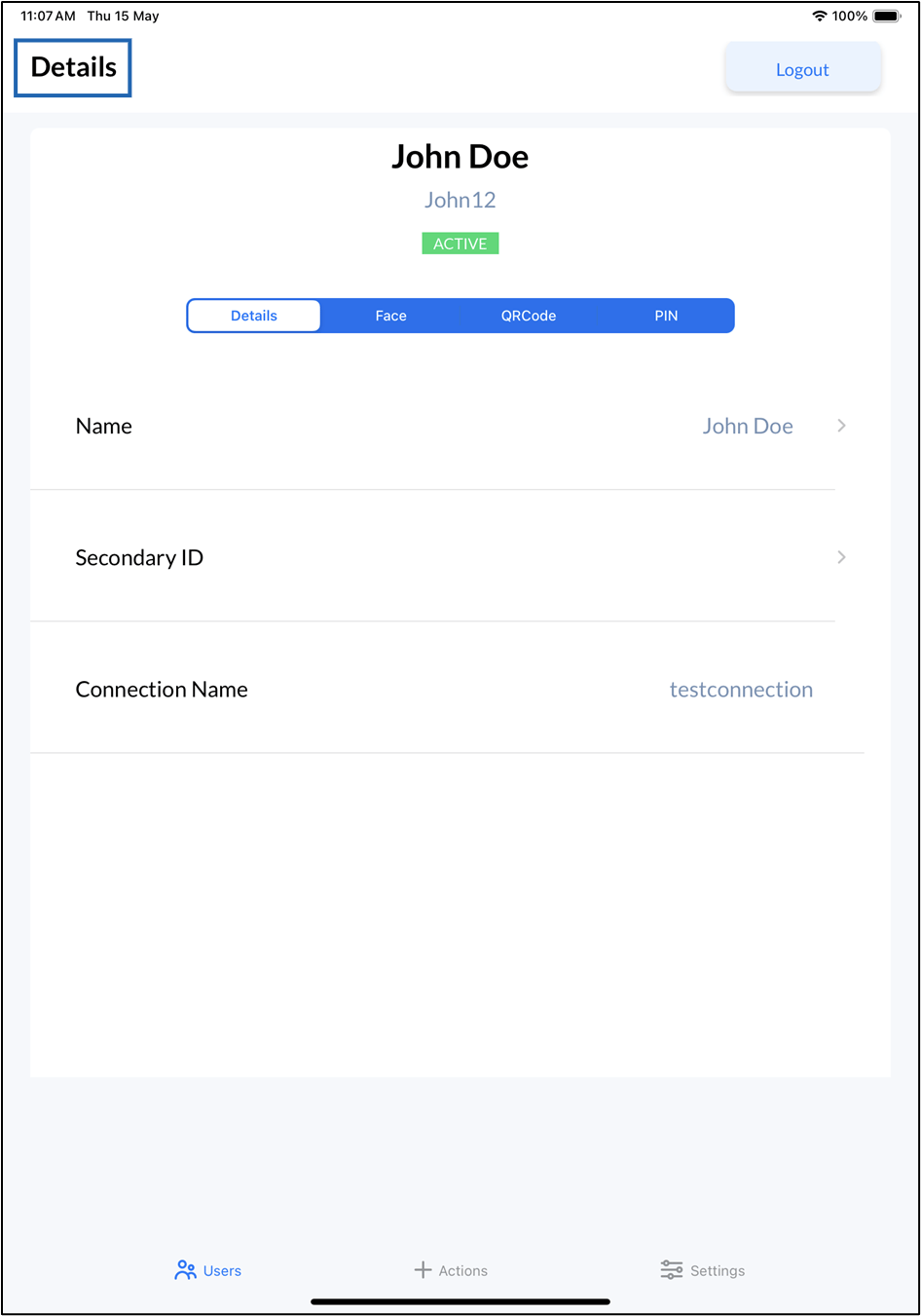
- Tap PIN tab, then tap

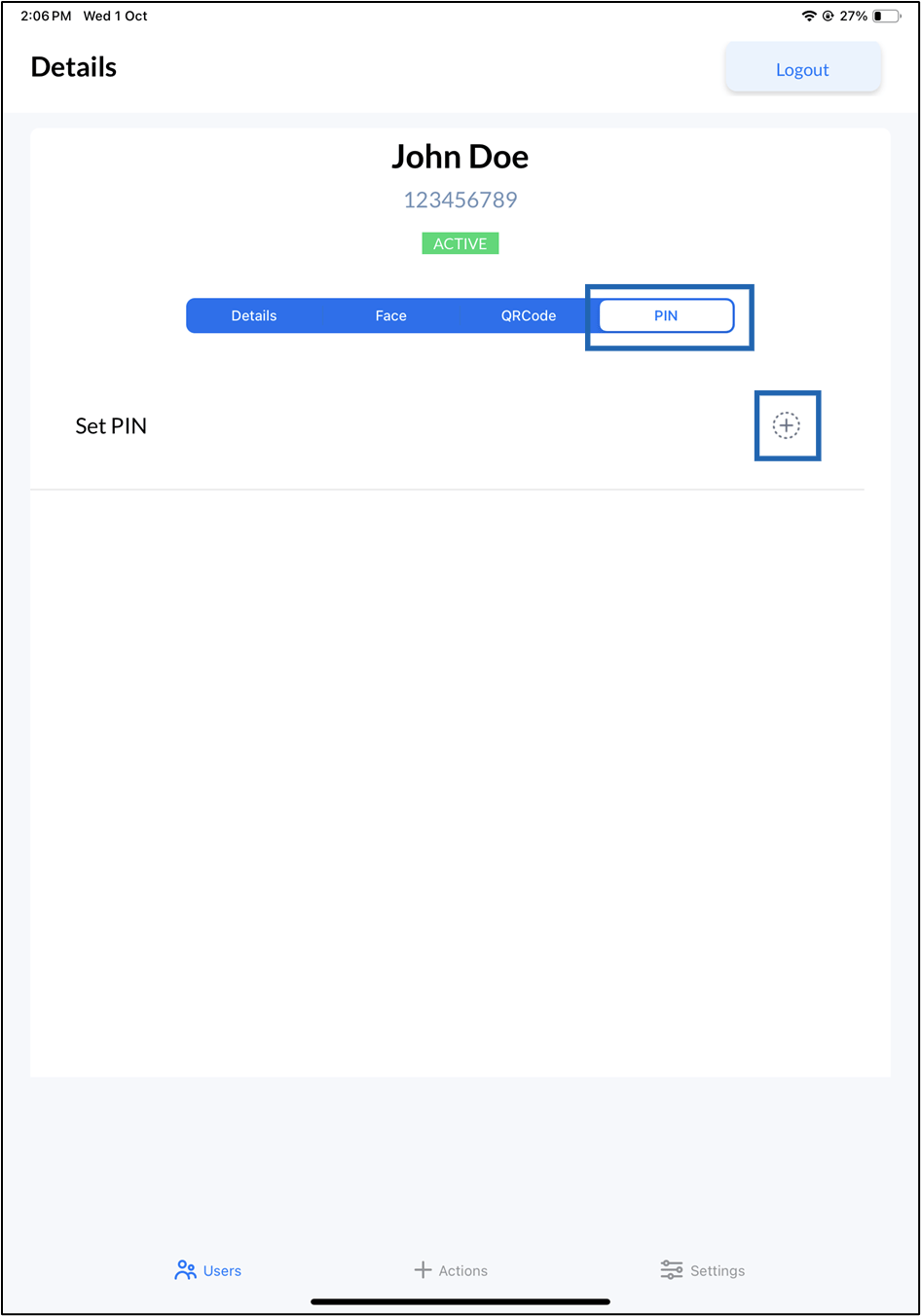

- On the pop-up box, do the following:
- Enter new PIN.
-
Re-enter new PIN.
The PIN is created and displayed under the PIN tab.Note: You can also share PIN with respective email IDs.
