

- Log in to the Oloid Portal.
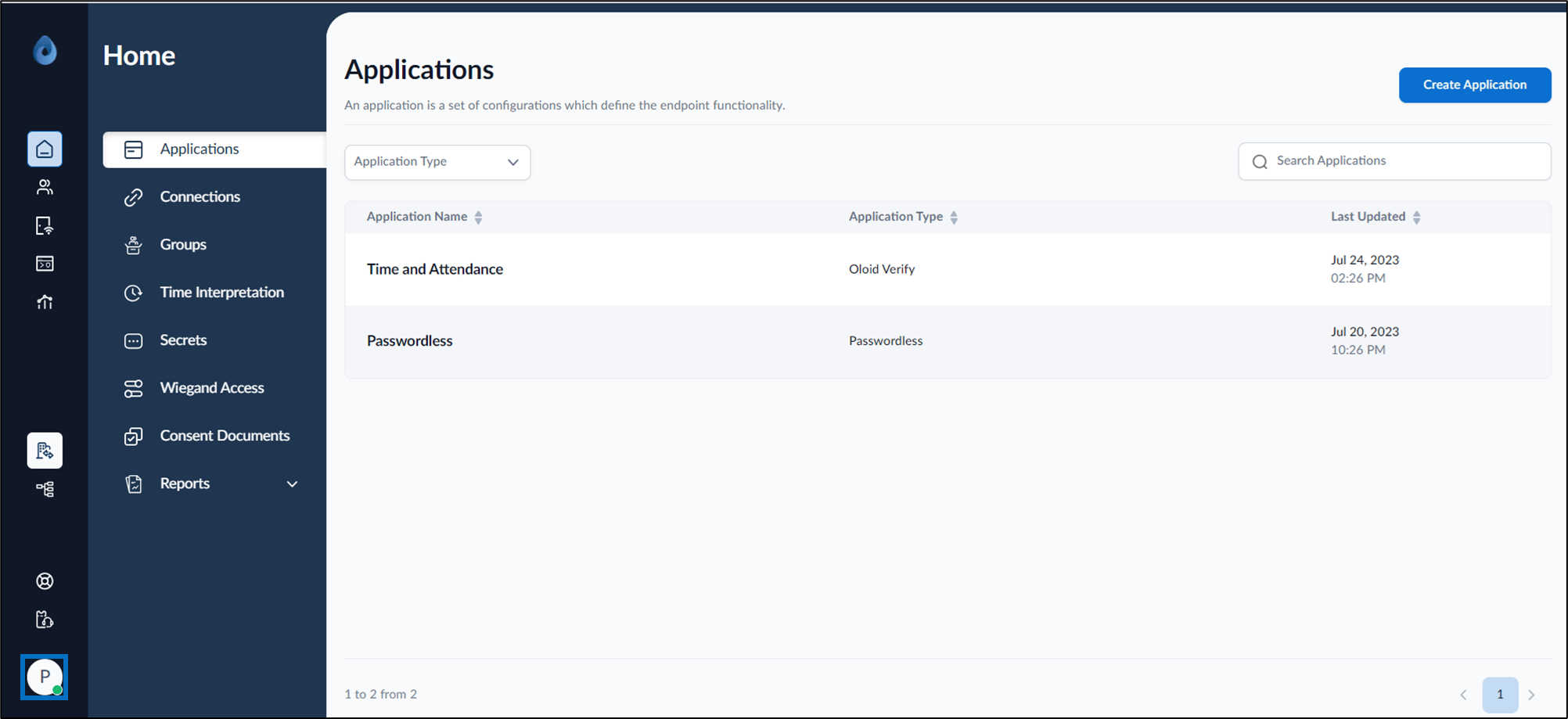
- On the homepage of the portal, click user profile icon on the bottom left corner of the menu panel.
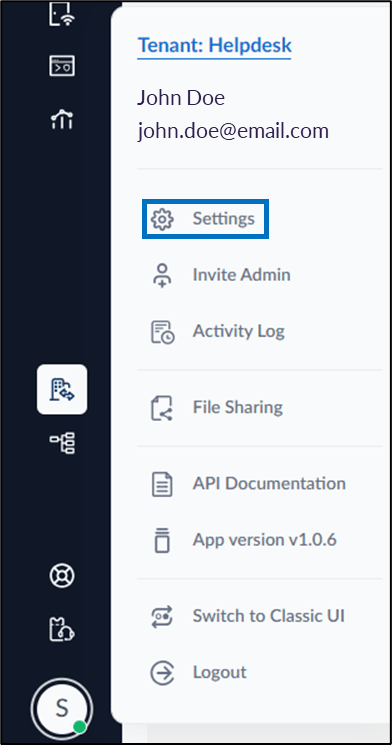
- Click Settings.
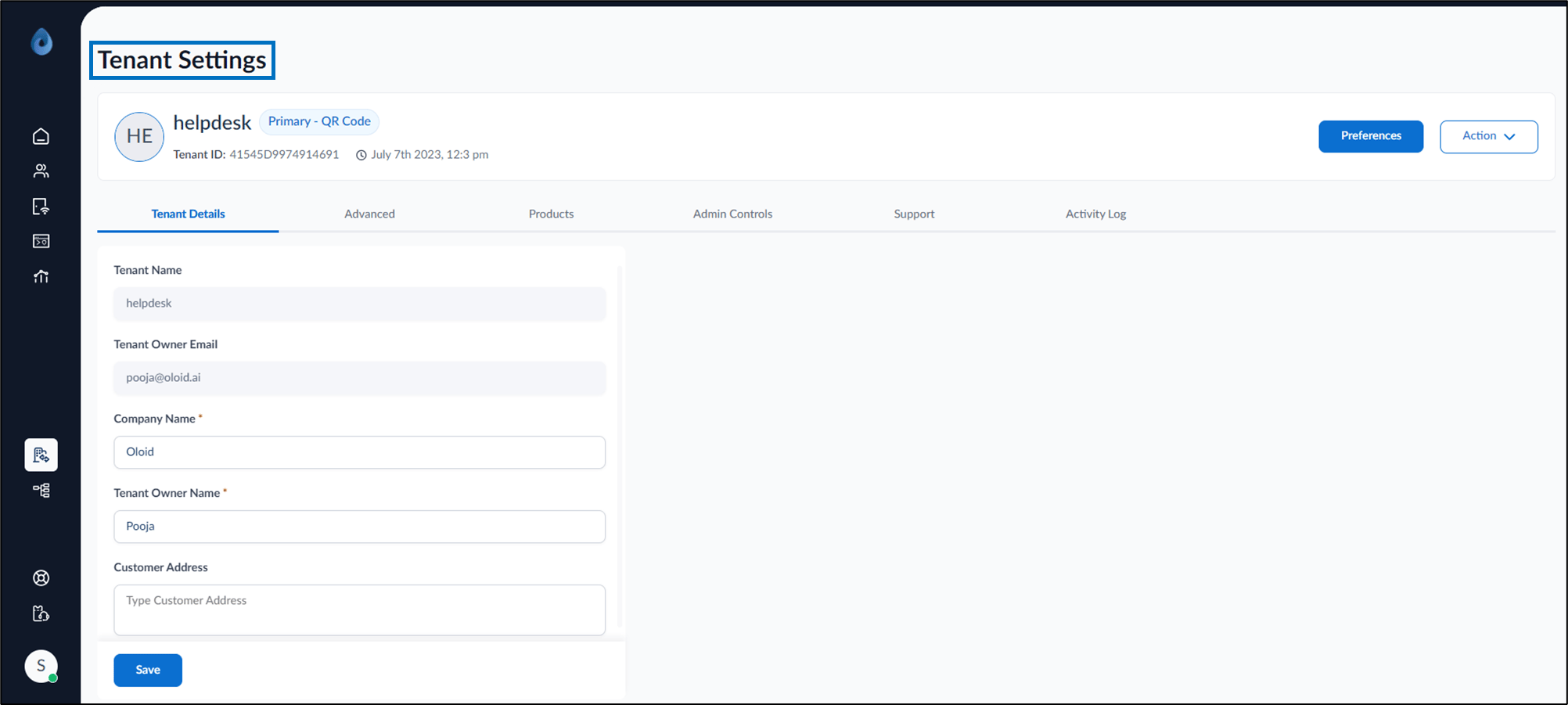
- Go to Advanced tab .
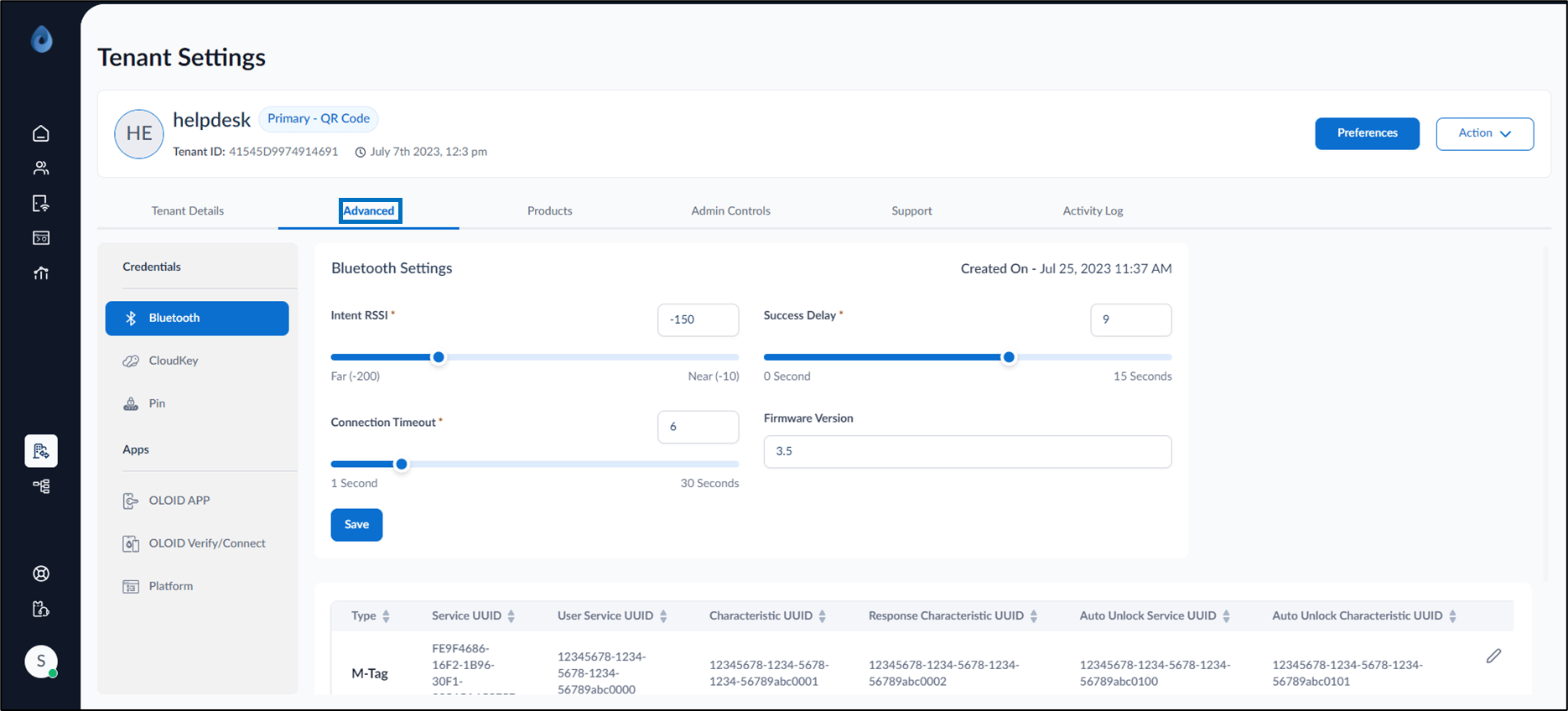
- Under Apps section, select OLOID Verify/Connect.
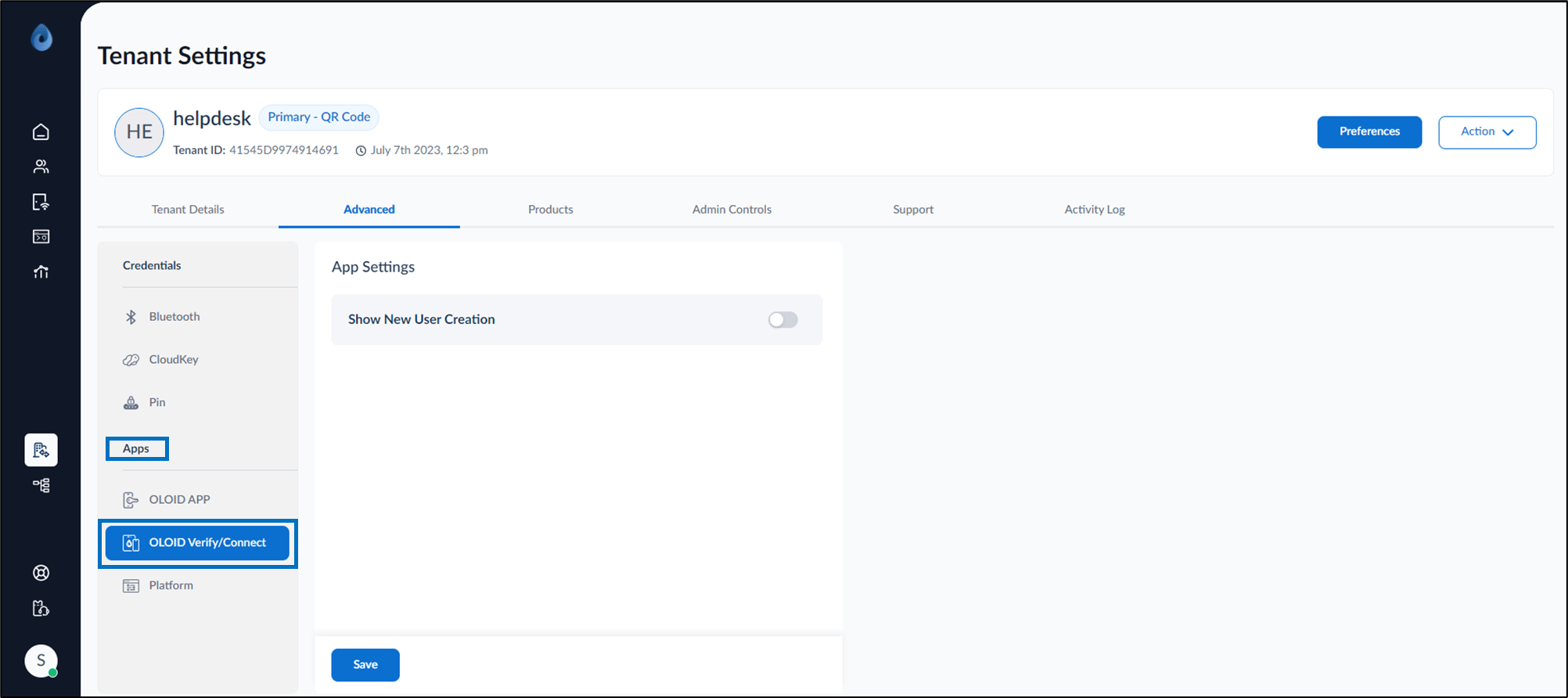
- Enable Show New User Creation to add user on the Verify/Connect app.
- Click Save. The setting is saved successfully.
How to enable new user creation button in Oloid Verify/Connect
You can enable new user creation button in Oloid Verify/Connect in the Oloid Portal.
You can enable new user creation button in Oloid Verify/Connect in the Oloid Portal.
To set up OLOID Verify/Connect:
⌘I